" height="18.016311920580208px" id="GKXyVanMq" stroke-dasharray="0" stroke-linecap="butt" stroke-linejoin="miter" stroke-miterlimit="10" stroke-width="0.5" stroke="rgb(0, 0, 0)" transform="translate(3 3)" width="18px"/></svg>)
"/><stop offset="1" stop-color="rgb(227, 224, 244)"/></linearGradient><linearGradient id="CBS1bzkxF-2031533640-linear-gradient" x1="0.49751243781094523" x2="0.5024875621890548" y1="0" y2="1"><stop offset="0" stop-color="rgb(255, 255, 255)"/><stop offset="1" stop-color="rgb(227, 224, 244)"/></linearGradient><linearGradient id="Jd7AK81w9-2031533640-linear-gradient" x1="0.49751243781094523" x2="0.5024875621890548" y1="0" y2="1"><stop offset="0" stop-color="rgb(255, 255, 255)"/><stop offset="1" stop-color="rgb(227, 224, 244)"/></linearGradient></defs><g d="M 0 16 L 0 0 L 16 0 L 16 16 Z M 9.167 5.167 C 9.167 4.891 8.943 4.667 8.667 4.667 C 8.391 4.667 8.167 4.891 8.167 5.167 C 8.167 6.784 7.809 7.834 7.155 8.488 C 6.501 9.143 5.451 9.5 3.833 9.5 C 3.557 9.5 3.333 9.724 3.333 10 C 3.333 10.276 3.557 10.5 3.833 10.5 C 5.451 10.5 6.501 10.857 7.155 11.512 C 7.809 12.166 8.167 13.216 8.167 14.833 C 8.167 15.109 8.391 15.333 8.667 15.333 C 8.943 15.333 9.167 15.109 9.167 14.833 C 9.167 13.216 9.524 12.166 10.178 11.512 C 10.832 10.857 11.883 10.5 13.5 10.5 C 13.776 10.5 14 10.276 14 10 C 14 9.724 13.776 9.5 13.5 9.5 C 11.883 9.5 10.832 9.143 10.178 8.488 C 9.524 7.834 9.167 6.784 9.167 5.167 Z M 4 3.667 C 4 3.483 3.851 3.333 3.667 3.333 C 3.483 3.333 3.333 3.483 3.333 3.667 C 3.333 4.32 3.189 4.715 2.952 4.952 C 2.715 5.189 2.32 5.333 1.667 5.333 C 1.483 5.333 1.333 5.483 1.333 5.667 C 1.333 5.851 1.483 6 1.667 6 C 2.32 6 2.715 6.145 2.952 6.382 C 3.189 6.618 3.333 7.013 3.333 7.667 C 3.333 7.851 3.483 8 3.667 8 C 3.851 8 4 7.851 4 7.667 C 4 7.013 4.145 6.618 4.382 6.382 C 4.618 6.145 5.013 6 5.667 6 C 5.851 6 6 5.851 6 5.667 C 6 5.483 5.851 5.333 5.667 5.333 C 5.013 5.333 4.618 5.189 4.382 4.952 C 4.145 4.715 4 4.32 4 3.667 Z M 7.333 1 C 7.333 0.816 7.184 0.667 7 0.667 C 6.816 0.667 6.667 0.816 6.667 1 C 6.667 1.422 6.573 1.65 6.445 1.778 C 6.317 1.906 6.089 2 5.667 2 C 5.483 2 5.333 2.149 5.333 2.333 C 5.333 2.517 5.483 2.667 5.667 2.667 C 6.089 2.667 6.317 2.761 6.445 2.889 C 6.573 3.016 6.667 3.244 6.667 3.667 C 6.667 3.851 6.816 4 7 4 C 7.184 4 7.333 3.851 7.333 3.667 C 7.333 3.244 7.427 3.016 7.555 2.889 C 7.683 2.761 7.911 2.667 8.333 2.667 C 8.517 2.667 8.667 2.517 8.667 2.333 C 8.667 2.149 8.517 2 8.333 2 C 7.911 2 7.683 1.906 7.555 1.778 C 7.427 1.65 7.333 1.422 7.333 1 Z" fill="transparent" height="16px" id="aoZYv33vR" width="16px"><path d="M 0 16 L 0 0 L 16 0 L 16 16 Z" fill="transparent" height="16px" id="Z2uGmhW9f" width="16px"/><g d="M 7.833 4.5 C 7.833 4.224 7.609 4 7.333 4 C 7.057 4 6.833 4.224 6.833 4.5 C 6.833 6.117 6.476 7.168 5.822 7.822 C 5.168 8.476 4.117 8.833 2.5 8.833 C 2.224 8.833 2 9.057 2 9.333 C 2 9.61 2.224 9.833 2.5 9.833 C 4.117 9.833 5.168 10.191 5.822 10.845 C 6.476 11.499 6.833 12.549 6.833 14.167 C 6.833 14.443 7.057 14.667 7.333 14.667 C 7.609 14.667 7.833 14.443 7.833 14.167 C 7.833 12.549 8.191 11.499 8.845 10.845 C 9.499 10.191 10.549 9.833 12.167 9.833 C 12.443 9.833 12.667 9.61 12.667 9.333 C 12.667 9.057 12.443 8.833 12.167 8.833 C 10.549 8.833 9.499 8.476 8.845 7.822 C 8.191 7.168 7.833 6.117 7.833 4.5 Z M 2.667 3 C 2.667 2.816 2.517 2.667 2.333 2.667 C 2.149 2.667 2 2.816 2 3 C 2 3.654 1.855 4.048 1.618 4.285 C 1.382 4.522 0.987 4.667 0.333 4.667 C 0.149 4.667 0 4.816 0 5 C 0 5.184 0.149 5.333 0.333 5.333 C 0.987 5.333 1.382 5.478 1.618 5.715 C 1.855 5.952 2 6.346 2 7 C 2 7.184 2.149 7.333 2.333 7.333 C 2.517 7.333 2.667 7.184 2.667 7 C 2.667 6.346 2.811 5.952 3.048 5.715 C 3.285 5.478 3.68 5.333 4.333 5.333 C 4.517 5.333 4.667 5.184 4.667 5 C 4.667 4.816 4.517 4.667 4.333 4.667 C 3.68 4.667 3.285 4.522 3.048 4.285 C 2.811 4.048 2.667 3.654 2.667 3 Z M 6 0.333 C 6 0.149 5.851 0 5.667 0 C 5.483 0 5.333 0.149 5.333 0.333 C 5.333 0.756 5.239 0.984 5.112 1.112 C 4.984 1.239 4.756 1.333 4.333 1.333 C 4.149 1.333 4 1.483 4 1.667 C 4 1.851 4.149 2 4.333 2 C 4.756 2 4.984 2.094 5.112 2.222 C 5.239 2.35 5.333 2.578 5.333 3 C 5.333 3.184 5.483 3.333 5.667 3.333 C 5.851 3.333 6 3.184 6 3 C 6 2.578 6.094 2.35 6.222 2.222 C 6.35 2.094 6.578 2 7 2 C 7.184 2 7.333 1.851 7.333 1.667 C 7.333 1.483 7.184 1.333 7 1.333 C 6.578 1.333 6.35 1.239 6.222 1.112 C 6.094 0.984 6 0.756 6 0.333 Z" fill="transparent" height="14.66671286102295px" id="ae6ccdFme" transform="translate(1.333 0.667)" width="12.66663px"><path d="M 5.833 0.5 C 5.833 0.224 5.609 0 5.333 0 C 5.057 0 4.833 0.224 4.833 0.5 C 4.833 2.117 4.476 3.168 3.822 3.822 C 3.168 4.476 2.117 4.833 0.5 4.833 C 0.224 4.833 0 5.057 0 5.333 C 0 5.61 0.224 5.833 0.5 5.833 C 2.117 5.833 3.168 6.191 3.822 6.845 C 4.476 7.499 4.833 8.549 4.833 10.167 C 4.833 10.443 5.057 10.667 5.333 10.667 C 5.609 10.667 5.833 10.443 5.833 10.167 C 5.833 8.549 6.191 7.499 6.845 6.845 C 7.499 6.191 8.549 5.833 10.167 5.833 C 10.443 5.833 10.667 5.61 10.667 5.333 C 10.667 5.057 10.443 4.833 10.167 4.833 C 8.549 4.833 7.499 4.476 6.845 3.822 C 6.191 3.168 5.833 2.117 5.833 0.5 Z" fill="url(%23t2lXByE48-2031533640-linear-gradient)" height="10.66671px" id="t2lXByE48" transform="translate(2 4)" width="10.66663px"/><path d="M 2.667 0.333 C 2.667 0.149 2.517 0 2.333 0 C 2.149 0 2 0.149 2 0.333 C 2 0.987 1.855 1.382 1.618 1.618 C 1.382 1.855 0.987 2 0.333 2 C 0.149 2 0 2.149 0 2.333 C 0 2.517 0.149 2.667 0.333 2.667 C 0.987 2.667 1.382 2.811 1.618 3.048 C 1.855 3.285 2 3.68 2 4.333 C 2 4.517 2.149 4.667 2.333 4.667 C 2.517 4.667 2.667 4.517 2.667 4.333 C 2.667 3.68 2.811 3.285 3.048 3.048 C 3.285 2.811 3.68 2.667 4.333 2.667 C 4.517 2.667 4.667 2.517 4.667 2.333 C 4.667 2.149 4.517 2 4.333 2 C 3.68 2 3.285 1.855 3.048 1.618 C 2.811 1.382 2.667 0.987 2.667 0.333 Z" fill="url(%23CBS1bzkxF-2031533640-linear-gradient)" height="4.66667px" id="CBS1bzkxF" transform="translate(0 2.667)" width="4.66667px"/><path d="M 2 0.333 C 2 0.149 1.851 0 1.667 0 C 1.483 0 1.333 0.149 1.333 0.333 C 1.333 0.756 1.239 0.984 1.112 1.112 C 0.984 1.239 0.756 1.333 0.333 1.333 C 0.149 1.333 0 1.483 0 1.667 C 0 1.851 0.149 2 0.333 2 C 0.756 2 0.984 2.094 1.112 2.222 C 1.239 2.35 1.333 2.578 1.333 3 C 1.333 3.184 1.483 3.333 1.667 3.333 C 1.851 3.333 2 3.184 2 3 C 2 2.578 2.094 2.35 2.222 2.222 C 2.35 2.094 2.578 2 3 2 C 3.184 2 3.333 1.851 3.333 1.667 C 3.333 1.483 3.184 1.333 3 1.333 C 2.578 1.333 2.35 1.239 2.222 1.112 C 2.094 0.984 2 0.756 2 0.333 Z" fill="url(%23Jd7AK81w9-2031533640-linear-gradient)" height="3.333333px" id="Jd7AK81w9" transform="translate(4 0)" width="3.3333399999999997px"/></g></g></svg>)
" height="24px" id="WCm44spAV" width="24px"/><path d="M 3.892 7.742 C 1.674 7.742 0 6.014 0 3.882 C 0 1.738 1.589 0 3.892 0 C 5.107 0 5.951 0.374 6.623 1.173 L 5.566 2.09 C 5.118 1.621 4.564 1.386 3.892 1.386 C 2.452 1.386 1.547 2.517 1.547 3.882 C 1.547 5.246 2.452 6.356 3.924 6.356 C 4.649 6.356 5.193 6.111 5.63 5.63 L 6.718 6.558 C 6.153 7.24 5.193 7.742 3.892 7.742 Z" fill="rgb(255, 255, 255)" height="7.741500000000002px" id="XEPpGD7l5" transform="translate(4 8.25)" width="6.717999999999989px"/><path d="M 2.74 7.922 C 1.215 7.922 0 6.632 0 5.032 C 0 3.433 1.215 2.122 2.74 2.122 C 3.7 2.122 4.201 2.516 4.5 3.113 L 4.5 2.239 L 5.928 2.239 L 5.928 7.784 L 4.531 7.784 L 4.531 6.877 C 4.233 7.507 3.731 7.922 2.74 7.922 Z M 1.439 5.023 C 1.439 5.865 2.057 6.622 2.975 6.622 C 3.924 6.622 4.531 5.897 4.531 5.033 C 4.531 4.169 3.924 3.423 2.975 3.423 C 2.057 3.423 1.439 4.159 1.439 5.022 Z M 6.784 7.784 L 6.784 0 L 8.224 0 L 8.224 7.784 L 6.784 7.784 Z" fill="rgb(255, 255, 255)" height="7.9224997406005855px" id="lGDJupIUR" transform="translate(10.5 8)" width="8.223500194549558px"/></g></svg>)
" width="18px"><path d="M 2 8 C 0.895 8 0 7.105 0 6 L 0 2 C 0 0.895 0.895 0 2 0 L 6 0 C 7.105 0 8 0.895 8 2 L 8 6 C 8 7.105 7.105 8 6 8 Z" fill="transparent" height="8px" id="ZrCrI93dV" stroke-dasharray="" stroke-linecap="round" stroke-linejoin="round" stroke-width="2" stroke="rgb(0, 0, 0)" width="8px"/><path d="M 0 0 L 0 4 C 0 5.105 0.895 6 2 6 L 6 6" fill="transparent" height="6px" id="emltWYAiE" stroke-dasharray="" stroke-linecap="round" stroke-linejoin="round" stroke-width="2" stroke="rgb(0, 0, 0)" transform="translate(4 8)" width="6px"/><path d="M 2 8 C 0.895 8 0 7.105 0 6 L 0 2 C 0 0.895 0.895 0 2 0 L 6 0 C 7.105 0 8 0.895 8 2 L 8 6 C 8 7.105 7.105 8 6 8 Z" fill="transparent" height="8px" id="WpBecYDfi" stroke-dasharray="" stroke-linecap="round" stroke-linejoin="round" stroke-width="2" stroke="rgb(0, 0, 0)" transform="translate(10 10)" width="8px"/></g></svg>)

8 Best Online Calendars in 2026 (Tested)
Most professionals run three or four tools just to manage a calendar. One for personal events, one for team coordination, one for client bookings, and another for reminders that half the team ignores. The result is double bookings, missed follow-ups, and hours lost every week reconciling schedules that should run themselves.

A good online calendar in 2026 does a lot more than store your appointments. The right tool can:
Book client appointments and send confirmations without a manual follow-up
Route team members to the right meeting based on availability, role, or location
Sync in both directions with your CRM, email, and video conferencing tools
Reduce no-shows with automated reminders sent by email and SMS
Show you exactly where your time actually goes
This guide covers Cal.com, Google Calendar, Calendly, Microsoft Outlook Calendar, Notion, Fantastical, Zoho Calendar, and Reclaim.ai, tools ranging from free personal calendars to AI-powered scheduling platforms. Of the eight, Cal.com gives you the strongest mix of scheduling automation, team routing, and transparent pricing for professionals and teams in 2026.
We reviewed each tool against real team scheduling needs and practical day-to-day use. Here's the full lineup, starting with what an online calendar even means in 2026.
What is an online calendar?
An online calendar is a digital tool that syncs across your devices and lets you manage appointments, meetings, and schedules from anywhere. But that one definition actually covers two different categories, and mixing them up is the most common mistake buyers make.
Personal calendar apps like Google Calendar, Apple Calendar, and Outlook manage your own schedule. They show you what's coming up and let you add events manually.
Scheduling platforms like Cal.com and Calendly let other people book time with you directly. They check your availability, prevent double bookings, and handle the back-and-forth for you.
Most professionals need both. Buying only a personal calendar when you actually need a booking page is how teams end up frustrated three months into a new tool.
Who needs an online calendar?
An online calendar becomes especially useful when scheduling involves multiple people, external bookings, or frequent changes to availability. The needs vary by role and business size:
Individual professionals who need clients or colleagues to book meetings without a single reply-all email chain
Small and mid-sized teams that need to coordinate availability across people and cut down scheduling overhead
Growing businesses that need both layers at once: a personal calendar for internal work, plus a booking and routing layer for anyone outside the company
Features to Look for in the Best Online Calendar
Before you commit to an online calendar app, run it against this list. These features separate a tool you’ll keep using from one you’ll abandon after two weeks.
Cross-device sync: Your calendar should work across your phone, laptop, and browser at the same time. A meeting you book from your phone at the airport should block that hour on your desktop instantly.
Two-way calendar sync: One-way sync reads your availability but never writes back. Two-way sync reflects every booking across all your connected calendars, and a meeting booked in one place shows up everywhere else instantly. For any team bigger than one person, this is non-negotiable.
Booking page and self-scheduling: A booking page turns your calendar into a scheduling tool. You can let clients or colleagues choose available times directly, cutting out the “what time works for you?” email thread.
Automated reminders and no-show reduction: Confirmation emails and SMS reminders measurably cut no-show rates. A 2025 customer survey found that three out of four businesses reduced no-shows after adding automated scheduling tools, which tells you this feature earns its keep fast.
Team and round-robin scheduling: Team scheduling can distribute bookings across your people based on availability or specialty. You can balance workloads and route each meeting to the right person.
CRM and tool integrations: Your online calendar should connect with the tools you already use. Look for two-way integrations with your CRM, such as Salesforce or HubSpot, video tools such as Zoom or Google Meet, and your email. Your bookings can then flow through your existing workflow automatically.
AI and automation features: In 2026, AI scheduling does more than remind you of a meeting. It can suggest the best time slot, block focus time on its own, reschedule a conflict without you touching the calendar, and qualify a lead before a meeting ever gets booked.
Transparent pricing and a genuinely useful free plan: Check exactly what you get before you sign up. A useful free plan should give you core calendar sync, practical booking limits, and basic automation without relying on a short trial period.
8 Best Online Calendars in 2026: Quick Comparison
Your best online calendar depends on how you schedule, who you schedule with, and which tools you already use. Use this quick comparison to narrow down the options before you look at each calendar in detail.
Tool | Best For | Pricing | Free Plan | Key Strength |
Cal.com | Teams needing scheduling automation, routing, and CRM integration | Free; Teams $12/user/mo (annual) or $16/user/mo (month-to-month); Organizations $28/user/mo (annual) or $37/user/mo (month-to-month) | Yes, unlimited bookings | Routing forms, bidirectional CRM sync, API-first platform |
Google Calendar | Individuals and teams in the Google ecosystem | Free for personal use; Business Starter $7/user/month (annual) or $8.40/user/month (month-to-month), up to Business Plus $22/user/month (annual) | Yes | Deep Google Workspace integration |
Calendly | Individuals and small teams needing a fast booking page | Free: $0/month; Standard: $10/user/month (annual) or $12/user/month, month-to-month; Teams: $16/user/month (annual) or $20/user/month, month-to-month; Enterprise: Custom pricing, starting around $15,000/year. | Yes, limited to one event type | Fast setup, clean booking page |
Microsoft Outlook Calendar | Enterprise teams in the Microsoft 365 ecosystem | Free (basic); Business Basic $7/user/month (annual) or $8.40/user/month (month-to-month), up to Business Premium $32/user/month (annual) | Yes, basic email and calendar | Native Exchange, Teams, and Office integration |
Notion | Teams that want calendar, notes, and tasks in one place | Free: $0/month; Plus: $10/user/month (annual) or $12/user/month, month-to-month; Business: $20/user/month (annual) or $24/user/month, month-to-month; Enterprise: Custom pricing | Yes | All-in-one workspace with a calendar view |
Fantastical | Power users who want a premium personal calendar with AI | Free: $0/month; Individual: $4.75/month (annual) or $6.99/month, month-to-month; Family: $7.50/month (annual) or $10.49/month, month-to-month; Team: $4.75/user/month (annual) or $6.99/user/month, month-to-month; | Limited | Natural language input, Smart Meeting Times AI |
Zoho Calendar | Small businesses already in the Zoho ecosystem | Free | Yes | Bundled into the full Zoho productivity suite |
Reclaim.ai | Professionals who want AI to auto-schedule tasks and protect focus time | Lite: $0/month; Starter: $10/user/month (annual) or $12/user/month, month-to-month; Business: $15/user/month (annual) or $18/user/month, month-to-month; Enterprise: $22/user/month (annual) | Yes | AI-powered task scheduling and time blocking |
All pricing above reflects each tool's live pricing page as of this writing. Now let's get into what makes each one worth (or not worth) your time.
The 8 Best Online Calendars in 2026
We ranked these tools based on real scheduling workflows, so you can pick a calendar that fits how you actually run meetings.
1. Cal.com: Best online calendar overall for scheduling automation and team routing
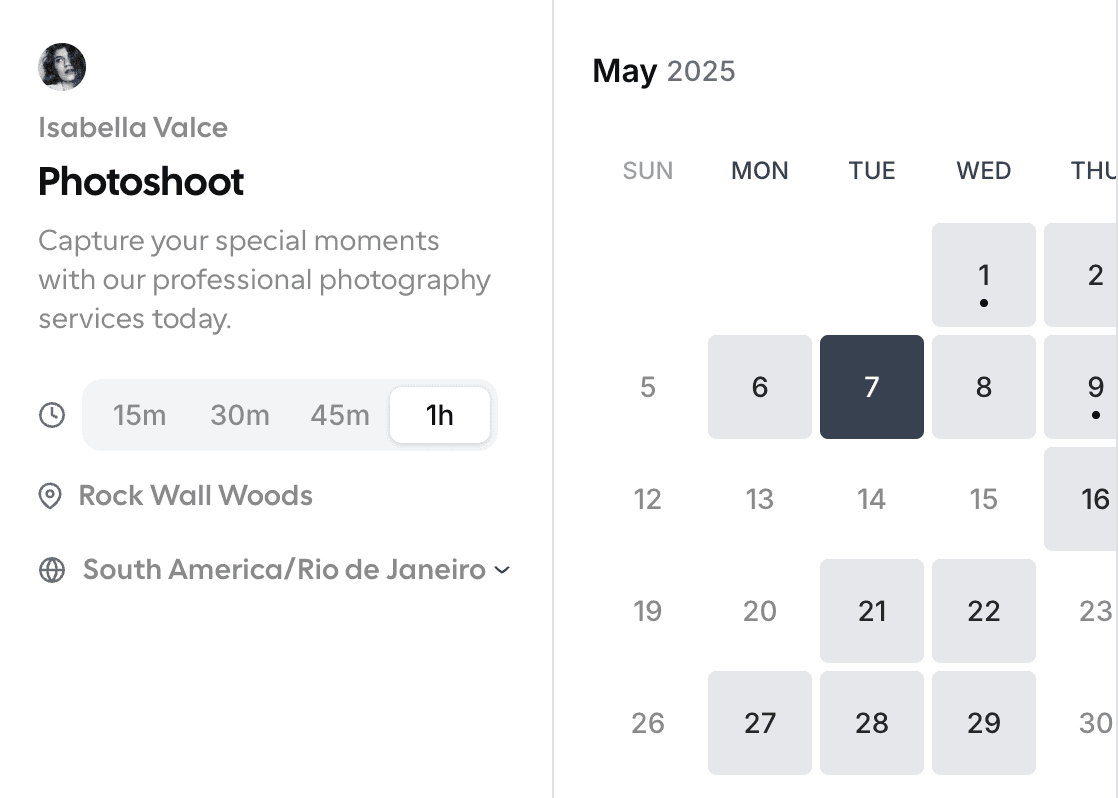
What it is: Cal.com is an API-first scheduling platform that works as both your personal calendar and your team’s booking and routing system. It started as an open-source alternative to Calendly, and the company moved its core commercial platform to closed source in April 2026 to reduce AI-driven security risks. Cal.com still maintains a lightweight open-source edition for hobbyists and supports self-hosted deployment for enterprise teams with strict data requirements.
What sets Cal.com apart from a basic calendar app is its scheduling automation. You can let clients, candidates, or colleagues book time with you, route each booking to the right team member, and sync the activity with your CRM. The platform supports video meetings through Cal Video, Zoom, Google Meet, and Microsoft Teams. If you already use Google Calendar or Outlook, Cal.com connects with your existing calendars and adds booking and routing capabilities around your schedule.
Why it ranks #1: Elas Projetam had 50 mentors and 100 startups in its program and no scheduling system at all before Cal.com. After switching, round-robin distribution across all 50 mentors and automated SMS and email reminders ran without a single person coordinating it by hand. Sessionary faced a different challenge with 150 reps across 40-plus clients, each requiring its own round-robin logic.
Cal.com's Organizations plan and active-user billing model meant Sessionary only paid for reps who actually made a booking that month, which made the per-seat math work at their scale. Neither of these problems gets solved by a personal calendar app, no matter how good its interface looks.
Standout features
Booking pages and self-scheduling: Every Cal.com account gets a shareable booking page where clients, colleagues, or candidates can grab time on your calendar directly. The page reflects your real availability, blocks double bookings automatically, and fires off a confirmation the second someone picks a slot. Embed it on your site or just send the link.
Round-robin and team scheduling: Cal.com spreads bookings across your team using round-robin logic or custom routing rules you set yourself, based on availability, language, location, or specialty. This is what let Elas Projetam automate distribution across 50 mentors without anyone manually assigning a single meeting.
Routing forms: Cal.com's routing forms collect information from whoever's booking, things like company size, use case, or urgency, then route them to the right person or disqualify them before a meeting even lands on the calendar. This is the feature that separates Cal.com from a calendar that just shows availability.
Automated reminders and workflows: Confirmations, reminders, and follow-ups go out automatically by email and SMS, even on the free plan. You control the timing and the message, which cuts no-shows without anyone on your team lifting a finger.
Bidirectional CRM and tool integrations: Cal.com connects to Salesforce, HubSpot, Google Calendar, Outlook, Zoom, Stripe, and 100-plus other tools through its app store and API. Every booking writes back to your CRM the moment it happens, with zero manual data entry.
API-first architecture: With more than 100 API endpoints and no plan restrictions on access, developers can build custom scheduling flows on top of Cal.com without fighting the platform.
HIPAA support: The Organizations plan includes a signed Business Associate Agreement (BAA) at no extra cost, no add-on fees the way competitors like Calendly charge. Smaller teams that need a BAA on a lower-tier plan can add one for a flat $300 fee.
Pros
Routing forms and round-robin logic handle problems a personal calendar app simply can't touch.
Free plan with unlimited bookings and two-way calendar sync, not a trial countdown.
Salesforce and HubSpot sync included from Teams up, not gated behind Organizations or Enterprise the way some competitors gate CRM sync.
Active-user billing on the Organizations plan, so you pay for reps who actually book, not empty seats.
Booking and routing feature set that covers everything from a solo consultant's booking page to enterprise-level attribute routing.
Cons
The move to closed source in 2026 means technical teams lose the full source-code transparency Cal.com built its early reputation on, even with the Cal.diy community edition still available.
Advanced routing and attribute-based logic take some setup time before they run cleanly.
Pricing:
Individual: Free forever. Unlimited bookings, routing forms, two-way calendar sync, and automated reminders included.
Teams: $12/user/month (billed annually) or $16/user/month (month-to-month). Adds round-robin routing, collective events, and team workflows.
Organizations: $28/user/month (billed annually) or $37/user/month (month-to-month). Adds attribute-based routing, SAML SSO, SCIM provisioning, and HIPAA compliance with a signed BAA included at no extra cost. A BAA is also available as a flat $300 add-on outside Organizations.
Enterprise: Custom pricing
Best for: Cal.com is best for professionals and teams who need more than a calendar. If you need to automate how people book time with you, route those bookings to the right person, and connect scheduling to the rest of your stack without paying enterprise prices for the privilege, this is the online calendar app built for that job.
2. Google Calendar: Best free online calendar for individuals in the Google ecosystem
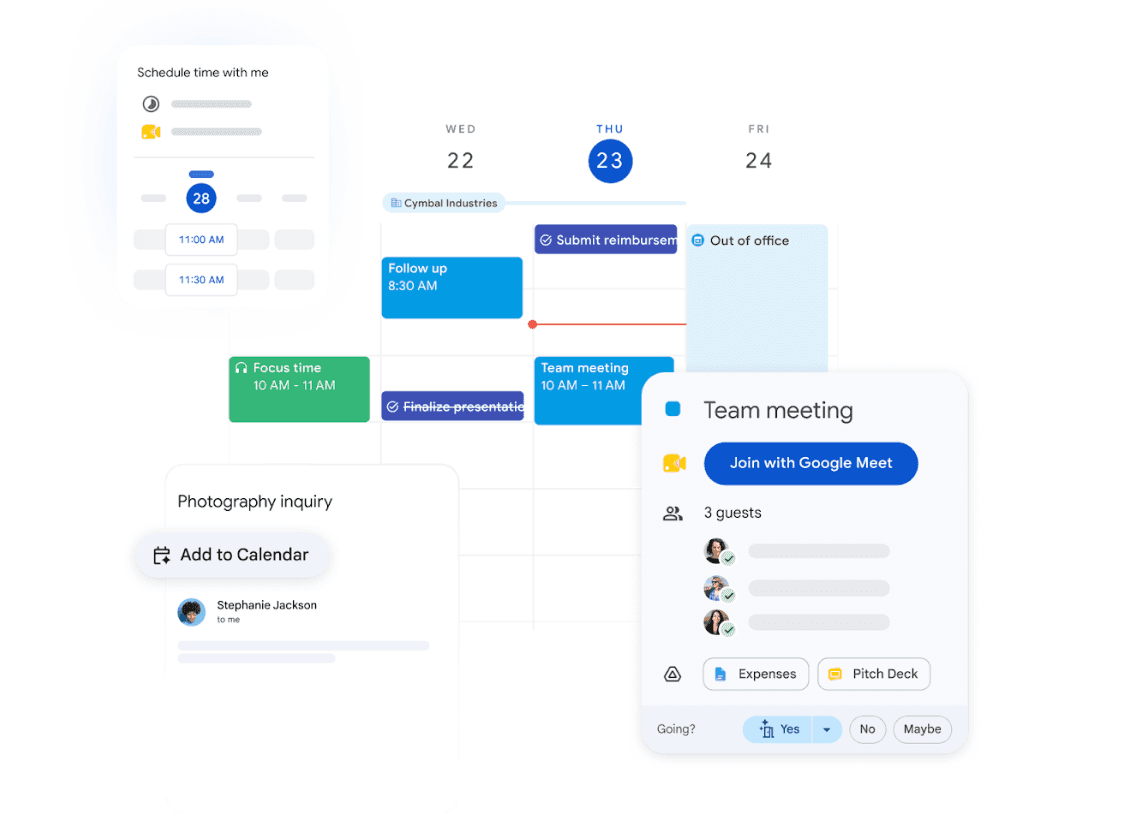
What it is: If your team already works in Gmail, Google Meet, Drive, and Docs, Google Calendar gives you a familiar scheduling system with those connections built in. You can manage appointments, reminders, shared calendars, tasks, and events from one place. Its “Find a time” feature checks guest availability when you schedule an event and helps you identify suitable meeting times quickly. Google
Calendar also includes built-in appointment booking, giving you a shareable booking page where clients, customers, or partners can choose an available time directly.
Supported plans add features such as multiple booking pages, Stripe payments, and automatic email reminders.
Standout features
Google Workspace integration: You can schedule from Gmail, add Google Meet to events, pull contacts into invitations, and connect tasks with your calendar.
Shareable calendars: You can share calendars with specific people and control their access permissions. Shared calendars help your team coordinate availability across schedules.
“Find a time”: When you add multiple guests to an event, Google Calendar checks their availability and helps you identify open meeting times.
Pros
Free for personal use with no limit on standard calendar events.
Built deeply into Gmail, Google Meet, Tasks, and other Google Workspace apps.
Built-in appointment booking gives you a shareable scheduling page.
Cons
Browser-based workflows can lead to tab clutter across Gmail, Calendar, Docs, and Sheets.
Compatibility issues can appear when you move files between Google Workspace and Microsoft Office.
Advanced Workspace features can require higher-priced plans.
Pricing:
Free: $0/month for personal use.
Business Starter: $7/user/month, billed annually, or $8.40/user/month, month-to-month.
Business Standard: $14/user/month, billed annually, or $16.80/user/month, month-to-month.
Business Plus: $22/user/month, billed annually, or $26.40/user/month, month-to-month.
Best for: Individuals and teams that already use Google Workspace and want an online calendar with appointment booking, shared scheduling, Google Meet, Gmail, and task integration.
3. Calendly: Best online calendar app for individuals who need a quick booking page
What it is: As an alternative to Cal.com, Calendly enables you to share a booking page where people can choose a time based on your availability. It focuses on making scheduling quick and accessible, with features for individuals, small businesses, and larger teams.
You can connect your calendars, create multiple meeting types, embed your booking page on your website, and manage scheduling from your browser or mobile device. Calendly also supports Round Robin, Collective scheduling, Routing Forms, workflows, payment collection, and more than 100 integrations.
Standout features
Fast booking page setup: You can create a shareable scheduling link, set your availability, choose a meeting location, and send the link to clients or colleagues.
Team scheduling: Round Robin distributes meetings across your team, while Collective scheduling lets multiple hosts join the same meeting. Routing Forms can direct people to specific team members based on their responses.
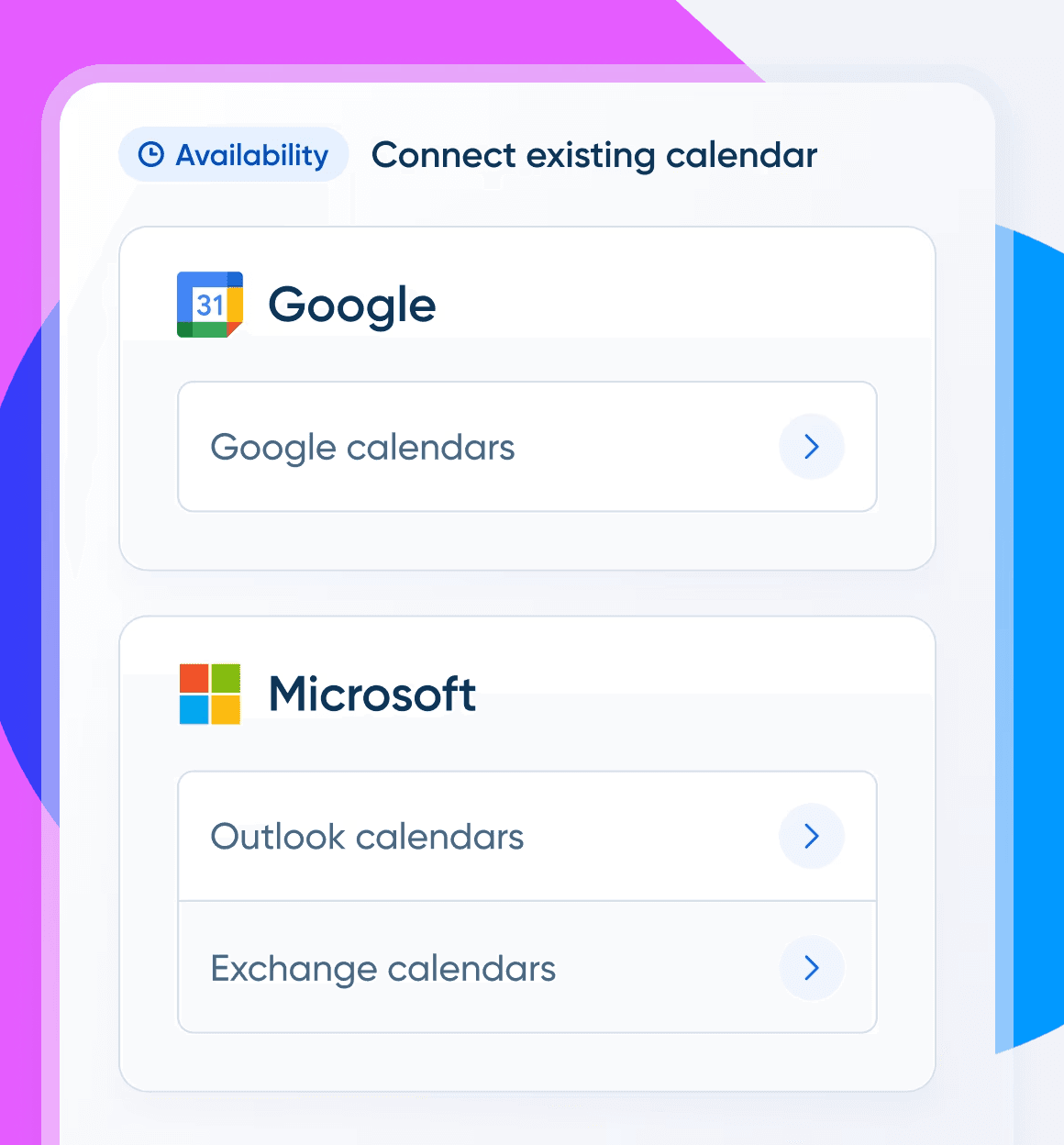
Calendar integrations: Calendly connects with Google Calendar, Outlook, and other calendars to check availability and help prevent double bookings.
Pros
The free plan includes one event type and one connected calendar.
More than 100 integrations extend Calendly across your existing workflow.
Advanced team scheduling supports Round Robin, Collective scheduling, and Routing Forms.
Cons
Calendar availability can sometimes take time to update correctly.
Advanced routing and availability settings can take some trial and error to configure.
The free plan limits you to one event type and one connected calendar.
Pricing:
Free: $0/month. One event type and one connected calendar.
Standard: $10/user/month, billed annually, or $12/user/month, month-to-month. Adds unlimited event types and automated reminders.
Teams: $16/user/month, billed annually, or $20/user/month, month-to-month. Adds round-robin scheduling and Salesforce integration.
Enterprise: Custom pricing, starting around $15,000/year. Adds SSO and advanced admin reporting.
Best for: Individuals and small teams who want the fastest possible booking page setup and don't need deep team routing or CRM automation yet.
4. Microsoft Outlook Calendar: Best online calendar for enterprise teams on Microsoft 365
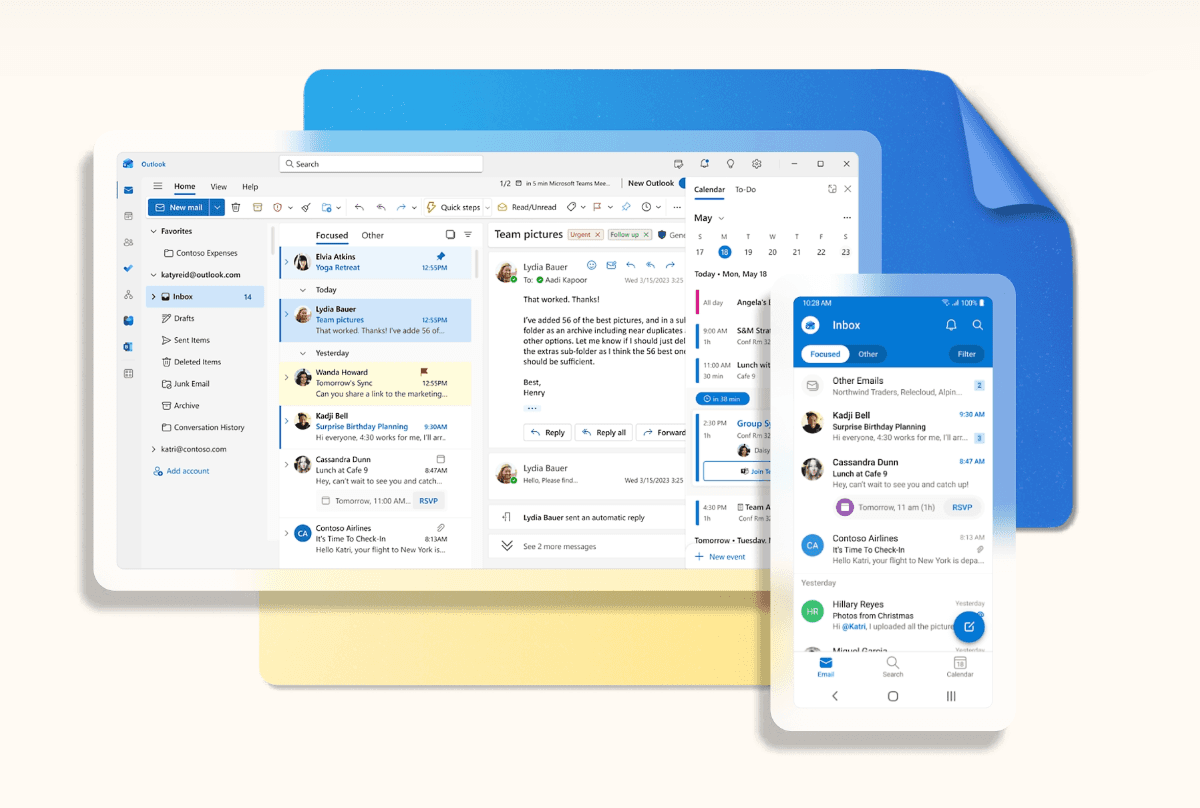
What it is: Most enterprise IT teams don't pick Microsoft Outlook Calendar on its own merits; it comes bundled with Microsoft 365, and that's exactly why it works. The platform has deep connections to Exchange and Teams built in from day one. With it, you can create appointments, schedule meetings, check attendee availability, share calendars, and manage multiple calendars from one place.
Outlook also supports room and workspace booking, which makes it useful for organizations managing shared spaces and resources. For external scheduling, Microsoft offers Bookings with Outlook integration (via Business Basic, Business Standard, and Business Premium). Bookings provides a web-based booking page where customers can choose available appointment times, while staff availability connects with Outlook calendars.
Standout features
Exchange and Teams integration: Outlook connects with Exchange and Microsoft Teams across Microsoft 365.
Scheduling Assistant: You can check attendee availability and view suggested meeting times when scheduling meetings.
Calendar sharing: You can share calendars with different permission levels, including availability-only access and full detail access.
Pros
Strong fit for organizations already using Microsoft 365.
Scheduling Assistant makes multi-person meeting coordination easier.
Detailed calendar permissions support organizational control.
Cons
New Outlook notifications can take several seconds to open the related email.
Advanced business features require a paid Microsoft 365 plan.
The broader Outlook experience can feel heavier when you manage multiple Microsoft 365 apps and accounts.
Pricing:
Free: $0/month. Outlook email and calendar on web, desktop, and mobile, with a 15GB mailbox, 5GB of cloud storage, and core security features like spam filters.
Microsoft 365 Basic: $1.67/user/month, billed annually ($19.99/year), or $1.99/user/month, month-to-month. Ad-free Outlook with a 100GB mailbox and 100GB of cloud storage.
Microsoft 365 Personal: $8.33/user/month, billed annually ($99.99/year), or $9.99/user/month, month-to-month. Adds 1TB of cloud storage, Copilot in Outlook and the Office apps, and Microsoft Defender security.
Microsoft 365 Family: $10.83/user/month, billed annually ($129.99/year, up to 6 people), or $12.99/user/month, month-to-month. Same Copilot and security benefits as Personal, shared across the household with up to 6TB of total cloud storage.
Business Basic: $7/user/month, billed annually, or $8.40/user/month, month-to-month. Custom business email, 1TB of cloud storage per user, and Microsoft Teams included.
Business Standard with Copilot: $23.50/user/month, billed annually, or $28.20/user/month, month-to-month. Adds desktop apps for Word, Excel, and PowerPoint, plus Copilot built into Word, Excel, PowerPoint, and Teams.
Business Premium with Copilot: $32/user/month, billed annually, or $38.40/user/month, month-to-month. Adds advanced device management, phishing and threat protection, and information protection.
Best for: Enterprise organizations already running Microsoft 365 that need calendar and resource management inside the Microsoft ecosystem.
5. Notion: Best online calendar app for teams who want notes, tasks, and calendar in one place
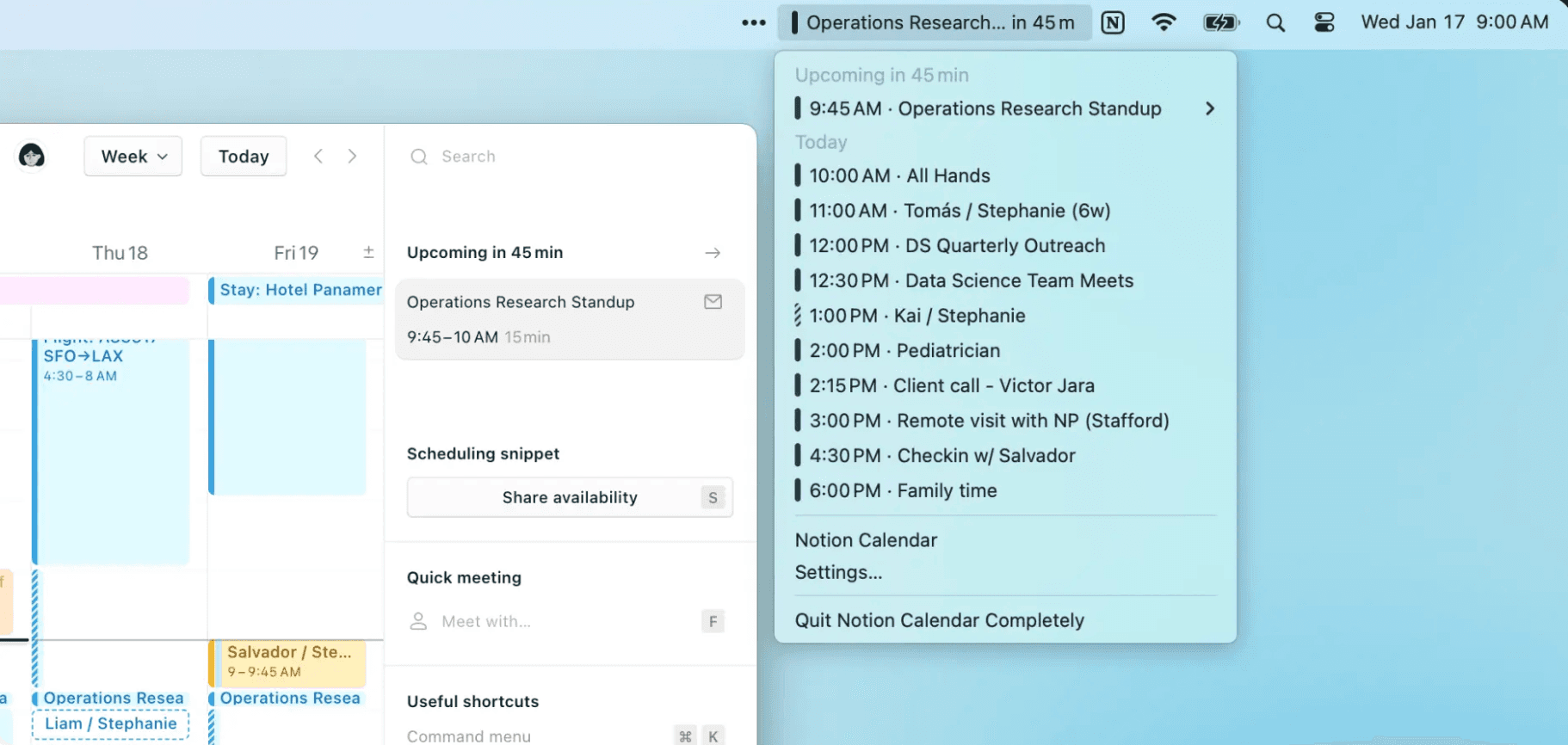
What it is: Notion brings your meetings, project timelines, deadlines, and Notion work into one place. It connects directly with your Notion workspace, letting you see important dates alongside your calendar events and update Notion database items from your calendar.
The standalone Notion Calendar app also connects with Google Calendar and other calendars, supports multiple time zones, and lets you send a scheduling link for others to book time with you. You can also connect Google Meet, Zoom, Apple Calendar, and other conferencing services.
Standout features
Built-in scheduling: Send your availability and scheduling link so others can book time with you directly through Notion Calendar.
Notion workspace integration: See project deadlines and timelines alongside your meetings, open Notion docs from your calendar, and update database items with drag-and-drop.
Multiple calendar connections: Connect work and personal calendars to see your commitments together and automatically block busy slots across calendars.
Pros
Free Notion Calendar supports multiple calendar connections.
View schedules across time zones, which helps when you work with distributed teams.
Useful for teams that already manage projects and documentation in Notion.
Cons
Notion can feel overwhelming when you first set up databases and advanced features.
Integrations and automation can feel limited for teams with more complex workflows.
Teams with highly customized scheduling needs may need more specialized scheduling controls.
Pricing:
Free: $0/month. Includes a trial of Notion AI, basic forms, basic sites, Notion Calendar, and databases with subtasks, dependencies, and custom properties.
Plus: $10/user/month, billed annually, or $12/user/month, month-to-month. Adds unlimited collaborative blocks, unlimited file uploads, custom forms and sites, unlimited charts, and basic connections.
Business: $20/user/month, billed annually, or $24/user/month, month-to-month. Adds Notion Agent, AI Meeting Notes, Enterprise Search, SAML SSO, private teamspaces, and granular database permissions.
Enterprise: Custom pricing. Adds SCIM, advanced security controls, audit logs, a customer success manager, domain management, and security and compliance integrations.
Best for: Teams that already use Notion for projects, documentation, and tasks and want meetings, deadlines, and scheduling connected to that workspace.
6. Fantastical: Best calendar app for power users who want a premium personal experience
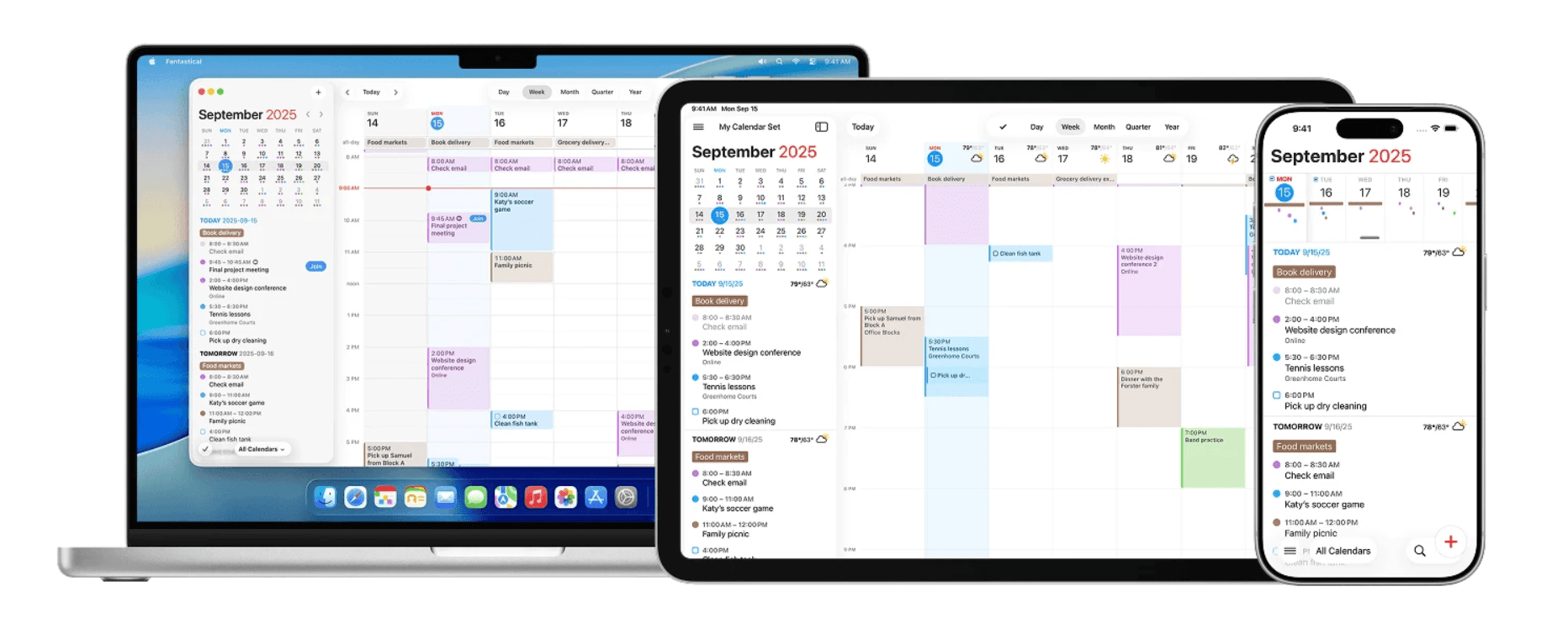
What it is: Fantastical is a premium calendar app for Mac, Windows, iPhone, iPad, Apple Watch, and Apple Vision Pro. It brings calendars from Google, Microsoft 365, Exchange, iCloud, and other services into one organized view. Natural language event creation lets you type something like “Lunch with Sarah at 1 pm tomorrow” and have Fantastical create the event with the relevant details.
You can also manage tasks alongside events, create templates for frequent events, and use multiple calendar views across day, week, month, quarter, and year. Fantastical also includes built-in scheduling through Openings, which lets you share your availability through a link and have others book time with you.
Standout features
Natural language input: Type an event in plain language and Fantastical extracts the relevant details automatically.
Proposals: See invitees’ availability and suggest multiple dates and times to find a slot that works for everyone.
Multi-calendar aggregation: View calendars from Google, Microsoft 365, Exchange, iCloud, and other supported services together in one place.
Pros
Combines multiple calendars, tasks, meetings, and scheduling in one app.
Supports Windows alongside Apple's major platforms.
Openings provides built-in scheduling through shareable booking links.
Cons
Some users report synchronization issues between iPad task updates and Apple Watch.
The subscription price has increased significantly for some users.
The full feature set requires a paid Flexibits Premium subscription.
Pricing:
Free: $0/month. Includes Fantastical & Cardhop, a simple calendar, and support for your existing calendars.
Individual: $4.75/month, billed annually, or $6.99/month, month-to-month. Adds all Premium features, Fantastical Scheduling, Priority Support, and a 14-day free trial.
Family: $7.50/month, billed annually, or $10.49/month, month-to-month. Adds reduced family pricing, support for up to 5 members, and a 14-day free trial.
Team: $4.75/user/month, billed annually, or $6.99/user/month, month-to-month. Adds Single Sign-On support, openings with multiple hosts, and a 14-day free trial.
Best for: Apple power users who want the best possible personal calendar experience and are happy to pay for it, not teams that need booking or scheduling automation.
7. Zoho Calendar: Best free online calendar for small businesses in the Zoho ecosystem
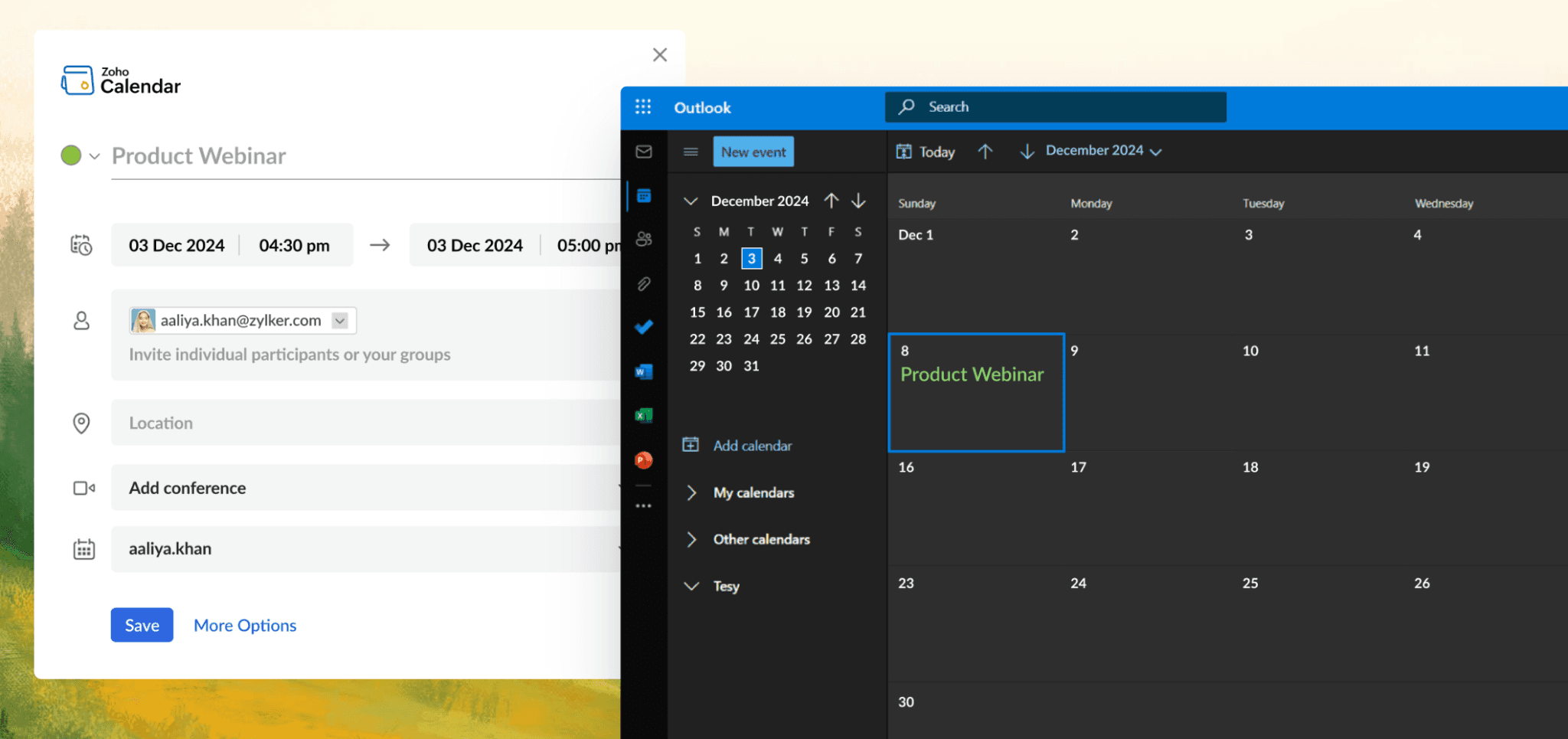
What it is: Zoho Calendar comes bundled free into the Zoho productivity suite, built for small and mid-sized businesses like yours that already run on Zoho Mail, Zoho CRM, or Zoho Projects and want one calendar tied to all of it. It works across Windows, Mac, Android, and iOS and can sync with Google, Outlook, Apple, Calendly, and Thunderbird.
You can also view availability across different calendar platforms, which helps you coordinate schedules when your team uses different calendar systems. If you already use Zoho, you can connect your calendar with other Zoho applications and manage your organization's calendars from one place.
Standout features
Zoho Suite integration: Connects natively with Zoho Mail and Zoho CRM. Emails convert into events, and CRM activity appears right on the calendar.
Resource booking: Manage meeting rooms and other shared resources alongside your regular calendar events.
Cross-platform calendar sync: Sync your calendar with Google, Outlook, Apple, Calendly, Thunderbird, and other calendar systems.
Pros
Completely free with no feature caps for basic use.
Supports appointment scheduling, team calendars, conferencing, and resource booking.
Includes admin controls and calendar interoperability for organizations.
Cons
Some settings and options can take time to find, especially for new users.
More smart suggestions and automation would improve the experience.
Involves a slight learning curve for beginners, given the platform's broader set of features.
Pricing:
Free. Advanced features come bundled through Zoho Workplace, starting around $3/user/month (month-to-month), or the full Zoho One suite at $37/user/month (month-to-month).
Best for: Small and mid-sized businesses already using or considering the Zoho suite who want a free, integrated calendar without adding another cost.
8. Reclaim.ai: Best online calendar for professionals who want AI to manage their time automatically
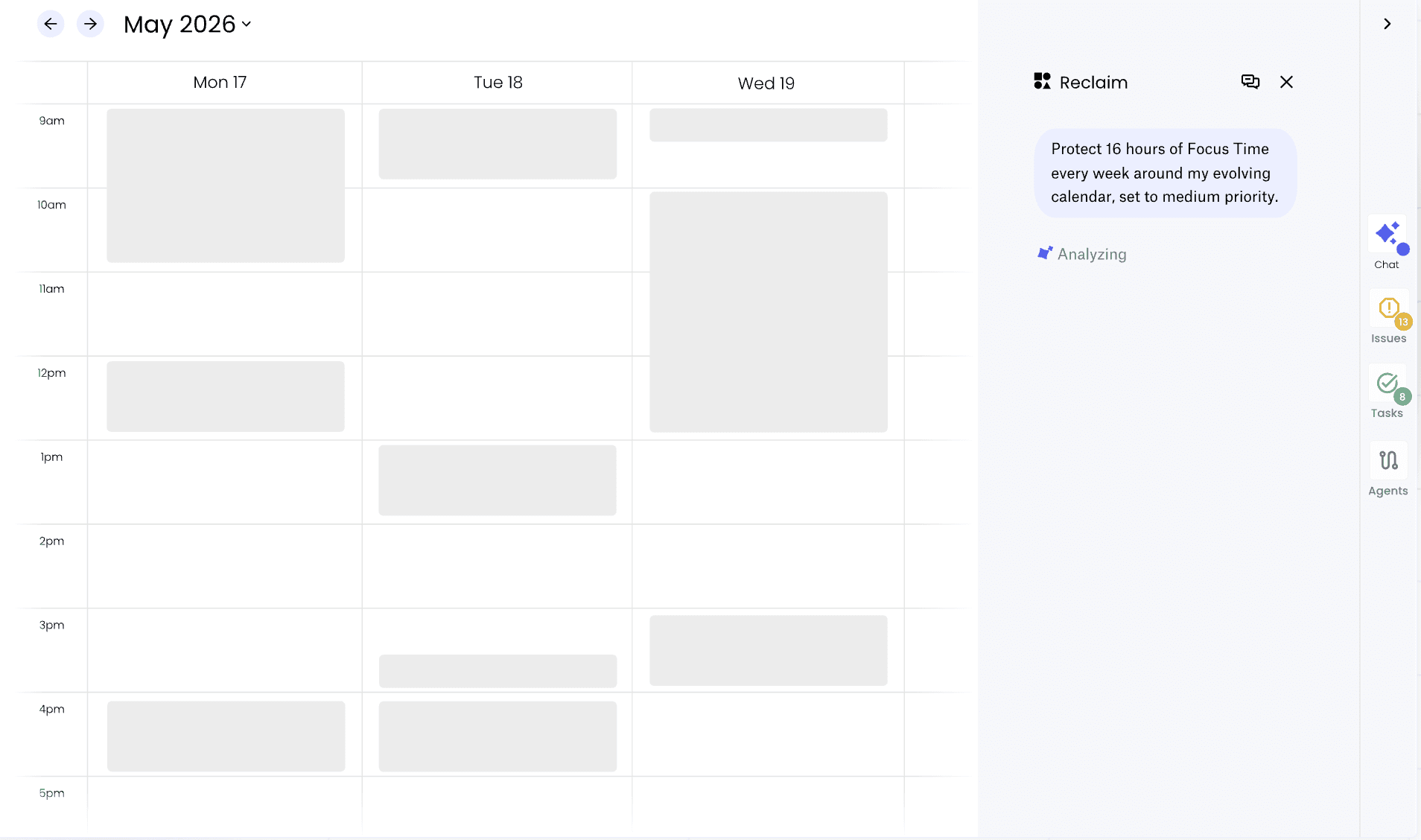
What it is: Reclaim.ai is an AI-powered calendar that automatically manages your work around your existing schedule. Instead of simply showing you what's already booked, Reclaim can schedule your tasks, protect your focus time, add buffer time, and adjust your calendar as your priorities change. You can connect your existing calendars, sync your task lists, and use AI to find meeting times and resolve scheduling conflicts.
Reclaim also gives you AI Scheduling Links, so you can share your availability and let other people book time with you without manually coordinating schedules.
Standout features
AI task scheduling: Reclaim automatically schedules your tasks on your calendar based on their priority and adjusts them as your schedule changes.
AI Focus Time: You can set a weekly focus-time goal and let Reclaim automatically protect uninterrupted time for deep work.
AI Scheduling Links: You can share your availability through a scheduling link and let others book time with you.
Pros
Actively manages your schedule instead of simply displaying your appointments.
Automatically adjusts tasks, focus time, meetings, and buffer time as your priorities change.
Supports Google Calendar and Outlook, along with integrations for task lists, meeting tools, and other work apps.
Cons
Some advanced features and higher usage limits are restricted to more expensive plans.
Booking and scheduling features can be limited depending on your plan and may not always work as expected.
Missed tasks and deadlines may not always generate strong enough alerts, so you may still need to monitor important tasks yourself.
Pricing:
Lite: $0/month. Includes 5 AI Agents, Focus Time, Habits, Buffer Time, Smart Meetings, Meeting Quality, 1 calendar sync, 1 scheduling link, and limited integrations.
Starter: $10/user/month, billed annually, or $12/user/month, month-to-month. Includes 10 AI Agents per seat, 3 calendar syncs, 3 scheduling links, and unlimited integrations.
Business: $15/user/month, billed annually, or $18/user/month, month-to-month. Includes 100 AI Agents per seat, unlimited calendar syncs and scheduling links, unlimited integrations, Team OOO Calendar, and Delegated Access.
Enterprise: $22/user/month, billed annually. Adds unlimited AI Agents per seat, SSO and SCIM user provisioning, and org-chart-aware scheduling intelligence.
Best for: Individual professionals and teams on Google Calendar who want AI to protect focus time and schedule tasks automatically, not those who need external booking or client self-scheduling.
How to Find the Right Online Calendar for Your Needs
Every tool on this list does something well. The trick is matching it to how you actually work, not just picking whatever ranks highest.
You're an individual professional who needs clients to book time directly, no email back-and-forth. Go with Cal.com or Calendly. Cal.com is the better fit once you need routing or CRM integration, and Calendly wins on the fastest possible setup.
You run a small business or startup team that needs affordable scheduling automation. Cal.com's free plan or Zoho Calendar both work well here. Cal.com gives you booking pages and team routing, while Zoho keeps your calendar tied to the rest of your Zoho tools.
You're on an enterprise team running Microsoft 365. Pair Microsoft Outlook Calendar for internal scheduling with Cal.com for external, client-facing booking pages and Salesforce sync. Outlook handles the inside of your organization, and Cal.com handles everyone outside it.
You want the best possible personal calendar experience. Fantastical, if you're in the Apple ecosystem; Reclaim.ai, if you want AI managing your time for you.
You want notes, tasks, and calendar all in one place. Notion Calendar gives you the overview, and Cal.com handles the actual bookings and client scheduling once you need it.
Pricing shapes this decision as much as features do. Free tools like Google Calendar and Zoho Calendar cost nothing because they monetize elsewhere, through the wider Workspace or Zoho suite you're already paying for. Freemium tools like Cal.com and Calendly give you a genuinely usable free tier, then charge per user once you need routing, branding, or CRM sync. Paid-first tools like Fantastical and the higher Microsoft 365 plans charge from day one because the interface and automation are the entire product. Match the model to your budget stage, not just the feature list.
Whichever category you land in, G2's calendar software reviews are worth a scan before you commit.
Final Verdict: Which is the Best Online Calendar for Your Business?
Every tool on this list solves a specific scheduling need. Fantastical gives you the most polished experience if you use Apple devices. Reclaim.ai protects your focus time with aggressive time blocking. Google Calendar and Outlook remain reliable free options you likely already use.
If you manage more than your own schedule, Cal.com gives you the strongest option. You can handle client bookings, route meetings for your sales team, and keep your CRM updated without manual entry. Cal.com treats scheduling as business infrastructure, and its free plan gives you enough room to test it before you spend anything.
Frequently Asked Questions
What is the best online calendar in 2026?
Cal.com is the best online calendar in 2026 overall for scheduling automation, team routing, and transparent pricing. Google Calendar remains the best free personal calendar for individuals. Fantastical is the top pick for Apple power users who want a premium personal experience, and Reclaim.ai leads for AI-driven time management.
What is the difference between a calendar app and a scheduling tool?
Calendar apps like Google Calendar, Outlook, and Apple Calendar manage your own schedule and show you what's coming up. Scheduling tools like Cal.com and Calendly let others book time with you directly, without back-and-forth emails. Most professionals benefit from using both together.
Is Cal.com free?
Yes, Cal.com's Individuals plan is free forever and includes unlimited bookings, routing forms, two-way calendar sync, automated reminders, and 100-plus integrations. Paid plans start at $12/user/month (billed annually) for Teams, which adds round-robin routing, team workflows, and removes Cal.com's branding from your booking page. Full custom subdomain branding is an Organizations-tier feature.
Which online calendar has the best free plan?
The online calendar with the best free plan is Cal.com, with unlimited bookings, routing forms, and CRM sync at no cost. Google Calendar remains the best free option for personal scheduling. Calendly's free plan limits you to one event type, while Reclaim.ai's free Lite plan caps you at one calendar sync and one scheduling link.
Can I use an online calendar to reduce no-shows?
Yes, you can use an online calendar to reduce no-shows, and automated reminders are the single most effective way to do it. Cal.com sends automated confirmation emails and SMS reminders on every plan, including free, with fully customizable timing and messaging. Easy rescheduling links and round-robin booking also remove the friction that leads to no-shows in the first place.

Get started with Cal.com for free today!
Experience seamless scheduling and productivity with no hidden fees. Sign up in seconds and start simplifying your scheduling today, no credit card required!