> ## Documentation Index
> Fetch the complete documentation index at: https://cal.com/docs/llms.txt
> Use this file to discover all available pages before exploring further.
# List Event Types
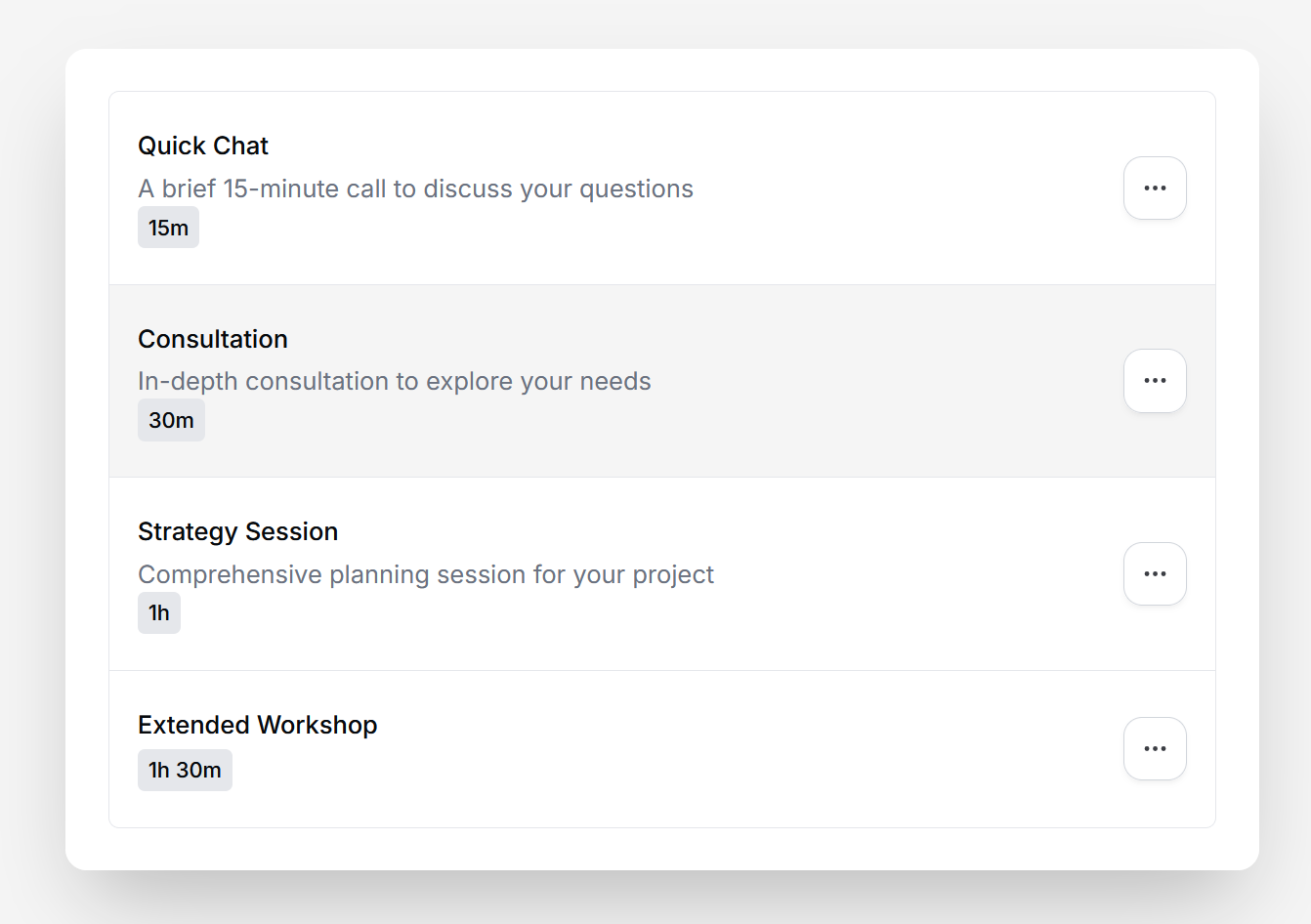
The List Event Types atom displays all of a user's event types with their title, description, and duration. Each item includes a dropdown menu with edit and delete actions.
## Quick start
Below is a code snippet to render the ListEventTypes atom. The `getEventTypeUrl` prop receives the event type ID and should return the URL where users will be redirected when clicking on an event type.
```tsx theme={null}
import { CalProvider, ListEventTypes } from "@calcom/atoms";
export default function EventTypesPage() {
return (
`/event-types/${eventTypeId}`} />
);
}
```
The `ListEventTypes` atom requires authentication. Make sure it's wrapped in a `CalProvider` with a valid
`accessToken`.
## Props
| Name | Required | Description |
| :-------------- | :------- | :----------------------------------------------------------------------------------------------------------------------------------------------------------------------------- |
| getEventTypeUrl | No | Callback function that receives the event type ID and returns the URL to redirect when clicking on an event type. If not provided, the event type items will not be clickable. |
## Demo
## Combining with EventTypeSettings
The ListEventTypes atom can be combined with the [EventTypeSettings](/atoms/event-type#event-type-settings) atom to provide a complete event type management experience. When a user clicks on an event type from the list, they are redirected to a settings page where they can edit the event type details.
Use the quick start example above to set up a page that displays all event types. The `getEventTypeUrl` prop should return the route where you'll render the EventTypeSettings atom (e.g., `/event-types/${eventTypeId}`).
Set up a dynamic route page (e.g., `/event-types/[eventTypeId]`) that extracts the event type ID from the URL and passes it to the EventTypeSettings atom:
```tsx theme={null}
import { useRouter } from "next/router";
import { CalProvider, EventTypeSettings } from "@calcom/atoms";
export default function EventTypeSettingsPage() {
const router = useRouter();
const eventTypeId = Number(router.query.eventTypeId);
if (!eventTypeId) return null;
return (
{
console.log("Event type updated successfully");
}}
/>
);
}
```
For a complete implementation example, check out the [example
app](https://github.com/calcom/cal.com/tree/main/packages/platform/examples/base).