> ## Documentation Index
> Fetch the complete documentation index at: https://cal.com/docs/llms.txt
> Use this file to discover all available pages before exploring further.
# Onboarding Embed
> Embed Cal.com account creation, onboarding, and OAuth authorization directly in your app
The `OnboardingEmbed` atom lets you embed the full Cal.com signup, onboarding, and OAuth authorization flow directly inside your application. Users create a Cal.com account, complete onboarding, and grant your app OAuth access — all without leaving your site.
For a demonstration of the onboarding embed flow, please refer to the video below.
## When to use this
Use the Onboarding Embed when you want new users to connect their Cal.com account during your app's own signup or setup flow. Instead of redirecting users to Cal.com and back, the entire process happens in an embedded dialog.
## Prerequisites
* An OAuth client created via [OAuth setup](/api-reference/v2/oauth)
* The `@calcom/atoms` package installed in your project
## Modes
The component supports two modes for receiving the authorization code:
* **Callback mode** — provide `onAuthorizationAllowed` to receive the authorization code via a callback. No page navigation occurs.
* **Redirect mode** — omit `onAuthorizationAllowed` and the browser navigates to your `redirectUri` with the code as a query parameter.
After a new user signs up through the embed, Cal.com sends them a verification email to confirm their email address.
### Callback mode
Provide `onAuthorizationAllowed` to receive the authorization code directly. The dialog closes and your callback fires after the user authorizes your OAuth client — no page reload.
```tsx theme={null}
import { OnboardingEmbed } from "@calcom/atoms";
import { useState } from "react";
function App() {
const [state] = useState(() => crypto.randomUUID());
return (
{
fetch("/api/cal/exchange", {
method: "POST",
body: JSON.stringify({ code, state }),
});
}}
onError={(error) => console.error(error.code, error.message)}
onClose={() => console.log("Dialog dismissed")}
/>
);
}
```
### Redirect mode
Omit `onAuthorizationAllowed` and the browser navigates to your `redirectUri` after the user completes onboarding and grants access:
```
https://your-app.com/cal/callback?code=AUTHORIZATION_CODE&state=YOUR_STATE
```
```tsx theme={null}
import { OnboardingEmbed } from "@calcom/atoms";
import { useState } from "react";
function App() {
const [state] = useState(() => crypto.randomUUID());
return (
console.error(error.code, error.message)}
/>
);
}
```
## Props
| Prop | Type | Required | Description |
| ------------------------ | ------------------------------------------------------ | -------- | ------------------------------------------------------------------------------------------------------------------------------------------- |
| `oAuthClientId` | `string` | Yes | Your OAuth client ID. |
| `host` | `string` | No | Cal.com host URL. Defaults to `https://app.cal.com`. Used for local development to point to the Cal web app. |
| `theme` | `"light" \| "dark"` | No | Theme for the embedded onboarding UI. Defaults to `"light"`. |
| `user` | `{ email?: string, name?: string, username?: string }` | No | Prefill user details in signup and profile steps. |
| `authorization` | `AuthorizationProps` | Yes | OAuth authorization parameters (see below). |
| `onAuthorizationAllowed` | `(result: { code: string }) => void` | No | Called with the authorization code on completion. If provided, enables callback mode. If omitted, enables redirect mode. |
| `onError` | `(error: OnboardingError) => void` | No | Called on unrecoverable error. |
| `onAuthorizationDenied` | `() => void` | No | Called when the user declines OAuth authorization. If omitted, the browser navigates to `redirectUri?error=access_denied&state=YOUR_STATE`. |
| `onClose` | `() => void` | No | Called when the user dismisses the dialog before completing. |
| `trigger` | `ReactNode` | No | Custom trigger element. Defaults to a "Continue with Cal.com" button. |
### Authorization props
| Prop | Type | Required | Description |
| --------------- | ---------- | ------------------ | --------------------------------------------------------------------------------------------------------------------------------------------------------------------------------------------------- |
| `redirectUri` | `string` | Yes | One of the redirect URIs registered on your OAuth client. **Must share the same origin** as the page hosting ``, because the iframe uses `postMessage` for secure communication. |
| `scope` | `string[]` | Yes | OAuth scopes to request. Must be a subset of scopes registered on the OAuth client. See the [OAuth scopes documentation](/api-reference/v2/oauth#available-scopes). |
| `state` | `string` | Yes | CSRF token. Generate a unique value per session and verify it when you receive the authorization code. |
| `codeChallenge` | `string` | For public clients | PKCE code challenge (S256 method). Required for public OAuth clients. |
If the user signs up via Google, the `user` prop values are ignored — name, email, and username are inferred from the Google account instead.
## Trigger and theme
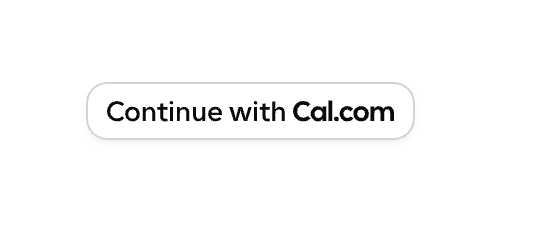
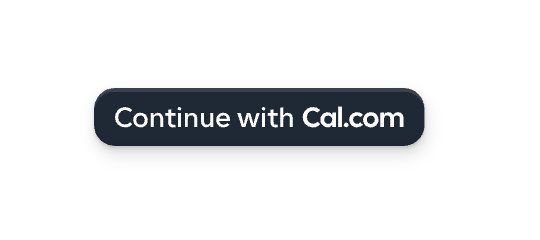
The `theme` prop controls the appearance of the trigger button, the onboarding steps, and the authorization page. The default trigger renders a "Continue with Cal.com" button:
| Light theme (default) | Dark theme |
| ----------------------------------------------------------------------------------------------------------------------------------------------------------------------------------------------------------------------------------------------------------------------------------------------------------------------------------------------------------------------------------------------------------------------------------------------------------------------------------------------------------------------------------------------------------------------------------------------------------------------------------------------------------------------------------------------------------------------------------------------------------------------------------------------------------------------------------------------------------------------------------------------------------------------------------------------------------------------------------------------------------------------------------------------------------------------------------------------------------------------------------------------------------------------------------------------------------------------------------------------------------------------------------------------------------------------------------------------------------------------------------------------------------------------- | --------------------------------------------------------------------------------------------------------------------------------------------------------------------------------------------------------------------------------------------------------------------------------------------------------------------------------------------------------------------------------------------------------------------------------------------------------------------------------------------------------------------------------------------------------------------------------------------------------------------------------------------------------------------------------------------------------------------------------------------------------------------------------------------------------------------------------------------------------------------------------------------------------------------------------------------------------------------------------------------------------------------------------------------------------------------------------------------------------------------------------------------------------------------------------------------------------------------------------------------------------------------------------------------------------------------------------------------------------------------------------------------------------------- |
|  |
|  |
You can pass a custom trigger element via the `trigger` prop:
```tsx theme={null}
Connect calendar}
// ...other props
/>
```
|
You can pass a custom trigger element via the `trigger` prop:
```tsx theme={null}
Connect calendar}
// ...other props
/>
```
 ## User flow walkthrough
Here's what happens when a user clicks the trigger with `onAuthorizationAllowed` provided and the `user` prop set:
```tsx theme={null}
{
alert(`Success! Auth code: ${code}`);
}}
/>
```
**1. Trigger** — The component renders a "Continue with Cal.com" button. The user clicks it to open the onboarding dialog.
**2. Login or signup** — The dialog opens with the login form. Existing users can sign in with email or Google. The `user.email` prop prefills the email field.
## User flow walkthrough
Here's what happens when a user clicks the trigger with `onAuthorizationAllowed` provided and the `user` prop set:
```tsx theme={null}
{
alert(`Success! Auth code: ${code}`);
}}
/>
```
**1. Trigger** — The component renders a "Continue with Cal.com" button. The user clicks it to open the onboarding dialog.
**2. Login or signup** — The dialog opens with the login form. Existing users can sign in with email or Google. The `user.email` prop prefills the email field.
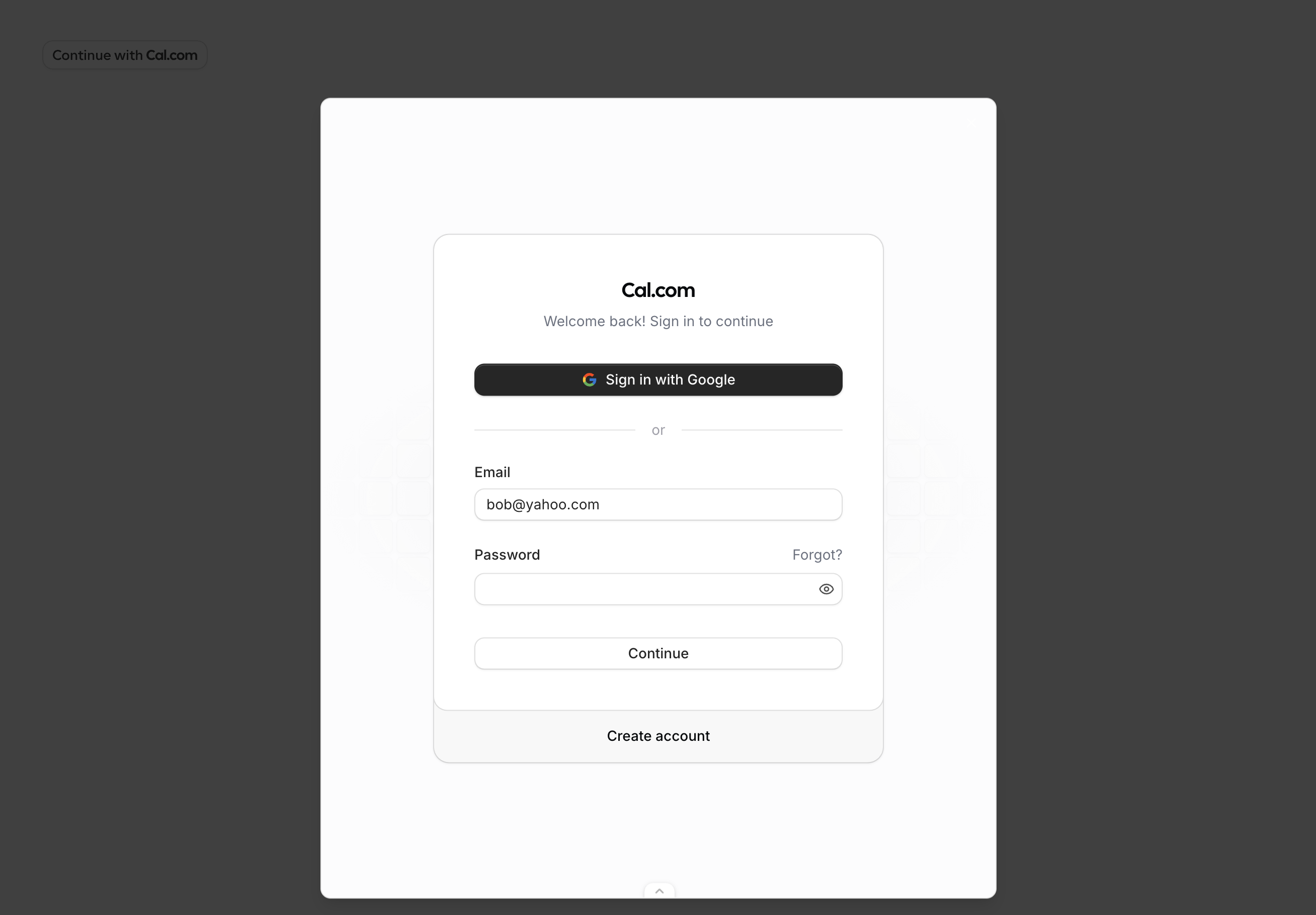 New users click "Create account" to sign up with Google or email. When signing up with email, the `user.email` and `user.username` props are prefilled.
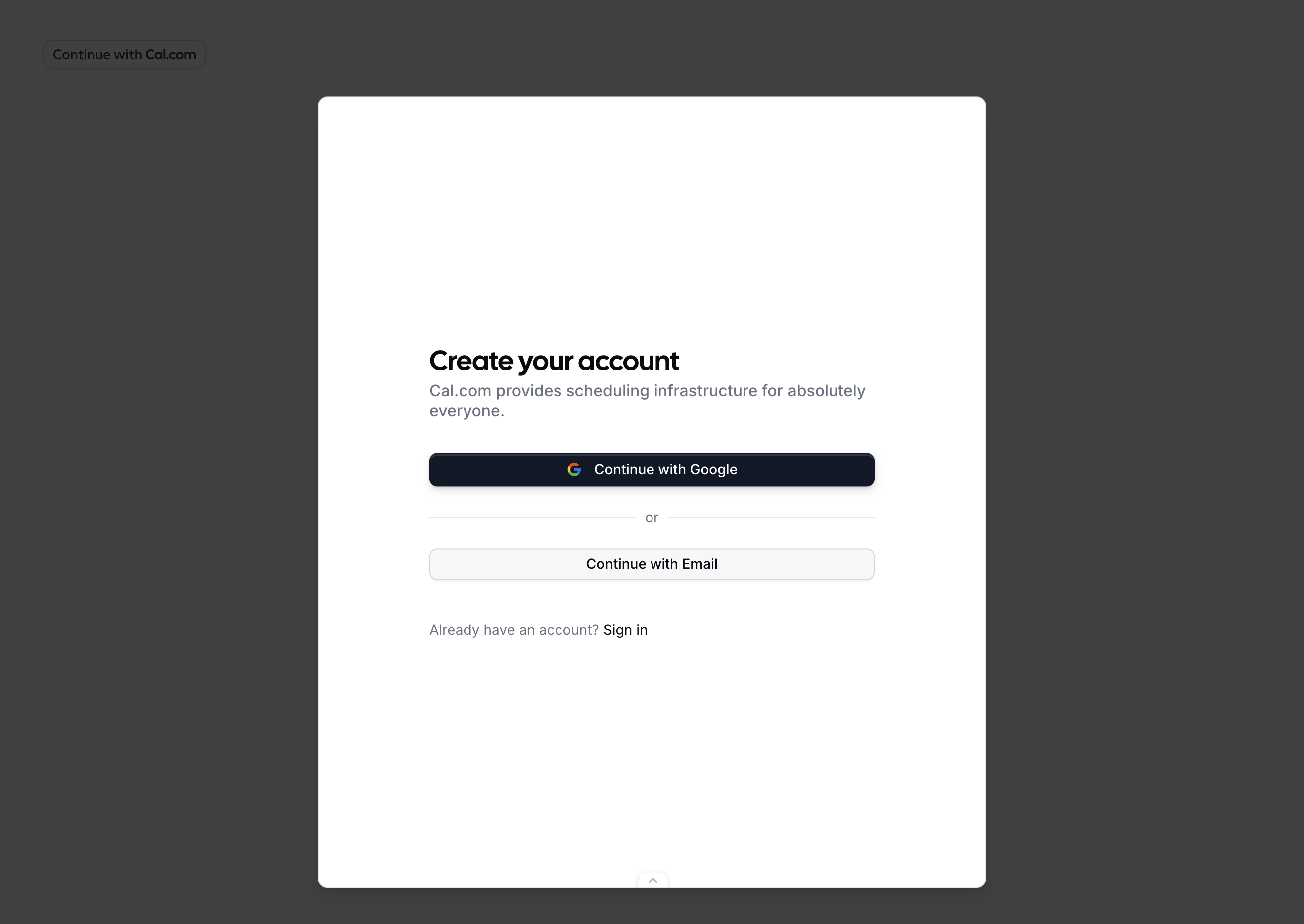
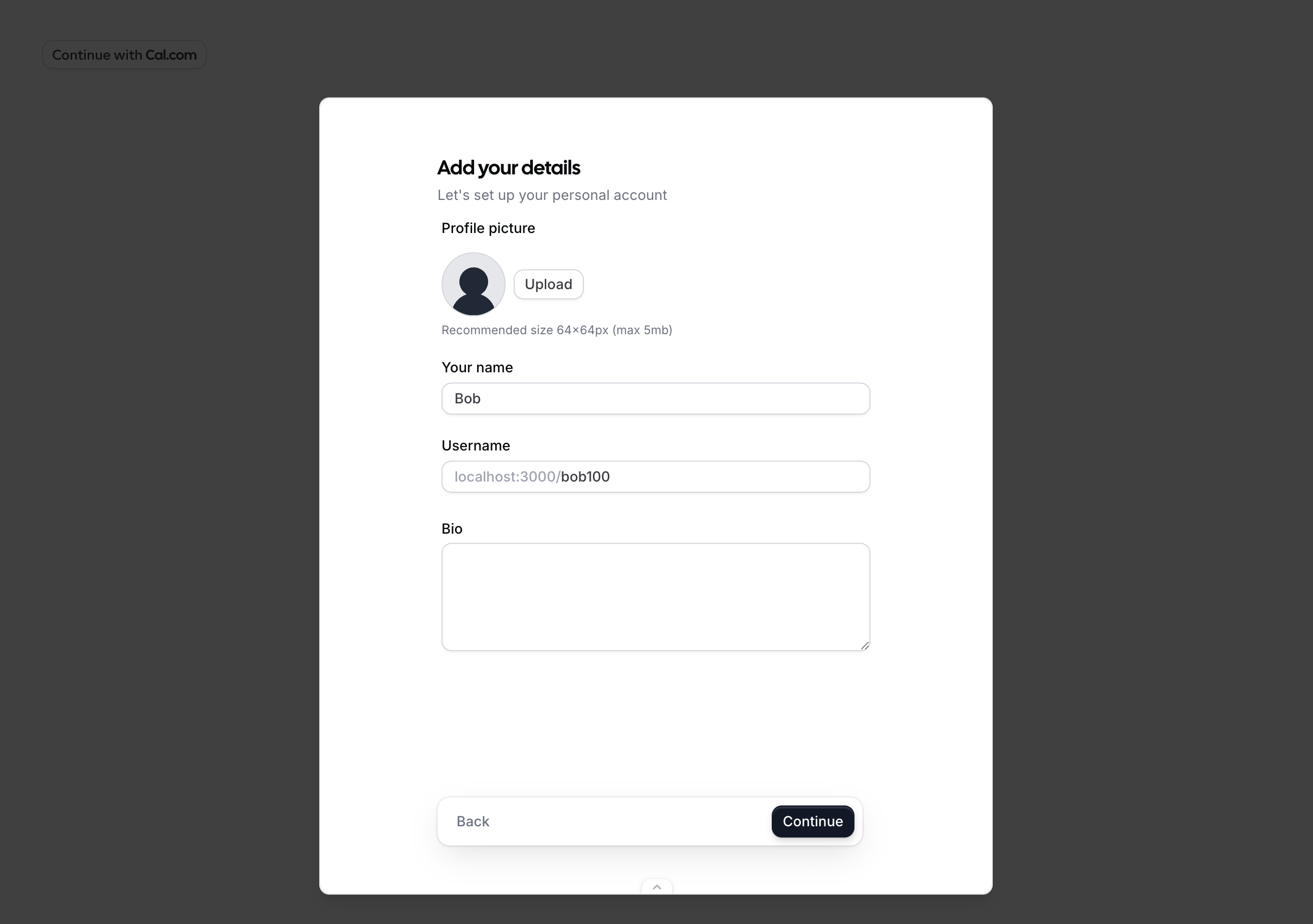
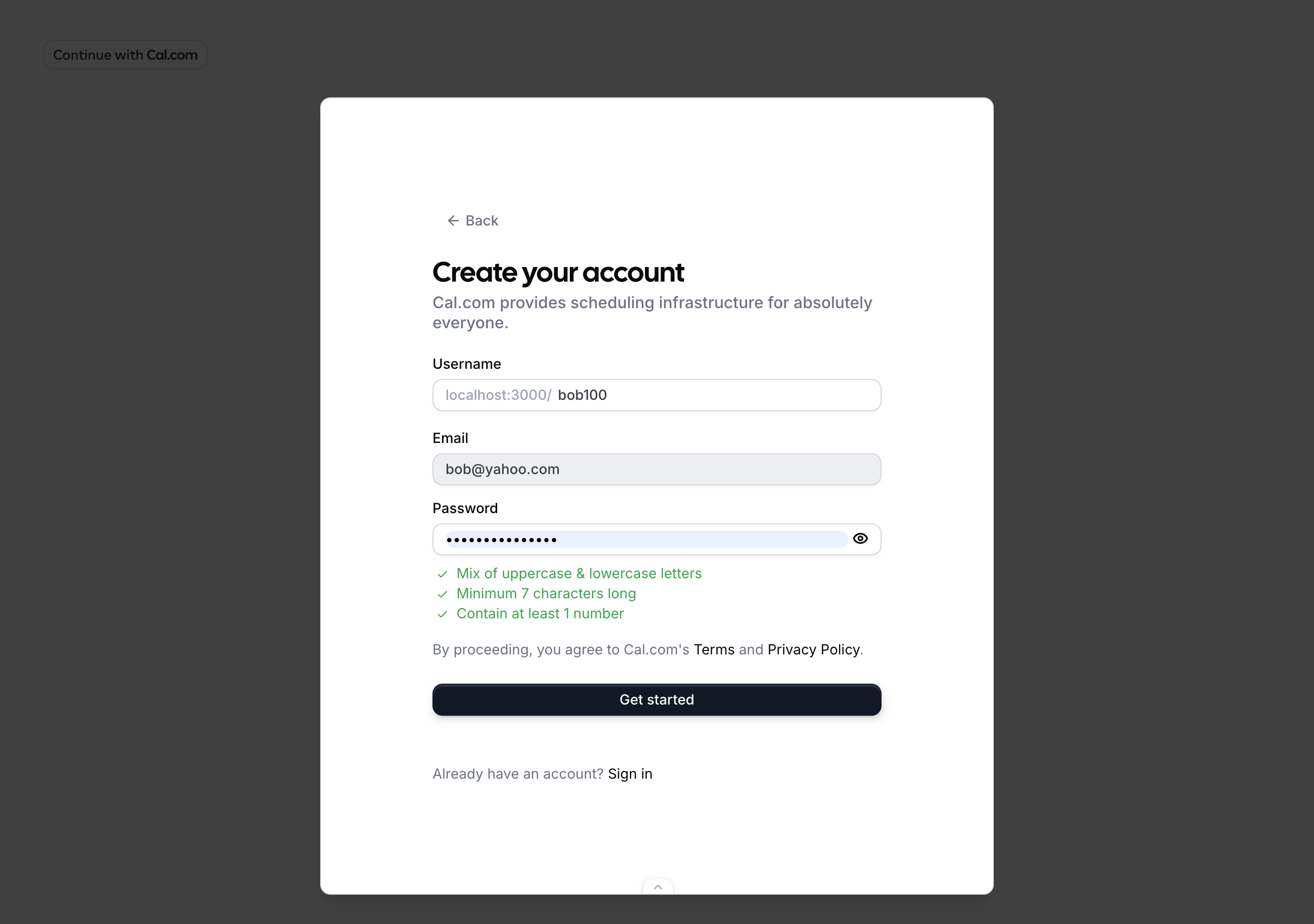 **3. Profile** — After signup, the user sets up their profile. The `user.name` prop prefills the name field.
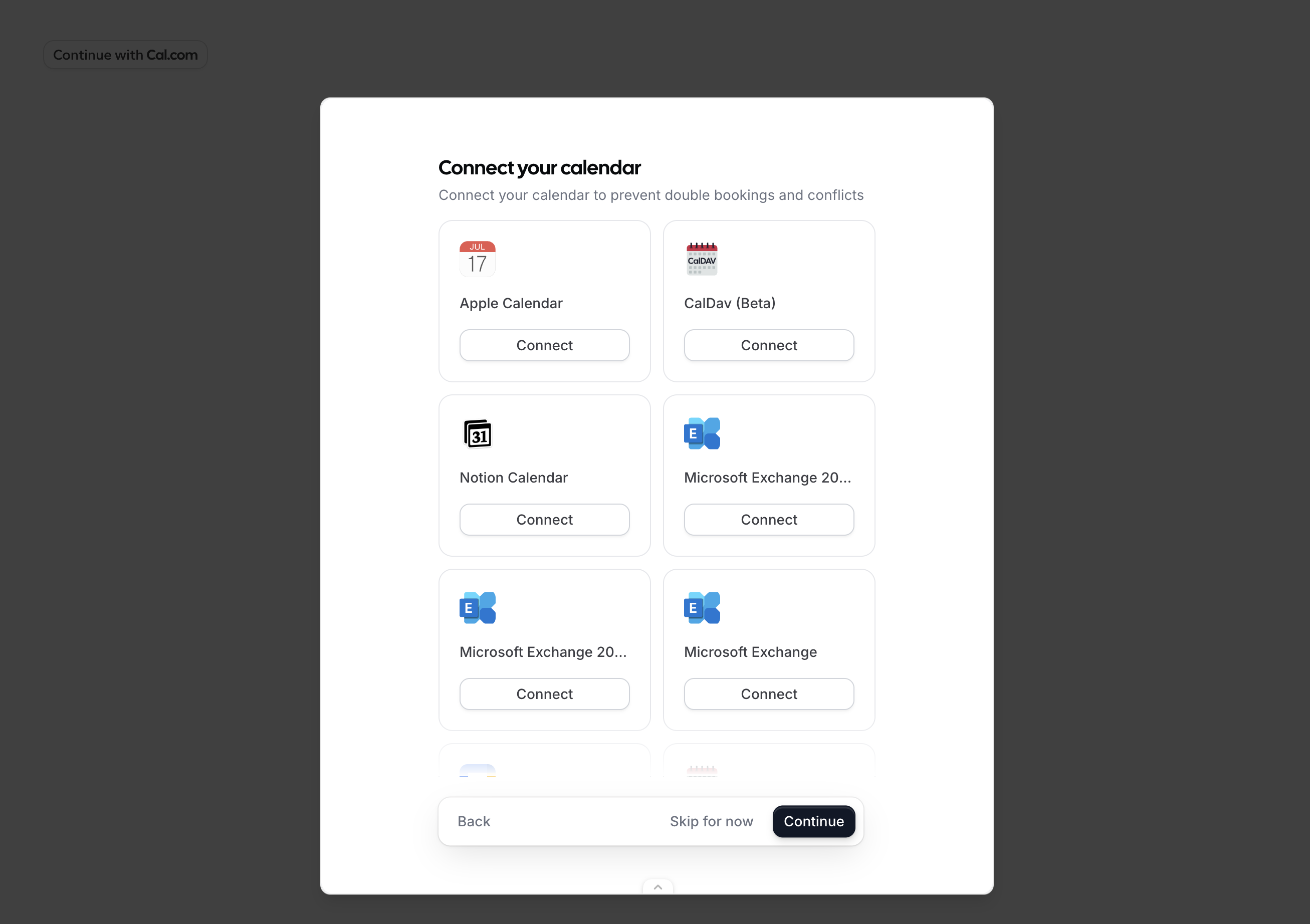
 **4. Connect calendar** — The user can connect a calendar or skip this step.
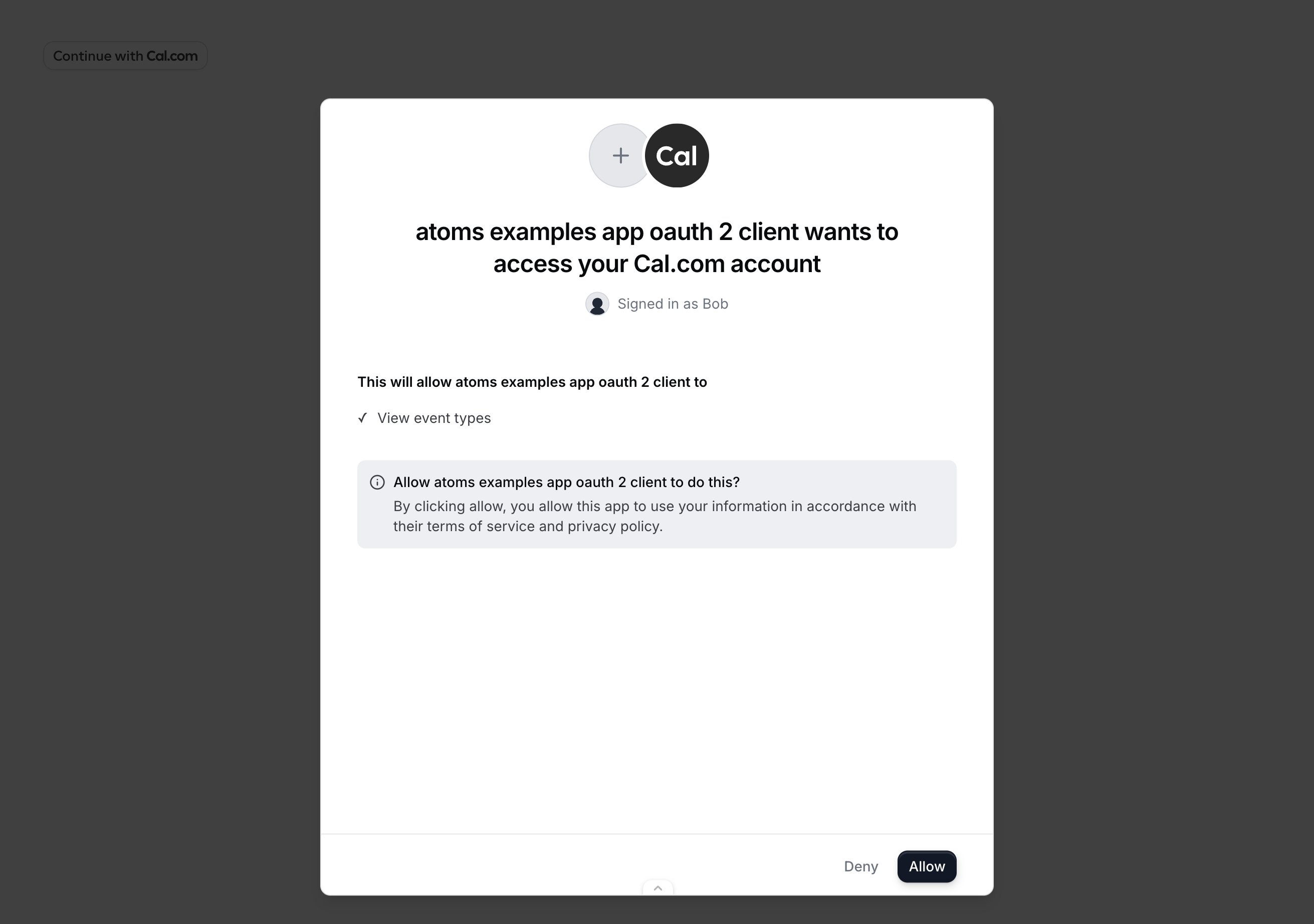
 **5. Authorize** — The user reviews the requested permissions and clicks "Allow". The displayed permissions correspond to the `scope` passed to the component.
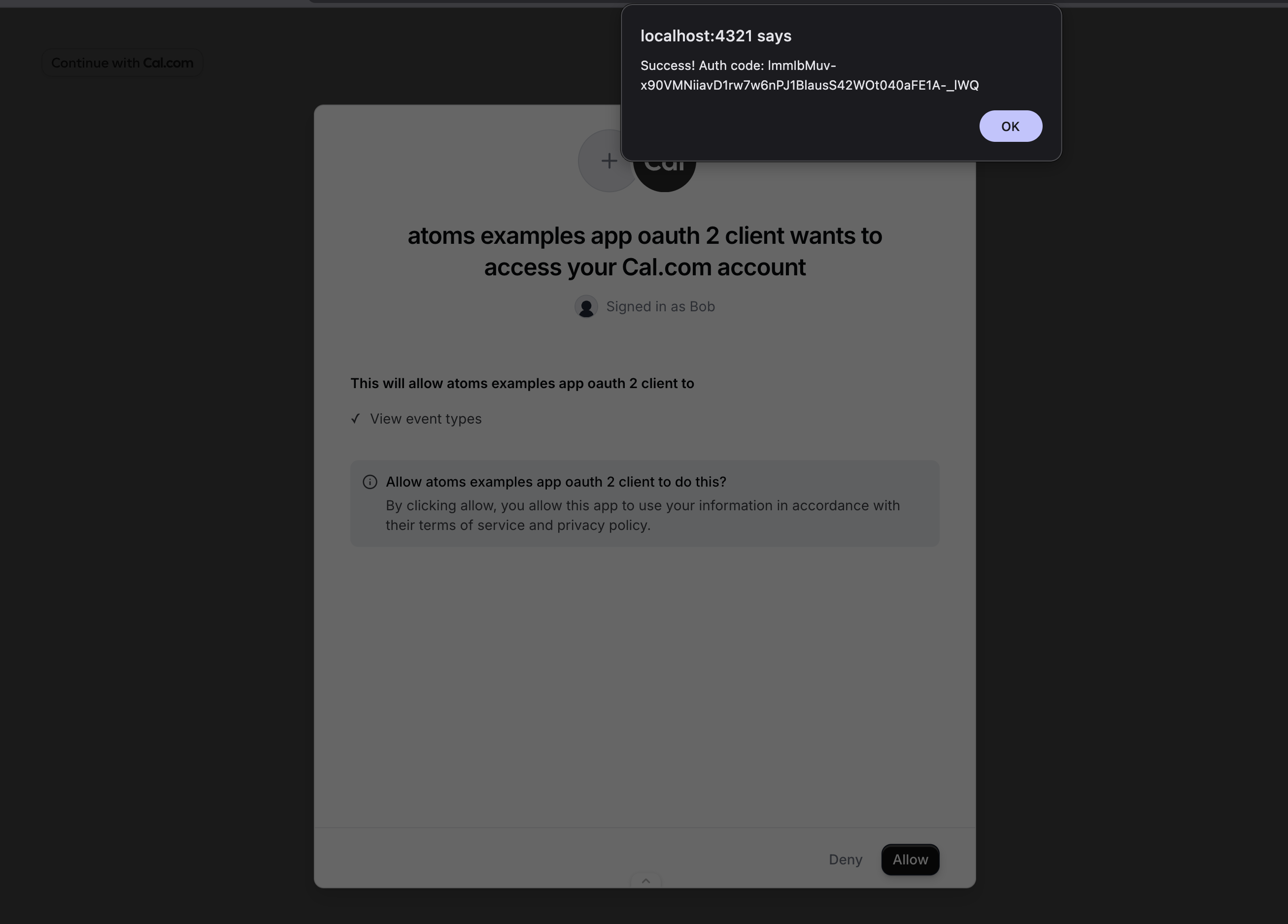
 **6. Done** — `onAuthorizationAllowed` fires with the authorization code. Exchange it for tokens using the [token endpoint](/api-reference/v2/oauth#3-exchange-token).
 ## Public clients (PKCE)
Public OAuth clients cannot safely store a client secret (e.g. browser-only apps). Use PKCE to secure the authorization code exchange instead. Generate a `code_verifier`, derive a `code_challenge` from it, and pass the challenge to `OnboardingEmbed`. When you receive the authorization code, exchange it with the `code_verifier` instead of a client secret.
```tsx theme={null}
import { OnboardingEmbed } from "@calcom/atoms";
import { useEffect, useMemo, useState } from "react";
async function generatePkce() {
const array = new Uint8Array(32);
crypto.getRandomValues(array);
const codeVerifier = btoa(String.fromCharCode(...array))
.replace(/\+/g, "-").replace(/\//g, "_").replace(/=/g, "");
const digest = await crypto.subtle.digest(
"SHA-256",
new TextEncoder().encode(codeVerifier)
);
const codeChallenge = btoa(String.fromCharCode(...new Uint8Array(digest)))
.replace(/\+/g, "-").replace(/\//g, "_").replace(/=/g, "");
return { codeVerifier, codeChallenge };
}
export function MyApp() {
const state = useMemo(() => crypto.randomUUID(), []);
const [pkce, setPkce] = useState<{
codeVerifier: string;
codeChallenge: string;
} | null>(null);
useEffect(() => {
generatePkce().then(setPkce);
}, []);
if (!pkce) return null;
return (
{
const res = await fetch("https://api.cal.com/v2/auth/oauth2/token", {
method: "POST",
headers: { "Content-Type": "application/json" },
body: JSON.stringify({
client_id: "your_client_id",
code_verifier: pkce.codeVerifier,
grant_type: "authorization_code",
code,
redirect_uri: "https://your-app.com/cal/callback",
}),
});
const { access_token, refresh_token } = await res.json();
}}
/>
);
}
```
## Error handling
The `onError` callback receives an error object with the following shape:
```ts theme={null}
interface OnboardingError {
code:
| "INVALID_PROPS"
| "SIGNUP_FAILED"
| "ONBOARDING_FAILED"
| "AUTHORIZATION_FAILED"
| "STATE_MISMATCH"
| "UNKNOWN";
message: string;
}
```
| Code | Description |
| ---------------------- | ----------------------------------------------------------------------------------------------------------------------------------------------------------------------- |
| `INVALID_PROPS` | Required props are missing or invalid (e.g. `oAuthClientId` does not exist, `redirectUri` does not match a registered URI, or required authorization fields are empty). |
| `SIGNUP_FAILED` | Account creation failed. |
| `ONBOARDING_FAILED` | An error occurred during the onboarding steps. |
| `AUTHORIZATION_FAILED` | The user denied access or OAuth consent failed. |
| `STATE_MISMATCH` | The `state` in the response did not match the `state` you provided. Possible CSRF attack. |
| `UNKNOWN` | An unexpected error occurred. |
## How it works
The component opens a dialog containing an iframe that loads Cal.com's onboarding flow. The iframe runs on Cal.com's domain with a first-party session, so no third-party cookies are needed.
The flow automatically detects the user's state:
* **No session** — starts at signup/login, then profile setup, calendar connection, and OAuth consent.
* **Session with incomplete onboarding** — resumes from where the user left off.
* **Session with complete onboarding** — skips straight to OAuth consent.
After the user grants access, you receive an authorization code that you exchange for access and refresh tokens using the [token endpoint](/api-reference/v2/oauth#3-exchange-token).
## Public clients (PKCE)
Public OAuth clients cannot safely store a client secret (e.g. browser-only apps). Use PKCE to secure the authorization code exchange instead. Generate a `code_verifier`, derive a `code_challenge` from it, and pass the challenge to `OnboardingEmbed`. When you receive the authorization code, exchange it with the `code_verifier` instead of a client secret.
```tsx theme={null}
import { OnboardingEmbed } from "@calcom/atoms";
import { useEffect, useMemo, useState } from "react";
async function generatePkce() {
const array = new Uint8Array(32);
crypto.getRandomValues(array);
const codeVerifier = btoa(String.fromCharCode(...array))
.replace(/\+/g, "-").replace(/\//g, "_").replace(/=/g, "");
const digest = await crypto.subtle.digest(
"SHA-256",
new TextEncoder().encode(codeVerifier)
);
const codeChallenge = btoa(String.fromCharCode(...new Uint8Array(digest)))
.replace(/\+/g, "-").replace(/\//g, "_").replace(/=/g, "");
return { codeVerifier, codeChallenge };
}
export function MyApp() {
const state = useMemo(() => crypto.randomUUID(), []);
const [pkce, setPkce] = useState<{
codeVerifier: string;
codeChallenge: string;
} | null>(null);
useEffect(() => {
generatePkce().then(setPkce);
}, []);
if (!pkce) return null;
return (
{
const res = await fetch("https://api.cal.com/v2/auth/oauth2/token", {
method: "POST",
headers: { "Content-Type": "application/json" },
body: JSON.stringify({
client_id: "your_client_id",
code_verifier: pkce.codeVerifier,
grant_type: "authorization_code",
code,
redirect_uri: "https://your-app.com/cal/callback",
}),
});
const { access_token, refresh_token } = await res.json();
}}
/>
);
}
```
## Error handling
The `onError` callback receives an error object with the following shape:
```ts theme={null}
interface OnboardingError {
code:
| "INVALID_PROPS"
| "SIGNUP_FAILED"
| "ONBOARDING_FAILED"
| "AUTHORIZATION_FAILED"
| "STATE_MISMATCH"
| "UNKNOWN";
message: string;
}
```
| Code | Description |
| ---------------------- | ----------------------------------------------------------------------------------------------------------------------------------------------------------------------- |
| `INVALID_PROPS` | Required props are missing or invalid (e.g. `oAuthClientId` does not exist, `redirectUri` does not match a registered URI, or required authorization fields are empty). |
| `SIGNUP_FAILED` | Account creation failed. |
| `ONBOARDING_FAILED` | An error occurred during the onboarding steps. |
| `AUTHORIZATION_FAILED` | The user denied access or OAuth consent failed. |
| `STATE_MISMATCH` | The `state` in the response did not match the `state` you provided. Possible CSRF attack. |
| `UNKNOWN` | An unexpected error occurred. |
## How it works
The component opens a dialog containing an iframe that loads Cal.com's onboarding flow. The iframe runs on Cal.com's domain with a first-party session, so no third-party cookies are needed.
The flow automatically detects the user's state:
* **No session** — starts at signup/login, then profile setup, calendar connection, and OAuth consent.
* **Session with incomplete onboarding** — resumes from where the user left off.
* **Session with complete onboarding** — skips straight to OAuth consent.
After the user grants access, you receive an authorization code that you exchange for access and refresh tokens using the [token endpoint](/api-reference/v2/oauth#3-exchange-token).