> ## Documentation Index
> Fetch the complete documentation index at: https://cal.com/docs/llms.txt
> Use this file to discover all available pages before exploring further.
# How to setup scim with okta
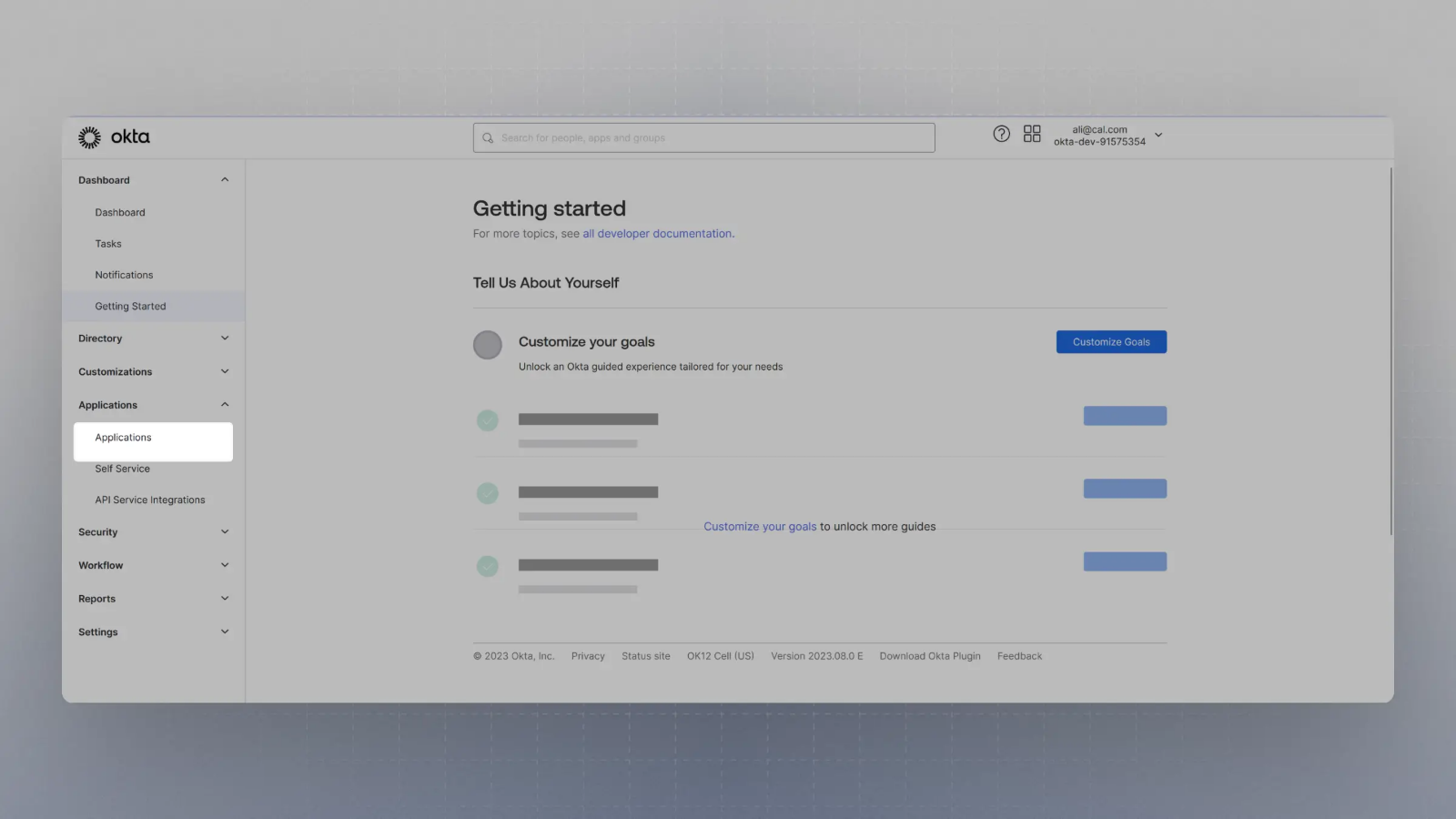
For example, in Okta, once you create an account, you can click on Applications on the sidebar menu:
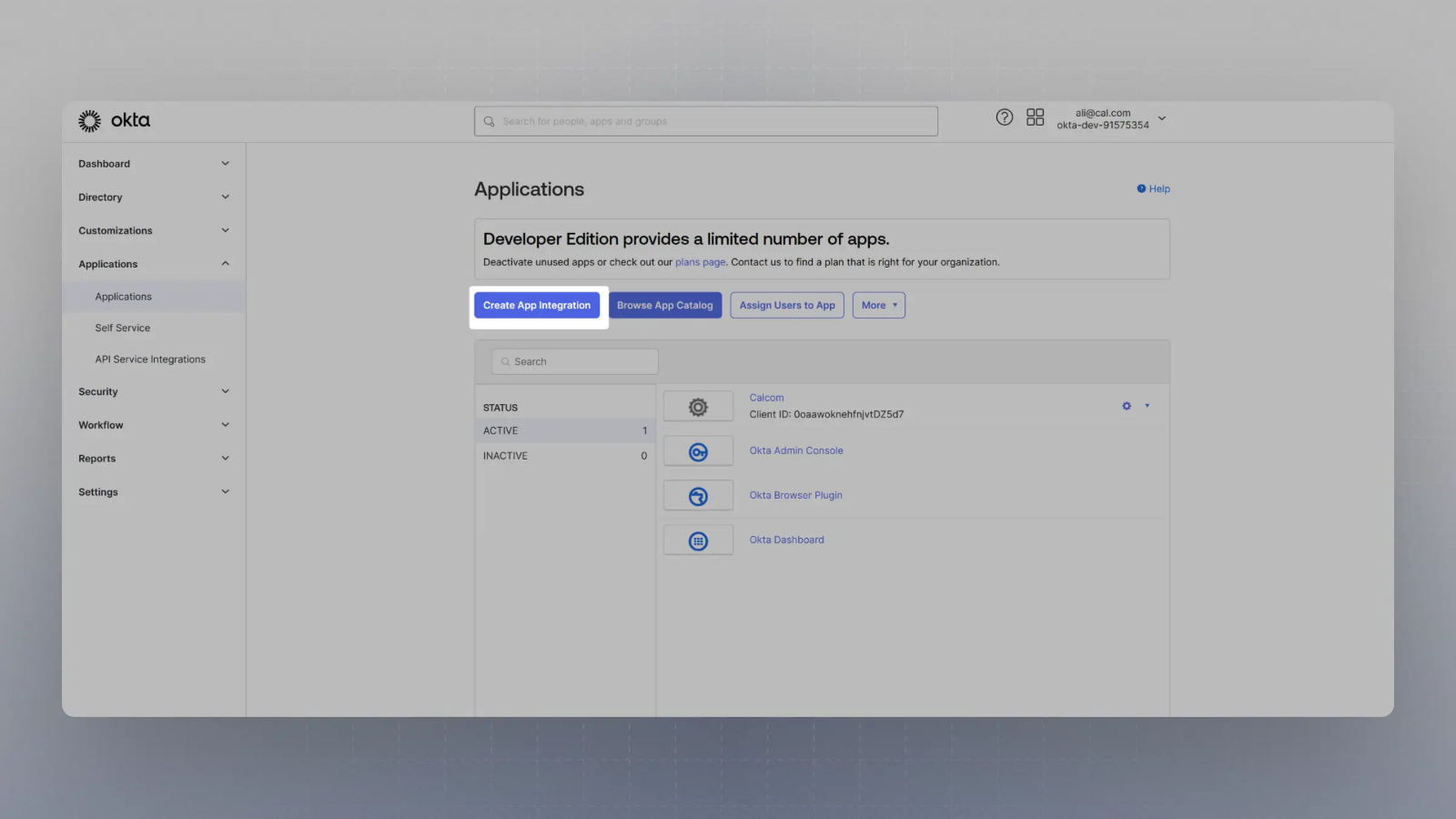 Note you will have to fill in the appropriate fields for the SAML or OIDC setup to continue.
* [SAML Setup](/developing/guides/auth-and-provision/sso-setup#setting-up-saml-login)
* [OIDC Setup](/developing/guides/auth-and-provision/sso-setup#setting-up-oidc-login)
Note you will have to fill in the appropriate fields for the SAML or OIDC setup to continue.
* [SAML Setup](/developing/guides/auth-and-provision/sso-setup#setting-up-saml-login)
* [OIDC Setup](/developing/guides/auth-and-provision/sso-setup#setting-up-oidc-login)
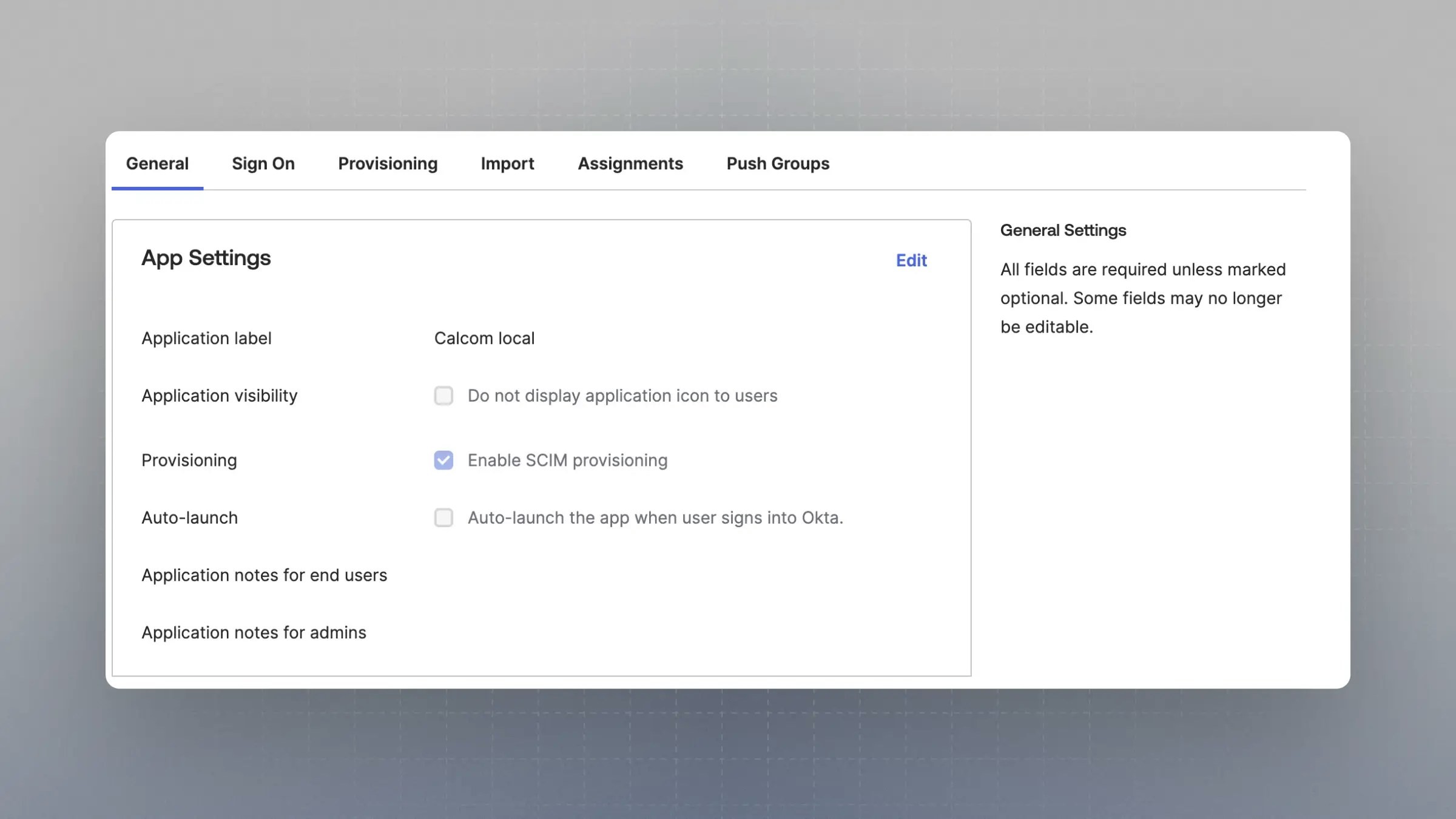
 Once the application is created, under General -> App Settings, click "Edit" and then the checkbox "Enable SCIM provisioning".
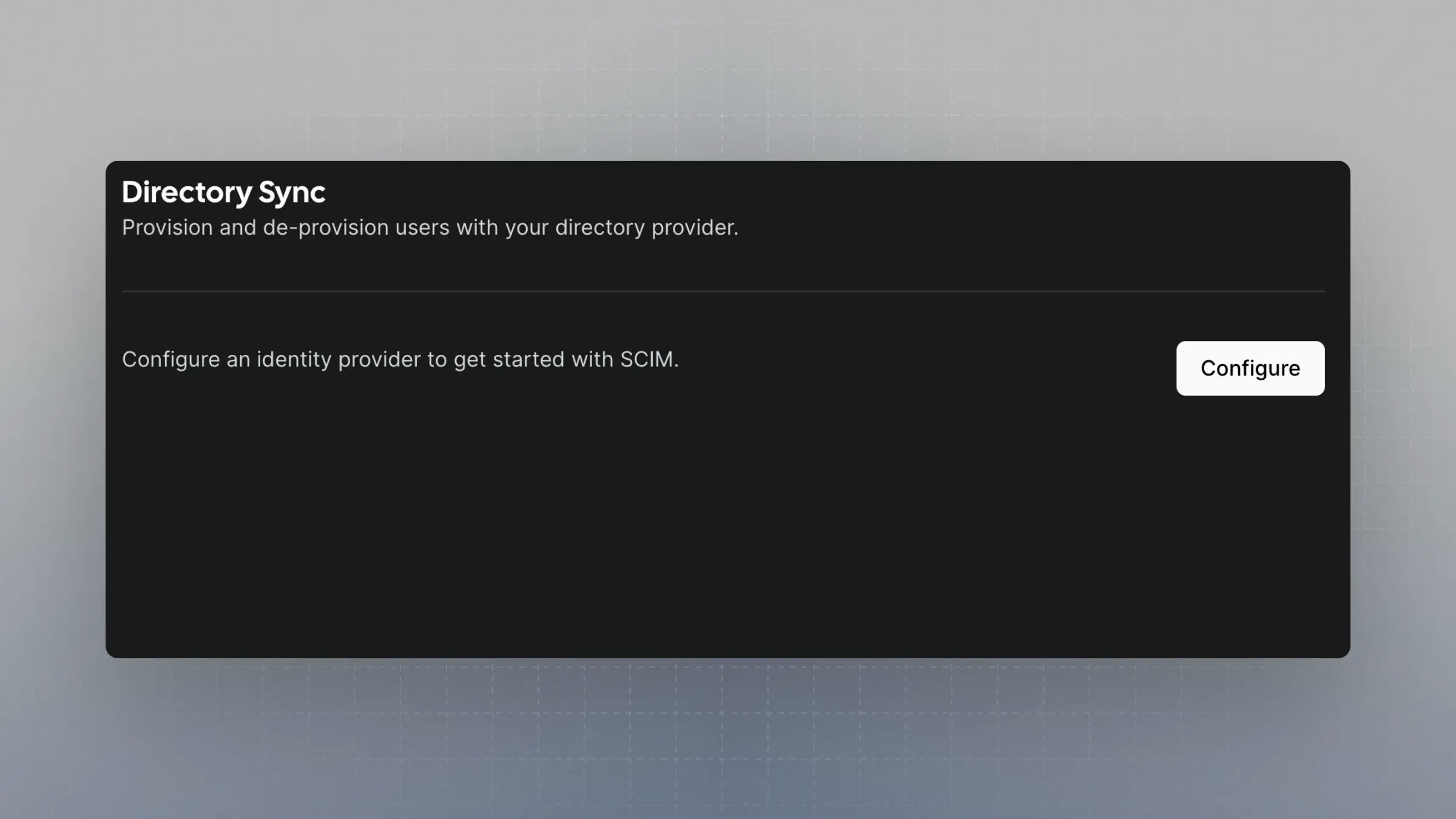
 Next, go to your instance of Cal.com and navigate to `https://app.cal.com/settings/organization/dsync` and click configure.
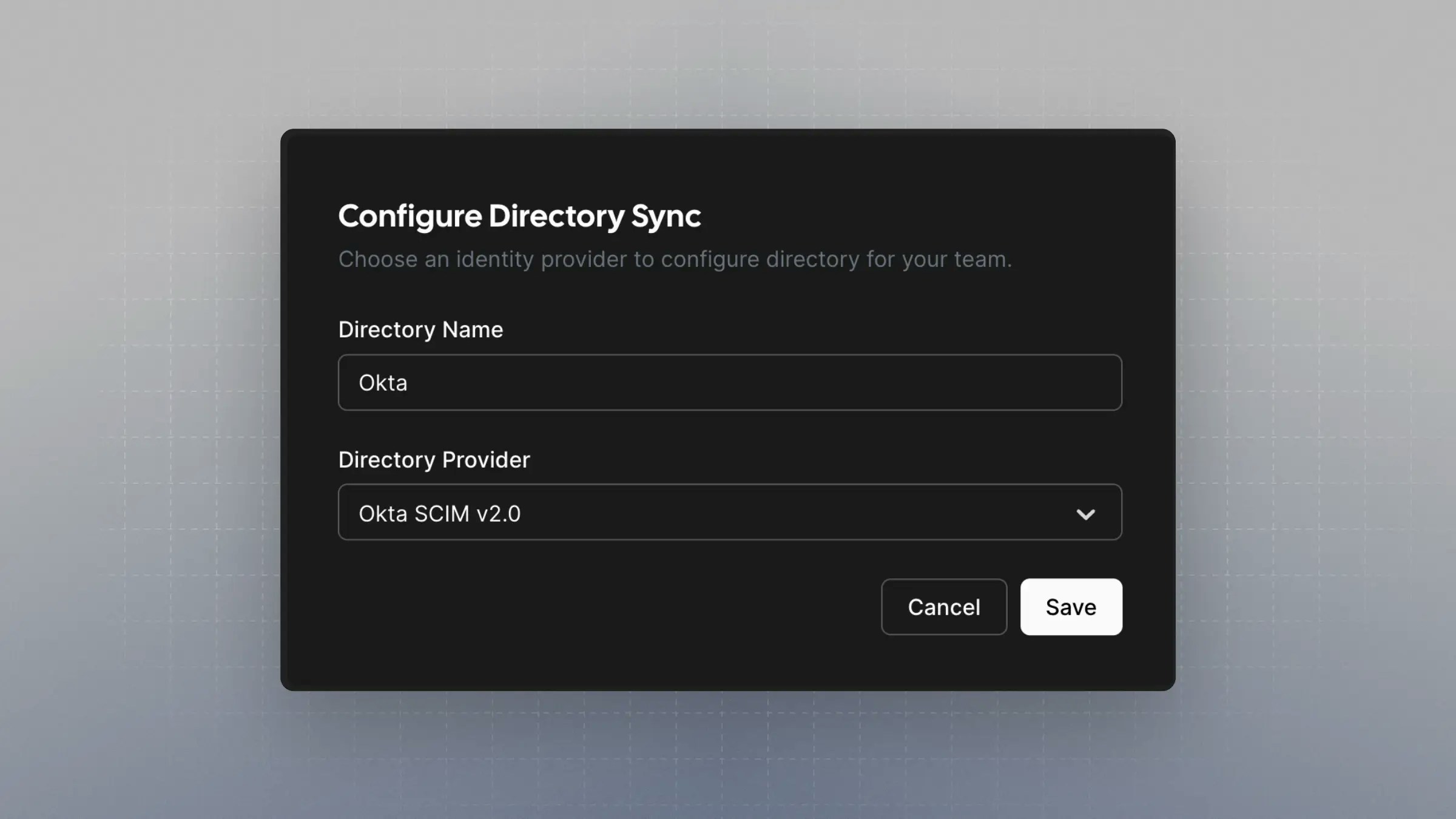
 In the "Configure Directory Sync" form, choose a directory sync name and select "Okta SCIM v2.0" as the "Directory Provider".
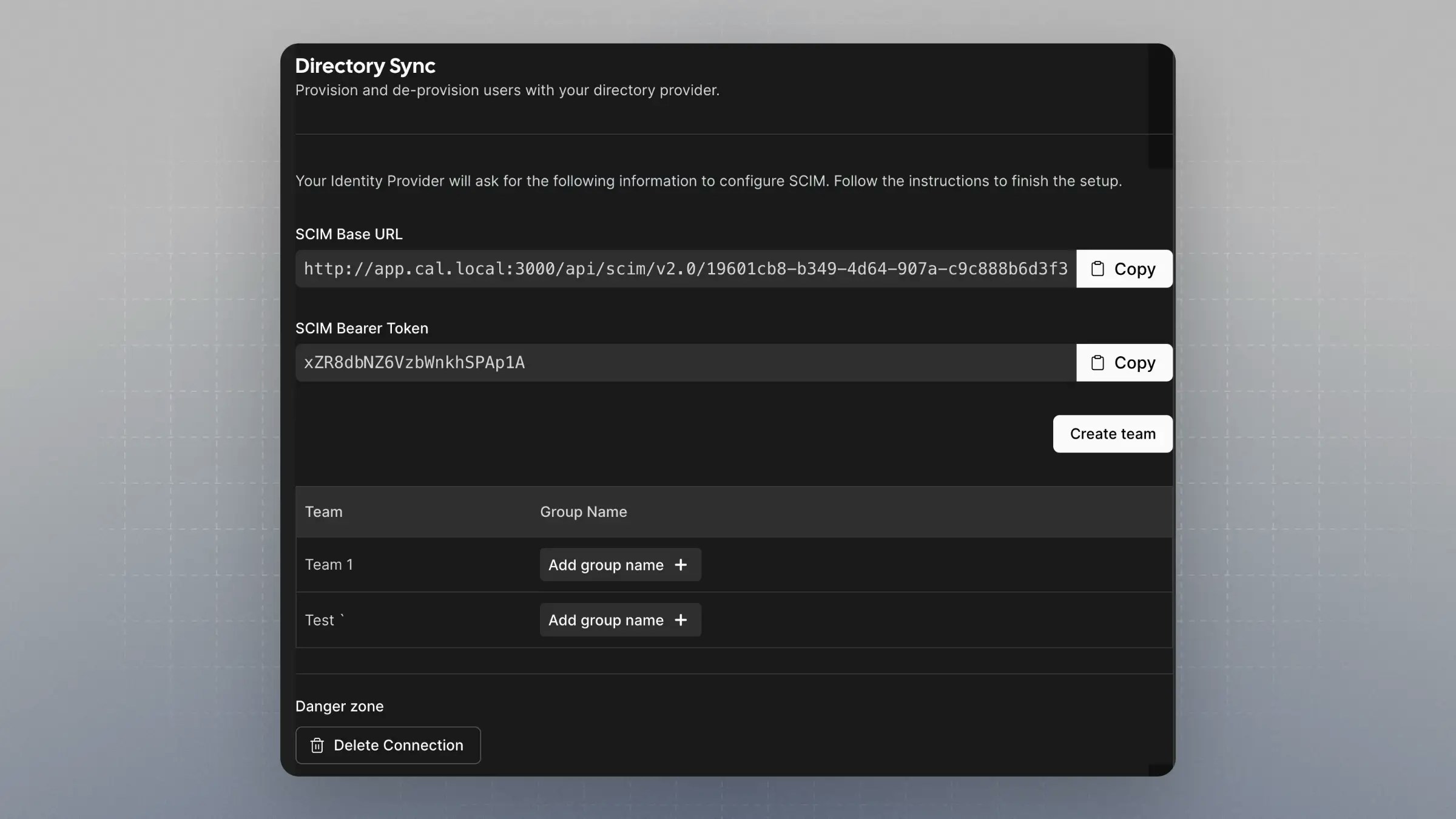 In Okta, go to your application. Navigate to the "Provisioning" tab and click "Integration" under "Settings".
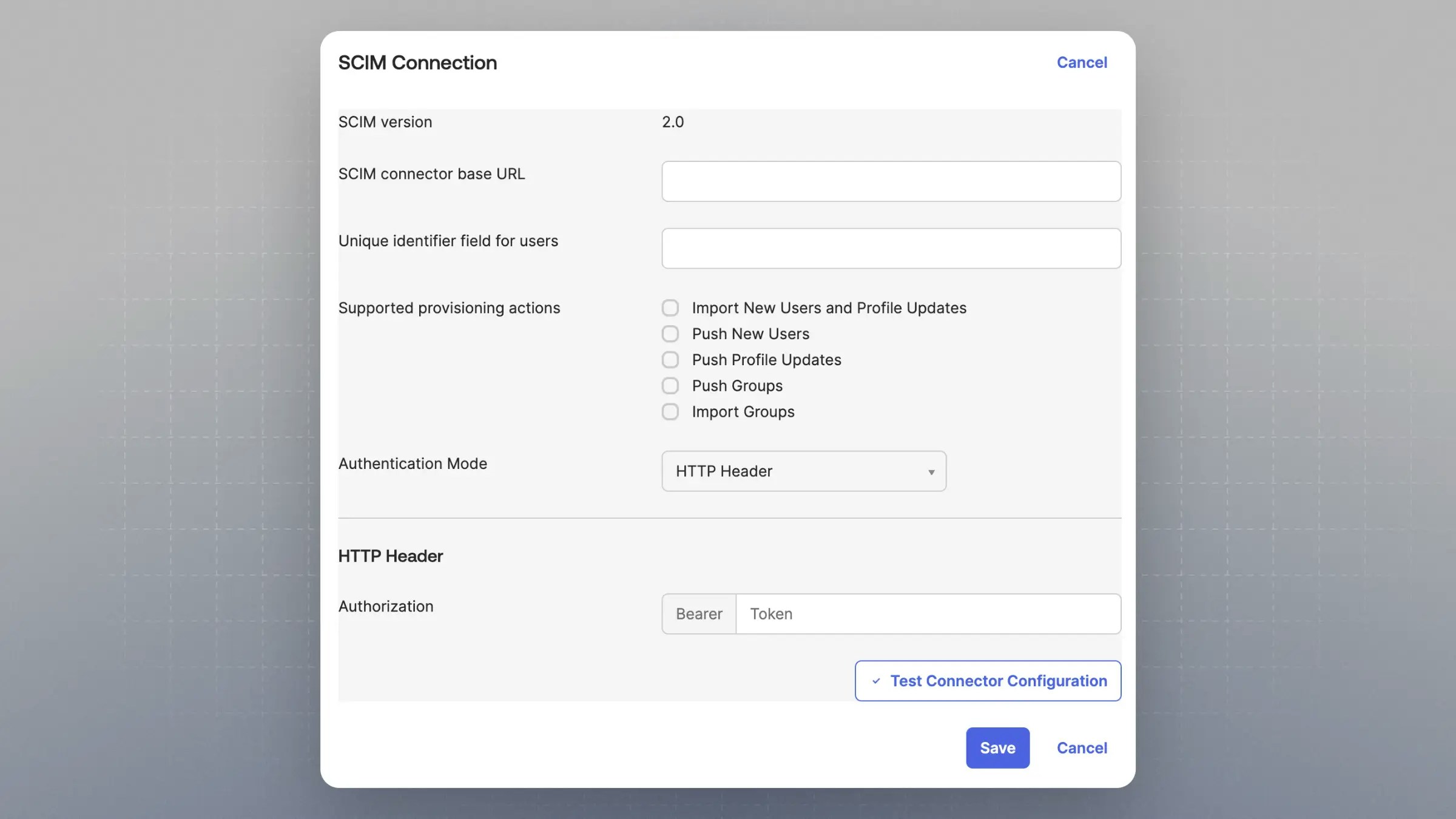 * Under "SCIM connector base URL" enter the "SCIM Base URL" from Cal.com
* Under "Unique identifier field for users" enter "email"
* Under "Supported provisioning actions" enable:
* "Import New Users and Profile Updates"
* "Push New Users"
* "Push Profile Updates"
* "Push Groups"
* Under "Authentication Mode" choose "HTTP Header"
* Under "Authentication" enter the "SCIM Bearer Token" from Cal.com
* When you hit save, it will make a test call to the "SCIM Base URL"
After saving, navigate to the "To App" settings, still under the "Provisioning" tab.
Under "Provisioning to App", click "Edit" and enable:
* "Create User"
* "Update User Attributes"
* "Deactivate User"
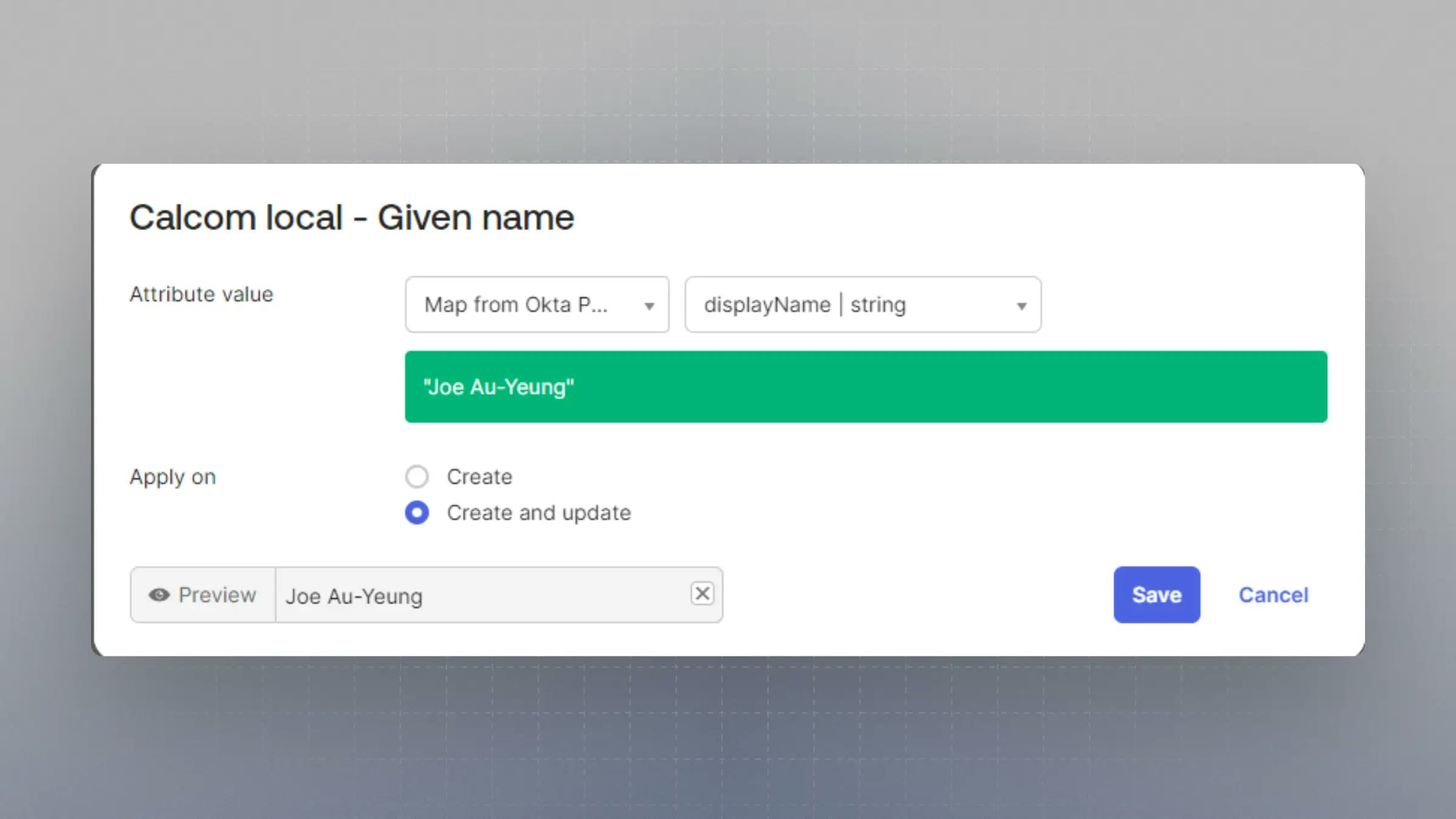
Under "\{Your application name} Attribute Mapping," remove all fields except for:
* "username"
* "givenName"
* "familyName"
* "email"
* "displayName"
Set each of these properties to "Map from Okta Profile" and the related field. Under "Apply On" select "Create and Update".
* Under "SCIM connector base URL" enter the "SCIM Base URL" from Cal.com
* Under "Unique identifier field for users" enter "email"
* Under "Supported provisioning actions" enable:
* "Import New Users and Profile Updates"
* "Push New Users"
* "Push Profile Updates"
* "Push Groups"
* Under "Authentication Mode" choose "HTTP Header"
* Under "Authentication" enter the "SCIM Bearer Token" from Cal.com
* When you hit save, it will make a test call to the "SCIM Base URL"
After saving, navigate to the "To App" settings, still under the "Provisioning" tab.
Under "Provisioning to App", click "Edit" and enable:
* "Create User"
* "Update User Attributes"
* "Deactivate User"
Under "\{Your application name} Attribute Mapping," remove all fields except for:
* "username"
* "givenName"
* "familyName"
* "email"
* "displayName"
Set each of these properties to "Map from Okta Profile" and the related field. Under "Apply On" select "Create and Update".
 You can now assign users and groups to the app.
## Mapping Okta Groups to Cal.com Teams
When provisioning groups to your organization, Okta groups can be mapped to teams within your organization, and users will be auto-assigned to these teams.
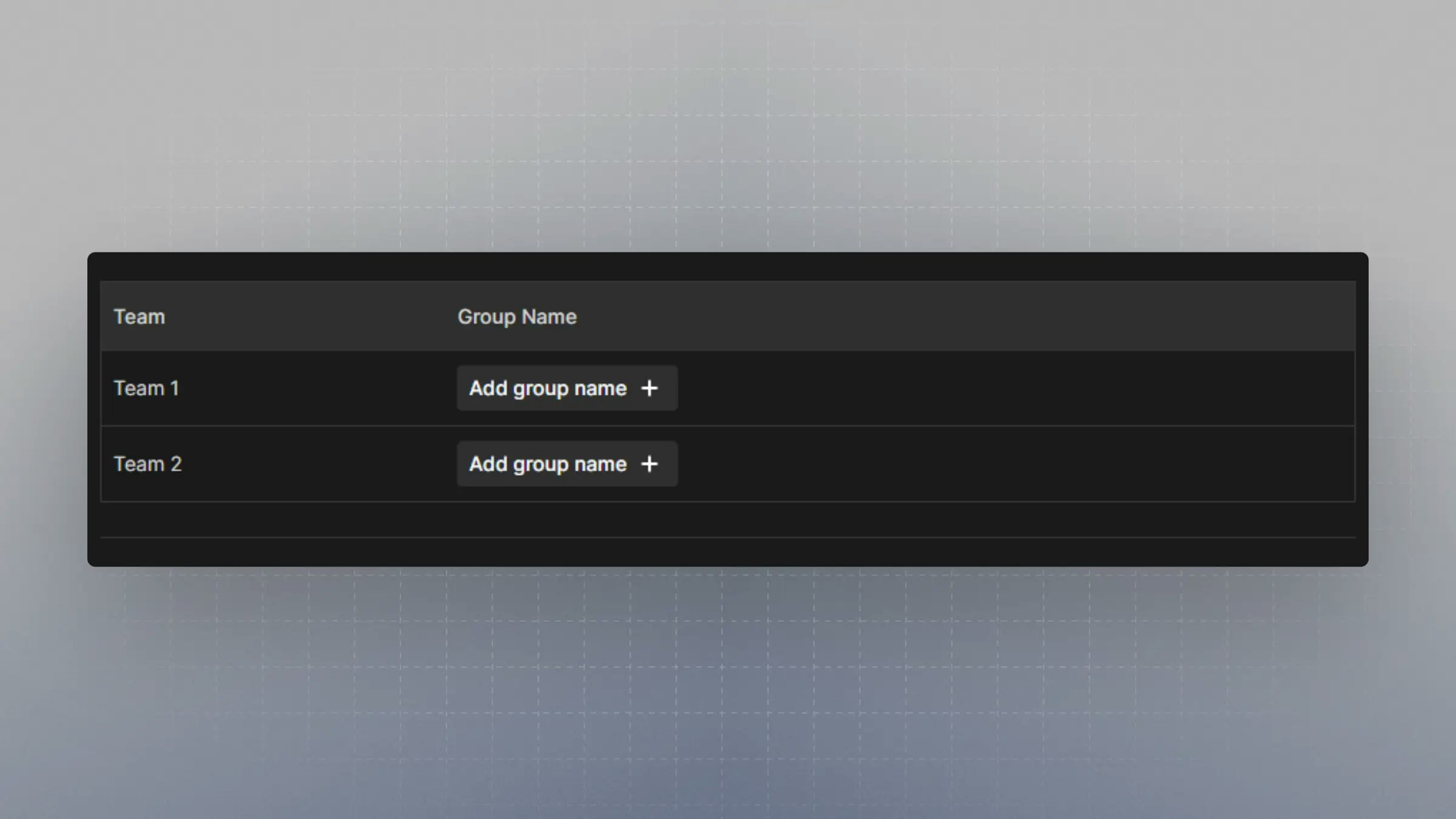
On `https://app.cal.com/settings/organization/dsync`, there is a table with the teams under your organization. Click on "Add group name" to map the Okta group to the team.
The group name must be spelled exactly as it is shown on Okta.
When you push the group to your organization, those users will automatically be added to the team.
You can now assign users and groups to the app.
## Mapping Okta Groups to Cal.com Teams
When provisioning groups to your organization, Okta groups can be mapped to teams within your organization, and users will be auto-assigned to these teams.
On `https://app.cal.com/settings/organization/dsync`, there is a table with the teams under your organization. Click on "Add group name" to map the Okta group to the team.
The group name must be spelled exactly as it is shown on Okta.
When you push the group to your organization, those users will automatically be added to the team.