> ## Documentation Index
> Fetch the complete documentation index at: https://cal.com/help/llms.txt
> Use this file to discover all available pages before exploring further.
# Troubleshoot your availability
> Use the availability troubleshooter to see why a time isn't bookable, from calendar conflicts to minimum notice and booking limits.
If people can't book a time you expected to be open, the troubleshooter shows what's blocking it. It checks your schedule, connected calendars, existing bookings and event settings, then tells you why each time is unavailable and how to fix it.
## Open the troubleshooter
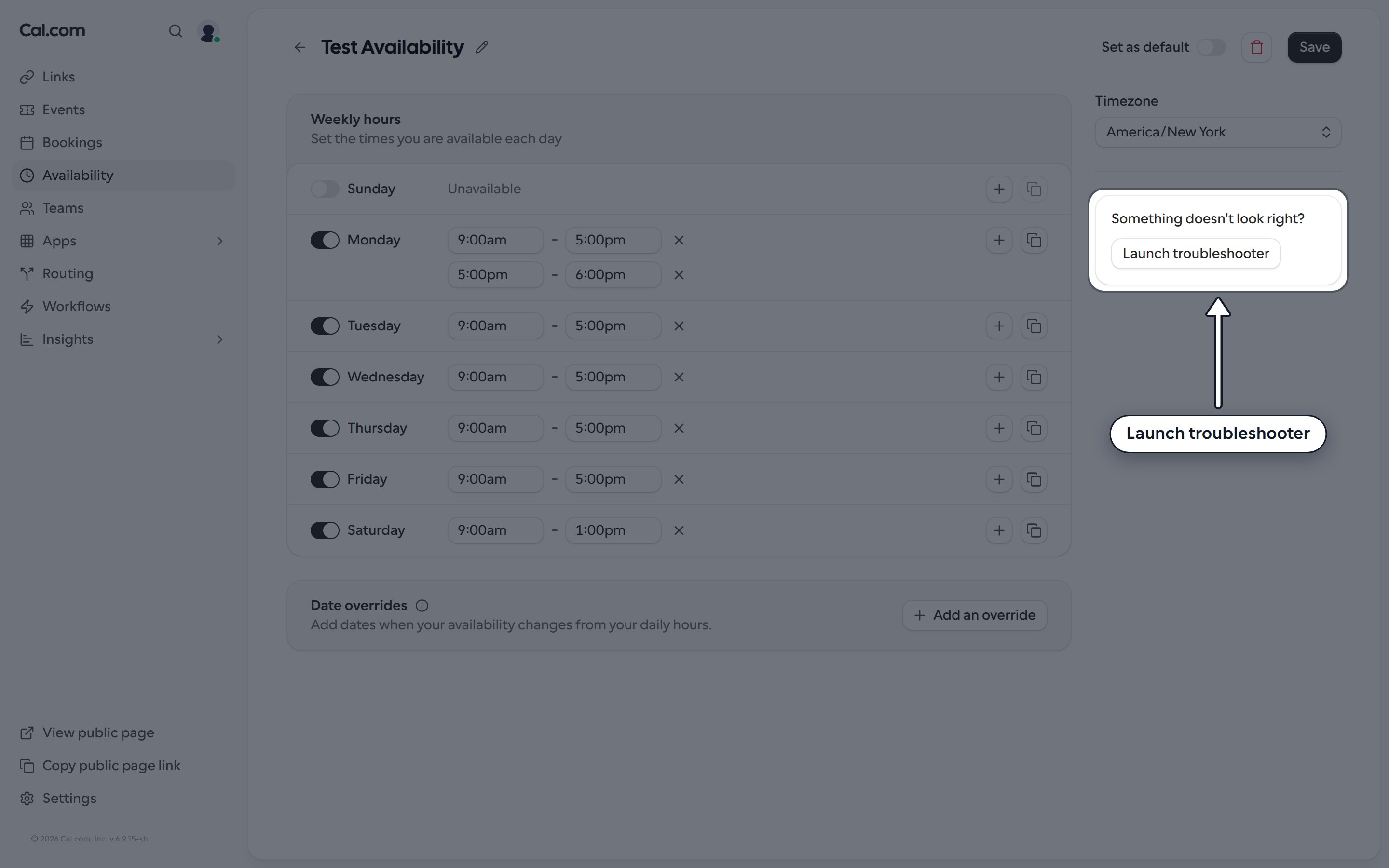
Go to **Availability**, open a schedule and click **Launch troubleshooter** under **Something doesn't look right?**.
 ## Find your way around
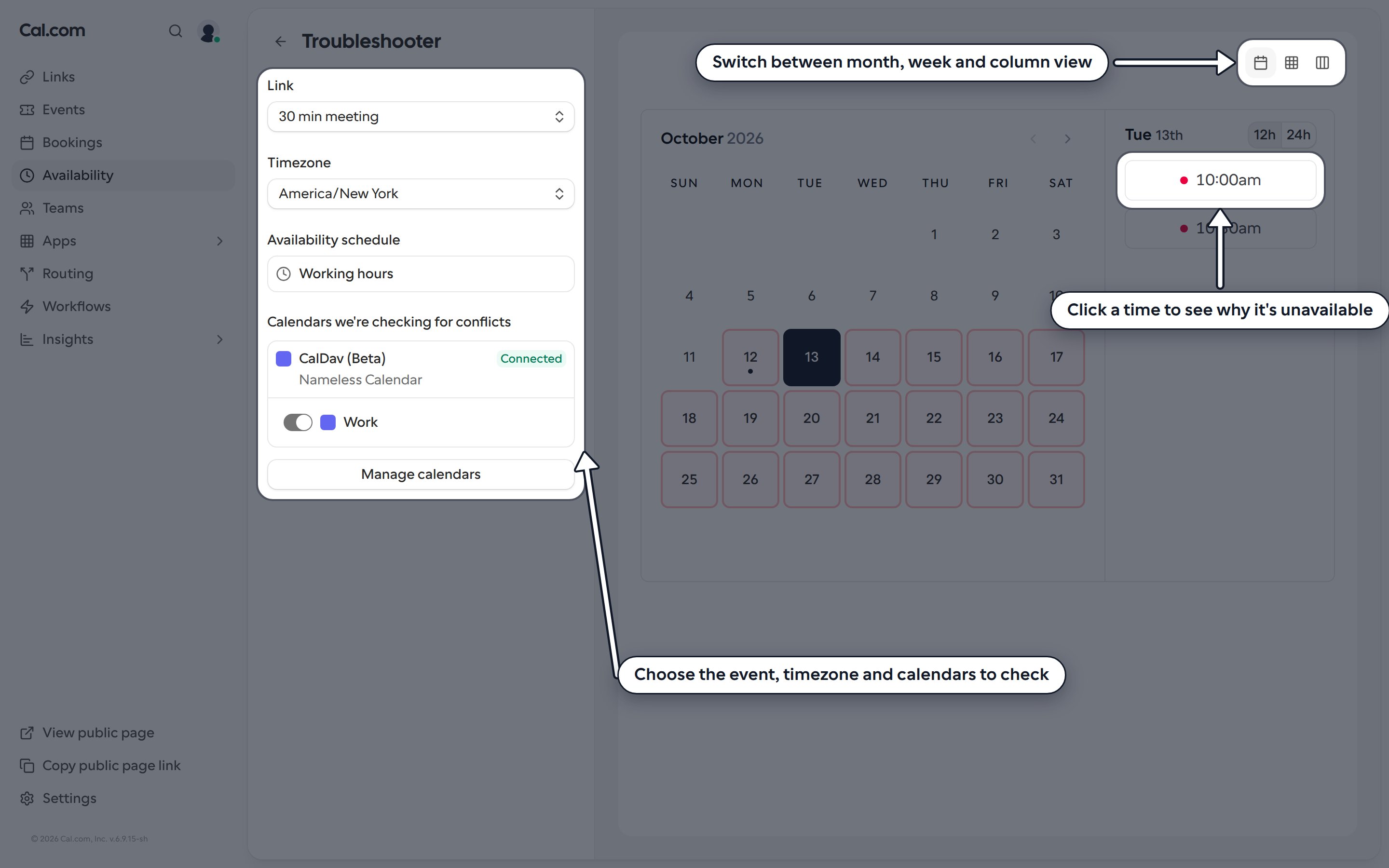
* **Link:** pick the booking link to check. Each booking link can have its own schedule, notice and limits, so the results depend on the one you pick.
* **Timezone:** choose the timezone the times are shown in.
* **Availability schedule:** shows which schedule the selected booking link uses.
* **Calendars we're checking for conflicts:** lists your connected calendars. Turn a calendar off to see what your availability would look like without it. Click **Manage calendars** to change which calendars are checked.
* **Layout:** use the buttons in the top-right corner to switch between month, week and column view.
In month view, pick a day to see its times. Times that can't be booked are marked **Why unavailable?**. Click one to open **Unavailability reasons**, which shows the reason, a **How to fix** tip and the time it applies to. When a whole day is blocked, you'll see **No times available** with the reason underneath. Click **View details** to open the full explanation.
## Find your way around
* **Link:** pick the booking link to check. Each booking link can have its own schedule, notice and limits, so the results depend on the one you pick.
* **Timezone:** choose the timezone the times are shown in.
* **Availability schedule:** shows which schedule the selected booking link uses.
* **Calendars we're checking for conflicts:** lists your connected calendars. Turn a calendar off to see what your availability would look like without it. Click **Manage calendars** to change which calendars are checked.
* **Layout:** use the buttons in the top-right corner to switch between month, week and column view.
In month view, pick a day to see its times. Times that can't be booked are marked **Why unavailable?**. Click one to open **Unavailability reasons**, which shows the reason, a **How to fix** tip and the time it applies to. When a whole day is blocked, you'll see **No times available** with the reason underneath. Click **View details** to open the full explanation.
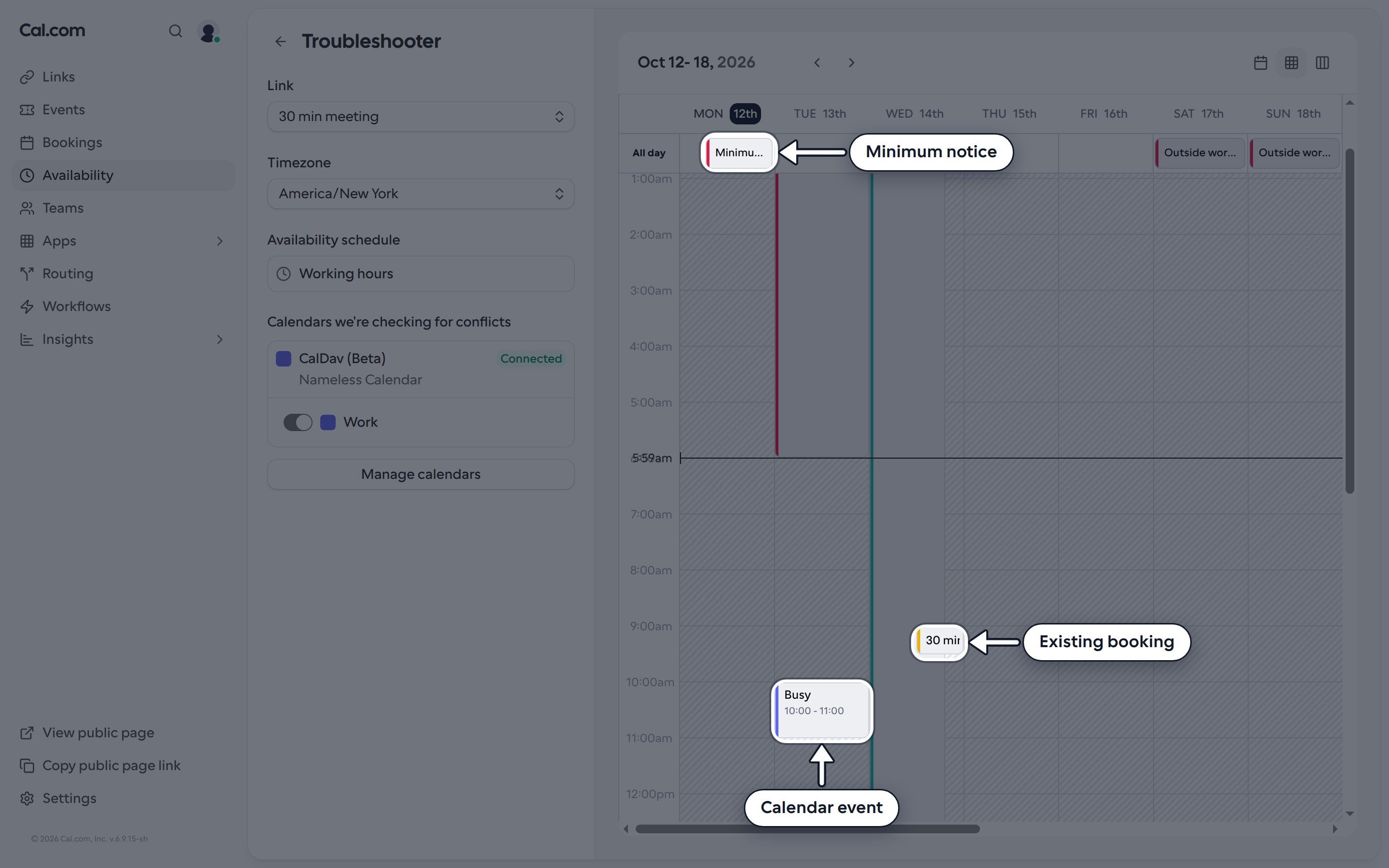
 Week view shows everything that affects your availability side by side: calendar events, existing bookings and settings such as minimum notice. Click any block to see why it's there.
 ## Common reasons a time is blocked
### A calendar event
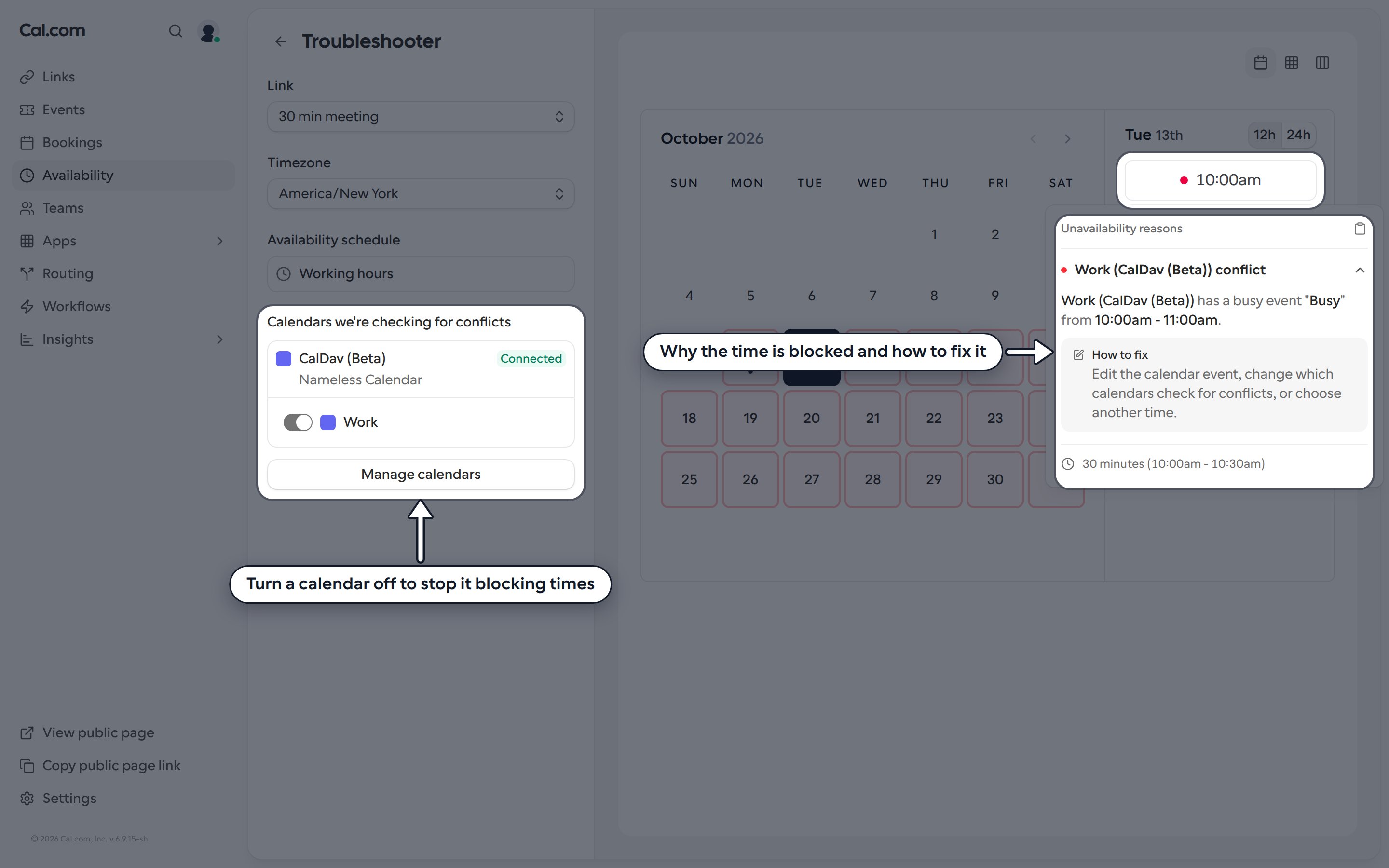
If a connected calendar has a busy event at that time, you'll see a conflict reason such as:
> **Work conflict**
> Work has a busy event "Busy" from 10:00am - 11:00am.
> **How to fix:** Edit the calendar event, change which calendars check for conflicts, or choose another time.
To free up the time, change or remove the event in your calendar, mark it as free, or stop checking that calendar for conflicts.
## Common reasons a time is blocked
### A calendar event
If a connected calendar has a busy event at that time, you'll see a conflict reason such as:
> **Work conflict**
> Work has a busy event "Busy" from 10:00am - 11:00am.
> **How to fix:** Edit the calendar event, change which calendars check for conflicts, or choose another time.
To free up the time, change or remove the event in your calendar, mark it as free, or stop checking that calendar for conflicts.
 ### Minimum booking notice
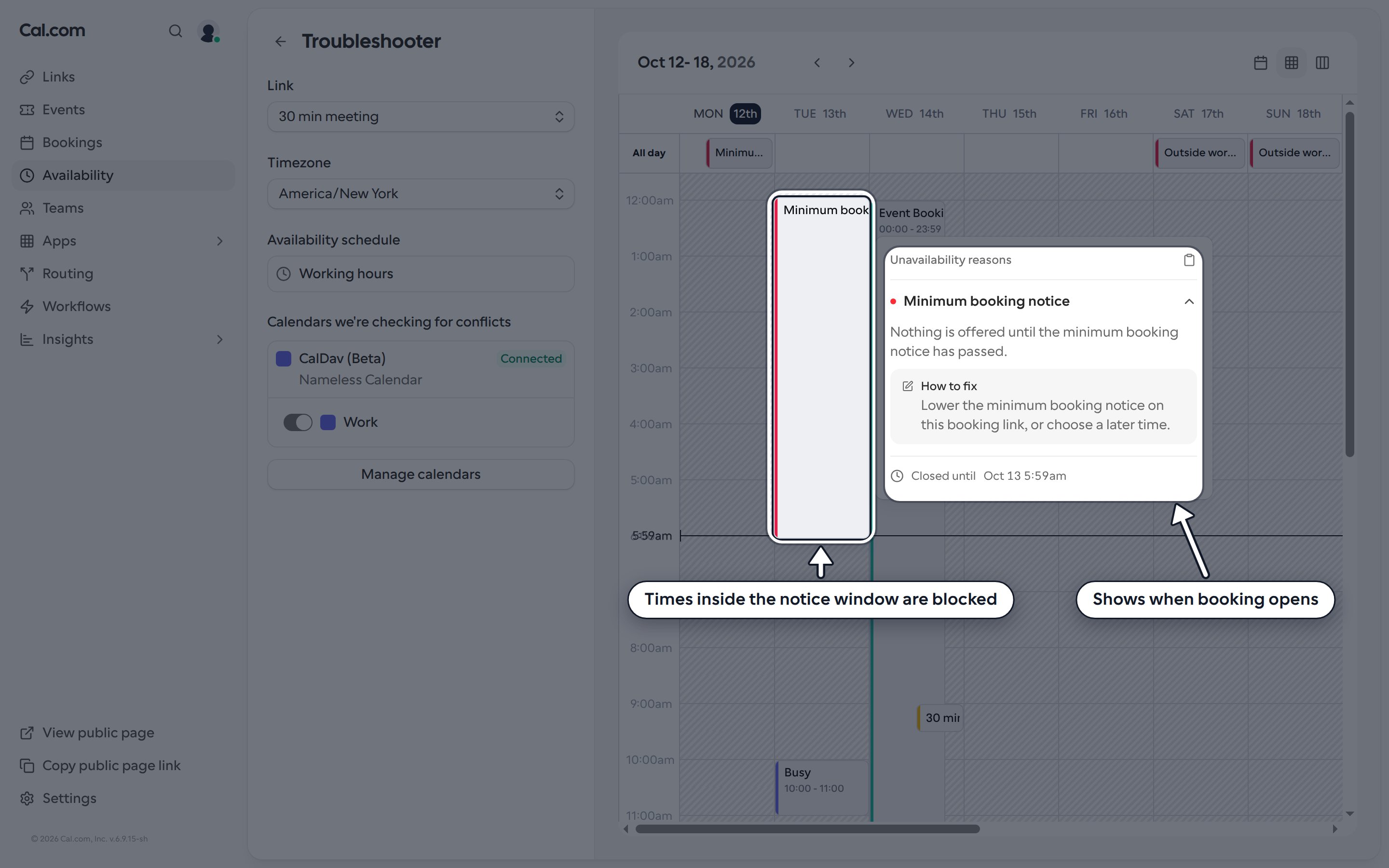
If the booking link has a minimum booking notice, times too close to now are blocked:
> **Minimum booking notice**
> Nothing is offered until the minimum booking notice has passed.
> **How to fix:** Lower the minimum booking notice on this booking link, or choose a later time.
The panel also shows **Closed until** with the first time that can be booked. To change it, open the booking link, go to **Limits & buffers** and lower the **Minimum notice**.
### Minimum booking notice
If the booking link has a minimum booking notice, times too close to now are blocked:
> **Minimum booking notice**
> Nothing is offered until the minimum booking notice has passed.
> **How to fix:** Lower the minimum booking notice on this booking link, or choose a later time.
The panel also shows **Closed until** with the first time that can be booked. To change it, open the booking link, go to **Limits & buffers** and lower the **Minimum notice**.
 ### Booking limits
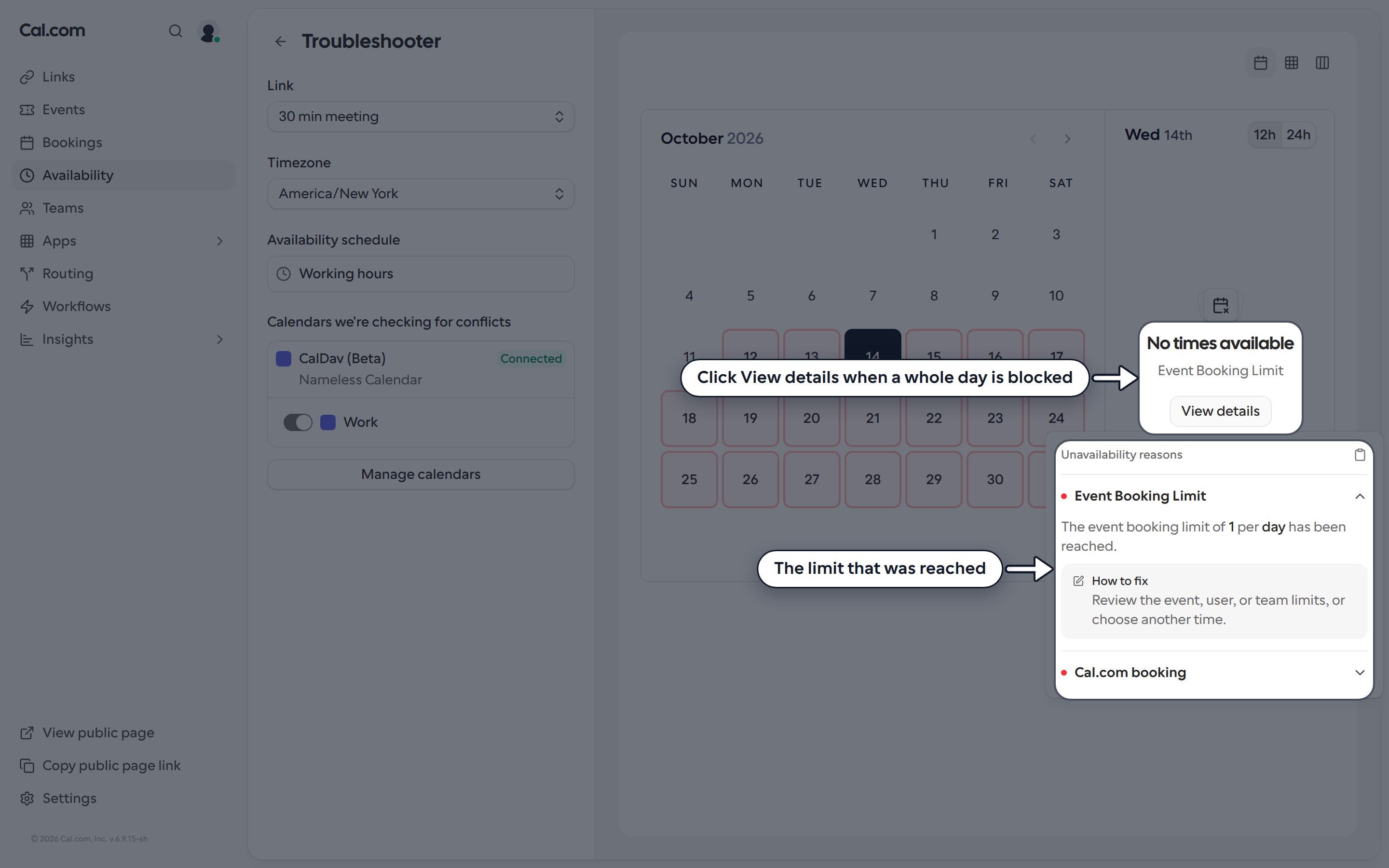
If you've set a limit on how many bookings, or how many minutes of bookings, you take per day, week, month or year, the troubleshooter tells you which limit was reached:
> **Event Booking Limit**
> The event booking limit of 1 per day has been reached.
> **How to fix:** Review the event, user, or team limits, or choose another time.
To change it, open the booking link, go to **Limits & buffers** and adjust **Limit booking frequency** or **Limit total booking duration**.
### Booking limits
If you've set a limit on how many bookings, or how many minutes of bookings, you take per day, week, month or year, the troubleshooter tells you which limit was reached:
> **Event Booking Limit**
> The event booking limit of 1 per day has been reached.
> **How to fix:** Review the event, user, or team limits, or choose another time.
To change it, open the booking link, go to **Limits & buffers** and adjust **Limit booking frequency** or **Limit total booking duration**.
 ### Other reasons
You may also see:
* **Cal.com booking:** you already have a booking at that time. Reschedule or cancel it, or choose another time.
* **Booking buffer:** a buffer before or after another event blocks the time. Adjust the buffers in the booking link's **Limits & buffers** tab.
* **Limit future bookings:** the time is further ahead than the booking link allows. Widen the future booking limit in **Limits & buffers**.
* **Outside working hours:** the time isn't part of your schedule. Edit your [availability schedule](/help/availabilities/availability-dashboard-overview) or add a [date override](/help/availabilities/date-overrides).
* **Out of office:** you've set an [out of office](/help/availabilities/out-of-office) period for that day.
When more than one reason applies, the main one is shown first. Click the copy icon in **Unavailability reasons** to copy the explanation, for example to share it with your team or with support.
This documentation is built and hosted on [Mintlify](https://mintlify.com), a developer documentation platform.
### Other reasons
You may also see:
* **Cal.com booking:** you already have a booking at that time. Reschedule or cancel it, or choose another time.
* **Booking buffer:** a buffer before or after another event blocks the time. Adjust the buffers in the booking link's **Limits & buffers** tab.
* **Limit future bookings:** the time is further ahead than the booking link allows. Widen the future booking limit in **Limits & buffers**.
* **Outside working hours:** the time isn't part of your schedule. Edit your [availability schedule](/help/availabilities/availability-dashboard-overview) or add a [date override](/help/availabilities/date-overrides).
* **Out of office:** you've set an [out of office](/help/availabilities/out-of-office) period for that day.
When more than one reason applies, the main one is shown first. Click the copy icon in **Unavailability reasons** to copy the explanation, for example to share it with your team or with support.
This documentation is built and hosted on [Mintlify](https://mintlify.com), a developer documentation platform.