> ## Documentation Index
> Fetch the complete documentation index at: https://cal.com/help/llms.txt
> Use this file to discover all available pages before exploring further.
# Cal Pay
> Charge for a booking without connecting Stripe, and withdraw what you earn from inside Cal.com.
Cal Pay is Cal.com's own payment option. It is available on every account by default, so there is nothing to install from the app store and no Stripe or PayPal account to connect before you can charge for a booking.
Payments are processed by Whop. Cal.com does not add a commission on top of what you charge.
## Turn on Cal Pay for a Link
Go to your Links and open the one you want to charge for.
In the left menu of the Link, under **Booking experience**, select **Payments & Seats**.
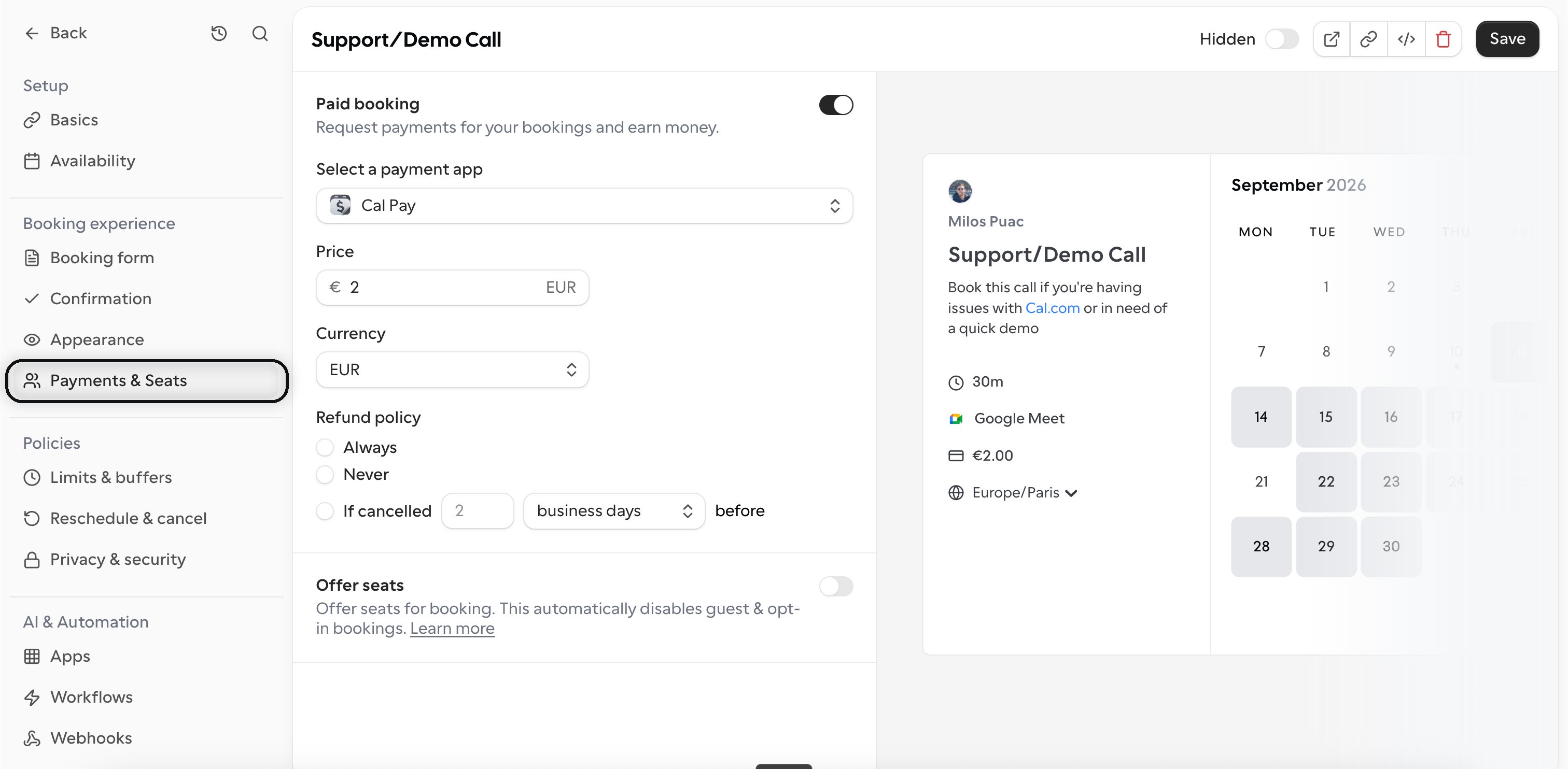 Switch on **Paid booking**, then choose **Cal Pay** under **Select a payment app**.
Enter the **Price** and choose the **Currency**. The price must be at least the currency's minimum charge.
Pick how refunds are handled: **Always**, **Never**, or **If cancelled** a set number of days or business days before the booking.
Select **Save**. Every new booking on that Link now requires payment.
## What the booker sees
The booker fills in your booking form as usual and pays before the booking is created. Checkout runs inside the booking page itself, so they are never redirected to an external payment page. Once the payment goes through, the booking is confirmed and they receive their confirmation and a receipt.
## Payment methods and fees
Cal Pay supports cards, standard ACH, next day ACH, wire, PayPal, and Cash App. The processing fee depends on which one the booker uses.
| Payment method | Processing fee |
| -------------- | -------------- |
| Card | 2.3% |
| ACH | 1% |
| PayPal | 2.7% |
| Cash App | 2.7% |
PayPal and Cash App transactions are instant. ACH and wire transfers can take 1 to 3 days to settle with the bank.
## How the money reaches you
They choose a payment method and pay for the booking.
Once the transaction goes through, the money settles into your Cal Pay wallet rather than straight into your bank.
Go to **Apps** > **Installed apps** > **Payment**. Under **Cal Pay** you will find **Balance and withdrawals** with your **Total balance** and **Available balance**. Select **Withdraw**
Switch on **Paid booking**, then choose **Cal Pay** under **Select a payment app**.
Enter the **Price** and choose the **Currency**. The price must be at least the currency's minimum charge.
Pick how refunds are handled: **Always**, **Never**, or **If cancelled** a set number of days or business days before the booking.
Select **Save**. Every new booking on that Link now requires payment.
## What the booker sees
The booker fills in your booking form as usual and pays before the booking is created. Checkout runs inside the booking page itself, so they are never redirected to an external payment page. Once the payment goes through, the booking is confirmed and they receive their confirmation and a receipt.
## Payment methods and fees
Cal Pay supports cards, standard ACH, next day ACH, wire, PayPal, and Cash App. The processing fee depends on which one the booker uses.
| Payment method | Processing fee |
| -------------- | -------------- |
| Card | 2.3% |
| ACH | 1% |
| PayPal | 2.7% |
| Cash App | 2.7% |
PayPal and Cash App transactions are instant. ACH and wire transfers can take 1 to 3 days to settle with the bank.
## How the money reaches you
They choose a payment method and pay for the booking.
Once the transaction goes through, the money settles into your Cal Pay wallet rather than straight into your bank.
Go to **Apps** > **Installed apps** > **Payment**. Under **Cal Pay** you will find **Balance and withdrawals** with your **Total balance** and **Available balance**. Select **Withdraw**
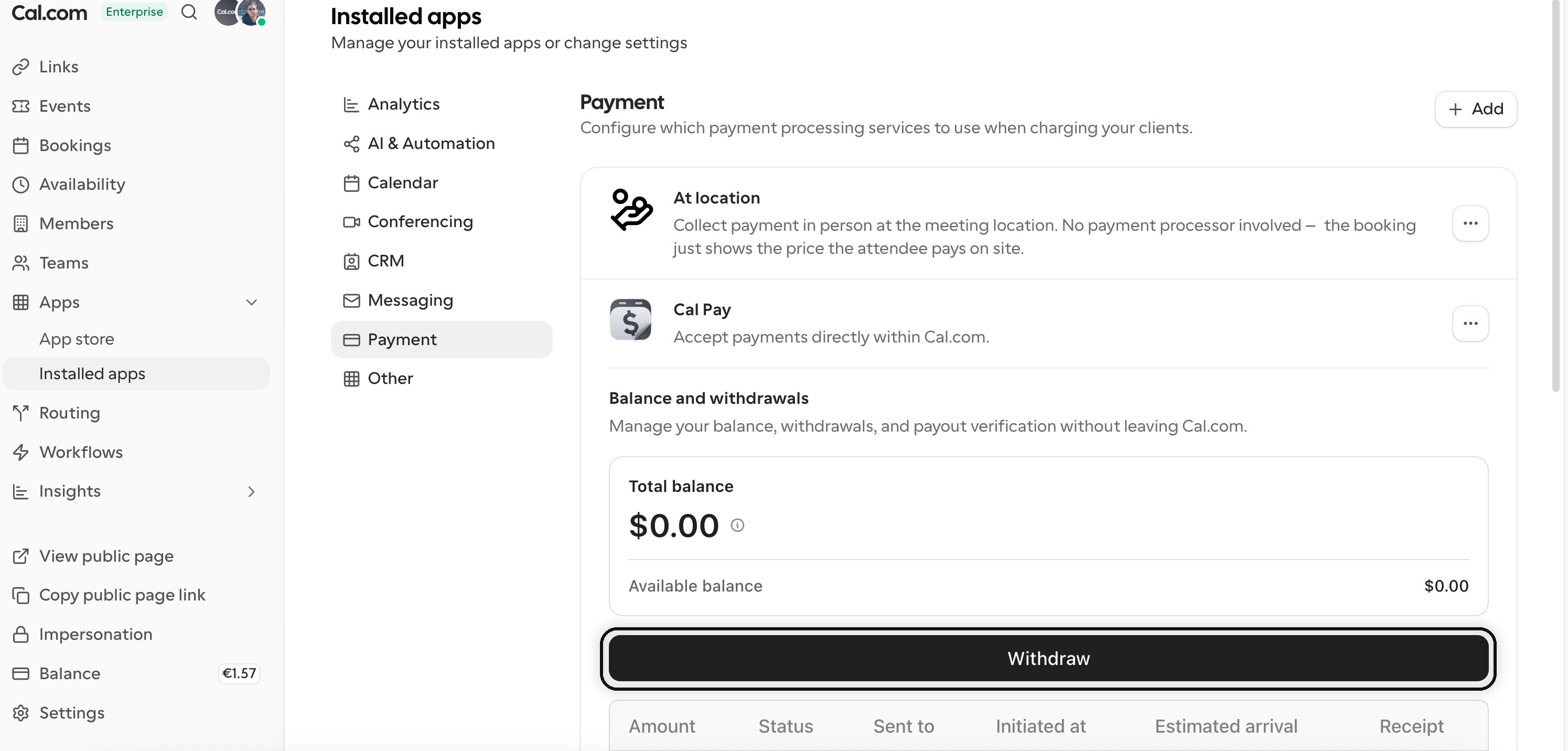 Identity verification (KYC) happens at your first withdrawal, not when you set Cal Pay up. Do it before you are counting on a payout arriving.
Pick your preferred payout method and the funds move from your Cal Pay wallet to that account.
## Cal Pay and Stripe
Both options exist for Links. If you already collect payments through the [Stripe app](/help/event-types/how-to-receive-payments), that keeps working. Cal Pay is the option that needs no external account.
For [events](/help/events/paid-events), Cal Pay is the only option. Stripe and PayPal cannot be used to sell event tickets.
## Related
* [How to set up an event type to receive payments](/help/event-types/how-to-receive-payments)
* [Paid events with Cal Pay](/help/events/paid-events)
* [Paid Bookings](/help/bookings/paid-bookings)
Identity verification (KYC) happens at your first withdrawal, not when you set Cal Pay up. Do it before you are counting on a payout arriving.
Pick your preferred payout method and the funds move from your Cal Pay wallet to that account.
## Cal Pay and Stripe
Both options exist for Links. If you already collect payments through the [Stripe app](/help/event-types/how-to-receive-payments), that keeps working. Cal Pay is the option that needs no external account.
For [events](/help/events/paid-events), Cal Pay is the only option. Stripe and PayPal cannot be used to sell event tickets.
## Related
* [How to set up an event type to receive payments](/help/event-types/how-to-receive-payments)
* [Paid events with Cal Pay](/help/events/paid-events)
* [Paid Bookings](/help/bookings/paid-bookings)