> ## Documentation Index
> Fetch the complete documentation index at: https://cal.com/help/llms.txt
> Use this file to discover all available pages before exploring further.
# Import Numbers
> Learn how to import phone numbers from Twilio for your Cal.ai agent via SIP trunking
## Steps
### 1. Create Elastic SIP Trunking
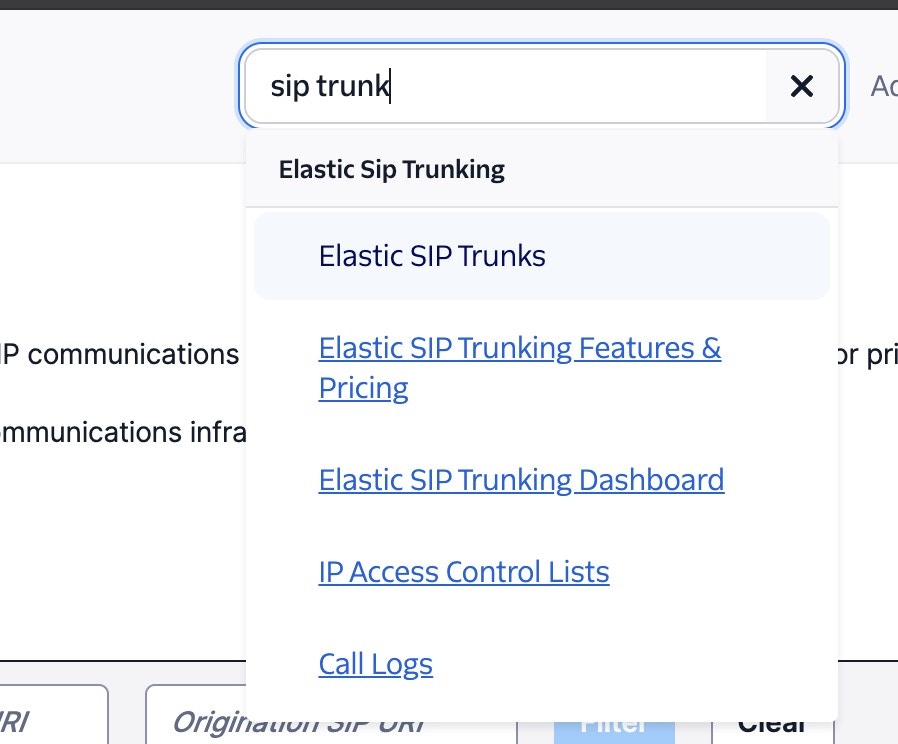
1. Search "Elastic SIP trunks" on Twilio Console
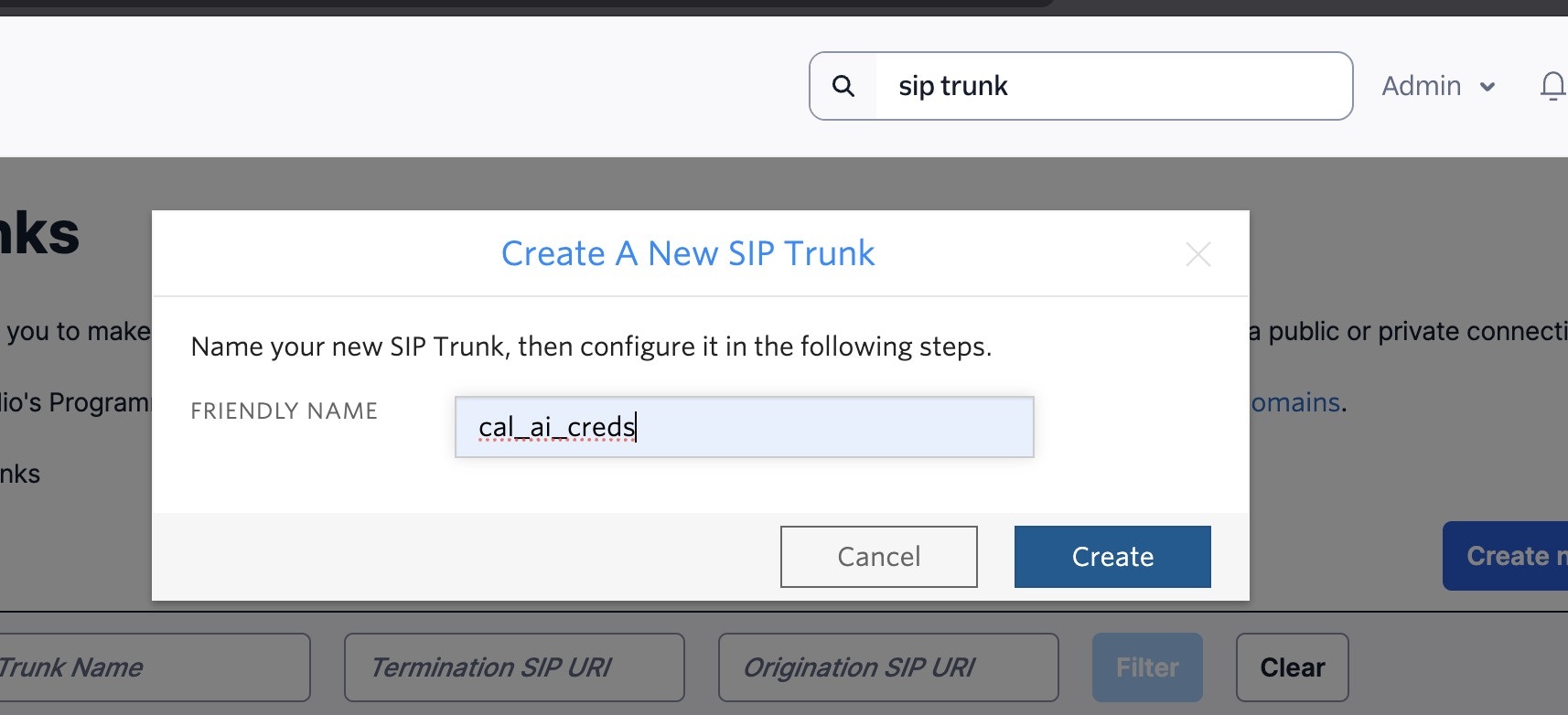
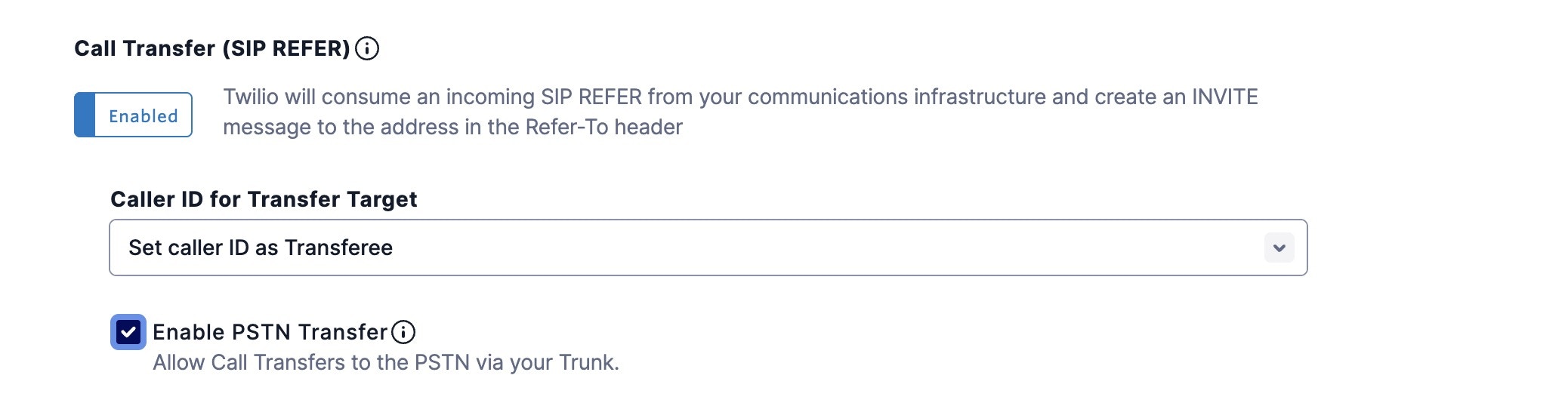
 2. Create the trunk, give it a name, and toggle these settings and click Save
 3. Setup termination (this is for outbound)
* Click the **Termination** tab on the sidebar
3. Setup termination (this is for outbound)
* Click the **Termination** tab on the sidebar
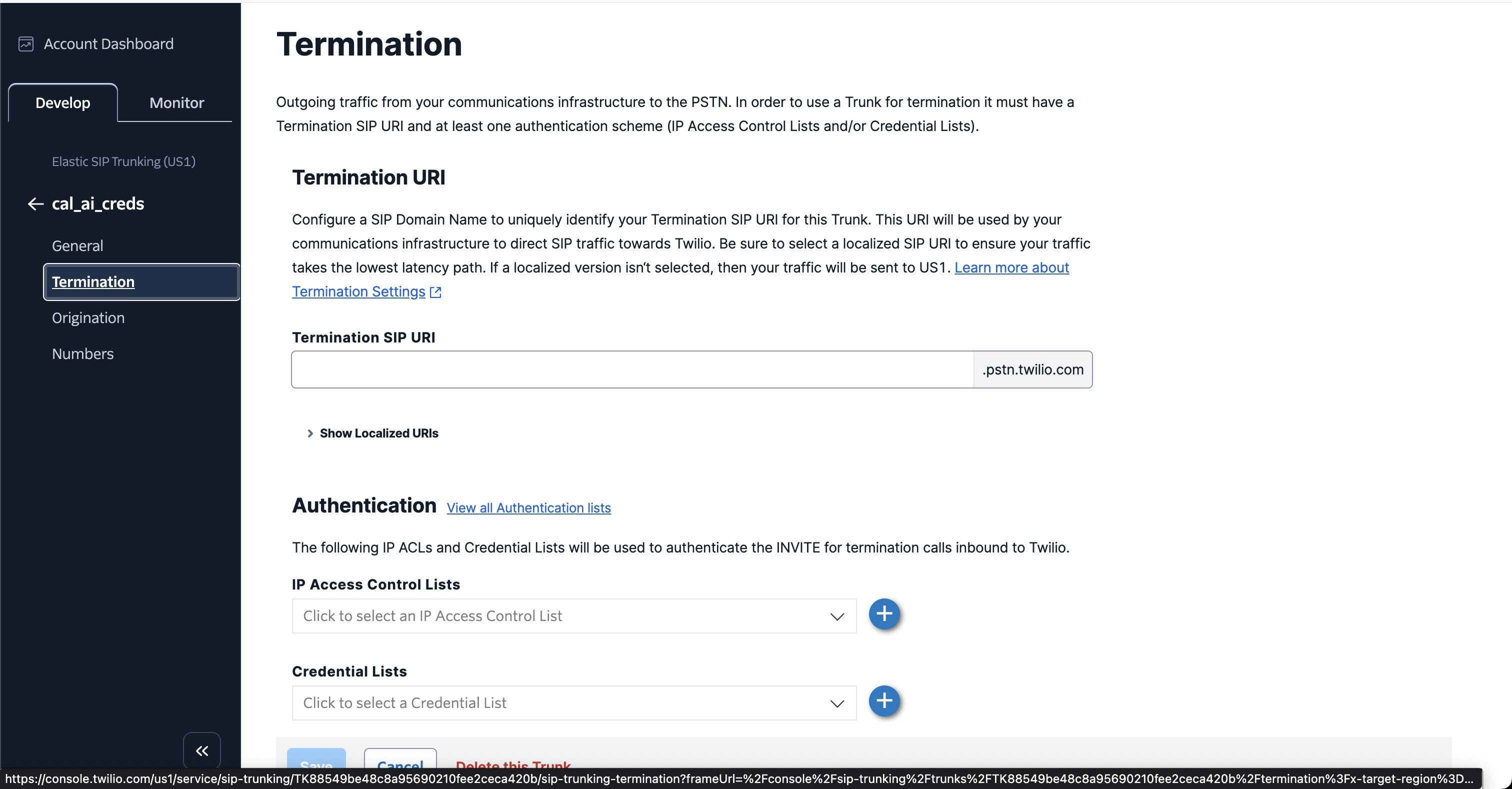 * The termination SIP URI here is important, we would use it in later steps. You might want to use a localized termination uri that's near your region. You can expand and view your localized uris in your provider's console.
* You can pick the uri something like cal-ai-support-network-02
* The termination SIP URI here is important, we would use it in later steps. You might want to use a localized termination uri that's near your region. You can expand and view your localized uris in your provider's console.
* You can pick the uri something like cal-ai-support-network-02
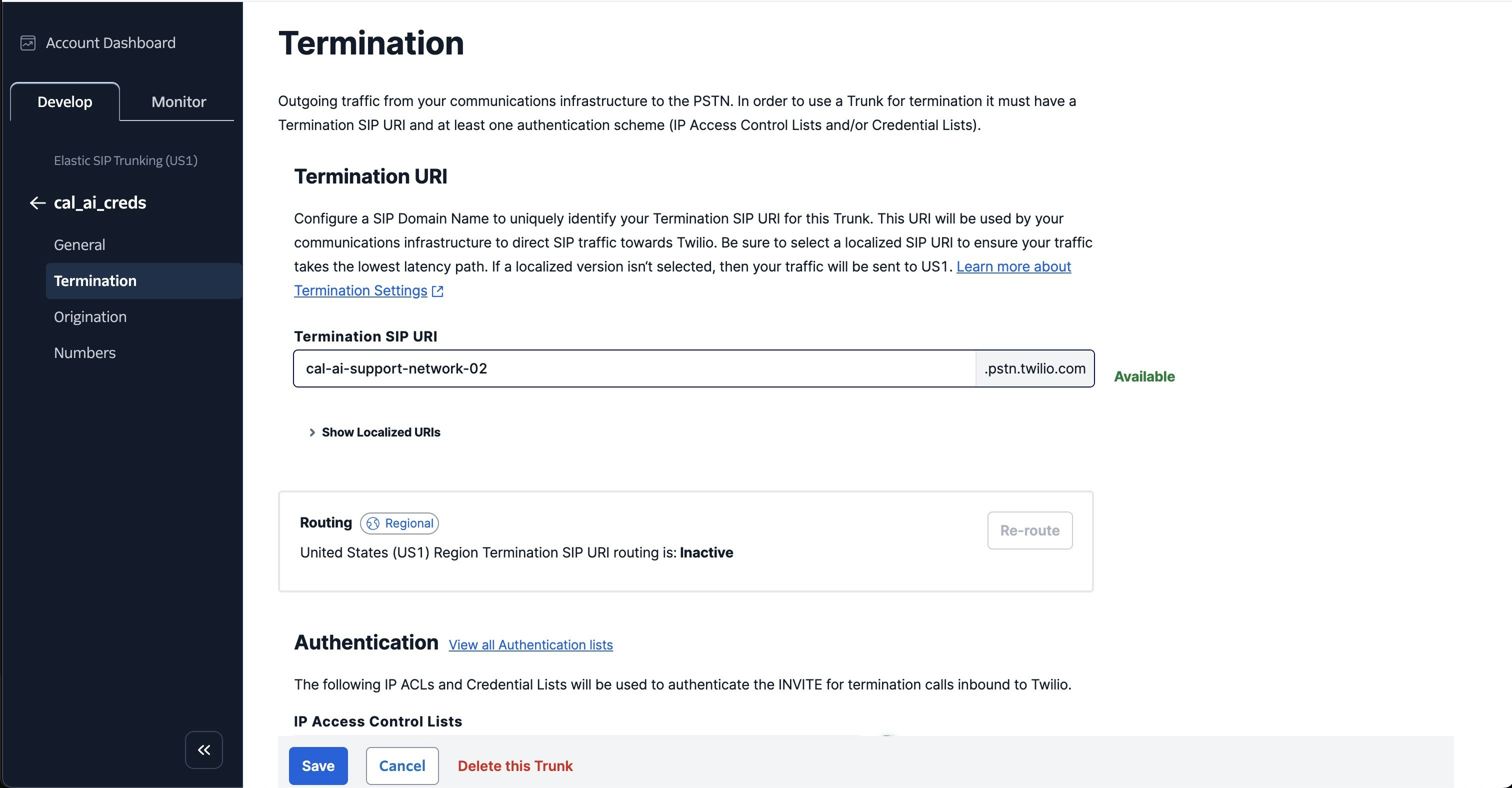 * For your elastic SIP trunk to accept our outbound request, you need to create a auth with username and password.
* Click on create new credentials list in Authentication section
* For your elastic SIP trunk to accept our outbound request, you need to create a auth with username and password.
* Click on create new credentials list in Authentication section
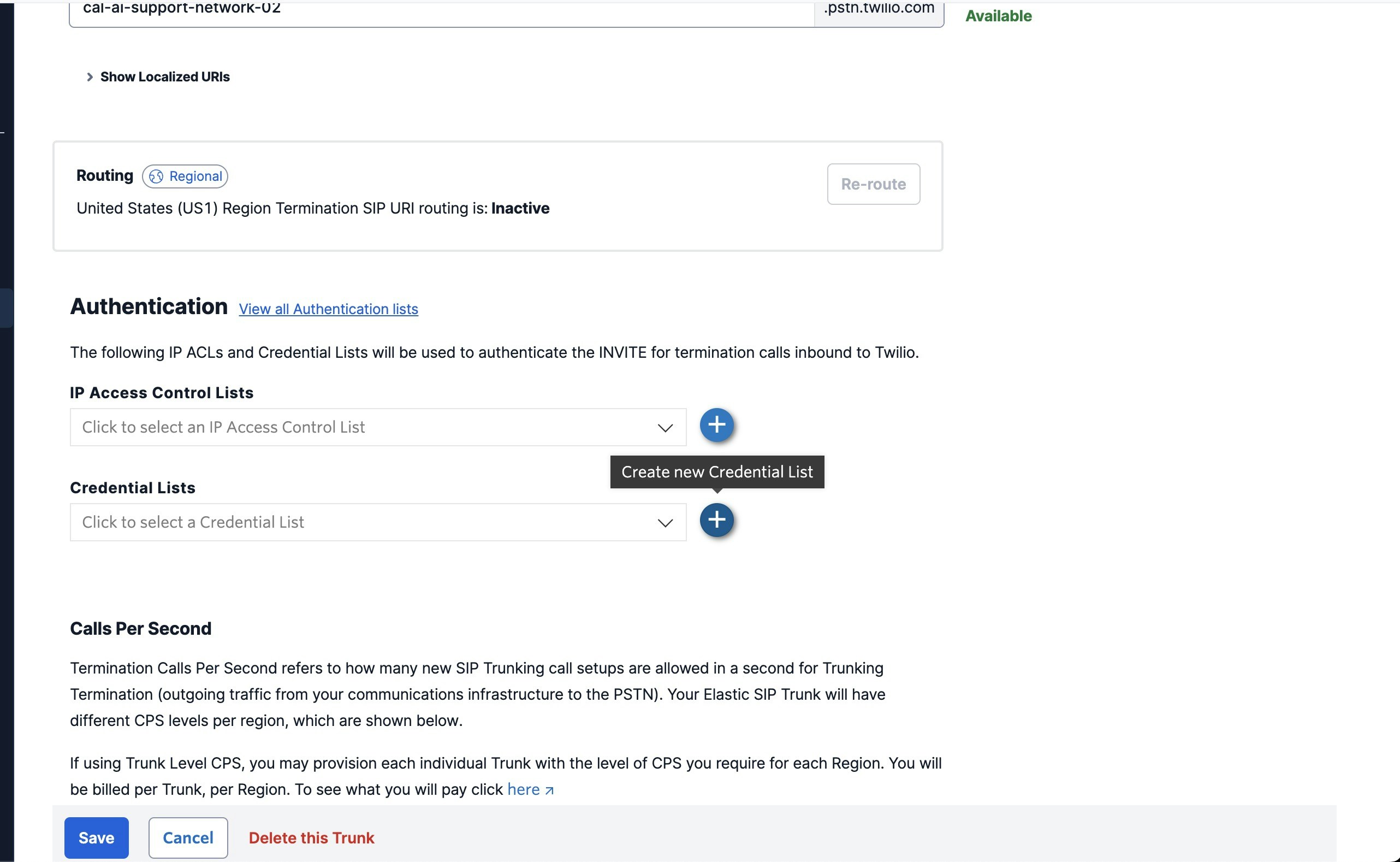 * Give it a friendly name and enter any username and password and we would need this username and password in the later steps and click save on the Termination page.
4. Setup origination (this is for inbound)
* Click on Origination tab on the sidebar
* Click on Add new Origination URI's button
* Give it a friendly name and enter any username and password and we would need this username and password in the later steps and click save on the Termination page.
4. Setup origination (this is for inbound)
* Click on Origination tab on the sidebar
* Click on Add new Origination URI's button
 * Here you will specify SIP server address as the origination SIP URI: `sip:5t4n6j0wnrl.sip.livekit.cloud` and click 'Add'
### 2. Move numbers to Elastic SIP Trunking
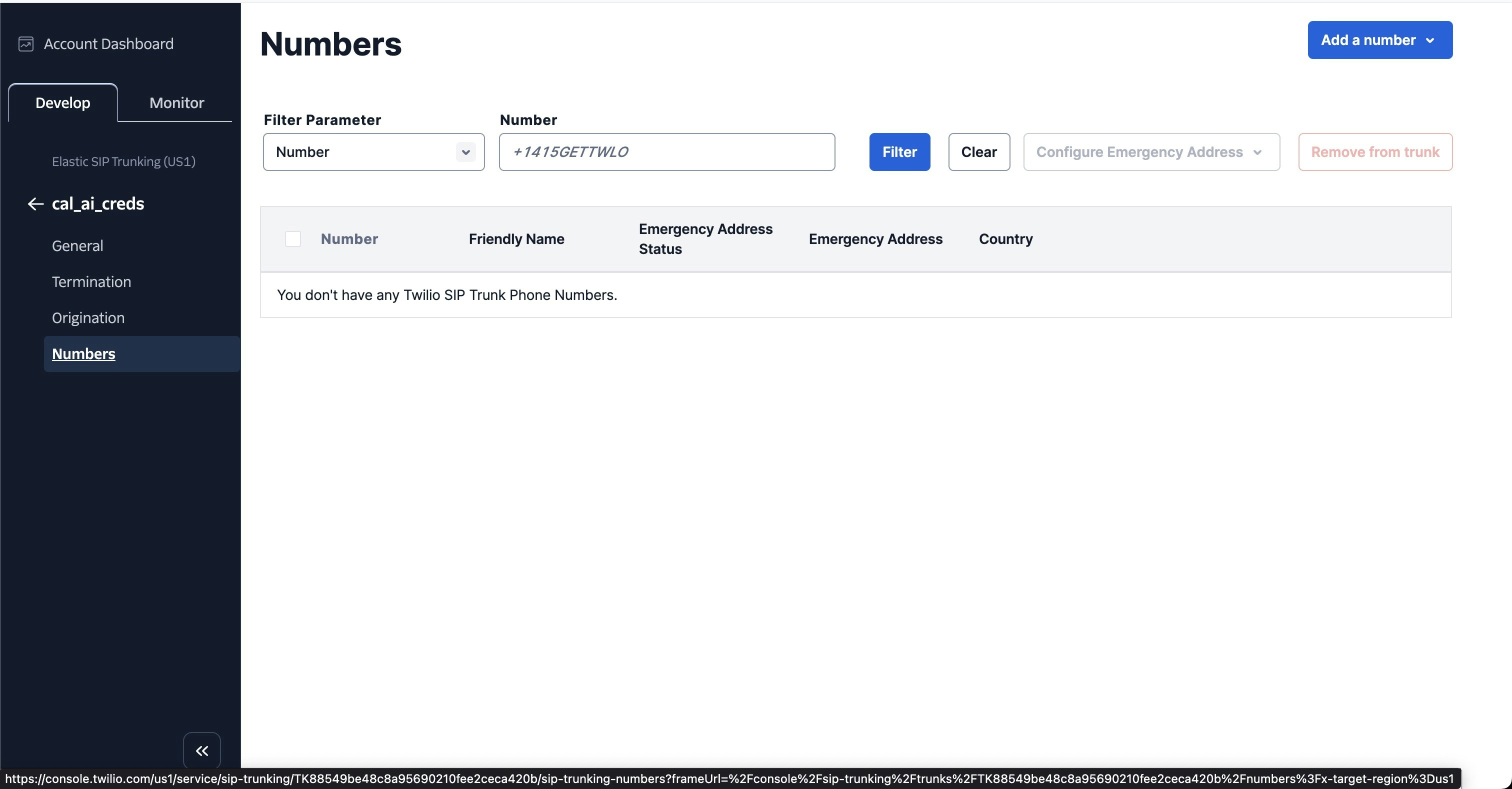
You've created the elastic SIP trunk, now you would need to purchase numbers / move existing numbers to this trunk.
* Now go to **Numbers** tab on the sidebar and click on **Add a number** button to purchase / move existing numbers to this trunk.
* Here you will specify SIP server address as the origination SIP URI: `sip:5t4n6j0wnrl.sip.livekit.cloud` and click 'Add'
### 2. Move numbers to Elastic SIP Trunking
You've created the elastic SIP trunk, now you would need to purchase numbers / move existing numbers to this trunk.
* Now go to **Numbers** tab on the sidebar and click on **Add a number** button to purchase / move existing numbers to this trunk.
 ### 3. Import modal on Cal.com
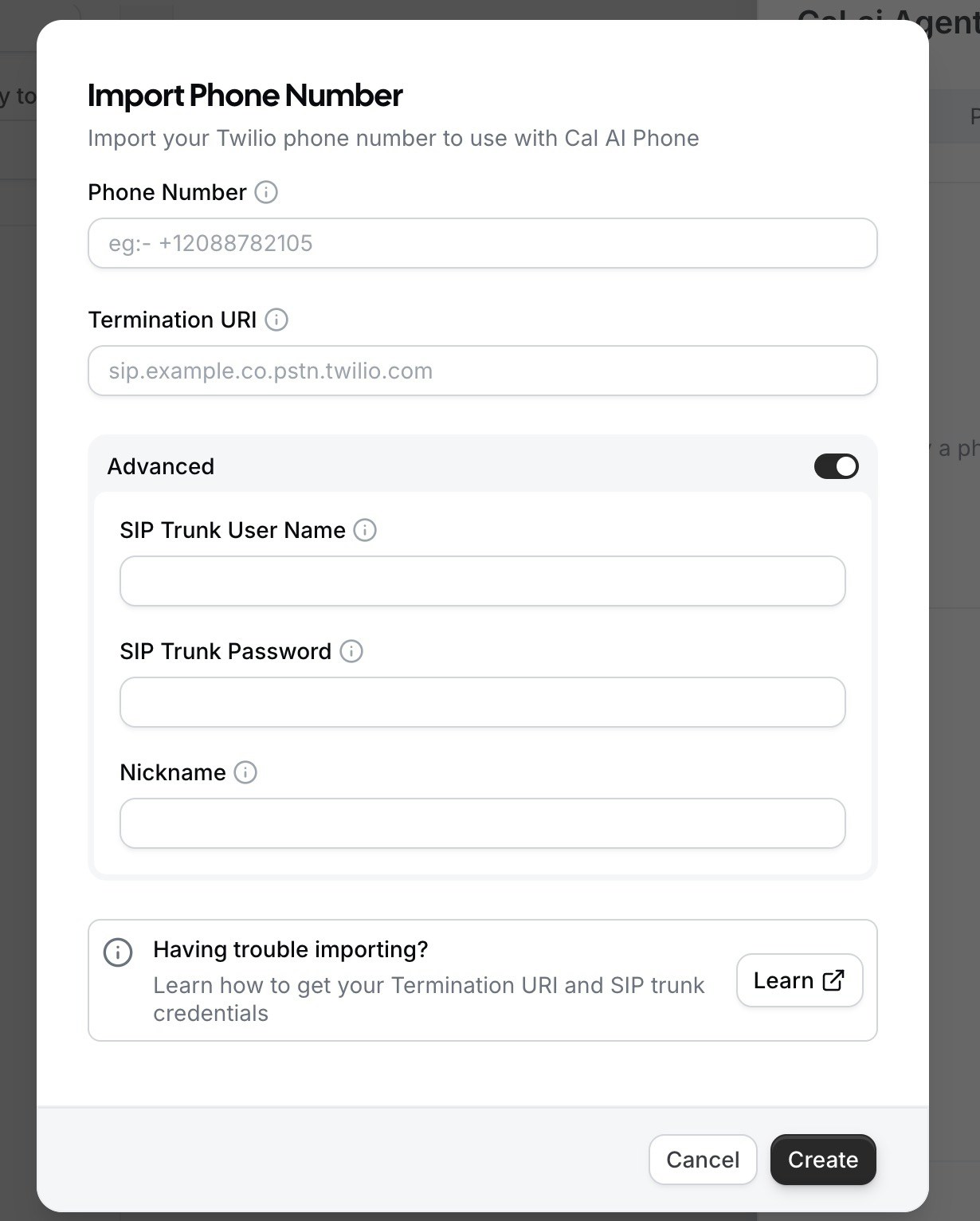
On Import modal on Cal.com workflow edit page, enter these values:
* Your complete phone number with country code
* Complete Termination URI from the previous steps
* SIP Username and password from the previous steps
* Click on **Create** button to import the number to Cal.com
### 3. Import modal on Cal.com
On Import modal on Cal.com workflow edit page, enter these values:
* Your complete phone number with country code
* Complete Termination URI from the previous steps
* SIP Username and password from the previous steps
* Click on **Create** button to import the number to Cal.com