> ## Documentation Index
> Fetch the complete documentation index at: https://cal.com/help/llms.txt
> Use this file to discover all available pages before exploring further.
# Roles and permissions
> Use default roles, create custom roles with specific permissions, and adjust roles for a single team.
Roles decide what members of your organization can see and change. Every organization starts with three default roles, and you can create custom roles for more precise access.
Roles and permissions are available for organizations. You need permission to manage roles, which owners and admins have by default.
***
## Default roles
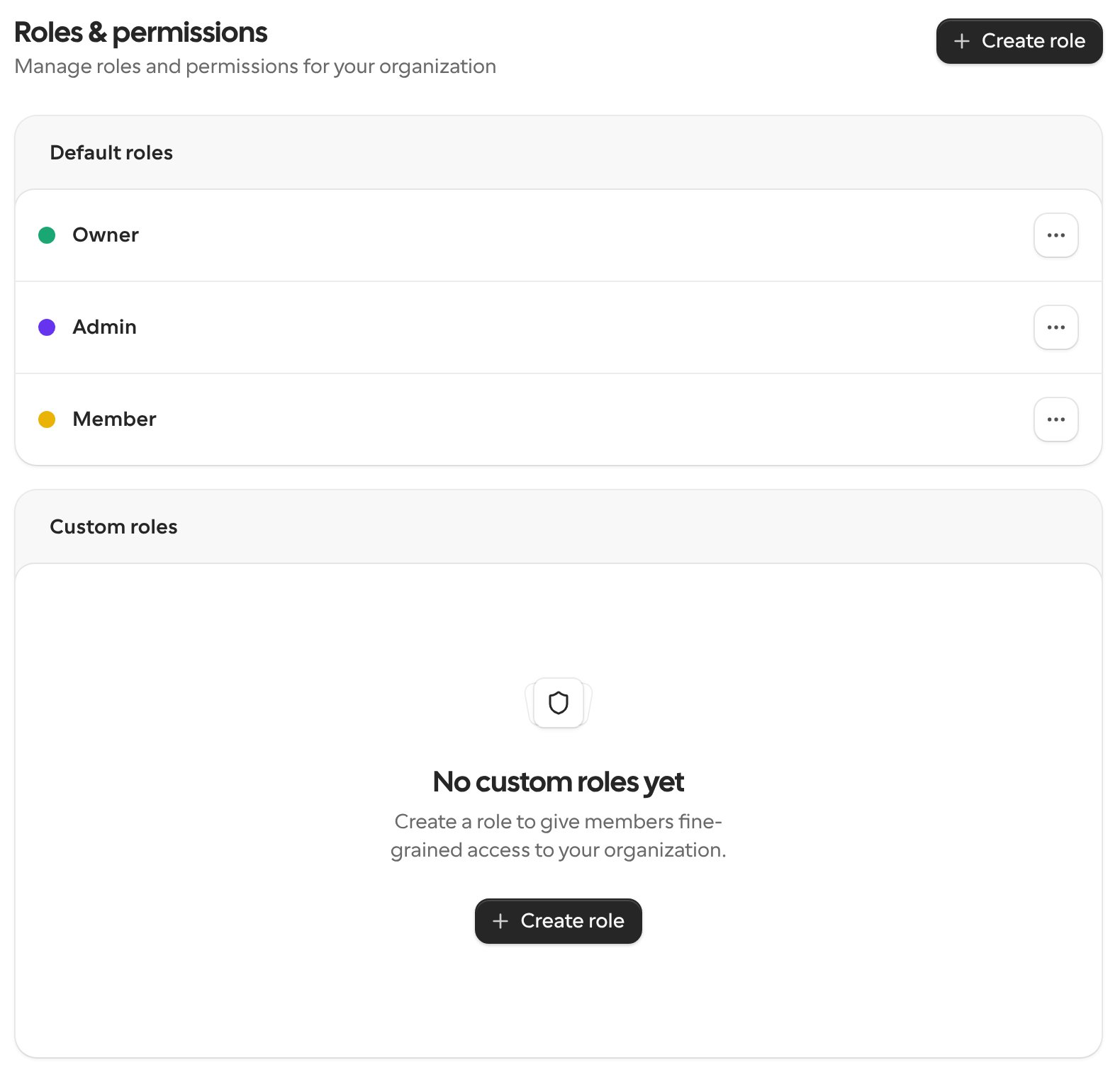
Go to **Settings** → **Organization** → **Roles & permissions**. The page lists two groups:
* **Default roles**: Owner, Admin and Member, which every organization has.
* **Custom roles**: roles you create for your organization.
 ***
## Create a custom role
On **Roles & permissions**, click **Create role** and enter a **Role name**.
For each area, choose what the role can do. Use **Read only** to let people view without changing anything, or **Custom** to pick individual permissions. **All permissions** gives full access to that area. Use **Search permissions** to find a specific one.
Save the role, then assign it to members from the **Members** page.
When you turn on Create, Update or Delete for an area, Read is turned on too, because people need to see something to change it.
To change or remove a custom role, open it and choose **Edit role** or **Delete role**. Deleting a role can't be undone.
***
## Adjust a role for one team
Sometimes a team needs its members to have more or less access than everywhere else. Instead of creating a new role, you can adjust the default Member or Admin role for that team only.
The change applies to that team. The organization-wide role stays the same for every other team.
***
## Related
* [Make a user an organization admin](/help/roles/make-user-an-org-admin)
This documentation is built and hosted on [Mintlify](https://mintlify.com), a developer documentation platform.
***
## Create a custom role
On **Roles & permissions**, click **Create role** and enter a **Role name**.
For each area, choose what the role can do. Use **Read only** to let people view without changing anything, or **Custom** to pick individual permissions. **All permissions** gives full access to that area. Use **Search permissions** to find a specific one.
Save the role, then assign it to members from the **Members** page.
When you turn on Create, Update or Delete for an area, Read is turned on too, because people need to see something to change it.
To change or remove a custom role, open it and choose **Edit role** or **Delete role**. Deleting a role can't be undone.
***
## Adjust a role for one team
Sometimes a team needs its members to have more or less access than everywhere else. Instead of creating a new role, you can adjust the default Member or Admin role for that team only.
The change applies to that team. The organization-wide role stays the same for every other team.
***
## Related
* [Make a user an organization admin](/help/roles/make-user-an-org-admin)
This documentation is built and hosted on [Mintlify](https://mintlify.com), a developer documentation platform.