> ## Documentation Index
> Fetch the complete documentation index at: https://cal.com/help/llms.txt
> Use this file to discover all available pages before exploring further.
# Cal.com Workflows
> Automate messages, actions, and follow-ups for your bookings
## What Are Workflows?
Workflows in Cal.com allow you to automate actions when a specific event happens, such as when a booking is created, canceled, or about to start. This makes it easy to stay on top of communication, send reminders, and reduce manual work.
Each workflow follows a simple logic:\
**Trigger → Action**
* **Trigger**: When something happens (e.g., a new booking)
* **Action**: What should be done (e.g., send an email)
## Example Use Cases
* Send a reminder email and SMS to the attendee 1 hour before the meeting
* Send a post-event follow-up email with a feedback link
* Notify your internal teammate of the meeting details
* Email the organizer if the attendee cancels
## How to Set Up a Workflow
[https://app.cal.com/workflows](https://app.cal.com/workflows)
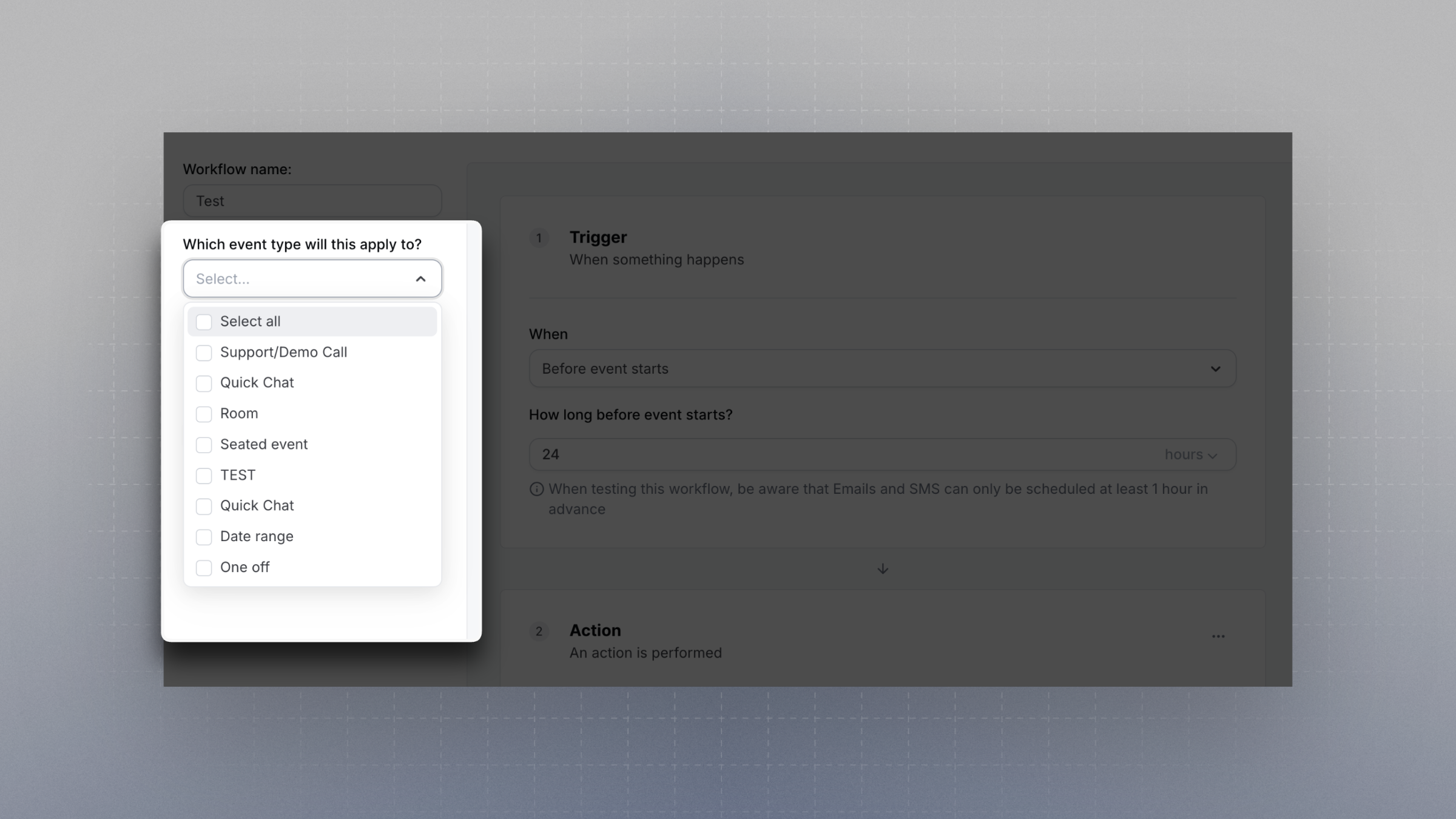 ## Available Triggers
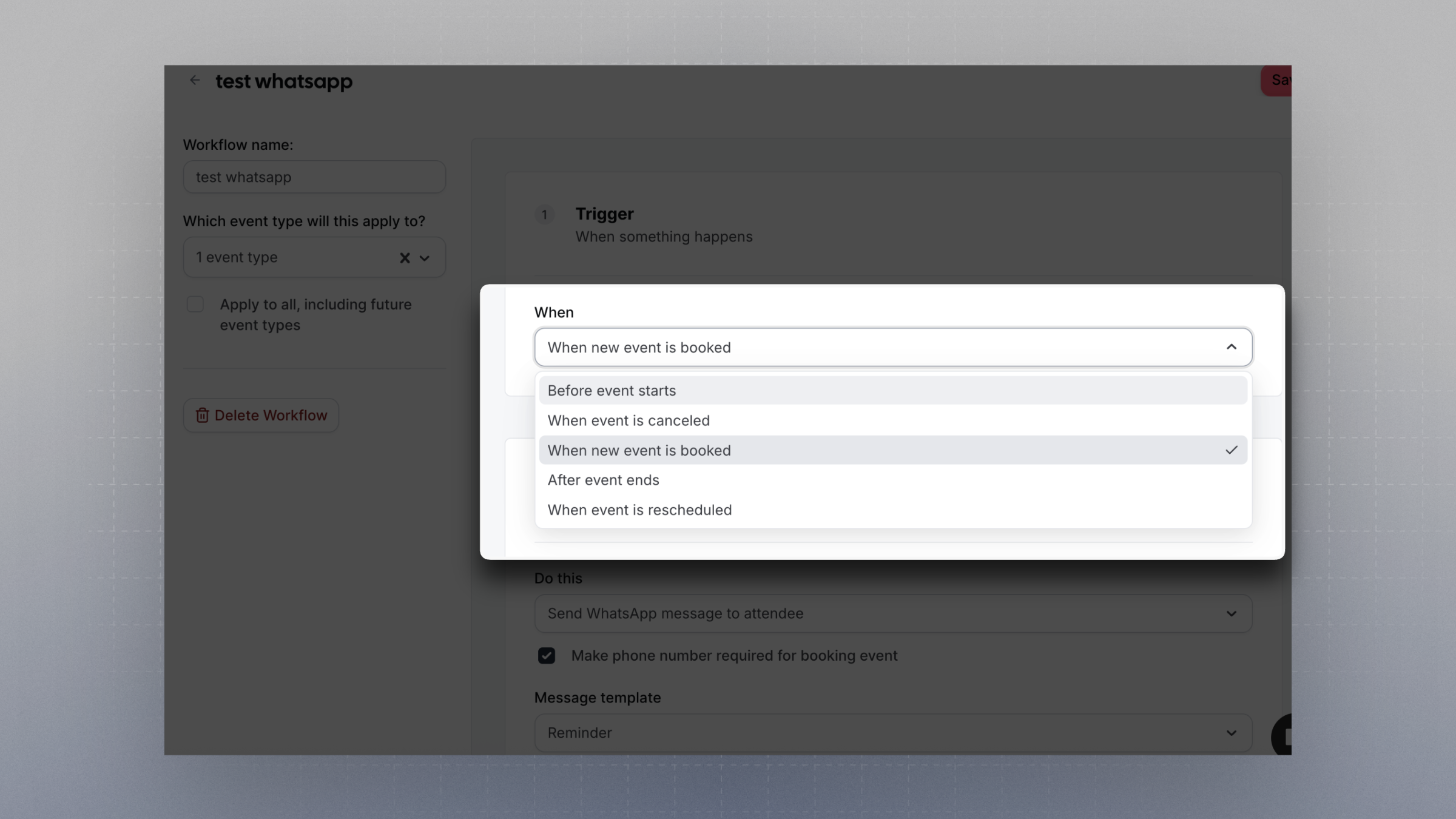 These are the currently available trigger options:
* Before the event starts
* When the event is canceled
* When a new event is booked
* After the event ends
* When event is rescheduled
* When the routing form is submitted
* When the routing form is submitted and no booking is created
* When a booking is rejected (events that require confirmation)
* When booking is requested (events that require confirmatoin)
* When booking payment is initiated
* When booking payment is successful
* When booking no-show is updated
## Available Actions
These are the currently available trigger options:
* Before the event starts
* When the event is canceled
* When a new event is booked
* After the event ends
* When event is rescheduled
* When the routing form is submitted
* When the routing form is submitted and no booking is created
* When a booking is rejected (events that require confirmation)
* When booking is requested (events that require confirmatoin)
* When booking payment is initiated
* When booking payment is successful
* When booking no-show is updated
## Available Actions
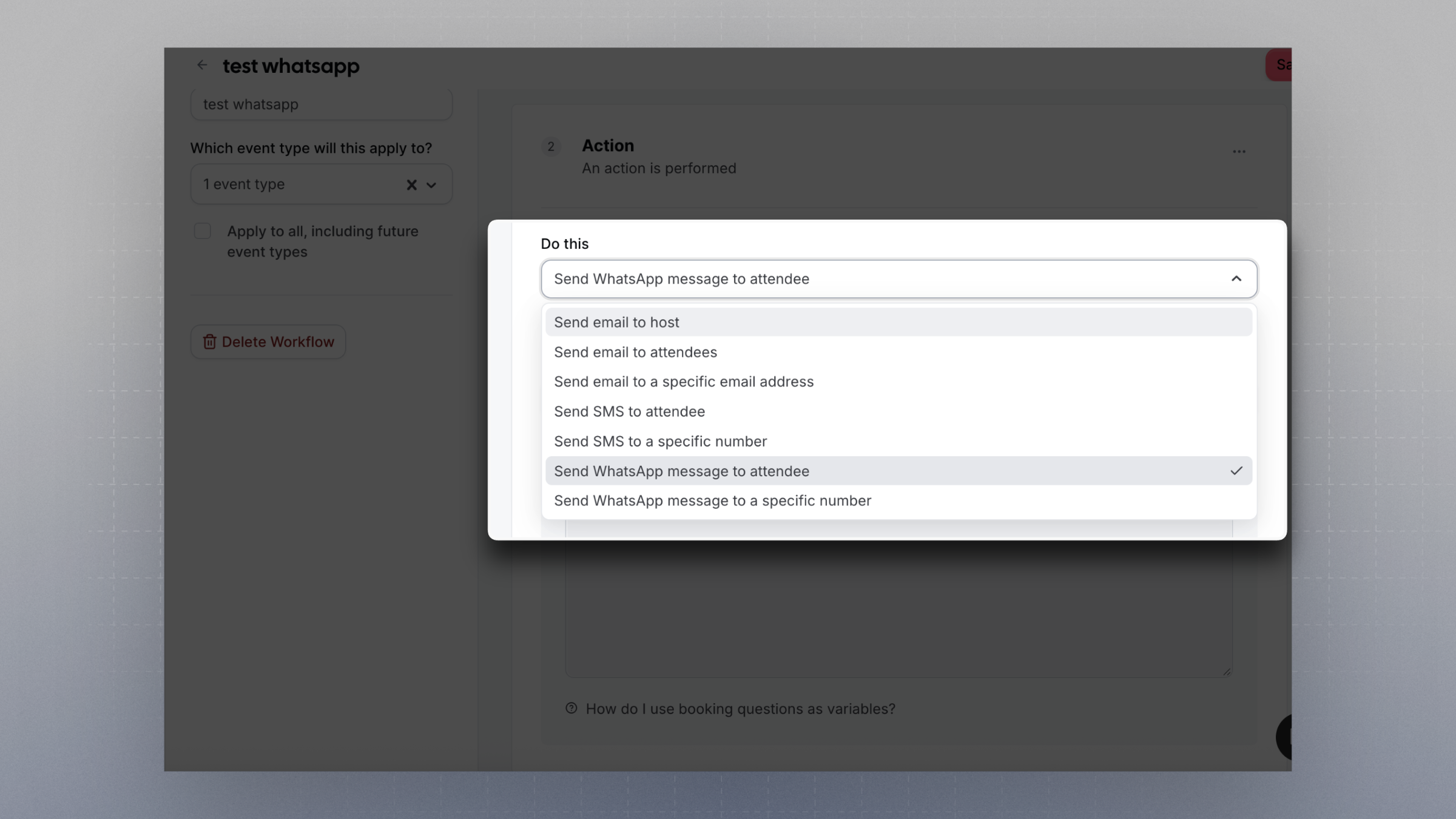 You can automate actions such as:
* Sending an email to host
* Sending an email to attendees
* Sending an email to a specific email address
* Sending SMS to attendee
* Sending SMS to a specific number
* Send WhatsApp message to attendee
* Send WhatsApp message to a specific number
* Cal.ai - Call attendee using cal.ai voice agent (requires credits)
## Dynamic Text Variables
You can insert dynamic text into your messages using variables. These variables will be replaced with real booking data when the message is sent.
| Variable | Description |
| :------------------------------------------------- | :----------------------------------------------- |
| `{EVENT_NAME}` | The event type name |
| `{EVENT_DATE}` | The event date |
| `{EVENT_TIME}` | The event start time |
| `{EVENT_END_TIME}` | The event end time |
| `{TIMEZONE_VARIABLE}` | The timezone of the person receiving the message |
| `{LOCATION_VARIABLE}` | The location of the event |
| `{ORGANIZER_NAME}` | The organizer’s (host’s) name |
| `{ATTENDEE}` | Full name of the attendee/person booking |
| `{ATTENDEE_FIRST_NAME}` | First name of the attendee |
| `{ATTENDEE_LAST_NAME}` | Last name of the attendee |
| `{ATTENDEE_EMAIL}` | Email address of the attendee |
| `{ADDITIONAL_NOTES_VARIABLE}` | Additional notes submitted during booking |
| `{MEETING_URL}` | The video conference/meeting URL |
| `{CANCEL_URL}` | Link to cancel the booking |
| `{CANCELLATION_REASON}` | Reason provided for cancellation |
| `{RESCHEDULE_URL}` | Link to reschedule the booking |
| `{RESCHEDULE_REASON}` | Reason provided for rescheduling |
| `{RATING_URL_VARIABLE}` | URL to the post-event rating/feedback form |
| `{NO_SHOW_URL_VARIABLE}` | URL to mark/report a no-show |
| `{ATTENDEE_TIMEZONE}` | Attendee's timezone information |
| `{EVENT_START_TIME_IN_ATTENDEE_TIMEZONE_VARIABLE}` | Event start time in attendee’s local timezone |
| `{EVENT_END_TIME_IN_ATTENDEE_TIMEZONE_VARIABLE}` | Event end time in attendee’s local timezone |
***
## Auto-translate for attendees
If you're on an **Organization plan**, you can enable auto-translation for workflow steps that send messages to attendees. When enabled, Cal.com automatically translates your workflow message into the attendee's preferred language before sending.
This works with:
* **Email to attendee** actions
* **SMS to attendee** actions
### How to enable auto-translate
1. Open a workflow and add or edit a step that sends a message to an attendee.
2. Below the message editor, check the **Auto-translate for attendees** checkbox.
3. Once enabled, a note confirms which language your message is written in (your account's default language). This is the source language used for translation.
4. Save the workflow.
When a booking is made, Cal.com detects the attendee's language preference and translates the message content automatically. If the attendee's language matches your source language, no translation is applied.
Auto-translate is only available on **Organization** plans. If you're on a different plan, you'll see an upgrade prompt instead of the checkbox.
***
## Plan Limitations
* **Free Plan**: Can only use the default reminder email (no customization)
* **Team, Organization, and Enterprise Plans**: Full access to create custom workflows with multiple actions and dynamic content
* **Self-hosted Instances**: No restrictions on workflow usage
**Note:** WhatsApp workflows **cannot be customized** on any plan at the moment. They are currently limited to sending a **predetermined default message** only.
You can automate actions such as:
* Sending an email to host
* Sending an email to attendees
* Sending an email to a specific email address
* Sending SMS to attendee
* Sending SMS to a specific number
* Send WhatsApp message to attendee
* Send WhatsApp message to a specific number
* Cal.ai - Call attendee using cal.ai voice agent (requires credits)
## Dynamic Text Variables
You can insert dynamic text into your messages using variables. These variables will be replaced with real booking data when the message is sent.
| Variable | Description |
| :------------------------------------------------- | :----------------------------------------------- |
| `{EVENT_NAME}` | The event type name |
| `{EVENT_DATE}` | The event date |
| `{EVENT_TIME}` | The event start time |
| `{EVENT_END_TIME}` | The event end time |
| `{TIMEZONE_VARIABLE}` | The timezone of the person receiving the message |
| `{LOCATION_VARIABLE}` | The location of the event |
| `{ORGANIZER_NAME}` | The organizer’s (host’s) name |
| `{ATTENDEE}` | Full name of the attendee/person booking |
| `{ATTENDEE_FIRST_NAME}` | First name of the attendee |
| `{ATTENDEE_LAST_NAME}` | Last name of the attendee |
| `{ATTENDEE_EMAIL}` | Email address of the attendee |
| `{ADDITIONAL_NOTES_VARIABLE}` | Additional notes submitted during booking |
| `{MEETING_URL}` | The video conference/meeting URL |
| `{CANCEL_URL}` | Link to cancel the booking |
| `{CANCELLATION_REASON}` | Reason provided for cancellation |
| `{RESCHEDULE_URL}` | Link to reschedule the booking |
| `{RESCHEDULE_REASON}` | Reason provided for rescheduling |
| `{RATING_URL_VARIABLE}` | URL to the post-event rating/feedback form |
| `{NO_SHOW_URL_VARIABLE}` | URL to mark/report a no-show |
| `{ATTENDEE_TIMEZONE}` | Attendee's timezone information |
| `{EVENT_START_TIME_IN_ATTENDEE_TIMEZONE_VARIABLE}` | Event start time in attendee’s local timezone |
| `{EVENT_END_TIME_IN_ATTENDEE_TIMEZONE_VARIABLE}` | Event end time in attendee’s local timezone |
***
## Auto-translate for attendees
If you're on an **Organization plan**, you can enable auto-translation for workflow steps that send messages to attendees. When enabled, Cal.com automatically translates your workflow message into the attendee's preferred language before sending.
This works with:
* **Email to attendee** actions
* **SMS to attendee** actions
### How to enable auto-translate
1. Open a workflow and add or edit a step that sends a message to an attendee.
2. Below the message editor, check the **Auto-translate for attendees** checkbox.
3. Once enabled, a note confirms which language your message is written in (your account's default language). This is the source language used for translation.
4. Save the workflow.
When a booking is made, Cal.com detects the attendee's language preference and translates the message content automatically. If the attendee's language matches your source language, no translation is applied.
Auto-translate is only available on **Organization** plans. If you're on a different plan, you'll see an upgrade prompt instead of the checkbox.
***
## Plan Limitations
* **Free Plan**: Can only use the default reminder email (no customization)
* **Team, Organization, and Enterprise Plans**: Full access to create custom workflows with multiple actions and dynamic content
* **Self-hosted Instances**: No restrictions on workflow usage
**Note:** WhatsApp workflows **cannot be customized** on any plan at the moment. They are currently limited to sending a **predetermined default message** only.