

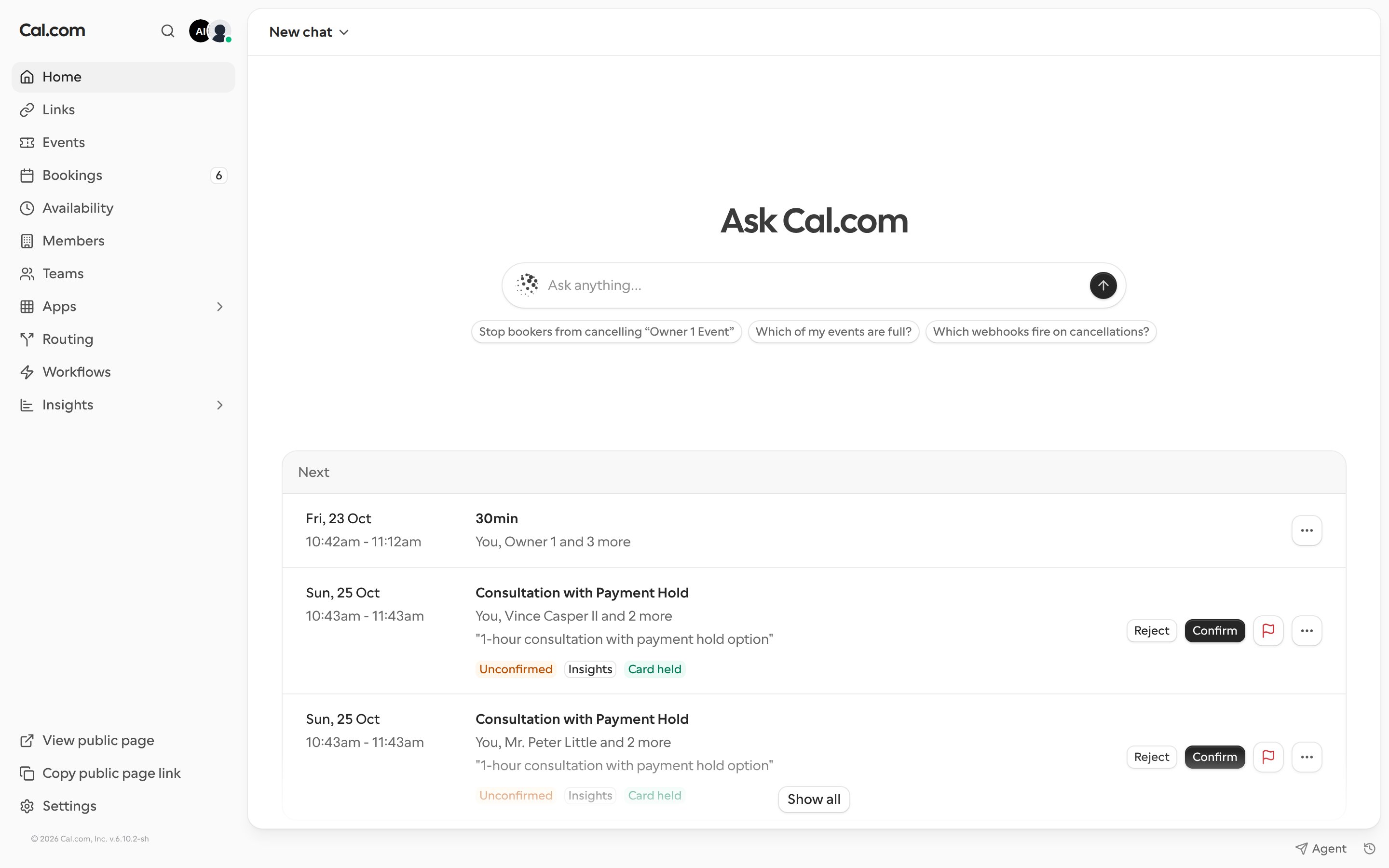
Ask the agent
Type in Ask anything… and press Enter, or click one of the suggested prompts under the box. For example:- “Summarize my week”
- “What’s my next meeting?”
- “Who am I meeting with tomorrow?”
- “Show bookings waiting for my confirmation”
- “Confirm all my pending bookings”
Approving changes
Before the agent changes anything, such as cancelling a booking or editing a Link, it shows an Approval needed card describing the change. Nothing happens until you approve it. If the agent wants to make several changes, you can click Approve all. If the agent creates a private link for you, it shows the link once. Copy it right away, or find it later in that Link’s Privacy tab.Your next bookings
Under the agent, Next lists your upcoming bookings. You can Confirm or Reject unconfirmed bookings straight from the list, or click Show all to open Bookings.Use the agent from any page
Click Agent in the bottom-right corner of any page to open the agent in a floating panel. The panel stays open as you move between pages.- Click Use this page as context so the agent knows what you’re looking at, for example the Link you’re editing.
- Click Open full-page chat to continue the conversation on Home.
- Press Cmd+K (or Ctrl+K), then Tab, to start a new chat from the search bar.