

Start an import
1
Open the Import page
Go to Settings → Import.
2
Choose your tool
Click Import from Calendly or Import from SavvyCal.
3
Authorize access
Confirm that Cal.com can read your data, then sign in to your Calendly or SavvyCal account and approve the connection. Cal.com only reads from your old account. Nothing is changed there.
Choose what to bring over
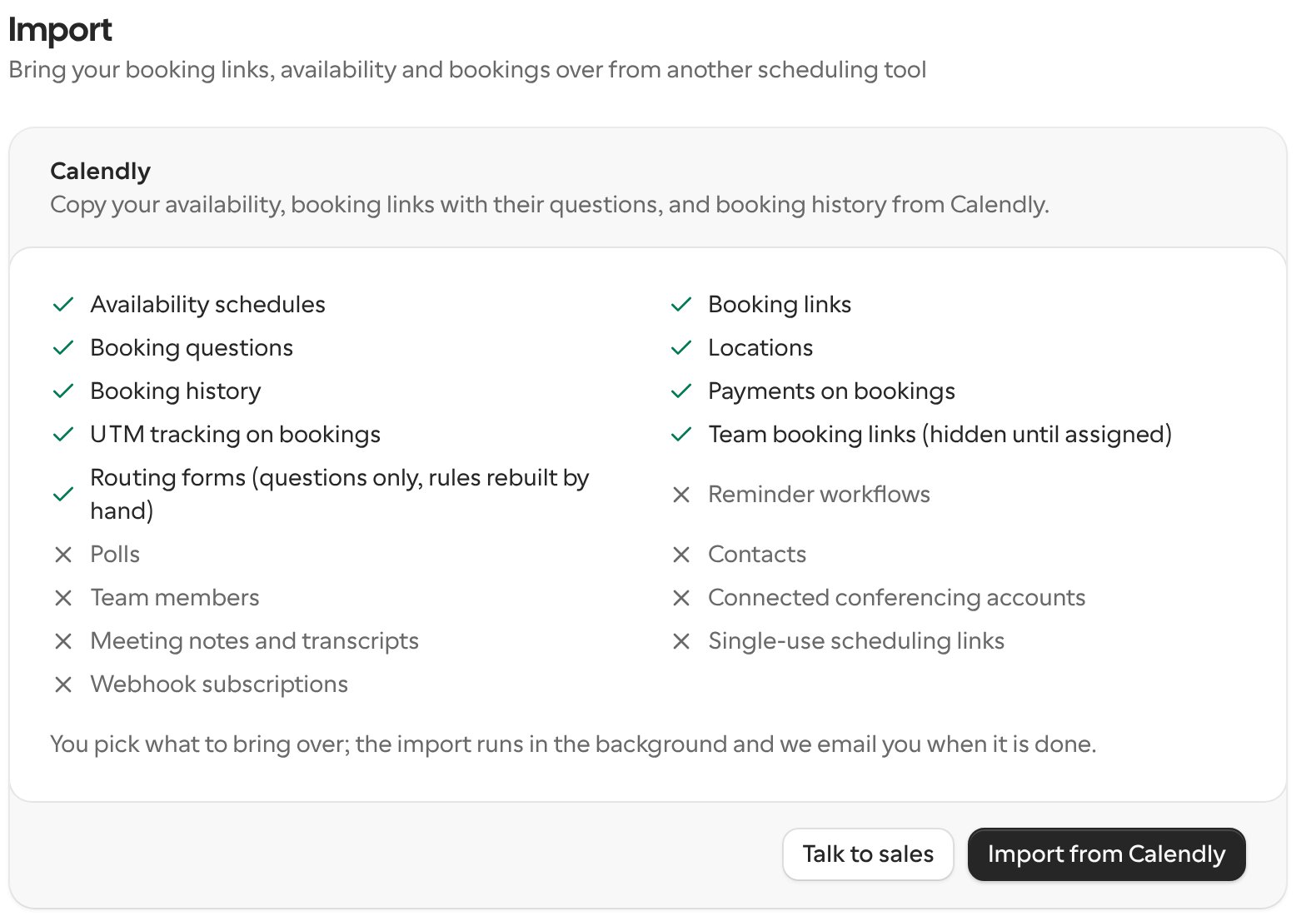
After you approve the connection, Cal.com shows a review of everything it found. Go through each step and turn off anything you don’t want to import.- Availability: your working hours and schedules (Calendly only).
- Links: your booking links, with their booking questions. Locations come over from Calendly.
- Routing forms: the questions from your routing forms (Calendly only).
- Workflows: your reminder emails, added as workflows on the imported Links (SavvyCal only).
- Bookings: choose All bookings, Upcoming only, or No bookings. Only bookings on the Links you selected come over.
When the import is done
The import runs in the background, so you can keep using Cal.com or close the page. You’ll get an email when it’s finished, and the Import page shows a summary of your last import. You can run the import again at any time. Items you already imported are skipped, so you won’t get duplicates.Things to check after importing
- Importing doesn’t notify anyone. No confirmation emails, calendar invites or webhooks are sent for the bookings brought over from your old tool.
- Turn off reminders in your old tool. Imported workflows that were active also send reminders for your upcoming imported bookings. Switch the reminders off in SavvyCal so guests don’t get them twice.
- Rebuild routing rules. Calendly doesn’t share routing rules, so each routing form comes over with its questions and a fallback route only. Open each form in Routing and add the rules. Forms that were drafts in Calendly arrive switched off.
- Move team links to a team. Team booking links are imported to your account as hidden Links. Move them to the right team and assign hosts before you turn them back on.
- Connect your calendars and conferencing apps. Calendar and video accounts aren’t imported. Connect your calendar in Cal.com so your availability stays accurate.
What isn’t imported
Each tool’s card on the Import page lists exactly what comes over and what doesn’t. Neither tool brings over team members, polls, webhook subscriptions or connected conferencing accounts. From Calendly, contacts, meeting notes and single-use links aren’t imported either.Need help with a larger migration? Click Talk to sales on the Import page.