

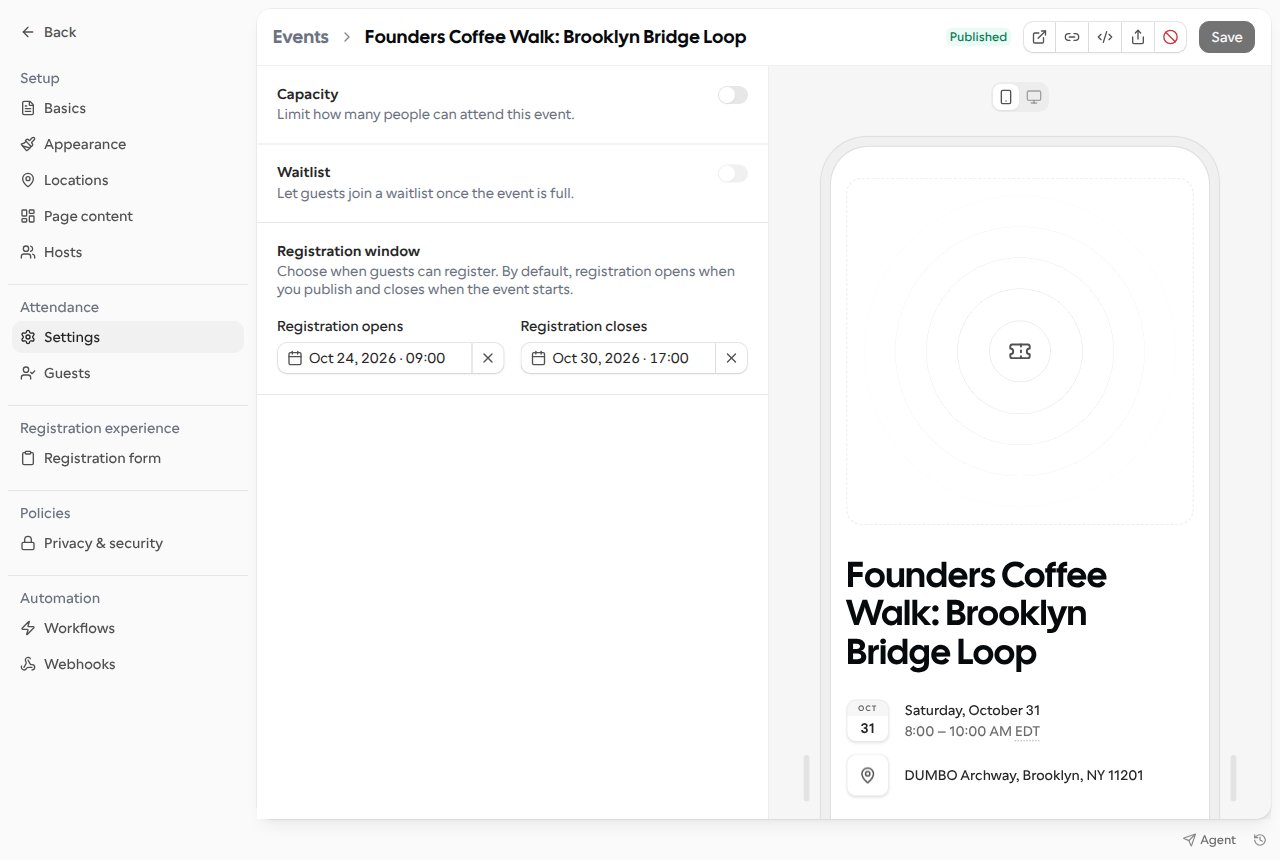
Set the registration window
1
Open the event's settings
Go to Events, open the event, and select Attendance → Settings.
2
Choose when registration opens
Under Registration window, pick a date and time for Registration opens. Leave it empty
(it reads When published) to open registration as soon as the event is published.
3
Choose when registration closes
Pick a date and time for Registration closes. Leave it empty (it reads When the event
starts) to keep registration open until the event starts.
4
Save
Save the event. The preview next to the editor shows what guests see right now.
Rules for the window
Cal.com checks the window when you save:
The message appears under the picker that needs changing. If you save from another tab, the editor
opens Attendance → Settings so you can fix it. The same rules apply when you move the event’s
start time: a new start time earlier than the registration close time can’t be saved.
If you change the event’s time zone, the registration times keep the same date and time on the clock
in the new time zone.
Who can change the window
These people can set and clear the registration window:- The event’s hosts
- Team members whose role lets them edit the team’s events
- The owner of a personal event
Duplicating an event doesn’t copy its registration window. Set it again on the new event.
What guests see
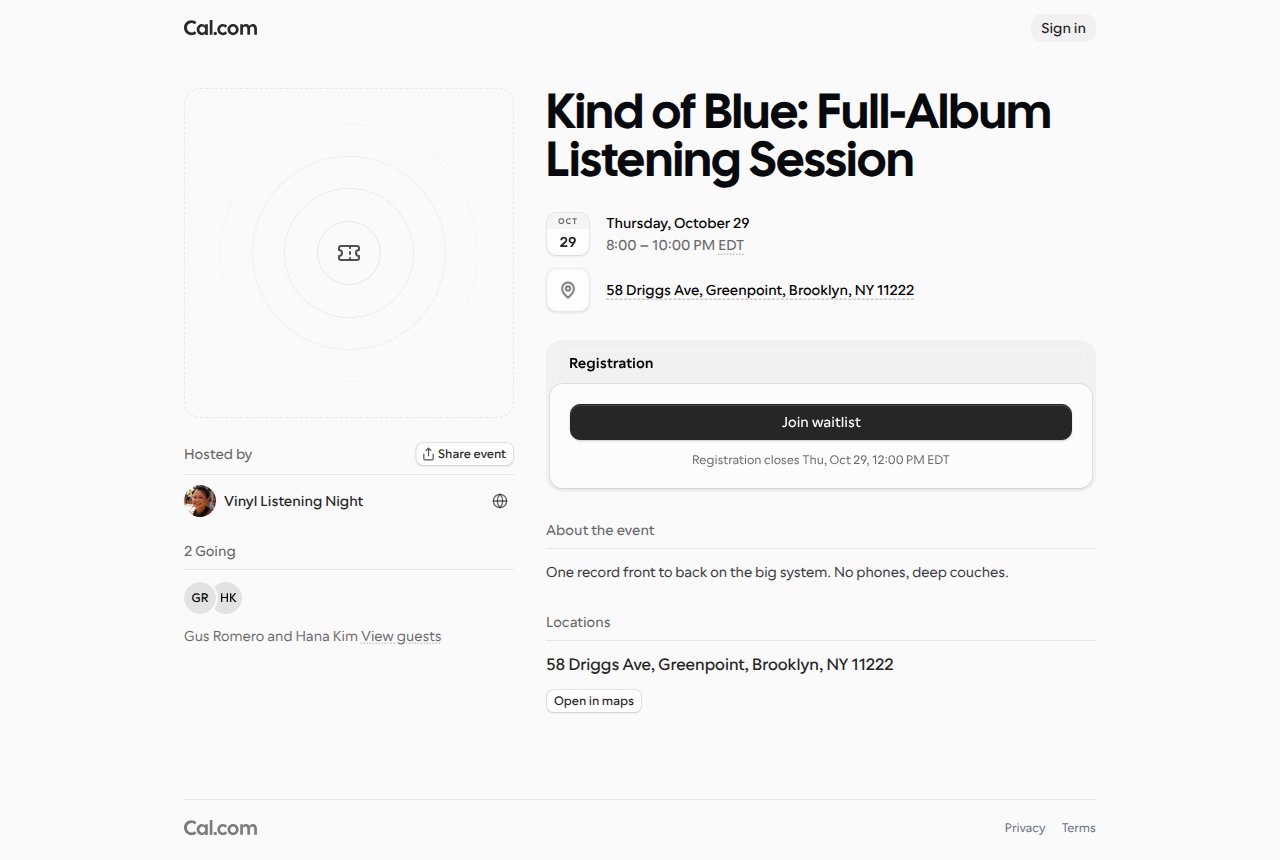
The event page, the embed and the editor preview show guests where the event is in its registration window. The page updates when registration opens or closes, without a reload.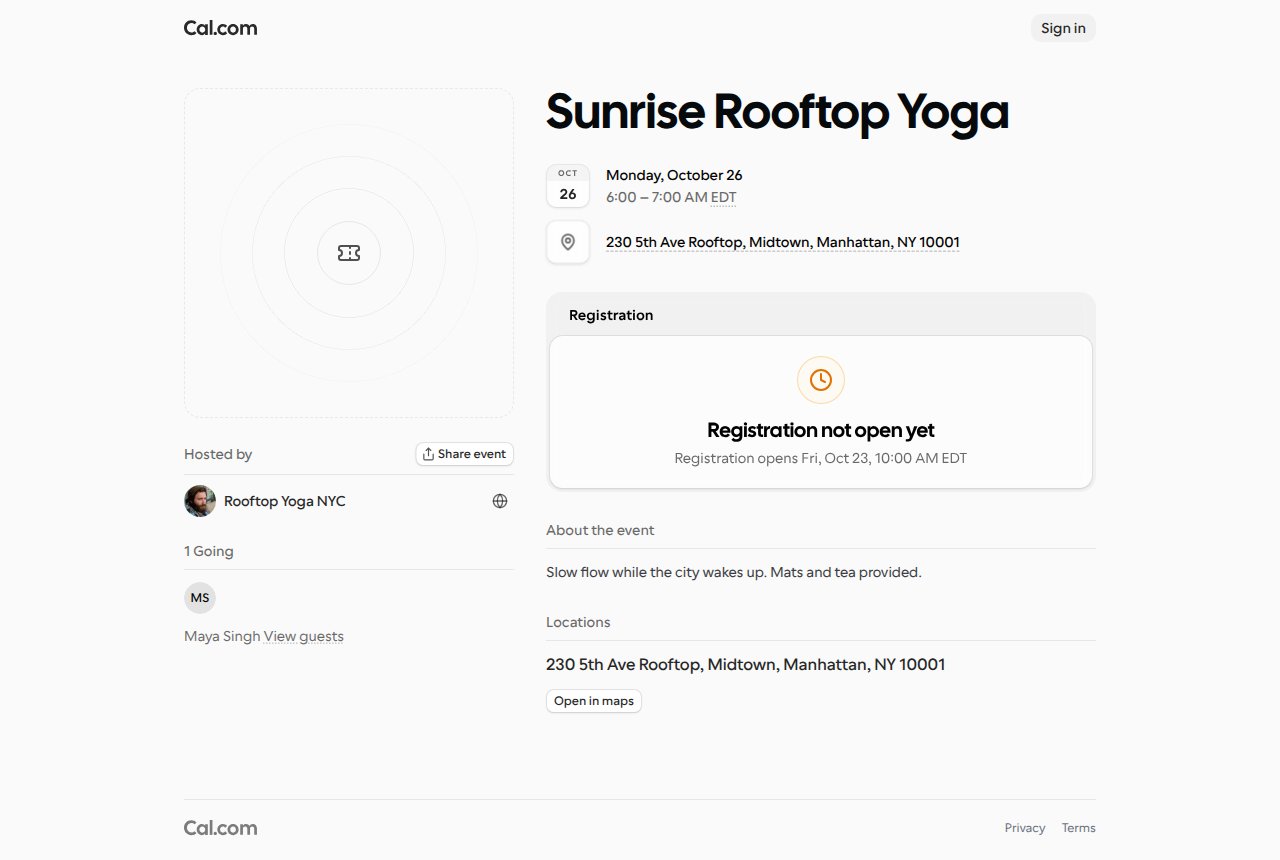
Dates and times on the event page are shown in the guest’s time zone, with the time zone’s short
name.
Notify me
Before registration opens, guests can select Notify me on the event page or the embed and leave their email. Signed-in guests subscribe their account’s email in one tap. Cal.com sends each of them one email when registration opens, with a link to the event page. If you move the open time later, or clear it, the email follows the new time. Guests aren’t emailed if you cancel the event or registration closes before they’re told. Every email has an unsubscribe link, and the list of addresses is deleted once the event ends.How the window is enforced
Cal.com checks the window on its own clock every time someone registers, so a guest can’t register outside the window from an old tab or by texting an RSVP. Joining the waitlist counts as registering and follows the same window. Promoting guests who are already on the waitlist doesn’t. If a seat frees up after registration closes, guests on the waitlist can still be promoted into it, by a host or automatically, until the event starts.Set the window with the API
You can also set the window withregistrationOpensAt and registrationClosesAt when you
create an Event or
update an Event with API v2. Send times in ISO 8601 in
UTC, or null to use the default. The same rules apply as in the editor.