

Verify your phone number
You don’t type your number in. Cal.com saves the number your texts come from, and only after you confirm from that phone.1
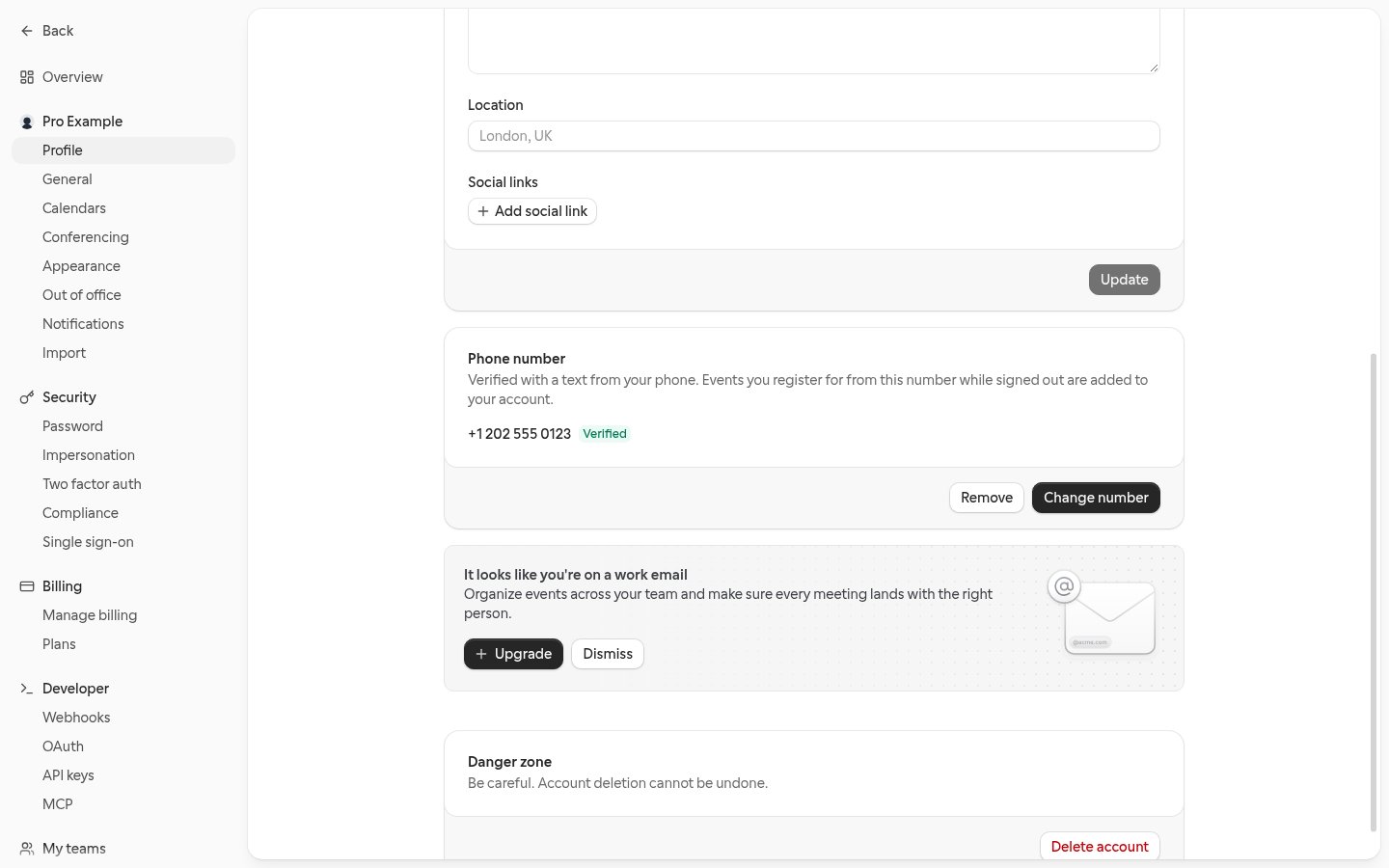
Open your profile
Go to Settings → My account → Profile and find the Phone number card.
2
Start verification
Select Add phone number. The Verify your phone number dialog opens with a QR code and an
Open Messages button (Open WhatsApp when the line uses WhatsApp).
3
Send the code from your phone
Scan the QR code with your phone, or select the button on your phone, and send the prefilled
message. It starts with
VERIFY followed by a one-time code.4
Reply CONFIRM
Cal.com replies with the account the number will be added to, with its email address partly
hidden (for example
a***@example.com). If it’s your account, reply CONFIRM.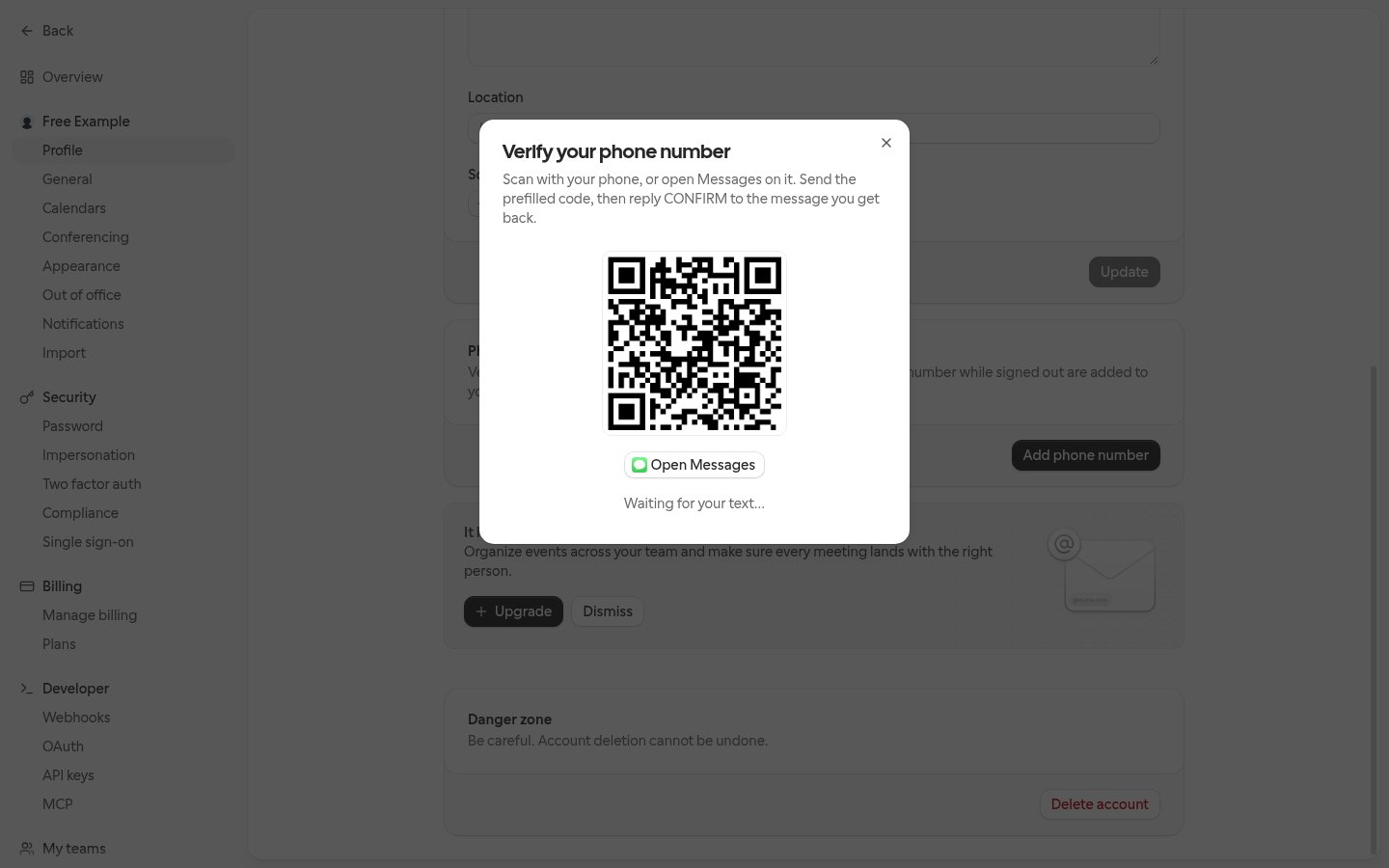
The code is valid for 15 minutes, and you have 10 minutes to reply
CONFIRM once Cal.com asks.
If the code expires first, the profile shows That code expired. Please try again. Select
Add phone number to get a new code.RSVPs you made before verifying
When you confirm, Cal.com also links RSVPs you already texted from that number while signed out, so they show as yours when you sign in. The confirmation text says how many were added, for example …and 2 upcoming registrations from it were added to your account. Only RSVPs that are still active and on events that haven’t ended are linked. RSVPs on past events, cancelled or declined RSVPs, and RSVPs already saved to another account stay as they are.Change or remove your number
- Change number runs the same verification. Text the code from the phone with the new number; once you confirm, it replaces the old one.
- Remove deletes the number from your account straight away.
- Deleting your Cal.com account also deletes its phone number.
On self-hosted Cal.com, the Phone number card appears only when a phone messaging provider is
configured. Without one you can’t add a number, but you can still remove one that’s already saved.
Which account a phone RSVP is saved to
If that account is already registered for the event, under any email address, Cal.com replies that
you’re already registered instead of creating a second registration.
Your ticket link
When a phone RSVP is confirmed, the You’re in reply ends with Your ticket and registration: and a link. If you text to register again for an event you’re already confirmed for, the reply carries the same link. Open it in a browser where you’re signed out of Cal.com: the event page shows your registration and the location you registered for, such as the address or the join link. For an in-person event, it also shows your check-in QR ticket. That browser keeps showing your registration on the event page until a day after the event ends.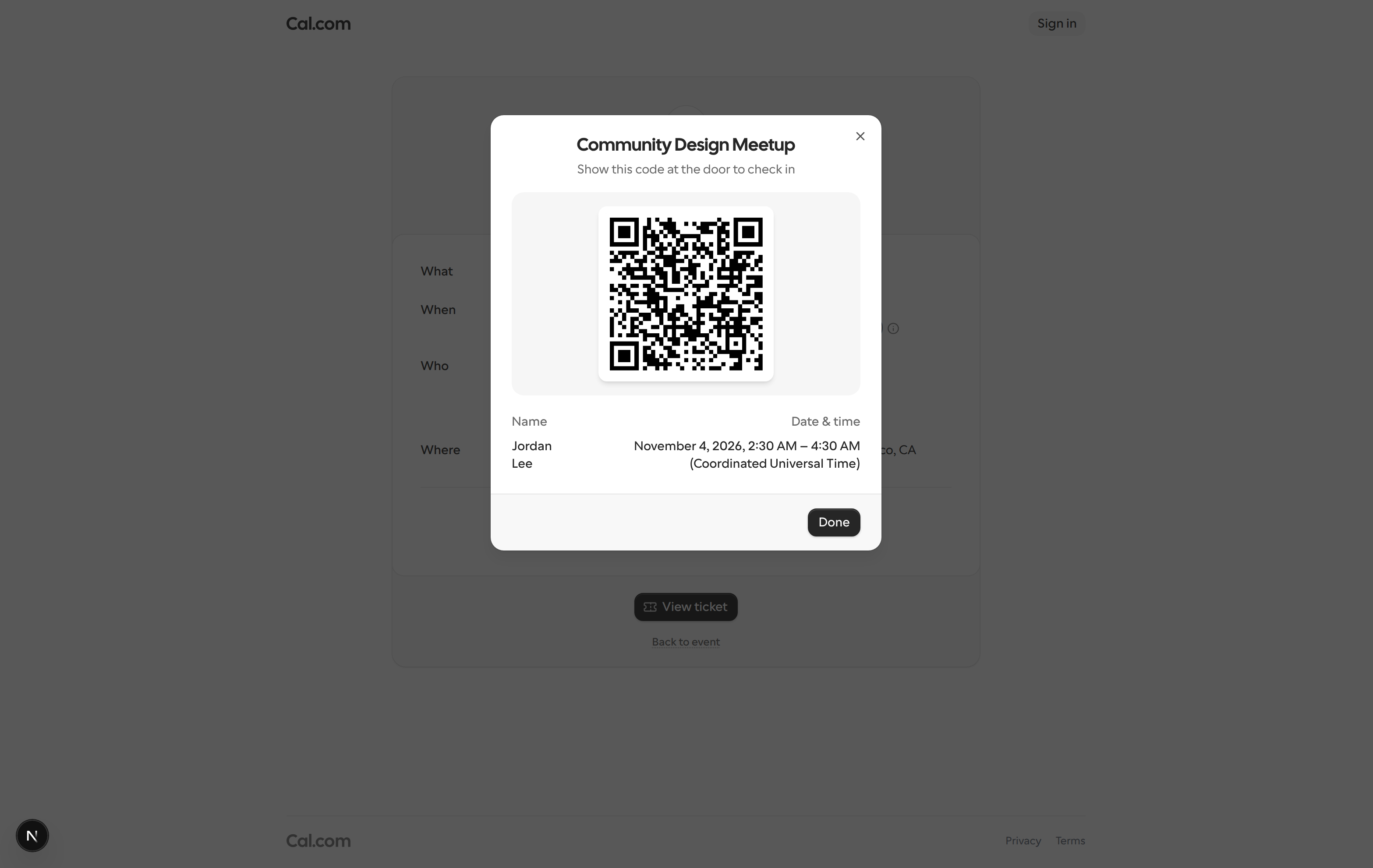
- Only confirmed registrations get a link. Requests waiting for host approval and waitlist places don’t.
- A repeat reply includes the link only when the registration was made from the number you’re texting from, or belongs to the account that number is linked to.
- If your registration is cancelled or you’re removed, or the event ended more than a day ago, the link opens the event page as any visitor sees it.
- Opening the link doesn’t change your registration, so a link preview in your messages app is safe.
Keep the link to yourself. Anyone who opens it sees your ticket and registration, and can cancel it.
Text updates about your registration
Because a phone RSVP has no email address, Cal.com texts you the updates other guests get by email, from the same line you RSVP’d on:- A host approves your request or moves you off the waitlist. The text says you’re in, with the date and time, the location and the event link.
- A host declines your request.
- The event is cancelled.
- The event’s time or location changes. The text has the latest details.
- Only RSVPs you texted in get these updates. A guest a host adds by phone number doesn’t.
- Reply
STOPto the line to stop getting them. - Each number gets at most 10 of these texts an hour. Any over that aren’t sent.
Cancel your registration
You can cancel a confirmed phone RSVP from your ticket link without signing in.1
Open your ticket link
Open the link in a browser where you’re signed out of Cal.com. The event page shows your
registration.
2
Cancel
Select Cancel registration under View ticket in the Registration card.
3
Confirm
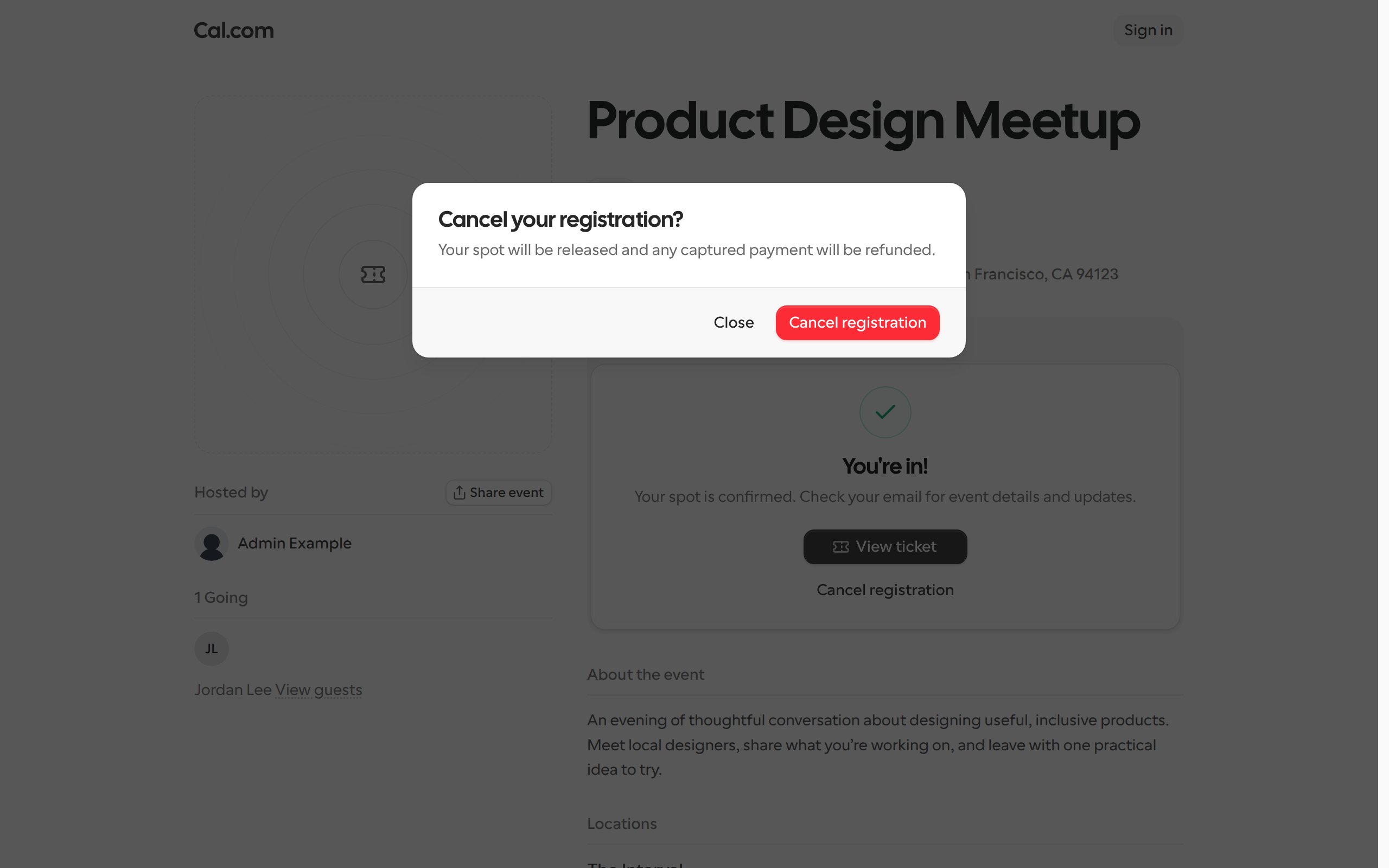
In the Cancel your registration? dialog, select Cancel registration.
- You can cancel until the event starts or you’re checked in, whichever comes first. After that, only the host can remove you.
- Once you cancel, the link no longer opens your registration. If you register again by text, the new You’re in reply has a new link, and the old one stays inactive.