

Where to find Discover
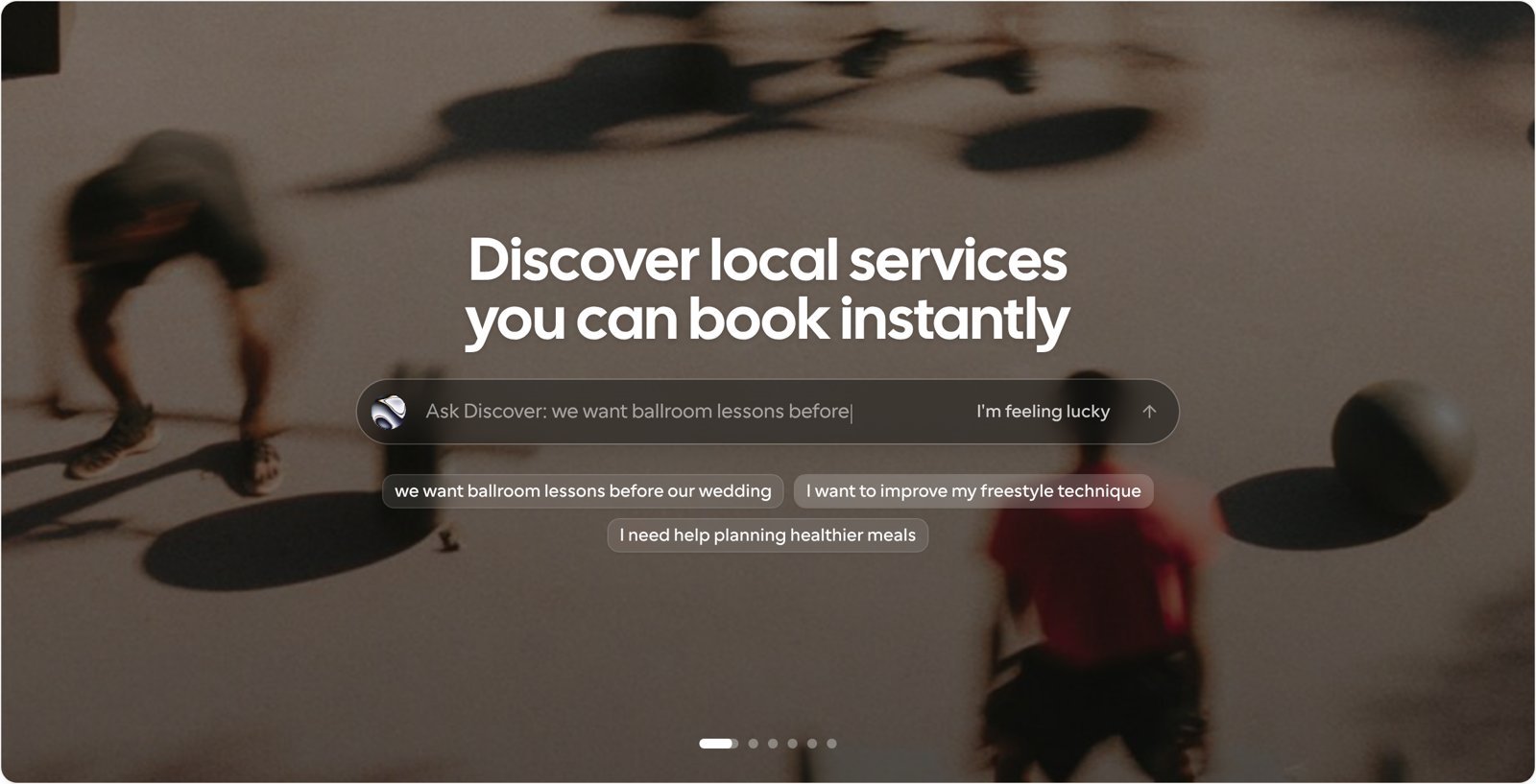
- Discover in the left sidebar of the Cal.com app opens the public marketplace.
- Settings → Discover is where you manage your own presence on Discover. It has four sections: My Business, Browsing preferences, Billing and Promote.
How bookings work
Discover helps people find you. When someone is ready to book, they go to your Cal.com booking page and pick a time as usual. Your availability, Links, confirmations and payments work the same way they do for any other booking. Discover doesn’t handle payments, calendar invites or checkout.My Business
Settings → Discover → My Business is where you set up, publish and track your listing.Listing checklist
The checklist shows what your listing still needs before it can go live, with a Fix link next to each item. You can publish once every required item is done:- A profile photo
- Opening hours with at least one open day
- A website or social page (an Instagram handle works)
- A subcategory on every service you publish
- A headline or description for each service
- At least one bookable time in the next 14 days
Your listings
This card shows whether each published service is reaching people on Discover and what to do if it isn’t. For example, a service with no open times in the coming days isn’t featured until you add availability. From here you can also edit a listing’s category, subcategory, headline, city and price, or unpublish it.Discover results
See the bookings, new clients and favorites your listings got through Discover over the last 7 and 30 days. A new client is someone whose first booking with you came from Discover.Share your listing
Once your listing is published, you can send your own clients to your Discover profile with:- Your profile link
- An embed for your website
- A QR code
- Ready-made images for Instagram posts and stories, and a printable card
Business details and emails
At the bottom of the page, fill in your business details and opening hours, and choose which Discover emails you get, such as a weekly summary of your Discover results. Select Update to save your changes.Browsing preferences
Settings → Discover → Browsing preferences controls what you see when you browse Discover yourself.- ZIP code: enter your five-digit ZIP code so Discover shows services near you.
- Notify me when Discover launches in my area: get an email when in-person listings open in your region.
Billing
Settings → Discover → Billing shows what you owe Discover and lets you manage how you pay.How the fee works
When a new client books you through Discover, the fee is 15% of their first completed booking, with a minimum of $3 and a maximum of $30. Fees are added up and billed to your card once a month. You’re never charged for:- Repeat bookings from a client you already have
- Bookings that don’t happen, such as cancellations
- Bookings that come through your share link
What you’ll see
- Fees: what’s owed on your next invoice and what’s coming up.
- Payment method: add or replace the card your fees are charged to. Adding a card doesn’t charge you anything.
- Fee history: every Discover fee, newest first, with the booking it’s for.
- Invoices: your recent Discover invoices.
If fees go unpaid, for example because there’s no card on file or an invoice fails, your listings are paused on Discover until the balance is settled. They come back automatically once it is.
Promote
Settings → Discover → Promote lets you pay to have a listing promoted on Discover, so it shows near the top of its category in your neighborhood with a Sponsored label.- Promotion is a monthly subscription per listing. The price is shown next to Promote this listing.
- Only in-person listings shown on a Discover city’s pages can be promoted, and the listing checklist must be complete.
- Each category and neighborhood has a limited number of promoted slots. If they’re all taken, select Join the waitlist and we’ll email you when one opens.
- Select Cancel promotion to stop it renewing. The listing stays promoted until the end of the month you paid for, and that month isn’t refunded.