

Instant Meetings are available for team booking links in a Cal.com organization. They cannot be enabled on personal booking links.
Required setup
You only need an organization team booking link with Instant booking enabled. The other settings on the Instant booking page are optional.1
Open a team booking link
From Links, select an existing team booking link or create a new one.
2
Enable Instant booking
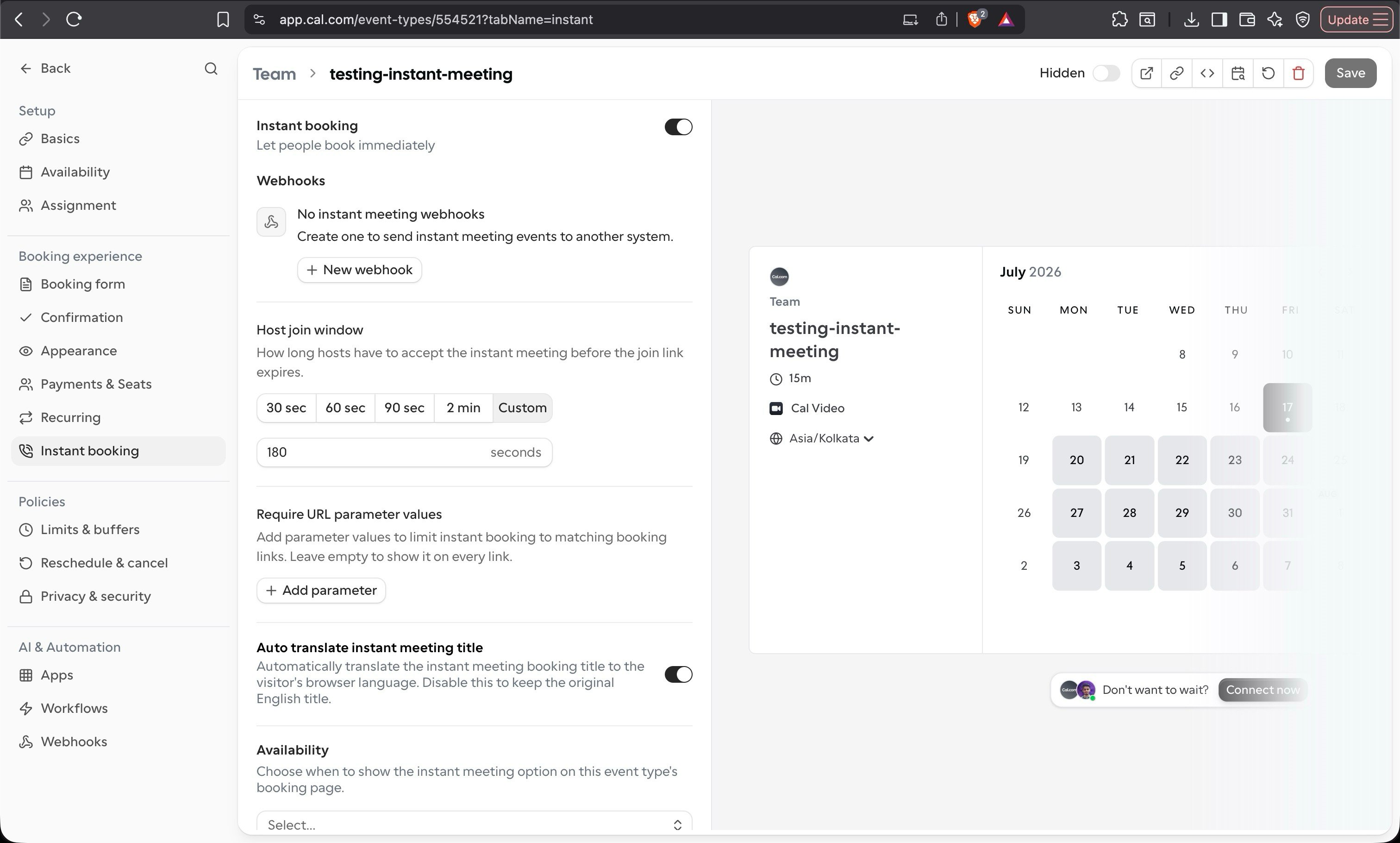
Select Instant booking from the booking link settings, then turn on the Instant booking toggle.
3
Save the booking link
Select Save. You can now share the team booking link or make the booking link public on your team’s profile.
Instant Meetings always use Cal Video, even when the booking link has a different location configured for scheduled bookings. No additional meeting location is required.
Optional settings
The following settings are not required to use Instant Meetings. Use them only when you need to customize how Instant booking works for this booking link.Host join window
The host join window controls how long a host has to accept the instant meeting before the join link expires. A value is already provided when you enable Instant booking, so you only need to change it if your team needs more or less time. Choose 30, 60, 90, or 120 seconds, or enter a custom duration of at least 10 seconds.Webhooks
Webhooks provide a reliable way to notify hosts that an attendee is waiting. Without a notification method, a host may not know that someone has requested an Instant Meeting. Team members who have enabled Cal.com browser notifications can receive a push notification when a request is created. However, browser notifications depend on each member granting notification permission. Configure a webhook if your team needs requests delivered through another channel, such as Slack, Microsoft Teams, email, or an internal alerting system. The available instant meeting triggers are:- Instant Meeting Created — fires when the booker submits an instant meeting request. Use this trigger to notify available hosts that an attendee is waiting.
- Instant Meeting Accepted — fires when the first host accepts the request. Use this trigger to stop additional alerts or update an external system. It does not fire again if another host tries to accept the same meeting.
Example: notify hosts in Slack with Zapier
A common setup is to use Zapier as the receiving service and send each new request to a Slack channel:1
Create a Zapier webhook trigger
In Zapier, create a Zap with Webhooks by Zapier → Catch Hook as the trigger. Copy the webhook URL that Zapier provides.
2
Add the webhook to the booking link
Under Instant booking → Webhooks, select New webhook, use the Zapier URL as the subscriber URL, and choose Instant Meeting Created as the trigger.
3
Connect Slack
Add a Slack action to the Zap and choose the channel that should receive Instant Meeting requests.
4
Build the notification
Include the attendee information and
connectAndJoinUrl from the webhook payload in the Slack message. Hosts can then open the link directly from Slack to accept and join the meeting.Require URL parameter values
Add required URL parameter values when an Instant Meeting should only appear for particular links. Cal.com shows Connect now only when every value configured here appears as a query-parameter value in the booking link URL. This is useful when a routing form, campaign, or application should control who can request an immediate meeting. Leave this setting empty to show Instant booking on every version of the booking link. For example, if you addsupport, share a URL whose query string contains that value:
Auto translate instant meeting title
Turn this on to translate the instant meeting title into the booker’s language. This setting is enabled by default. Turn it off to keep the title in English.Availability
Availability controls when the Connect now prompt appears on the booking page.- If you leave this setting empty, the prompt appears every time the booking link is opened, provided any configured URL parameter values are present.
- If you select a schedule, the prompt only appears when the current time and the full meeting duration fit within that schedule.
What the booker experiences
When Instant booking is available, a Don’t want to wait? Connect now prompt appears on the booking page. The booker can still select a future time or select Connect now to request an immediate meeting.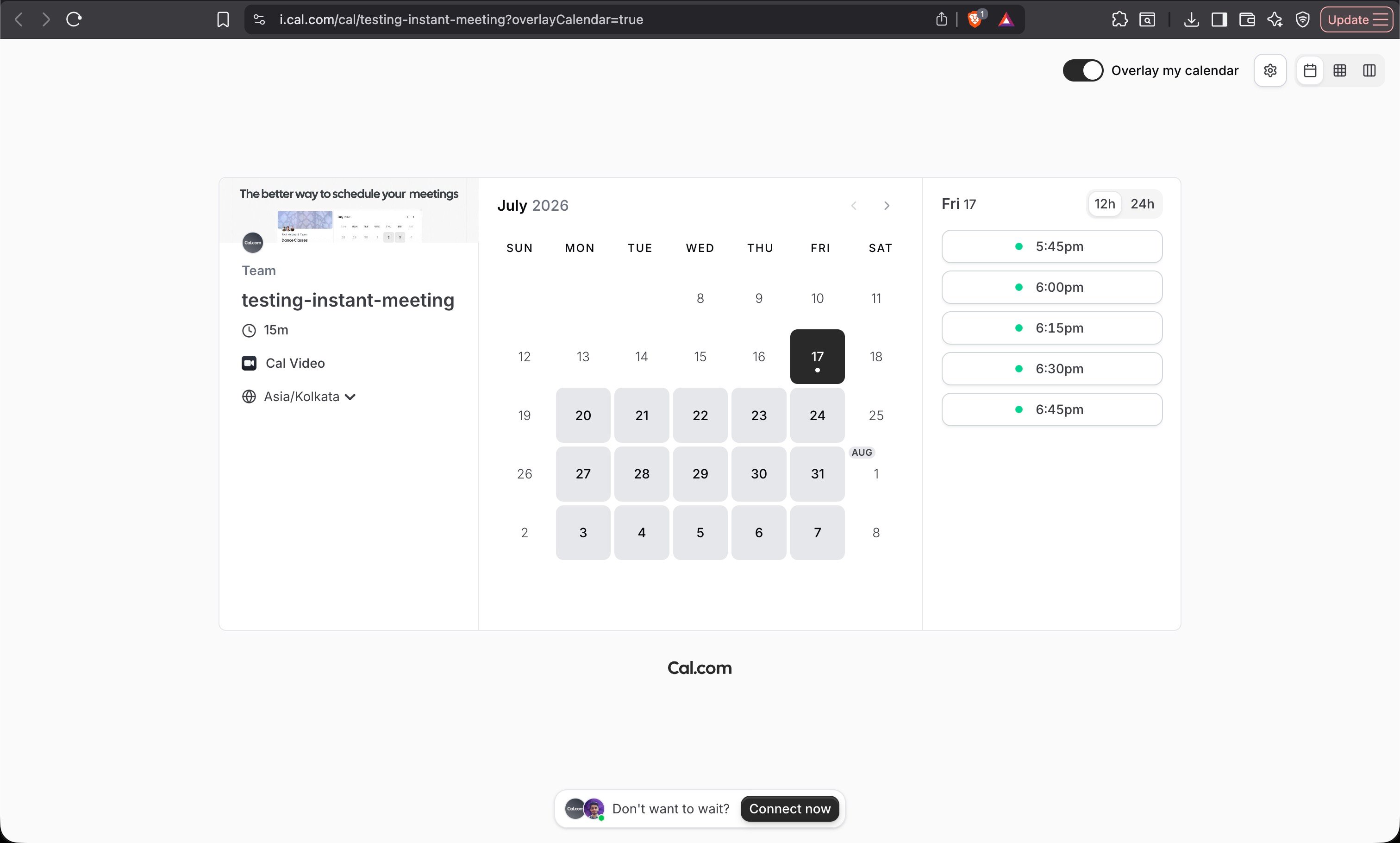
- A host accepts the request and joins the meeting.
- The host join window expires.