

You need permission to manage the organization’s billing. Organization owners have it by default.
Start the downgrade
Open Downgrade organization to Teams in your organization settings. The wizard has three steps: Plan, Review and Confirm. At the top, it compares your current organization cost with the estimated cost after the downgrade.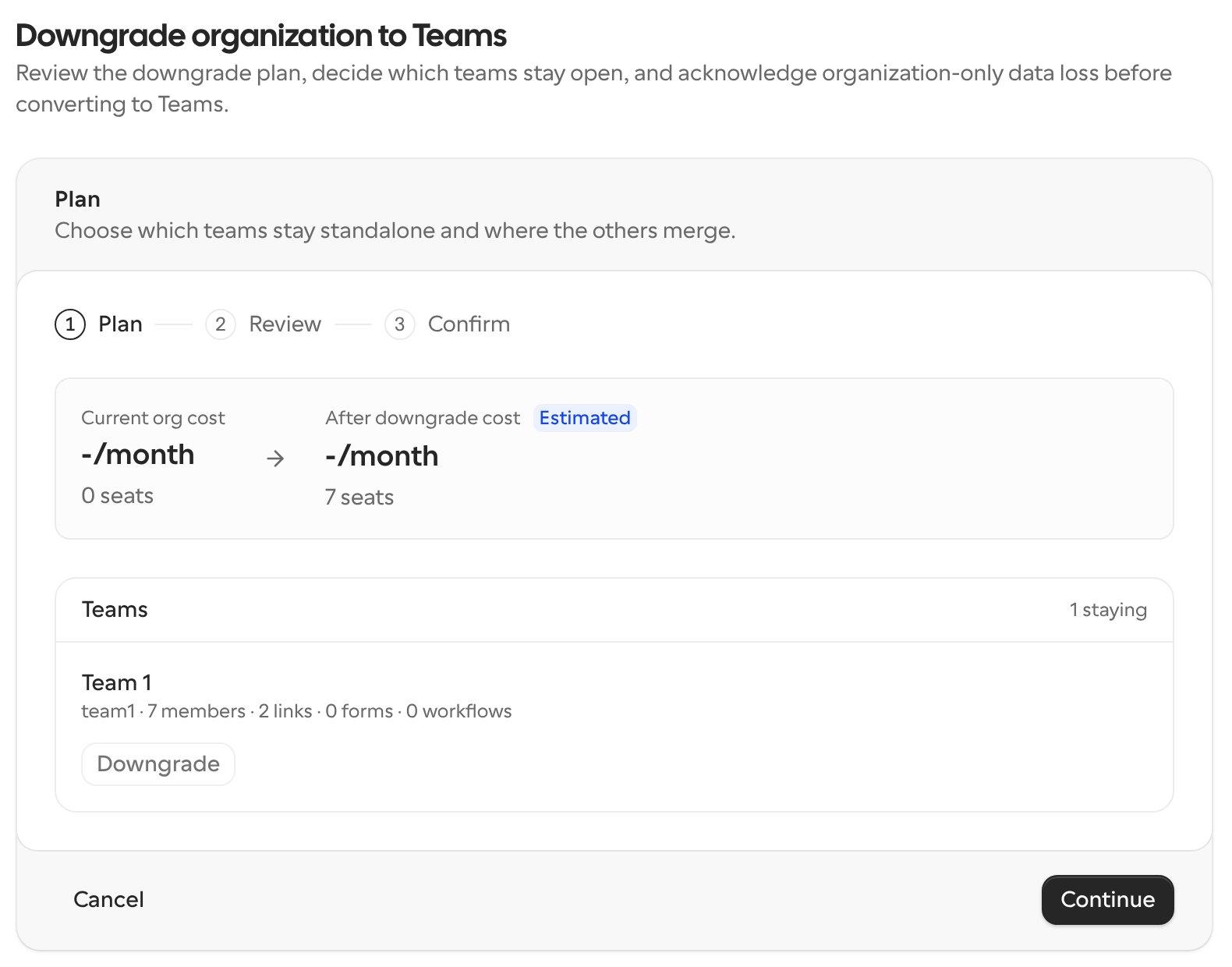
1. Plan
For each team in your organization, choose whether it stays as a standalone team or closes and merges into one of the teams you’re keeping (its Merge destination). The wizard shows each team’s members, Links, routing forms and workflows to help you decide. You need to keep at least one team. You also choose a Credits destination, the team that receives the organization’s remaining credits.2. Review
Check what stays, what moves and what will be removed. Two kinds of items can appear:- Warnings: organization-only data that will be removed. You have to acknowledge each warning to continue.
- Blockers: problems you need to fix before you can downgrade. Acknowledging warnings doesn’t clear blockers.
3. Confirm
Acknowledge what will be removed, then click Downgrade to Teams. To confirm, type your organization’s name exactly as shown. When it’s done, you’ll see “Organization downgraded to Teams”.Before you downgrade
- If your organization has a paid subscription, you may need a payment method on file for the new Teams plan.
- Tell your members. Their teams, Links and bookings move according to the plan you chose.