

acme.com. If your company also uses other email domains, for example acme.fr for a regional office or a domain from an acquired company, you can add them as secondary domains.
Once a secondary domain is verified, people who sign up with an email address on that domain are treated like members on your primary domain. They join your organization automatically, and their existing accounts can be linked to it.
Only organization owners and admins can add and verify secondary domains.
Add a secondary domain
1
Open Privacy settings
Go to Settings → Organization → Privacy & security and find Secondary verified domains.
2
Enter the domain
Enter the domain, such as
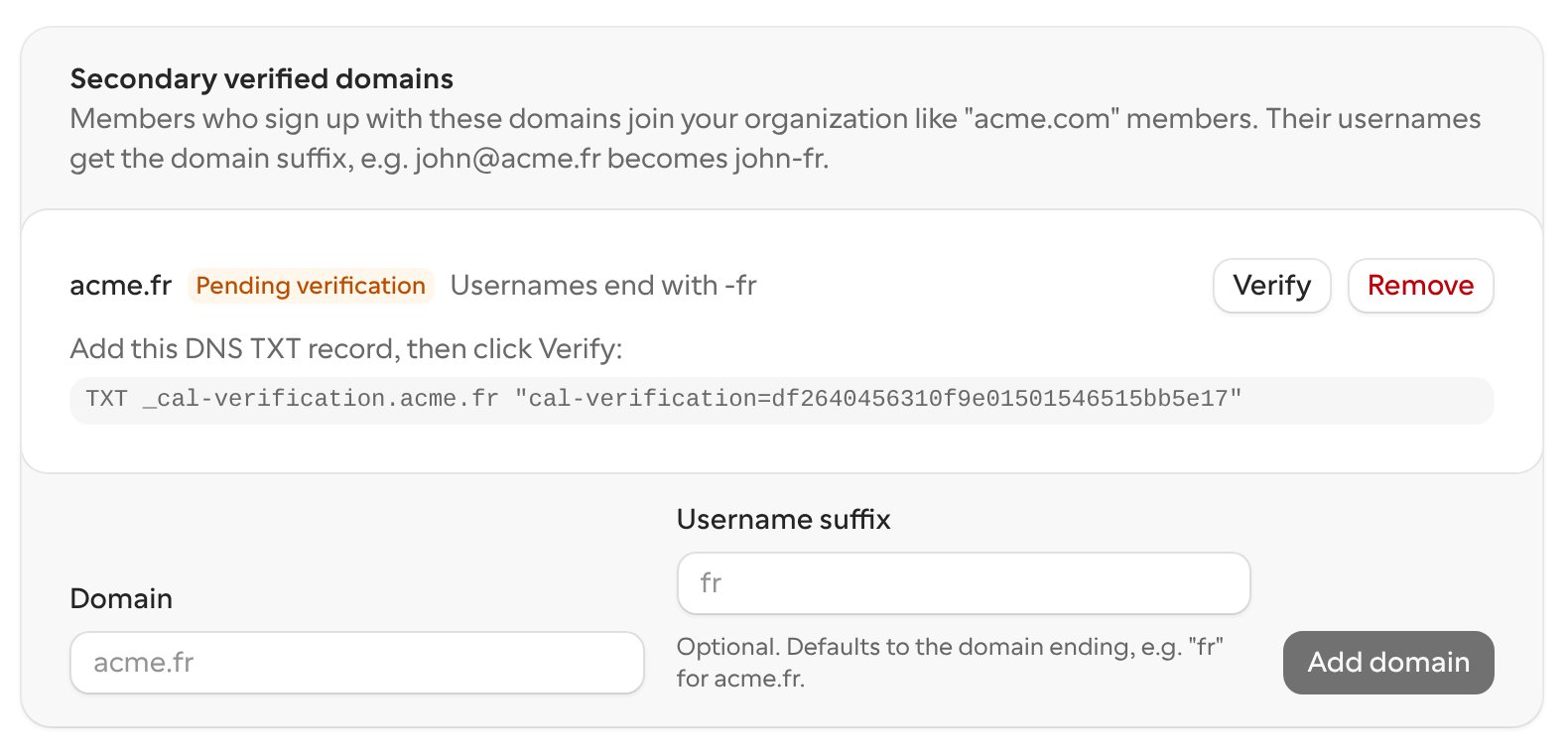
acme.fr. Optionally, set a Username suffix (see Usernames).3
Add the domain
Click Add domain. The domain is listed as Pending verification, with the DNS TXT record you need to add.
Verify the domain
Verification proves that your organization owns the domain.1
Copy the TXT record
Under the pending domain, copy the record Cal.com shows you. It has a name like
_cal-verification.acme.fr and a value that starts with cal-verification=.2
Add the record at your DNS provider
In your DNS provider (for example Cloudflare, GoDaddy or Route 53), create a new TXT record with that name and value.
3
Click Verify
Back in Cal.com, click Verify. When the record is found, the domain is marked as verified.
Usernames
Members from a secondary domain get a suffix on their username so they don’t clash with members on your primary domain. By default, the suffix is the ending of the domain. For example,john@acme.fr gets the username john-fr.
To use a different suffix, enter it in Username suffix when you add the domain.