Key metrics
The dashboard shows two groups of key performance indicators (KPIs):- Events — total events, completed events, rescheduled events, and cancelled events.
- Performance — average rating, host no-show rate, guest no-show rate, and CSAT score.
Date range filter
Use the date picker at the top right of the dashboard to control which time period you are viewing. You can choose from preset ranges or set a custom date range.Preset options
Choosing a date target
Inside the date picker, you can also choose which date the filter applies to:- Booking time — filters by when the booking is scheduled to happen (the event start time). This is the default.
- Created at — filters by when the booking was originally created.
When you select a future date range like “Next 7 days”, the date target automatically switches to “Booking time” since filtering future bookings by creation date would not be useful.
Viewing upcoming bookings
Select the Next 7 days preset to see a forward-looking view of your scheduled bookings. When a future date range is active, the dashboard adapts to show only the metrics that are relevant:- The first KPI card changes from “Total events” to Events scheduled, which counts only confirmed bookings (excluding cancelled and rejected ones).
- The Events completed KPI is hidden since those events haven’t happened yet.
- The Performance section (ratings, no-shows, and CSAT) is hidden.
- The Event trends chart only shows Created, Rescheduled, and Cancelled lines — Completed, No-Show (Host), and No-Show (Guest) are removed.
- Tables for most/least completed members, no-show hosts, no-show guests, ratings, and recent feedback are hidden.
- The Most common cancellation reasons and Most common reschedule reasons tables are hidden.
Additional charts and tables
Below the KPI cards, the dashboard includes:- Event trends — a line chart showing daily booking volumes broken down by status.
- Average event duration — how long your events typically last.
- No-show hosts over time and CSAT over time — trend charts for team performance.
- Popular events — your most frequently booked booking links.
- Most/least booked team members — see who has the highest and lowest booking volume.
- Most/least completed team members — track completion rates across your team.
- Cancellation and no-show tables — identify patterns in cancellations and missed meetings.
- Most common cancellation and reschedule reasons — see why bookings are being cancelled or moved. See Cancellation and reschedule reasons.
- Rating and feedback tables — review member ratings and recent feedback.
Cancellation and reschedule reasons
Two tables show the reasons people give when they cancel or reschedule a booking:- Most common cancellation reasons
- Most common reschedule reasons

Filters
In addition to the date range, you can filter Insights by:- Team — view data for a specific team or across the entire organization.
- Member — drill down to an individual team member.
- Booking link — focus on a specific booking link.
- Member attributes — for organizations, focus on bookings hosted by members with specific attribute values, such as a region or department.
Filter by member attributes
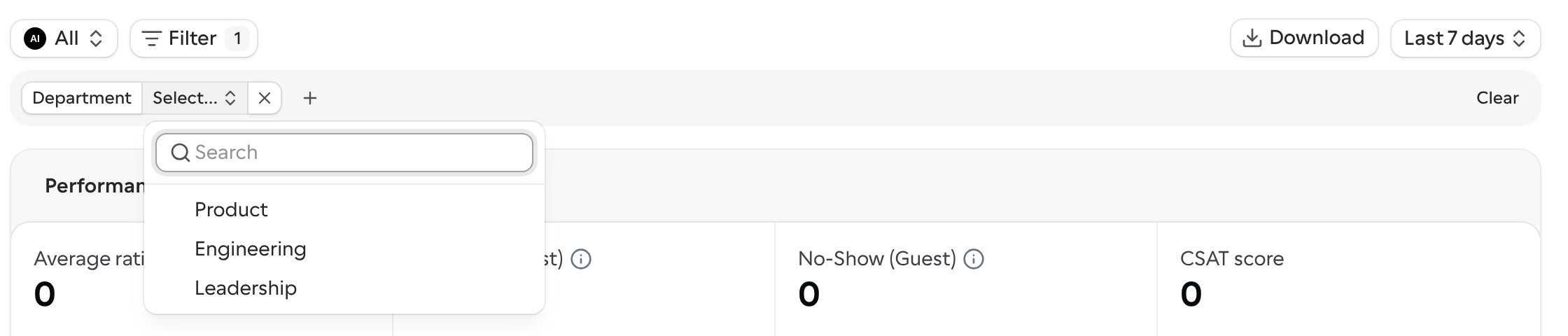
If your organization uses attributes, each enabled attribute appears as a filter in Insights. This lets you compare booking activity across groups of people, for example bookings handled by the EMEA team versus the US team.- Click Filter at the top of the Insights page.
- Choose an attribute, such as Department.
- Select one or more values. Insights only counts bookings hosted by members who have at least one of the selected values.