

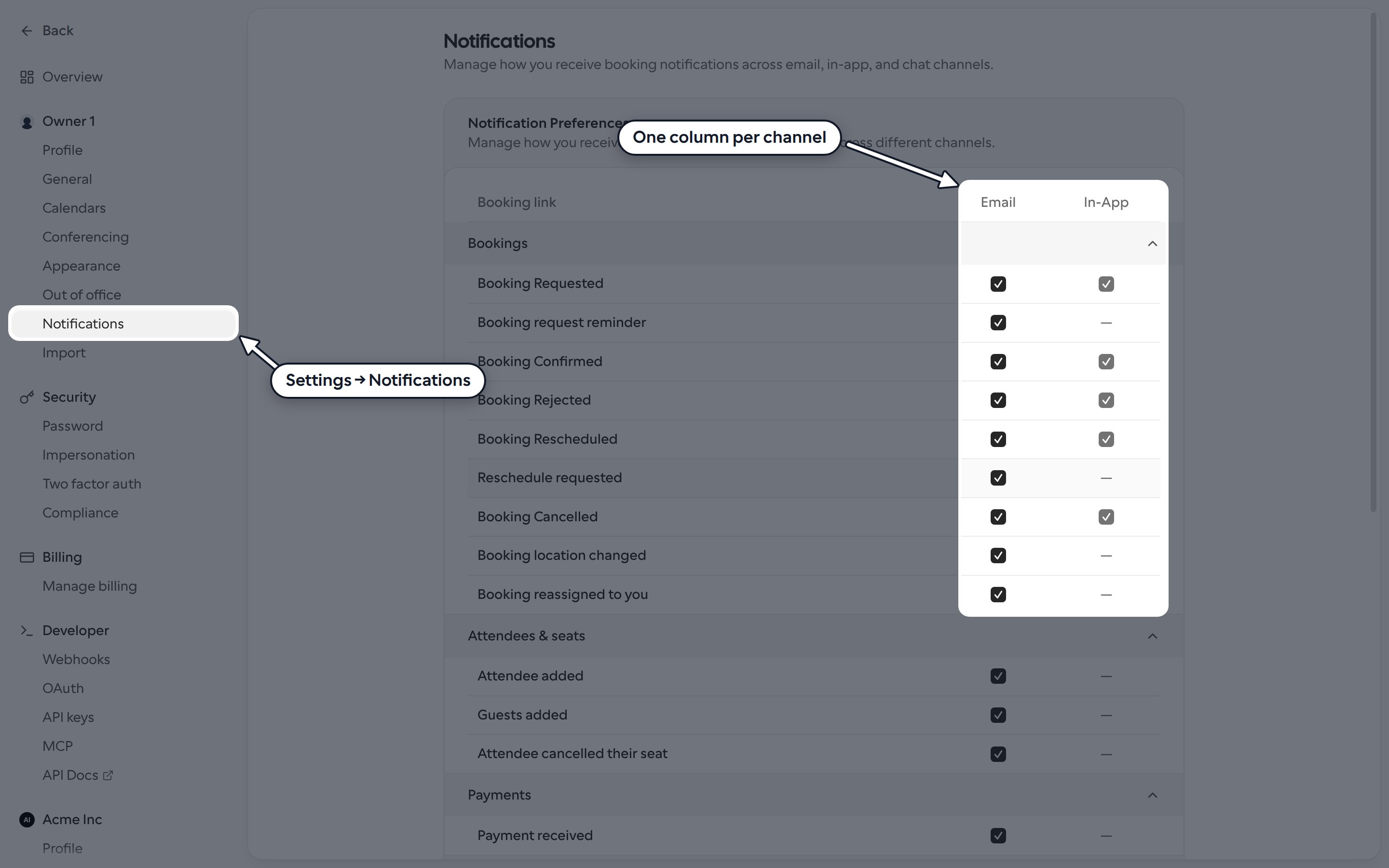
Choose a channel for each notification
Notifications are grouped into Bookings, Attendees & seats, Payments, Booking proposals, Cal Video and Cal Events. Each row is one notification, such as Booking Requested or Booking Cancelled, and each column is a channel. Tick a box to get that notification on that channel, or untick it to stop. Click Save when you’re done.- Email: notifications sent to your email address.
- In-App: push notifications in the Cal.com mobile app. This column is greyed out until you’ve signed in to the app on your phone.
- Agent: messages from the Cal.com assistant in Slack, Telegram or iMessage. This column only appears once you’ve connected at least one of them.
Choose which chat apps get notifications
If you’ve connected more than one chat app, click the Agent column header to pick which of them get notifications. The header shows Muted when none are selected. This choice is saved straight away and applies to every row.Slack and Telegram
To get notifications in Slack or Telegram, link your Cal.com account in Companion on that platform and use/notify on. Use /notify off to stop. Your choices on this page are kept either way.
Browser notifications
Under Browser notifications, click Allow browser notifications to get booking alerts in the browser you’re using. This is set separately for each browser. Click Disable browser notifications to turn it off again.Related
- Guest notification settings: organization admins can turn off booking emails to attendees. The settings on this page only affect what you receive.