

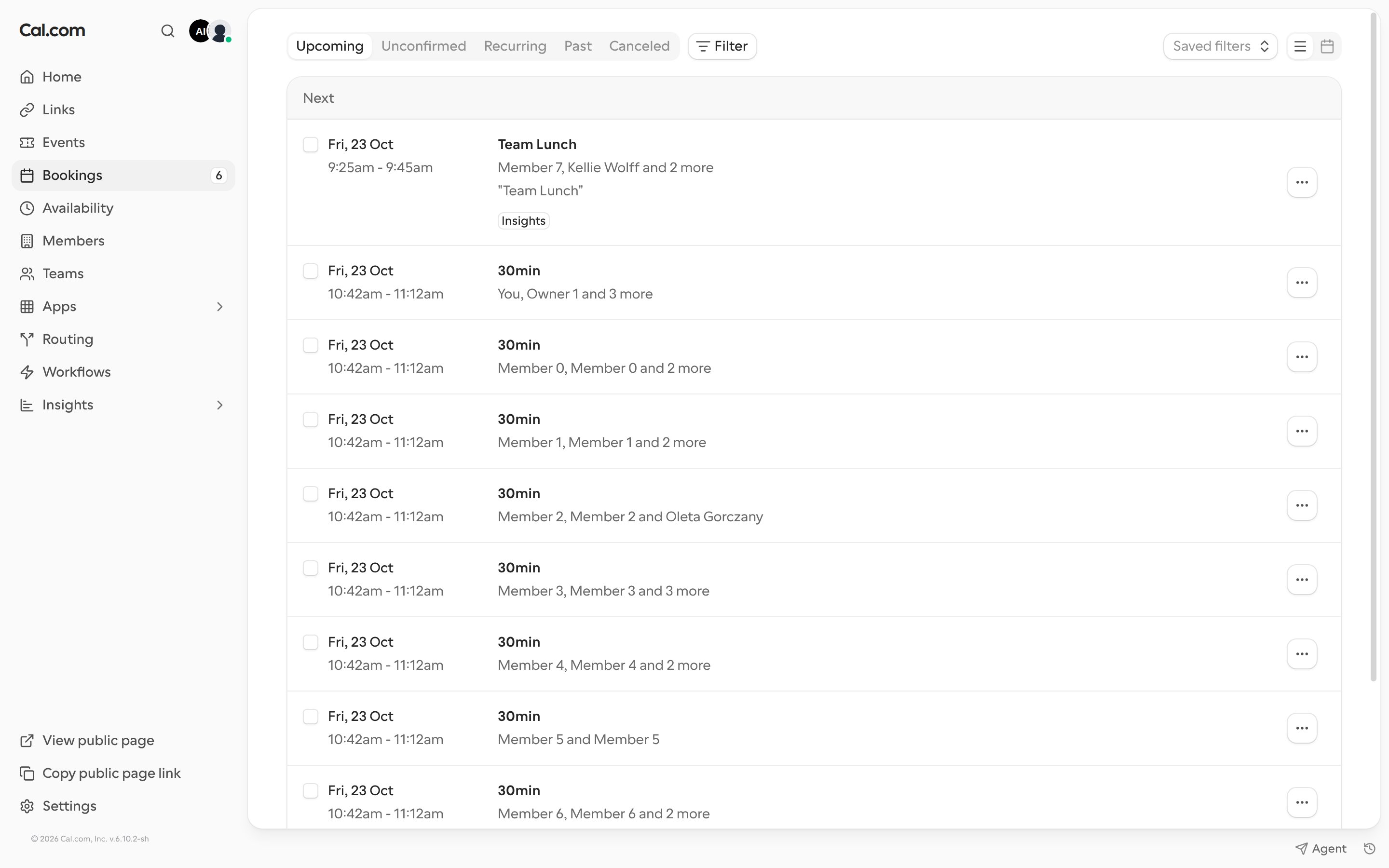
See a booking’s details
Click a booking to open its details panel. Info shows the time, the host, the attendees with their timezones, and any notes the booker added. History shows what has happened to the booking so far. Use the arrows at the top of the panel to move to the previous or next booking.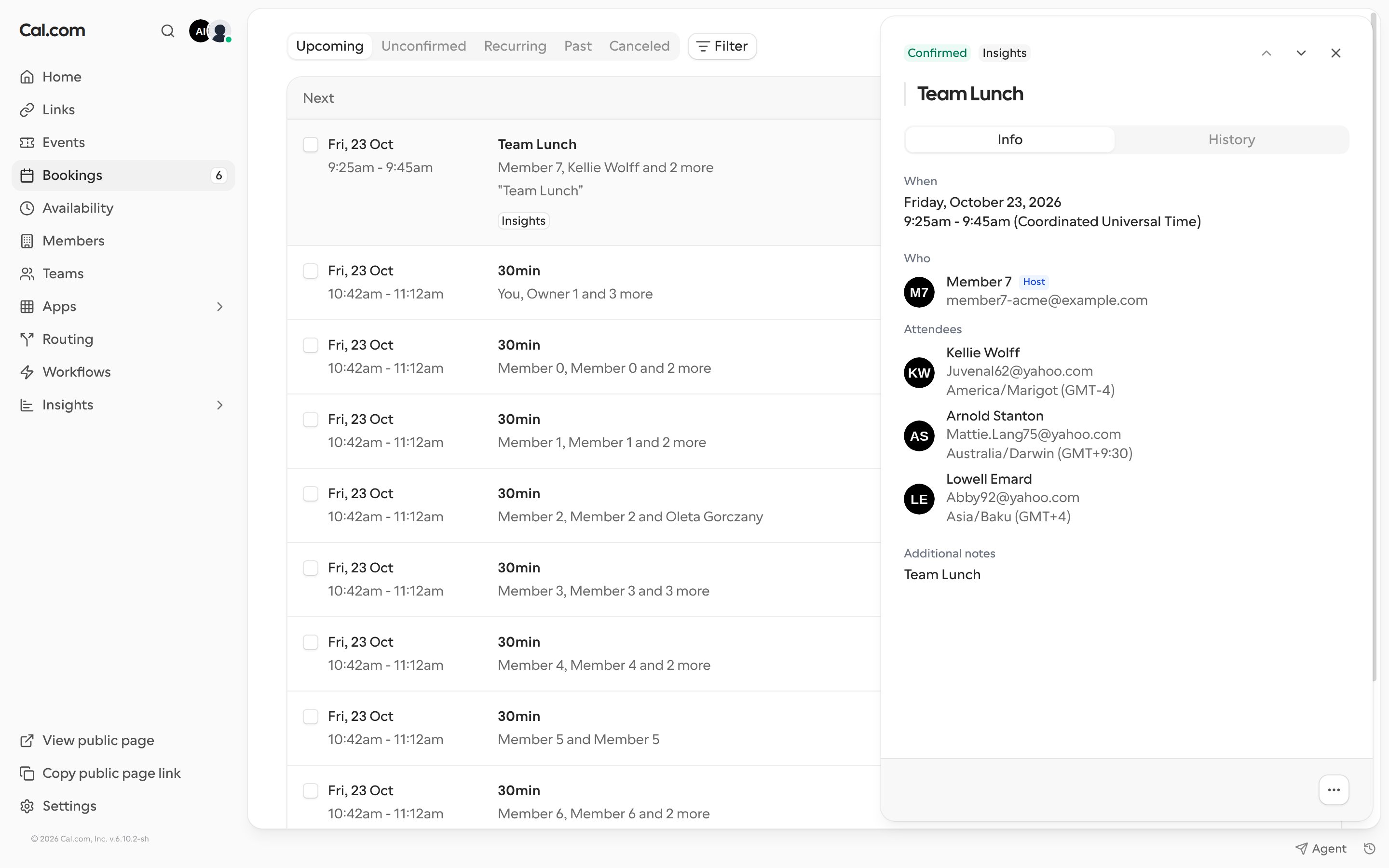
Booking options
Click the … button on a booking, or at the bottom of its details panel, to see what you can do with it. Options that don’t apply to that booking are greyed out.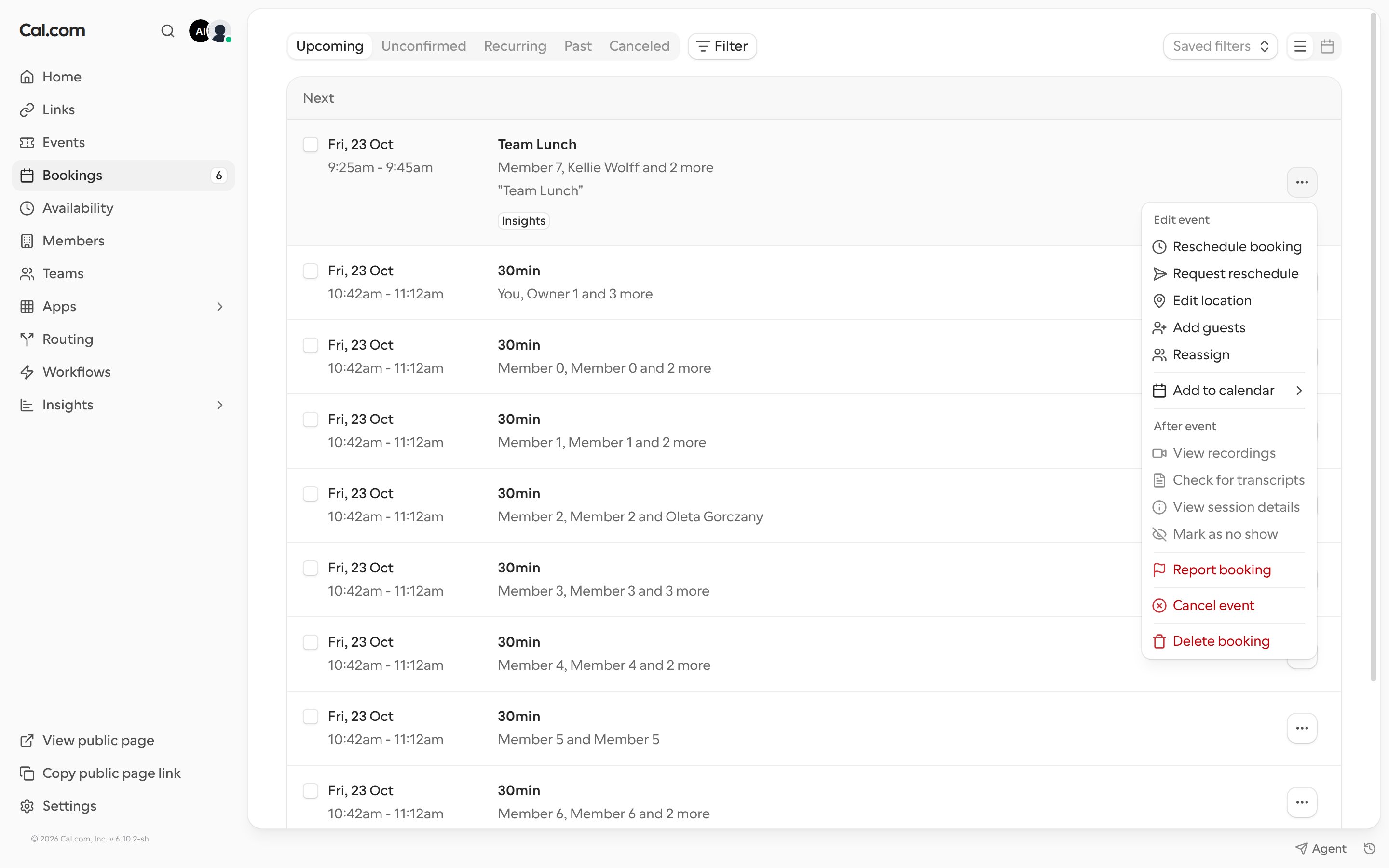
Edit event
- Reschedule booking: pick a new time for the booking yourself.
- Request reschedule: cancels the booking and emails the booker to pick a new time. You can add a reason. It isn’t available for seated events.
- Edit location: change where the meeting happens, for example to a different video app or address.
- Add guests and Remove guests: add people to the booking, or take guests off it. Removed guests are notified and taken off the calendar invite.
- Remove seats: on seated events, remove attendees from their seats.
- Reassign: on round robin and managed events, move the booking to another host. See Round robin.
- Reroute: for bookings that came through a routing form, change the form responses to route the booking to different team members. You can preview the result before you reroute.
- Add to calendar: add the booking to Google, Outlook or another calendar.
After event
These options become available after the meeting has taken place.- View recordings, Check for transcripts and View session details: for confirmed Cal Video meetings.
- Mark as no show: record that an attendee or host didn’t attend. See No-show.
- Collect no-show fee: charge the card saved at booking, for paid events that hold a no-show fee. See Paid bookings.
Report, cancel or delete
- Report booking: flag a booking as spam or unwanted.
- Cancel event: cancel the booking and notify everyone on it. You can add a reason. On the Recurring tab, this becomes Cancel all remaining.
- Delete booking: permanently removes the booking without notifying attendees. This can’t be undone. To let guests know, cancel the booking or request a reschedule first. Only people allowed to edit the booking can delete it.