

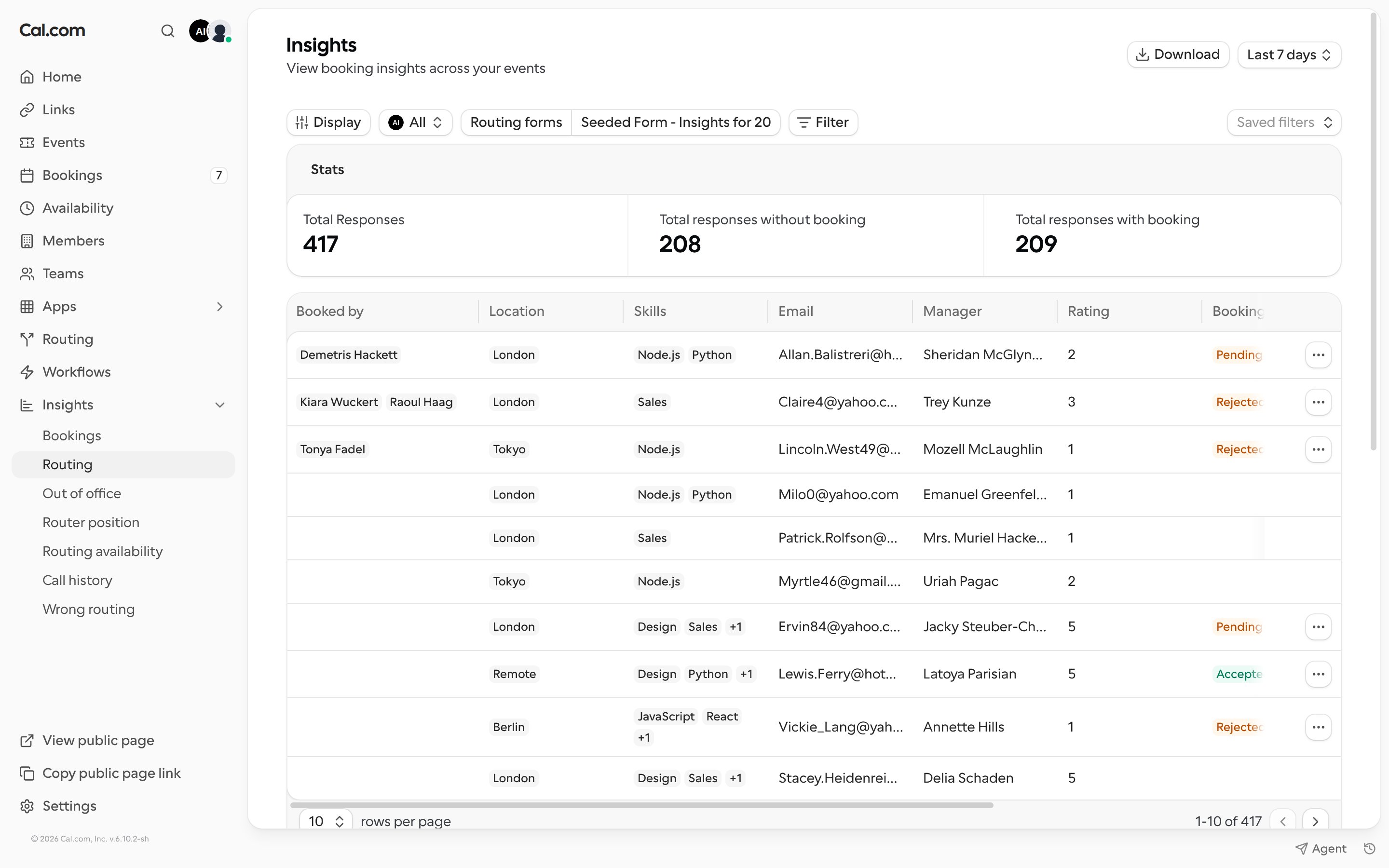
Insights is available to members of a team or organization. If you are not on a team yet, the Insights pages show an upgrade prompt instead.
Choose a routing form
Routing insights always show one routing form at a time. The first form you have access to is selected by default. Use the Routing forms filter at the top of the page to switch to another form. You can also filter by team (or the whole organization), member, booking status, the form’s own questions, and Submitted at date range.Stats
The Stats cards at the top count the responses in the selected range:Responses table
The table lists every response. Columns include the member the response was routed to, the booking link, who booked, the attendee’s name, email and phone number, an answer column for each form question, the booking status and time, the Assignment reason, UTM parameters, and Submitted at. Use the actions menu on a row to:- Open the Routing trace, which shows each routing decision that led to the assigned host. See Routing trace.
- Report assignment when the booking went to the wrong person. See Wrong assignment reports.
Filtering by an attendee’s name, email, phone number, an answer, or the assignment reason needs permission to read routing form response data. Team admins and owners have it by default. Without it, a filtered view returns no responses.
Routing funnel
The Routing funnel chart compares three numbers over time:- Total submissions: everyone who submitted the form.
- Successful routings: submissions that were routed to a booking link or member.
- Accepted bookings: routed submissions that became an accepted booking.