

Calendars
Go to Settings > My account > Calendars to control how your booking links use your calendars.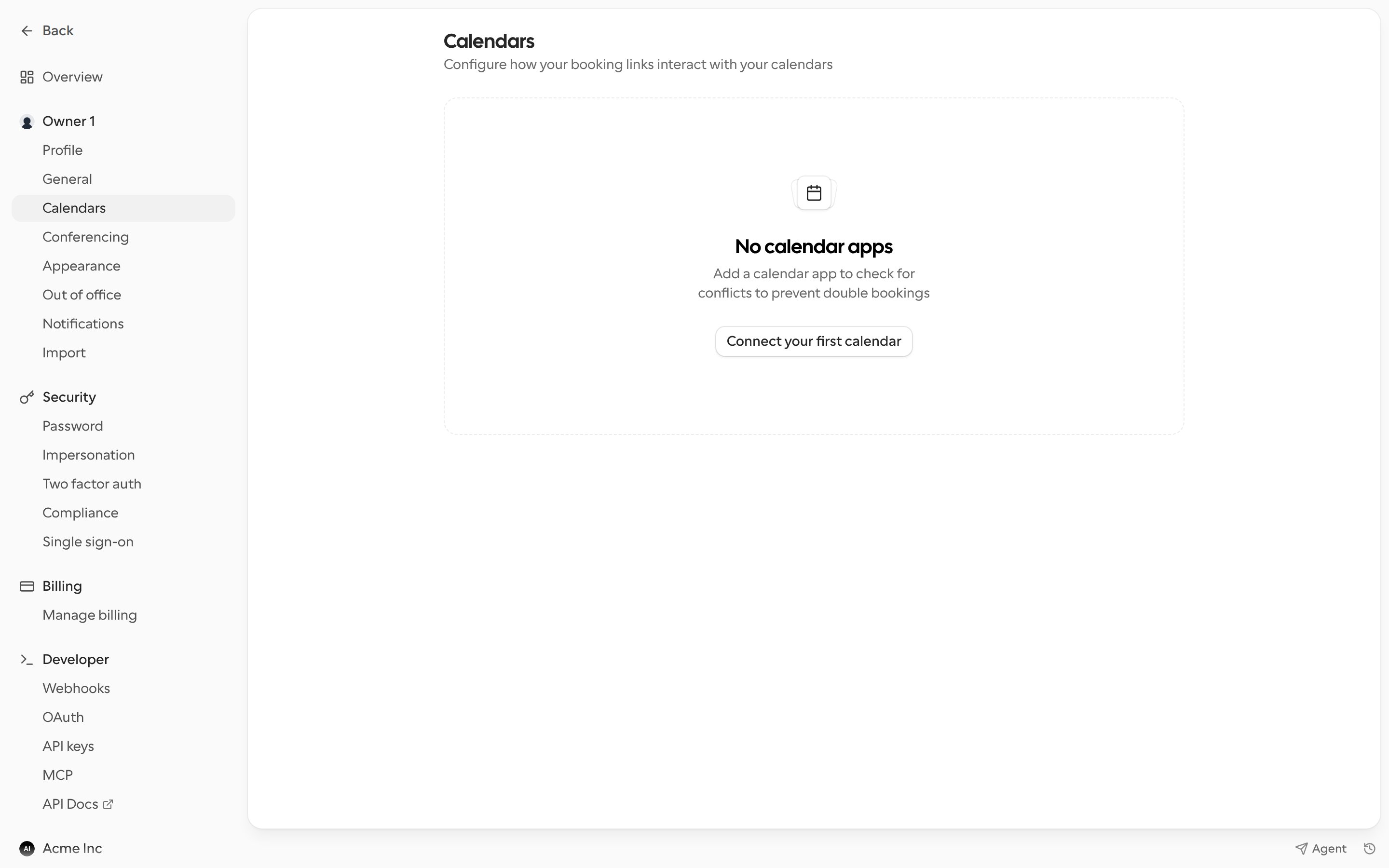
Connect a calendar
Click Connect your first calendar, or Add calendar once you have one, and pick a calendar app such as Google Calendar, Outlook, Apple Calendar, CalDAV or an ICS feed. For Apple Calendar steps, see Connect your calendar. You can connect more than one calendar account.Check for conflicts
Under each connected account, turn on the calendars Cal.com should Check for conflicts. Busy times on these calendars are blocked on your booking pages, which prevents double bookings.Add events to
Under Add events to, choose the calendar where new bookings are created. You can override this for a single event type in its Advanced tab.Remove a calendar
Open the menu on a calendar account and select Remove app. Bookings already on that calendar stay there, but Cal.com stops checking it for conflicts.Conferencing
Go to Settings > My account > Conferencing to manage video apps.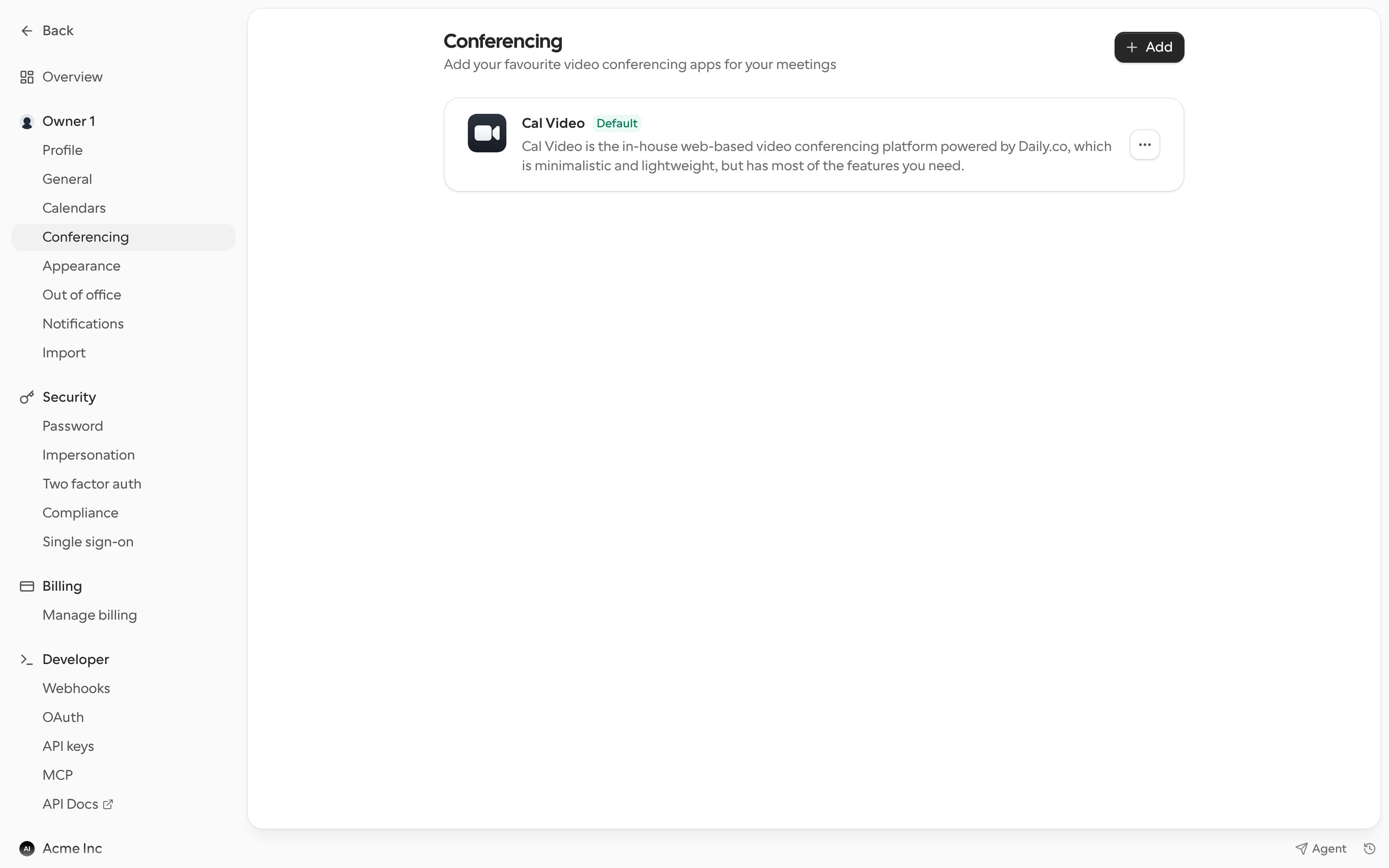
- Click Add to install a conferencing app such as Zoom, Google Meet or Microsoft Teams.
- The app marked Default is used as the location for new event types. To change it, open the menu on another app and select Set as default.
- Open the menu on an app to remove it.