

- Hosts: the invite emailed to the people hosting the booking.
- Guests: the invite emailed to the person who booked and anyone they added.
Customize the invite for a Link
1
Open the Link
Go to Links and open the Link you want to change.
2
Open Privacy and security
Select Privacy & security and turn on Calendar invites.
3
Write the host and guest invites
Enter your content in Host invite template and Guest invite template. Use the variable picker to add booking details such as the guest’s name or the meeting location.
4
Save
Click Save. New bookings for this Link use your content.
Links in an organization
If you’re part of an organization, each audience has its own menu so you can choose, separately for hosts and guests:- Use organization default: use the content your organization admins set. A read-only preview shows what will be sent.
- Standard invite: use the standard Cal.com invite description.
- Custom invite: write content for this Link only.
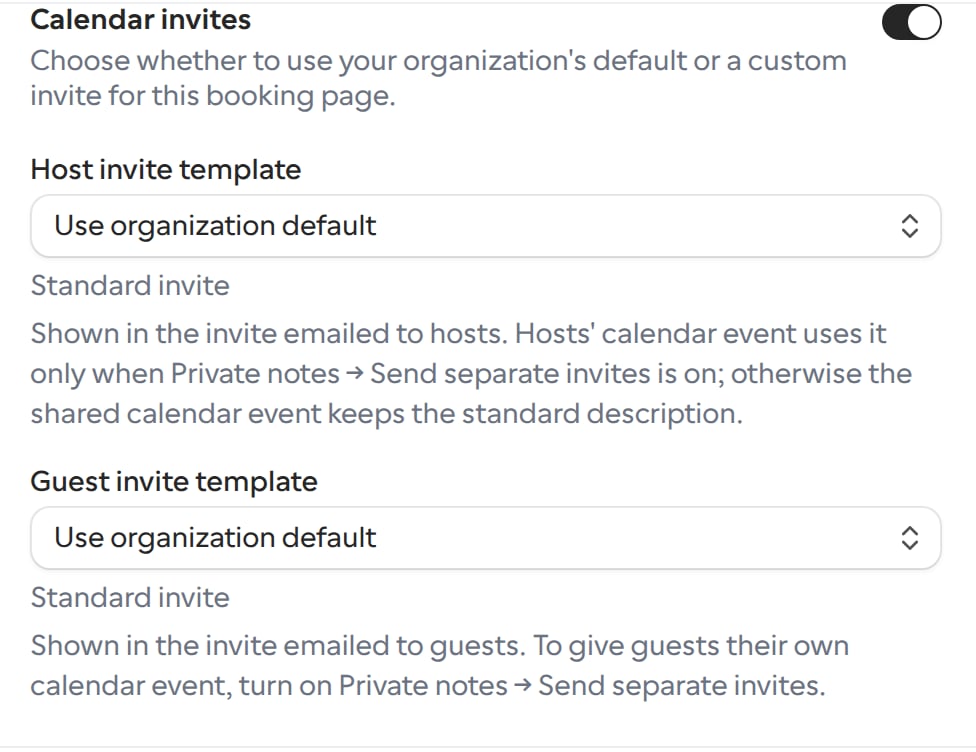
Links created from a Template follow the Template’s calendar invite settings and show Use parent template. Change the content on the Template instead.
Set organization defaults
Organization owners and admins can set the default content for every Link in the organization.1
Open Calendar invites
Go to Settings → Organization → Calendar invites.
2
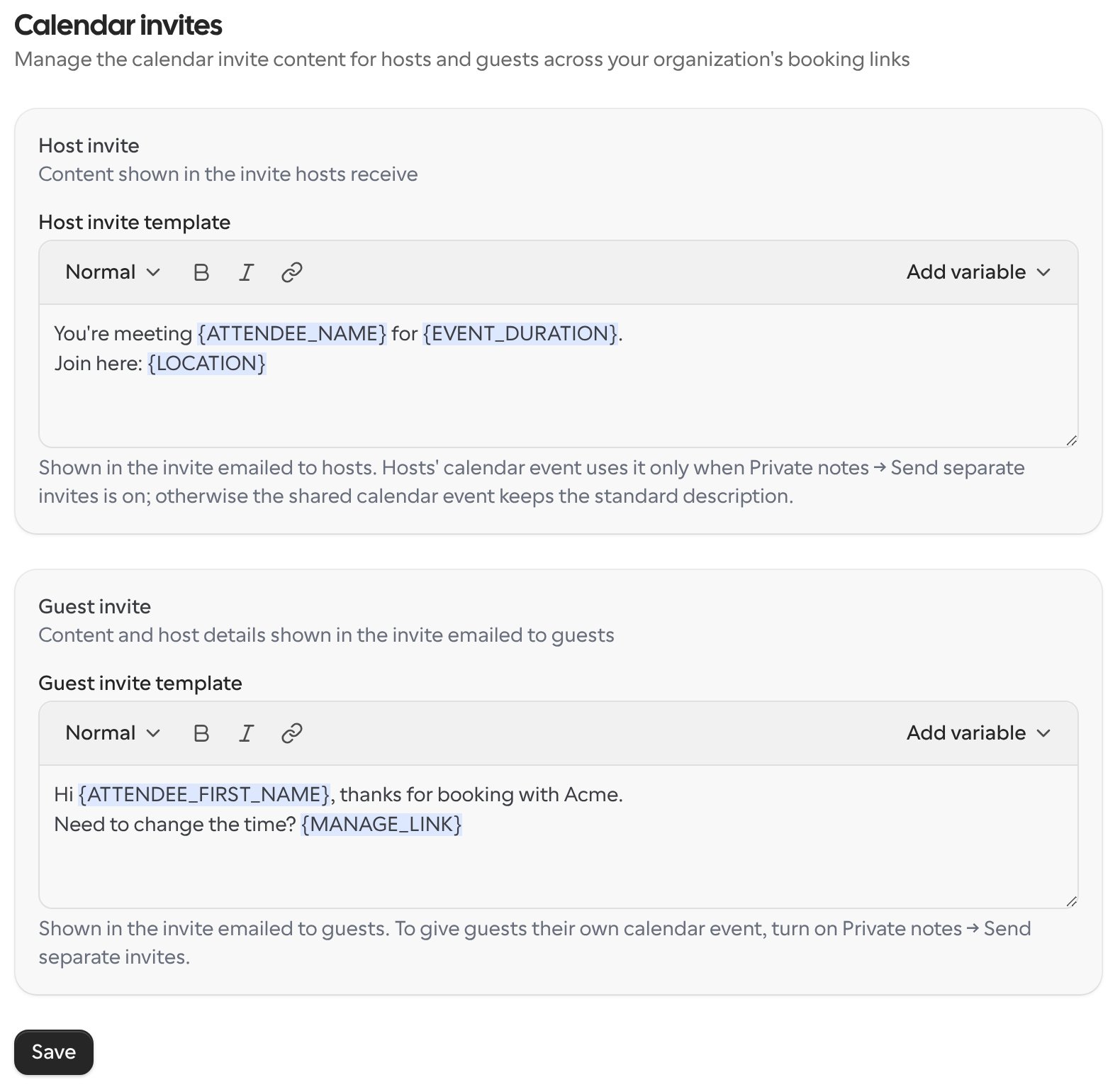
Write the default invites
Fill in Host invite and Guest invite. Leave a section empty if you don’t want an organization default for that audience.
3
Save
Click Save. Every Link set to Use organization default uses this content for new bookings.
Variables
Variables are replaced with the booking’s details when the invite is sent. Insert them with the variable picker in the editor.
On a Link, you can also insert answers to your booking questions. Answers with several values, such as checkboxes, are listed separated by commas.
Things to know
- Invites are sent as plain text. Formatting such as bold text is removed, links are shown as the link text followed by the URL, and line breaks are kept.
- Each template can be up to 5,000 characters.
- Changes apply to new bookings. Invites that were already sent are not updated.
- Hosts and guests share one calendar event by default, and that shared event keeps the standard description. Your custom content appears in the invites emailed to each audience. To give hosts and guests their own calendar events with their own content, turn on Private notes → Send separate invites on the Link.