

Who can impersonate members?
- Members don’t have impersonation permission by default. If your organization uses custom roles or has adjusted team roles, access depends on the permissions assigned to your role. See Roles and permissions.
- An admin cannot impersonate an owner. You cannot impersonate yourself.
- The person you’re impersonating must have accepted their invitation and must allow impersonation.
- Being an admin of one standalone team does not give you access to people in another team.
Impersonate a team member
1
Open the team's member list
Go to Settings, find your team under My teams, and select Members. You can also open the menu on the Teams page, choose Edit team, and then select Members.
2
Choose the member
Open the ⋯ menu next to the member you want to help and select Impersonate.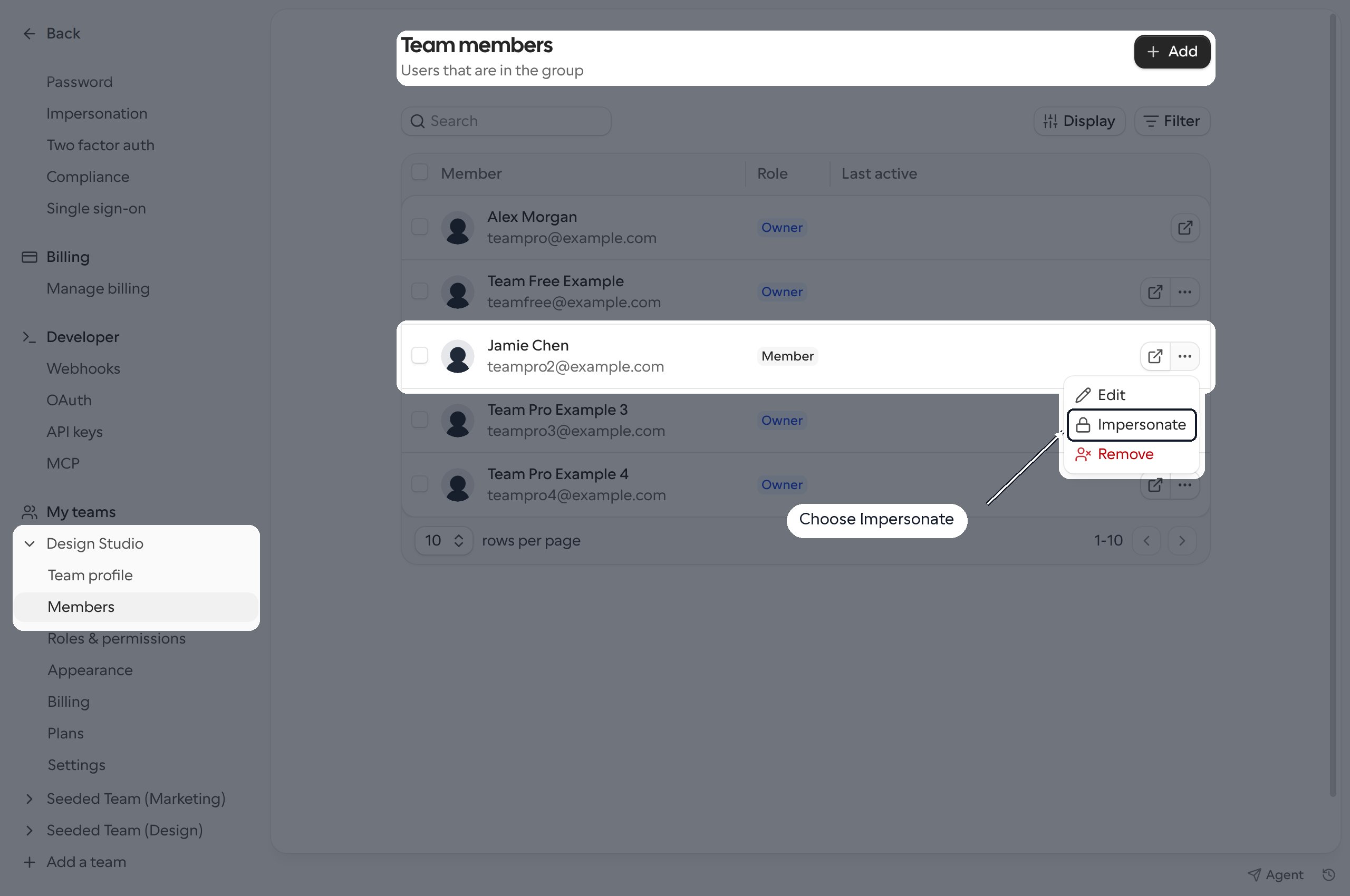
3
Confirm impersonation
Read the warning, then click Impersonate in the confirmation dialog. Cal.com switches you into the member’s account.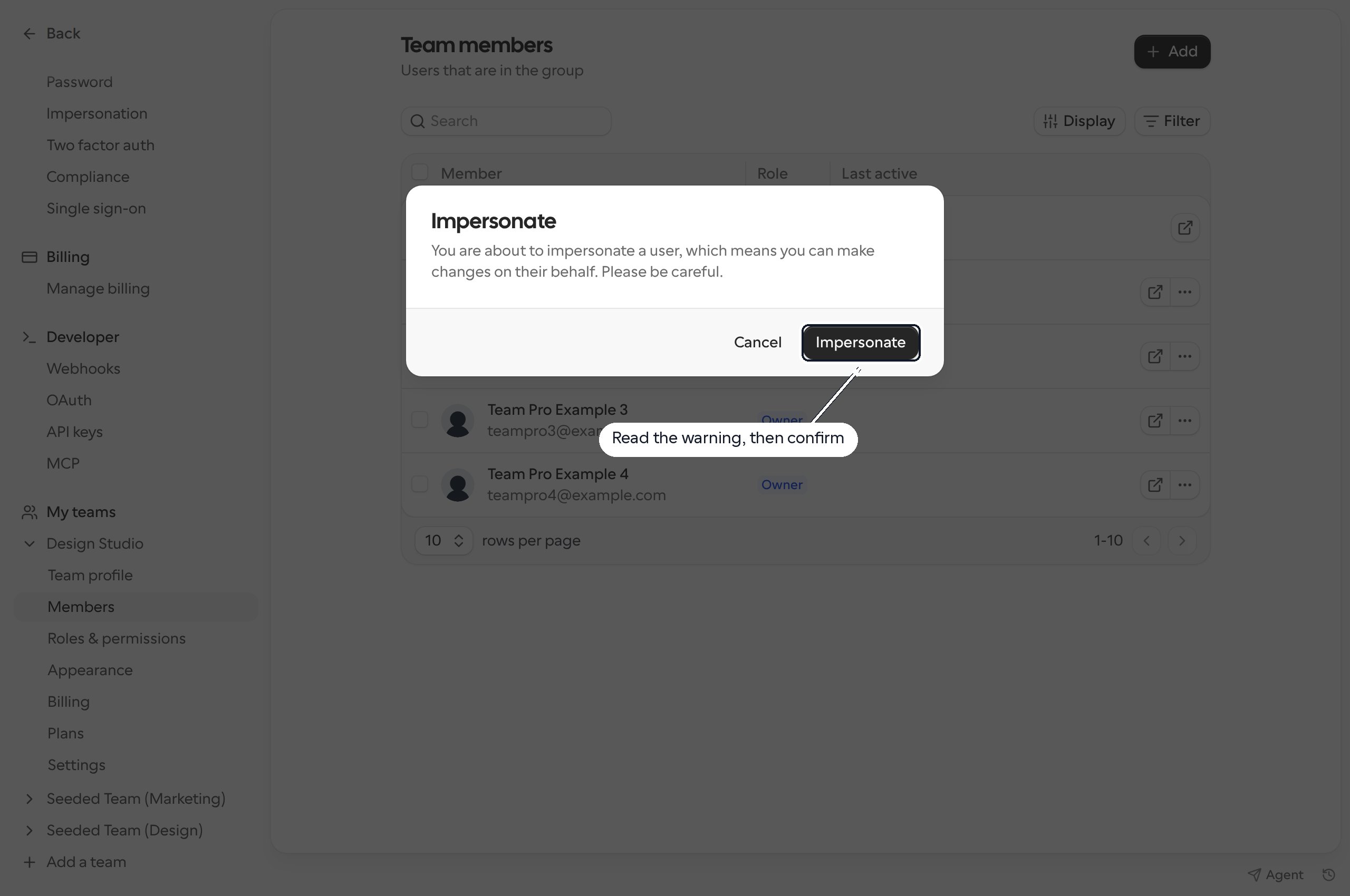
Impersonate an organization member
You can start from either the organization’s member list or a team’s member list. Both sign you into the member’s account, not a read-only view limited to that team.From the organization’s Members page
1
Open organization members
Go to Settings, find your organization’s name in the sidebar, and select Members. You can also open Members from the main sidebar.
2
Choose the member
Find the person, open their ⋯ menu, and select Impersonate. You don’t need to find which team they belong to first.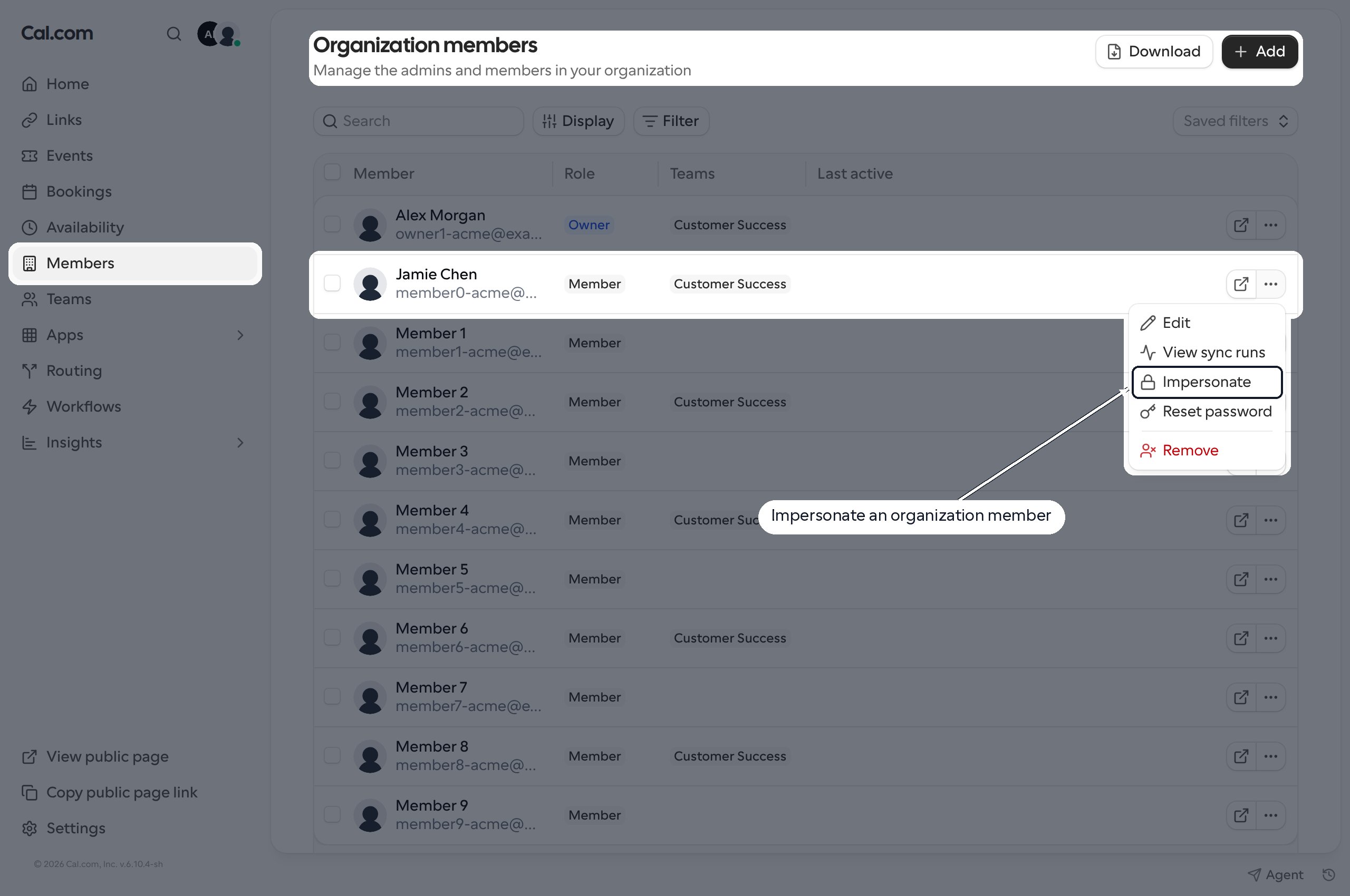
3
Confirm impersonation
Click Impersonate in the confirmation dialog.
From a team within the organization
Open that team’s Members page under Settings, then use the member’s ⋯ menu > Impersonate and confirm, just as you would for a standalone team.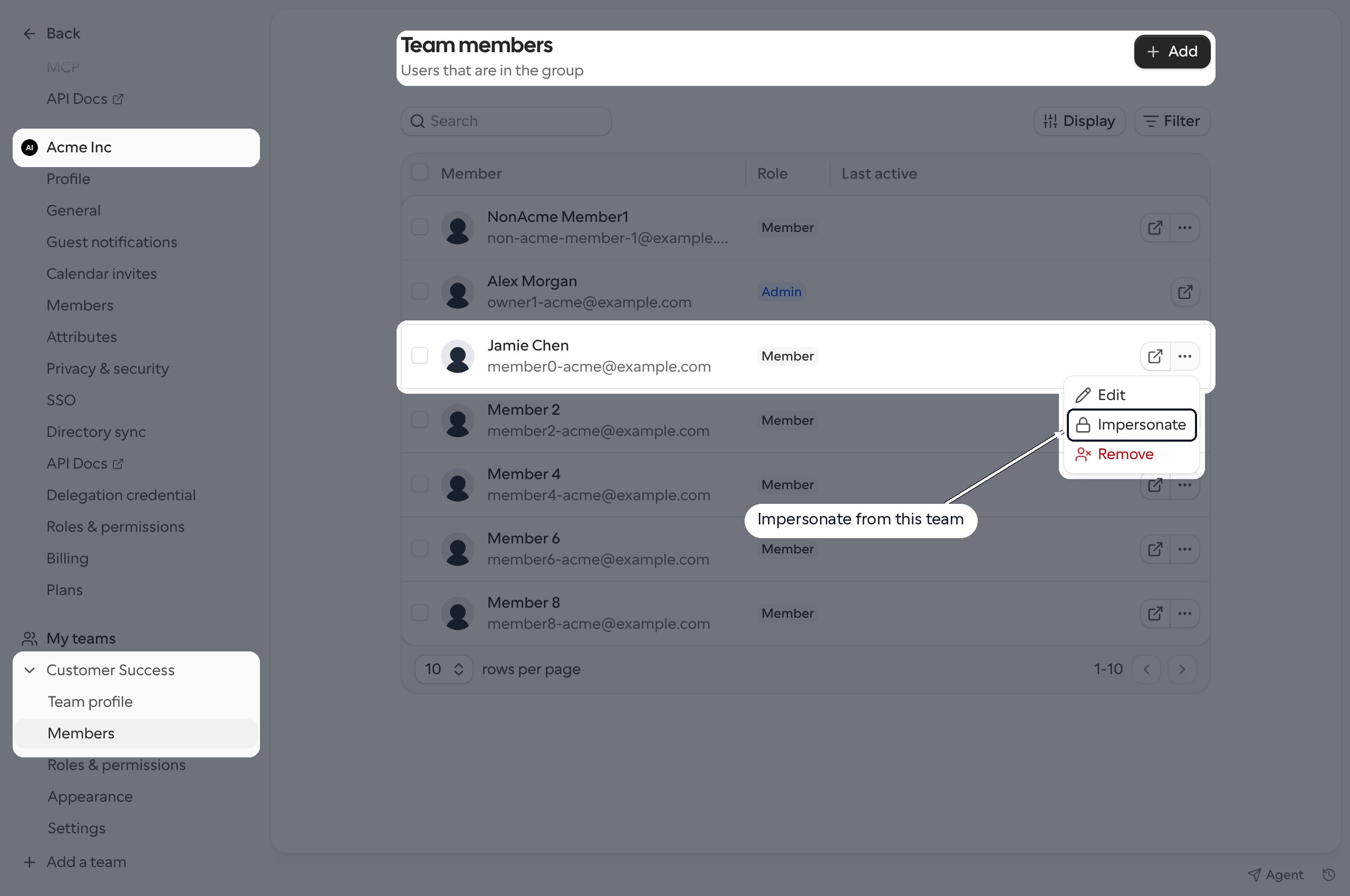
Stop impersonating and return to your account
While impersonating, a banner at the top of Cal.com shows Impersonating username and the member’s username. Click Click here to stop in that banner to return to your own account.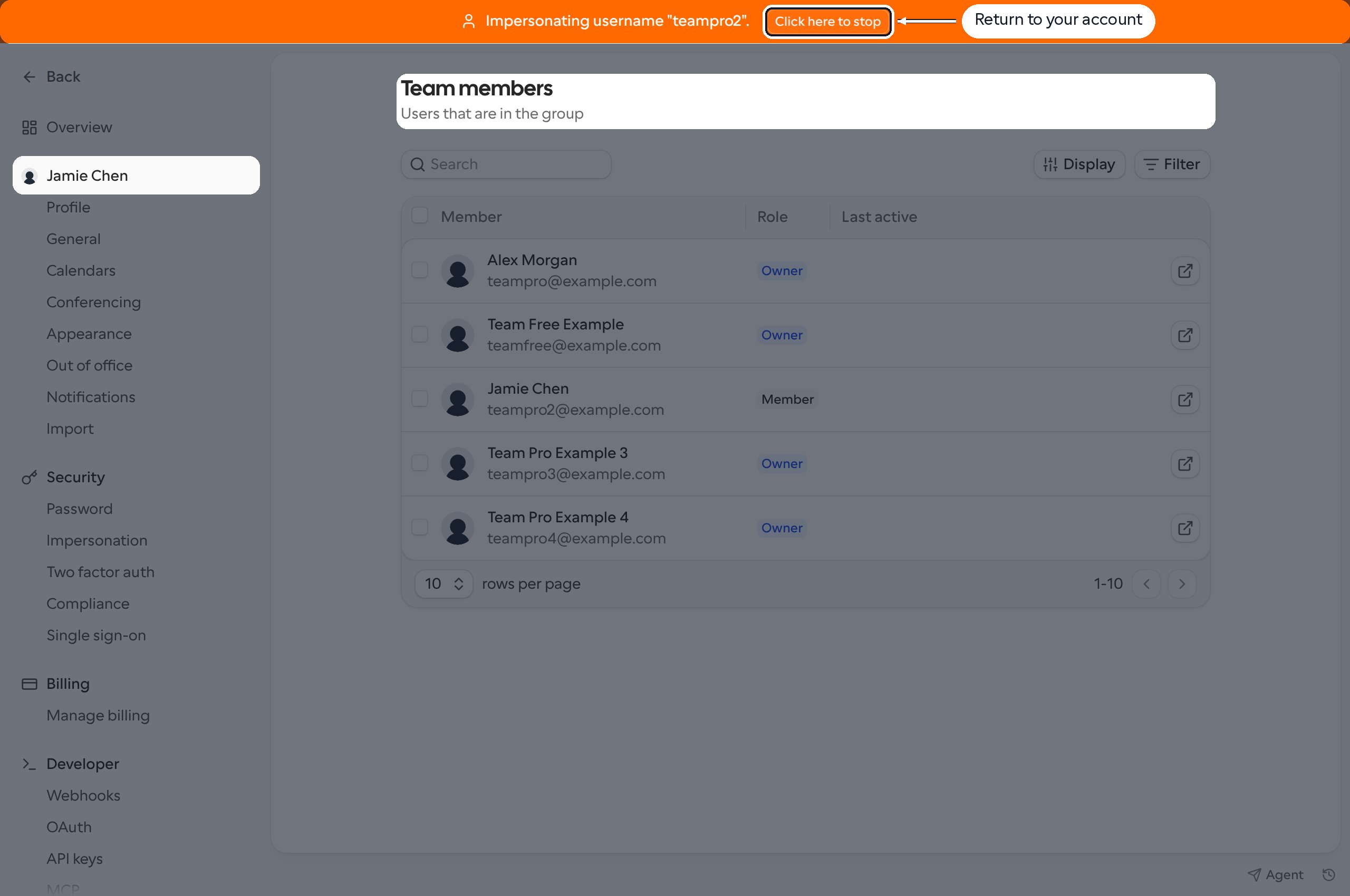
Control who can impersonate you
Turn off all impersonation
Go to Settings > Security > Impersonation and turn off User impersonation. This blocks impersonation of your account by Cal.com support as well as team and organization owners and admins.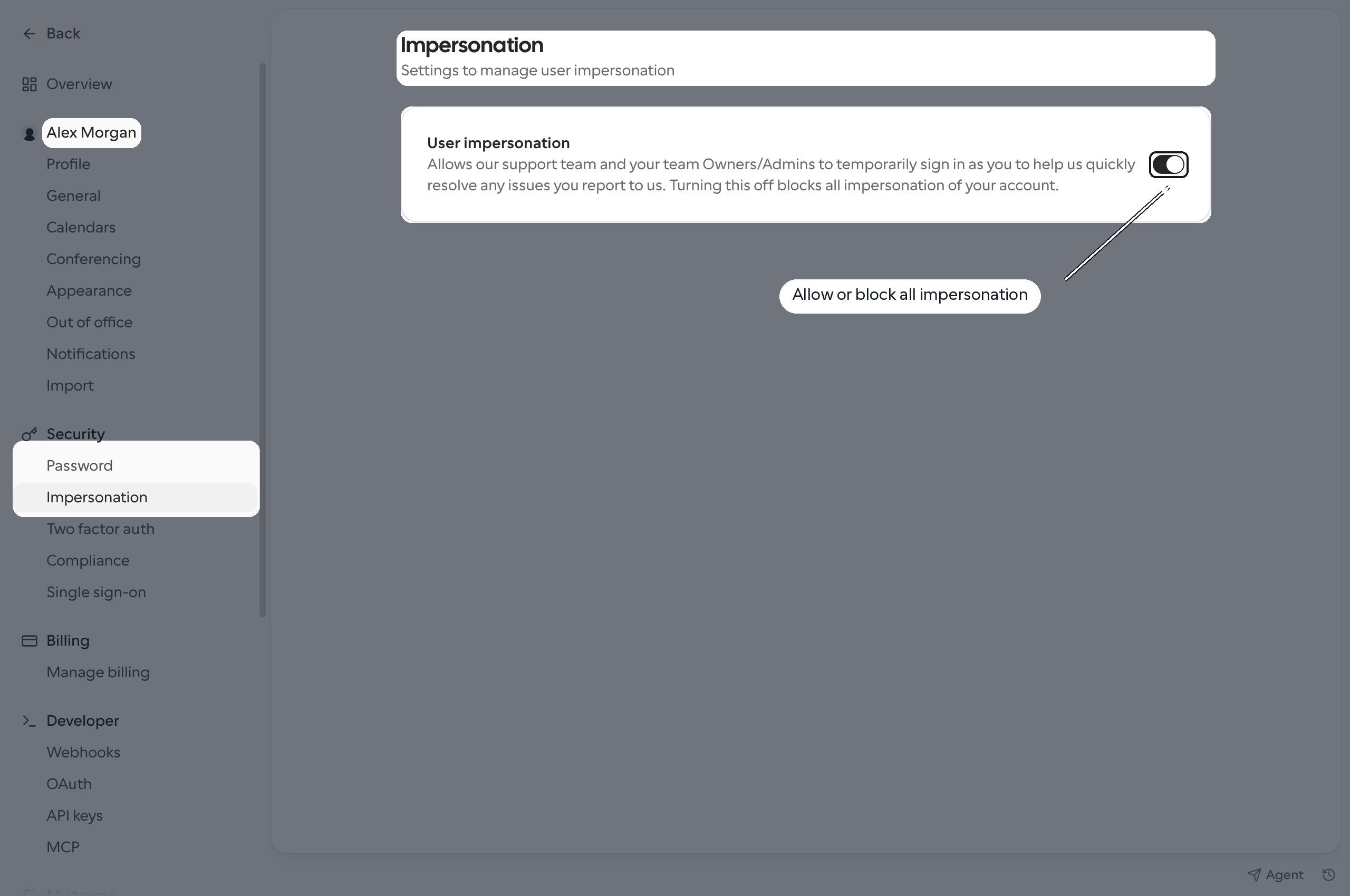
Change your preference for one team
Go to Settings > your team > Settings and change User impersonation. This is your own preference for that team, not a switch that enables impersonation for everyone in the team.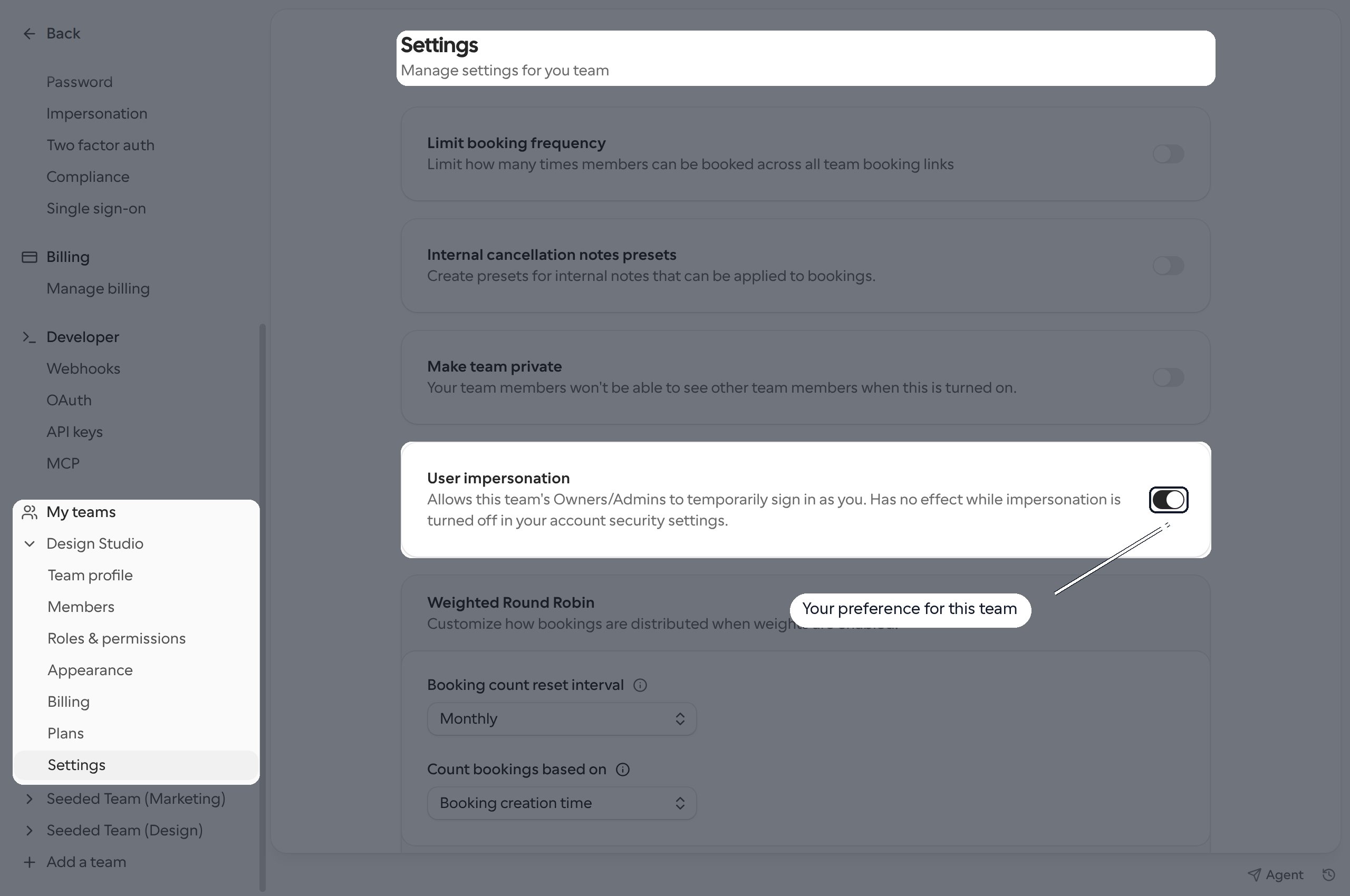
Why is Impersonate missing or not working?
- Check your permissions. You need impersonation permission for the relevant team or organization. An admin cannot impersonate an owner.
- Check the invitation. Pending members must accept their invitation first.
- Ask the member to check their preferences. Their account-wide setting can block impersonation even when a team setting allows it.
- Check the organization. Organization impersonation requires Cal.com to have reviewed the organization. If the option is unavailable despite the correct permissions and member settings, contact Cal.com support.