

Open the invite dialog
Use either of these:- On the Teams page, open the menu on a team and select Invite team member.
- In Settings > your team > Members, click Add.
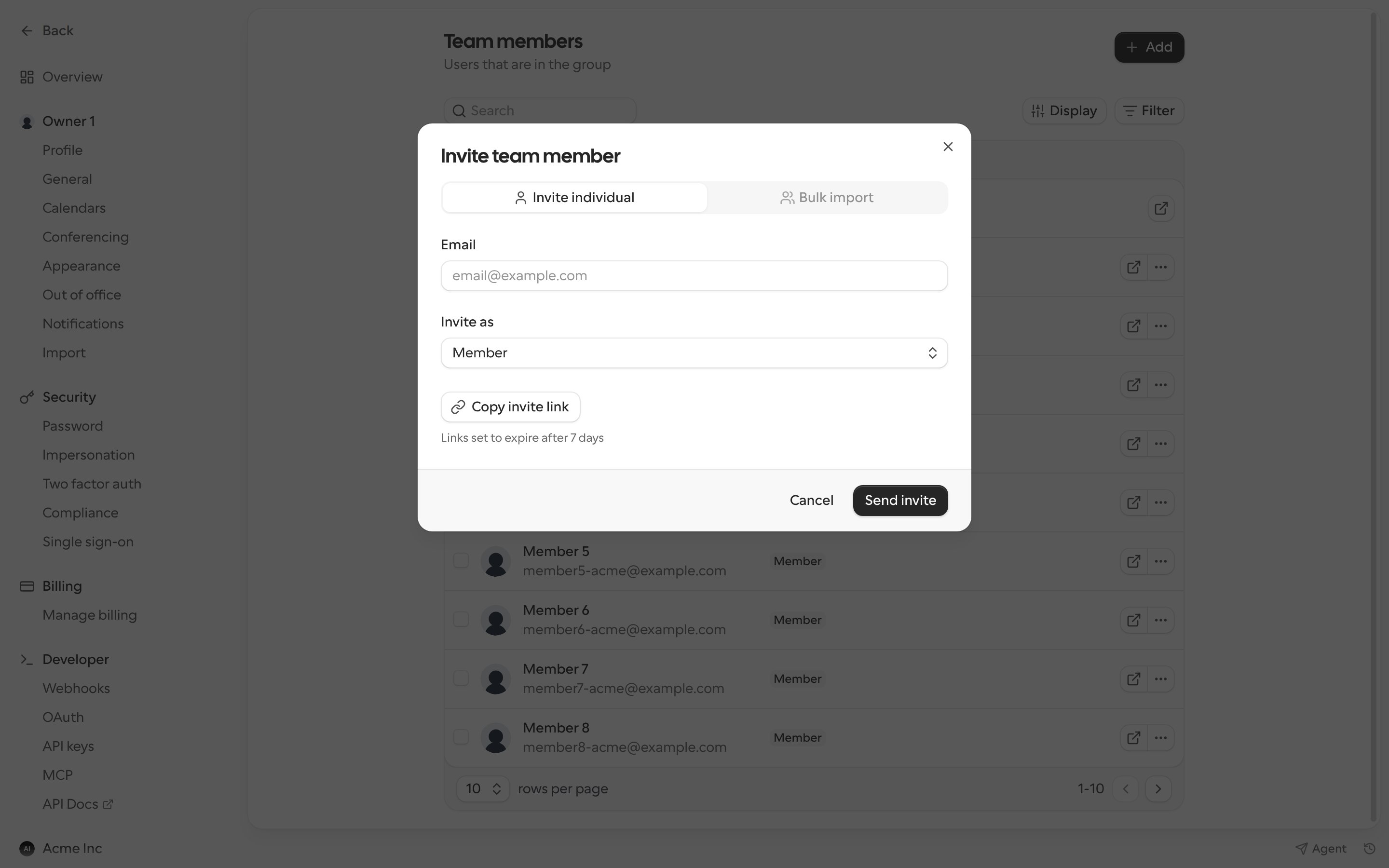
Invite one person
- Select Invite individual.
- Enter an email address, or the username of someone who already has a Cal.com account.
- Choose a role under Invite as: Member, Admin or Owner. See Roles and permissions.
- Click Send invite.
Invite several people at once
Select Bulk import, then either:- Enter several email addresses, or
- Click Upload a .csv file. The file needs an
emailcolumn and can include each person’s role. Click Download template if you need an example file.
Share an invite link
Click Copy invite link and share the link with the people you want to add. Anyone with the link can join the team, so share it carefully. To change how long the link works, click Edit link settings and choose 1 day, 7 days, 30 days or Never expires. You can also delete the link there.Import from Google Workspace
Click Connect Google Workspace, then Import users from Google Workspace to invite people from your company directory. You need to be a Google Workspace admin to use this.Manage invites and members
In Settings > your team > Members, open the menu on a member to Edit their role, Resend invitation to someone who hasn’t accepted yet, or Remove them from the team.If your organization adds members through SCIM only, inviting from Cal.com is turned off and the dialog explains who to contact instead.