

Noise cancellation is available in Cal Video calls that run on RealtimeKit, on self-hosted instances
that switch Cal Video to RealtimeKit (
CAL_VIDEO_PROVIDER=realtimekit). Calls on Daily, Cal Video’s
default video provider, don’t show the option.Turn on noise cancellation
1
Join the call
Noise cancellation can only be turned on once you’re in the call. It works in both video calls and
Cal Audio rooms.
2
Open More options
Select More options in the call’s control tray. On a phone, the options open in a drawer from
the bottom of the screen.
3
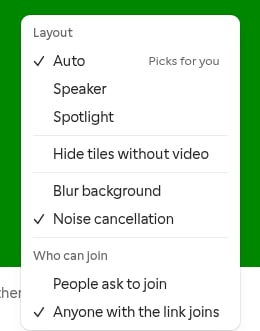
Tick Noise cancellation
Select Noise cancellation. In a video call it sits below Blur background, if your browser
offers background blur. The item is greyed out for a moment
while noise cancellation starts, then shows a tick once your microphone is filtered for everyone.
How noise cancellation behaves during a call
- Turning it on while muted: the item shows a tick straight away, and filtering starts when you unmute.
- Muting: muting always takes effect at once, even while noise cancellation is still starting.
- Microphone changes: if you mute and unmute, or switch to another microphone, your microphone comes back filtered.
- Each call starts without it: noise cancellation is off every time you join, even if you used it in an earlier call.
- If noise cancellation stops working: Cal Video turns it off and you see the message “Noise cancellation isn’t working, so we turned it off”. Your microphone and the call carry on as before, unfiltered.
Where noise cancellation isn’t offered
The Noise cancellation item doesn’t appear in the menu:- On iPhone, or on an iPad whose browser reports iOS. Safari on iPad in its default desktop mode still offers it.
- In Safari versions before 17, and in other browsers built on Safari’s engine, such as Chrome or Firefox on iOS.
- In browsers that don’t support audio worklets.