

Where Discover works
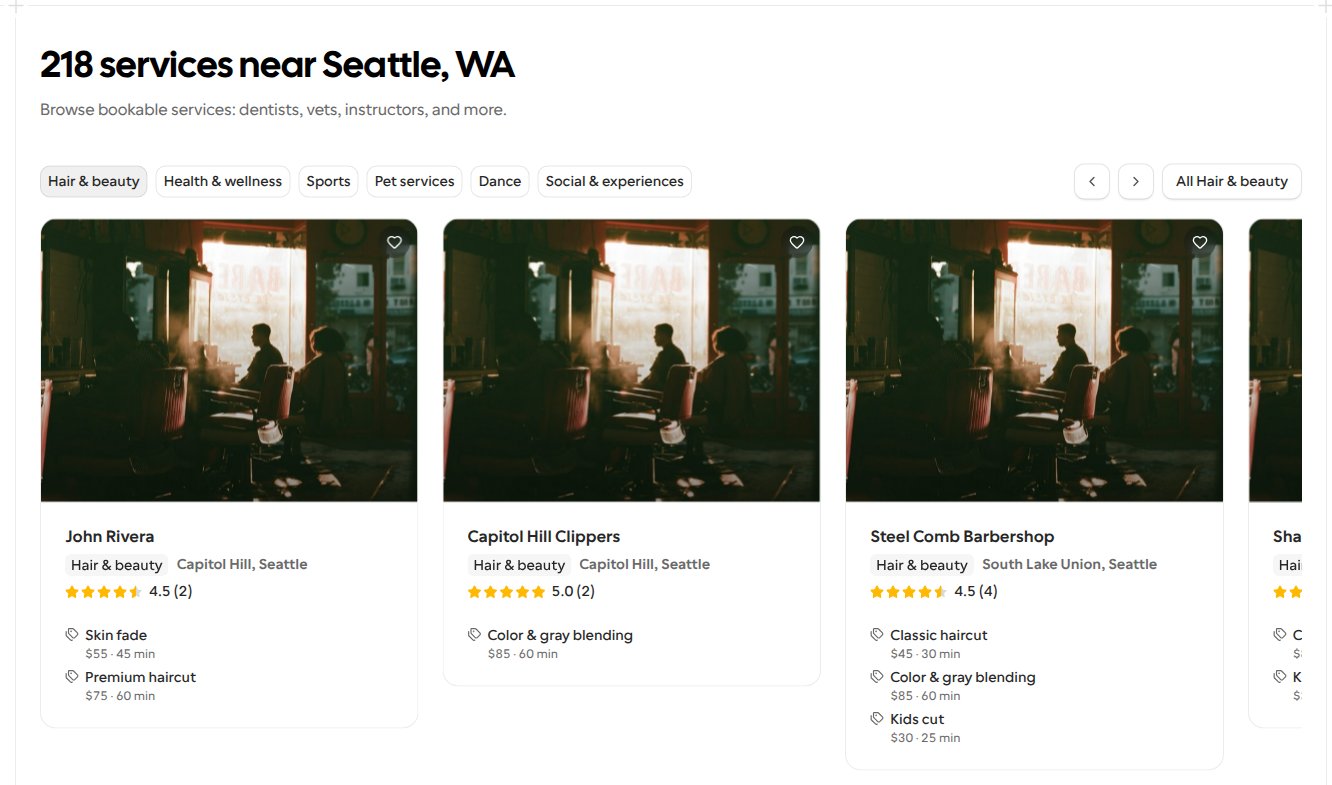
Discover lists businesses wherever they are, not only in Discover’s cities:- The Discover home’s services, its Top rated section and its service count show providers within 10 miles of the visitor’s area, as named under the home’s search box, and the count names that area, such as 218 services near Seattle, WA. With no area set, or after Show everywhere, they show providers from every city, and the count reads, for example, 218 bookable services. See Change the area Ask Discover searches. With an area, its in-person category tiles show how many services are near the visitor and open the category page near that area. Otherwise, its category tiles and View all open the category pages for all of Discover, such as
/discover/services/barbers. See Category tiles near your area. - With an area set, the home also shows an Online services row of providers from anywhere.
- Below Browse by category, the home’s Explore section links to the city pages in and around the visitor’s area. See Explore your city and nearby cities.
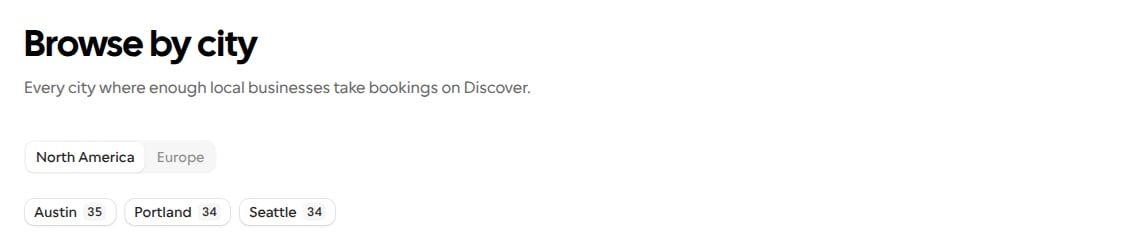
- Below the Explore section, Across the globe lists every city with its own Discover pages, Seattle included, under a tab for each continent, such as North America or Europe. Every continent has a tab, even one with no city yet, where the tab says so and links to listing a service. The continents with the most services come first, and each tab lists its cities from most services to fewest. Each city’s button shows its number of services, such as Seattle 34, and opens that city’s page, such as
/discover/city/seattle. A city that can’t be placed on a continent is listed in a last Other tab. See Pages for other cities. - Ask Discover searches around any place the client names, including cities outside Discover’s cities, and searches online businesses everywhere. See Results stay in the client’s area.
- The Listing checklist doesn’t ask for an address in a particular city, so a business anywhere can complete it and publish.
/discover/city/seattle/ballard, are only available for Discover’s cities. Other cities get a landing page and category pages of their own once enough businesses there are on Discover. See Browsing a city and Pages for other cities.
Explore your city and nearby cities
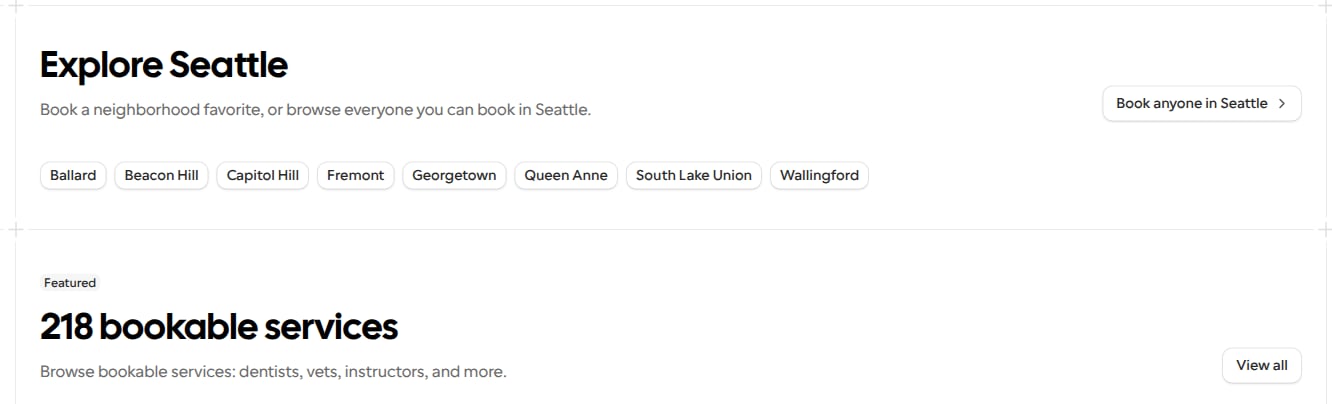
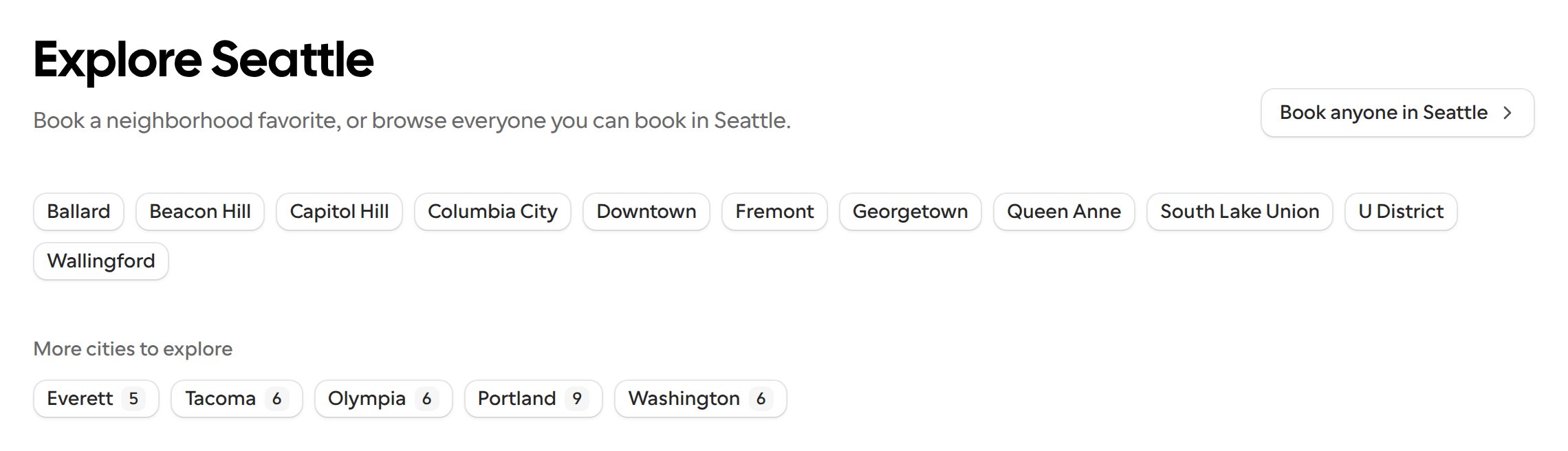
The home’s Explore section starts from the visitor’s area, as named under the home’s search box:- Your city. When a city with its own Discover pages is within 10 miles of the area, the section is named after it, such as Explore Seattle. Book anyone in Seattle opens
/discover/city/seattle, and each neighborhood chip, such as Ballard, opens that neighborhood’s page, such as/discover/city/seattle/ballard. Only neighborhoods with at least three services on Discover get a chip, so every chip leads to several providers. The section shows up to 12 chips, for the neighborhoods with the most services. - More cities to explore. Below it, the section links up to four other cities with their own pages, more than 10 miles and at most 150 miles away, nearest first. It then links the biggest Discover city in the visitor’s country and the country’s capital, when they have pages of their own. Each city’s button shows its number of services and opens that city’s page.
Set your business address
1
Open your business details
Go to Settings > Discover > My Business. New providers fill in the same fields in the Tell us about your business step when they first set up Discover.
2
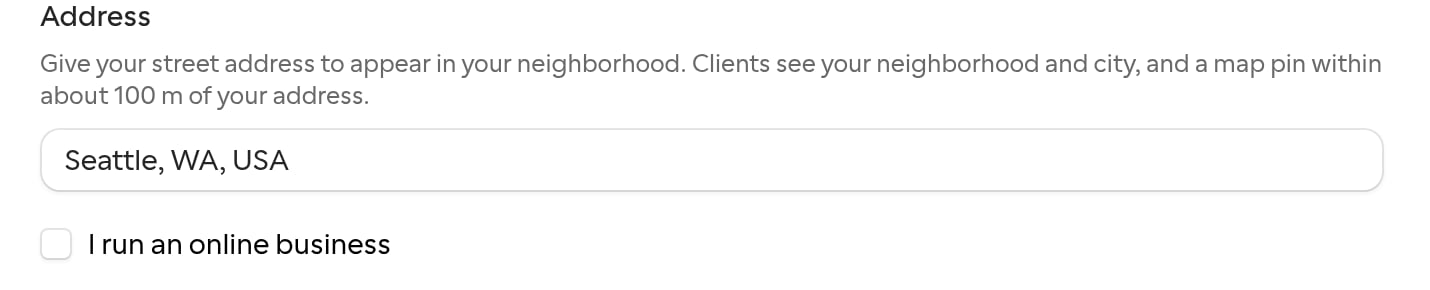
Enter your street address
In the Address field, start typing your full street address (for example,
400 Broad St, Seattle, WA 98109) and pick it from the suggestions. Typed text that isn’t picked from the suggestions can’t be saved.3
Save
Save your changes. Cal.com locates the address and stores the neighborhood it falls in.
Why a street address
Discover can only work out your neighborhood from a precise location. If you enter only a city, a ZIP code or a street name, Discover still counts your business in that area but doesn’t give it a neighborhood. Entering a business name or picking a neighborhood from the suggestions also works. When a street address would give your business a neighborhood, the Listing checklist on My Business shows the recommended item A street address, so clients find you in your neighborhood. Like the other recommended items, it counts toward your listing score but never stops you from publishing.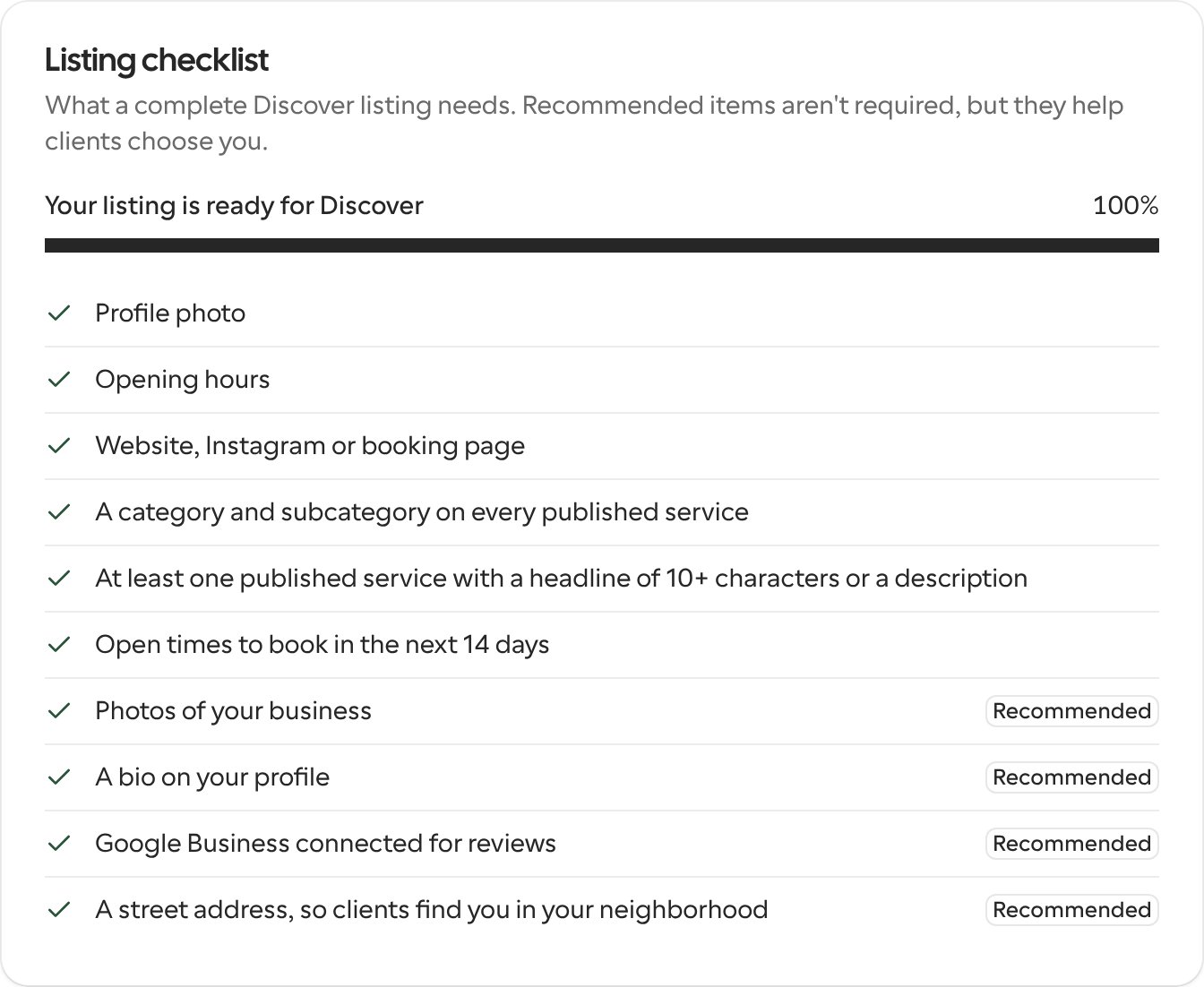
Neighborhoods are only available in Discover regions that have a neighborhood map. In Seattle, the map covers the city limits, so a business in a nearby city such as Burien or Shoreline is shown with its city only, whatever address it gives.
Import your business details
When you set up Discover, choose Import my business details to fill in your business information from your website. Cal.com reads the home page and linked services and about pages for services and business photos. If the site doesn’t list services in structured data, Cal.com can identify them from the page text. Prices and session lengths are kept only when the site states an exact amount or length; ranges and “from” prices are left out. Review the imported details and choose which services to create before publishing.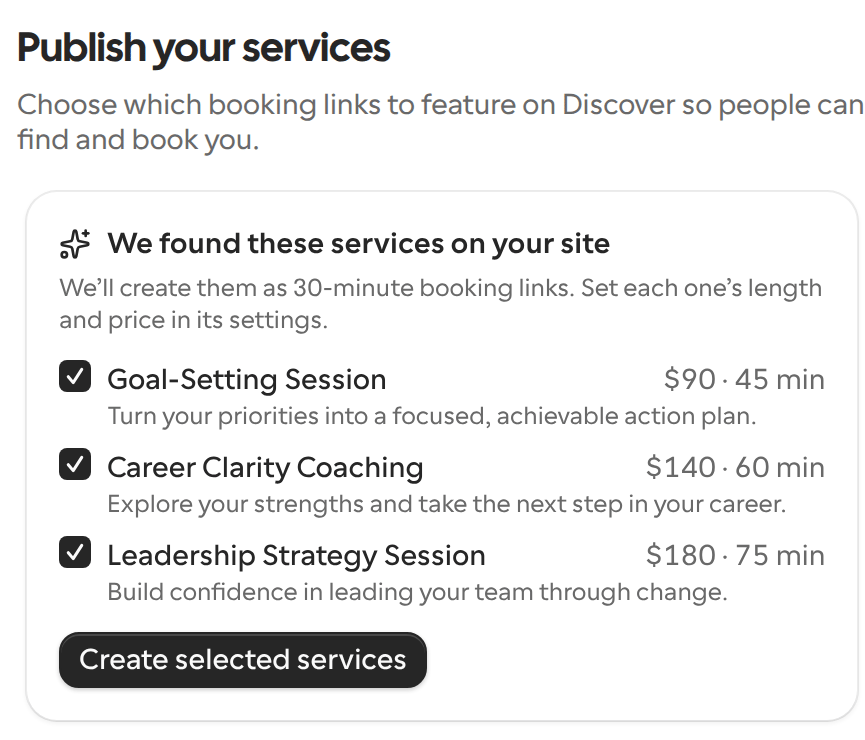
Profile photo and business photos
When you save My Business, or the Tell us about your business step when you set up Discover, Cal.com checks each new Profile photo and business photo before storing it:- Inappropriate content. A profile photo or business photo that may contain adult, violent or racy content is refused, with a message such as Your profile picture can’t be used because it may contain inappropriate content.
- Not a photo. A business photo that looks like a logo, illustration, cartoon, clip art, text or a screenshot is refused, with a message naming the photo, such as Photo 2 looks like a logo, illustration or screenshot. Upload a photo of you, your team or your work instead. Lettering in a photo that shows people or a place, such as the sign on your storefront, is fine.
On a self-hosted instance, these checks only run when
GOOGLE_CLOUD_VISION_API_KEY is set to a Google Cloud API key with the Cloud Vision API enabled. Without it, images aren’t checked for inappropriate content or for looking like a logo, illustration or screenshot, but the size and plain-background checks still run.Opening hours
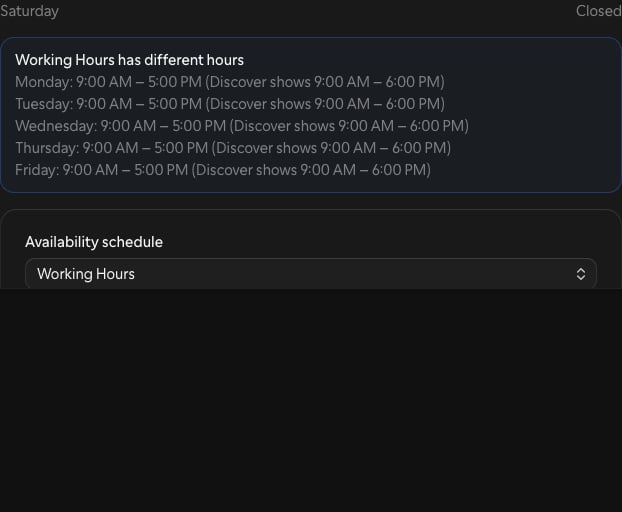
The opening hours on your Discover profile follow one of your availability schedules. Once you save your business profile with a schedule picked, every change you make to that schedule’s weekly hours, for example with Edit availability, shows on Discover without saving My Business again. Date overrides and holidays don’t change the hours on Discover.- Picking the schedule. When you set up Discover, or when the Publish to Discover dialog asks for your business profile, When are you open? fills your hours from the Availability schedule you pick, your default schedule at first. Saving shows that schedule’s hours on Discover and keeps them in sync with it.
- Once your business has hours on Discover. My Business lists them under Hours shown on Discover. When they follow the selected schedule, the caption says so. When they don’t yet, for example because your business was set up before hours followed a schedule, or you picked a different schedule, an alert such as Working Hours has different hours lists each day that differs, with the hours Discover shows in brackets, and the caption asks you to save. Select Save business profile to switch Discover to that schedule.
- Deleting the schedule. Discover keeps the last hours it showed, and stops following any schedule until you pick one and save My Business.
What the publish dialog fills in
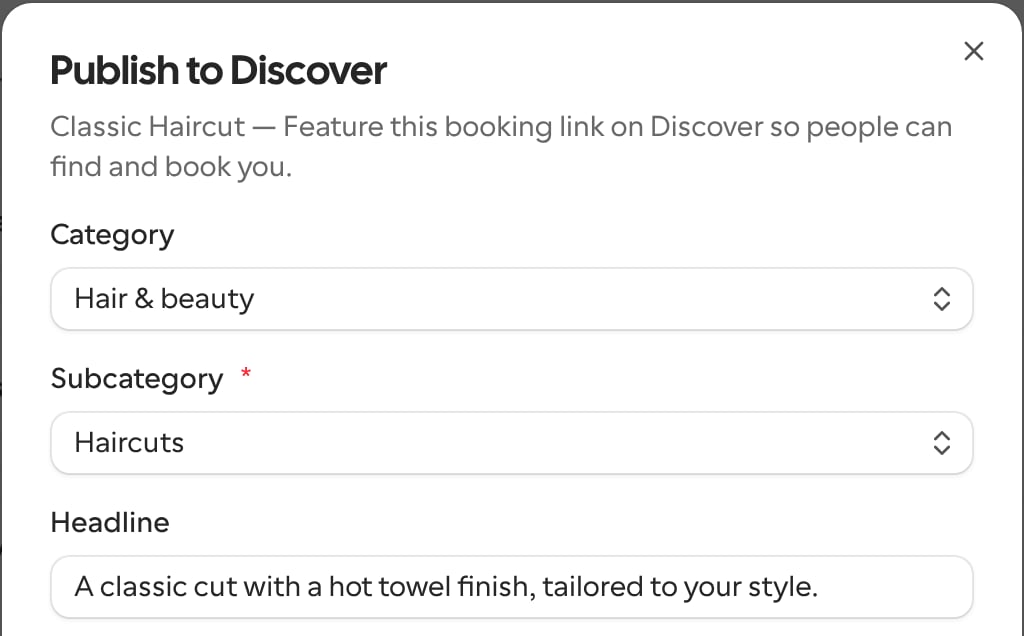
When you publish a service that hasn’t been on Discover before, the Publish to Discover dialog starts with what your event type already says:- Category and subcategory. If the event type’s title names a service, the dialog picks its category, and its subcategory when the title says which. For example, Classic Haircut opens with Hair & beauty and Haircuts. If the title doesn’t name a service, such as Intro call, choose the category yourself. The dialog never replaces a category you’ve already chosen, and a service that’s been listed before opens with its saved category instead.
- Business address. If you haven’t set up your business profile yet, the dialog asks for it first. When the event type has an in-person location, the Address field starts with that address, as long as Google recognizes its city. It never replaces an address you’ve typed, and if you clear it, it stays clear.
- City. The dialog only asks for a City when clients meet you in person: the event type has an in-person location with an address, or asks the booker for their address. A service whose locations are all online, such as Cal Video, Zoom, Google Meet, a meeting link or a phone call, is published without a city, and the dialog doesn’t show the City field or Use my location.
Edit a published listing
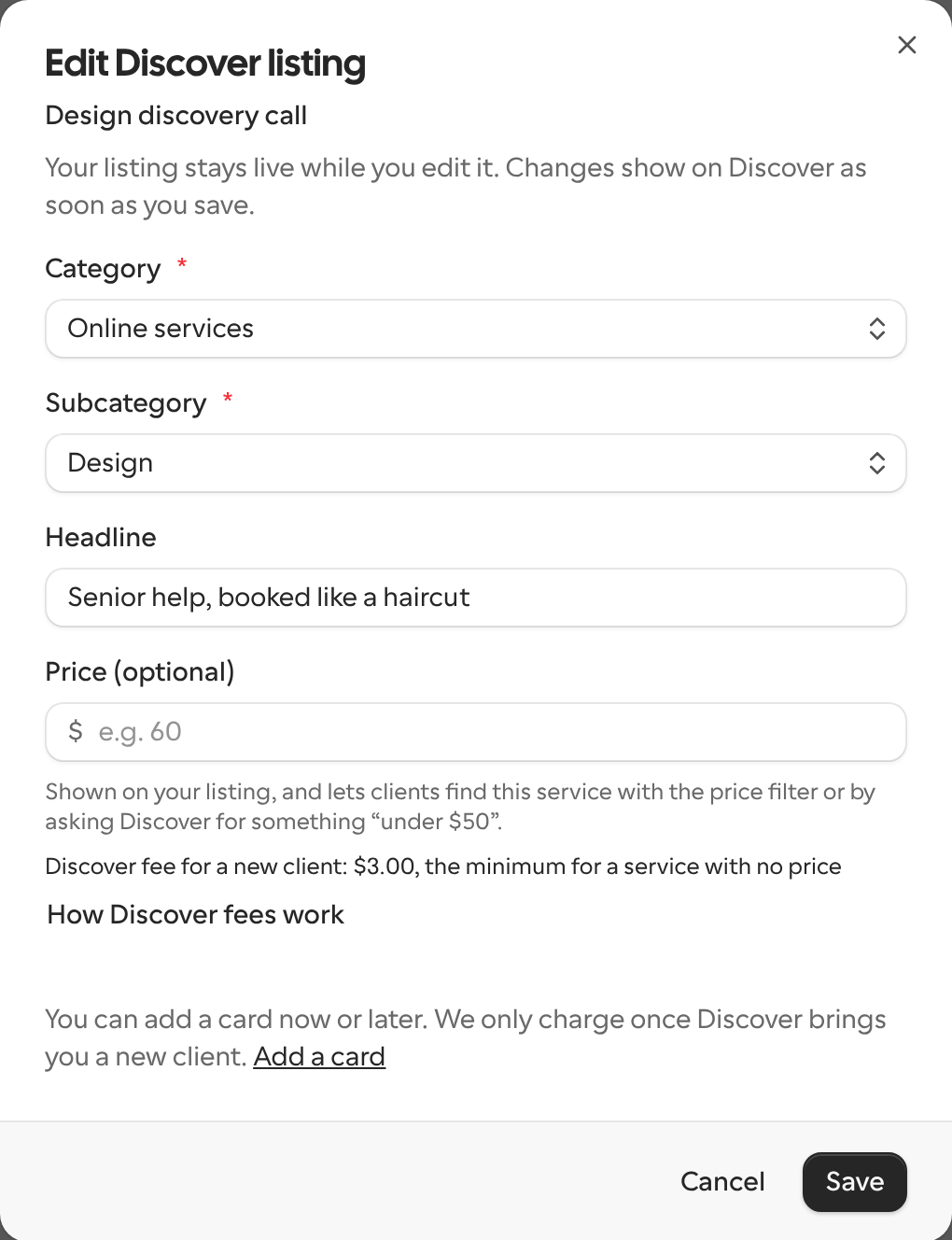
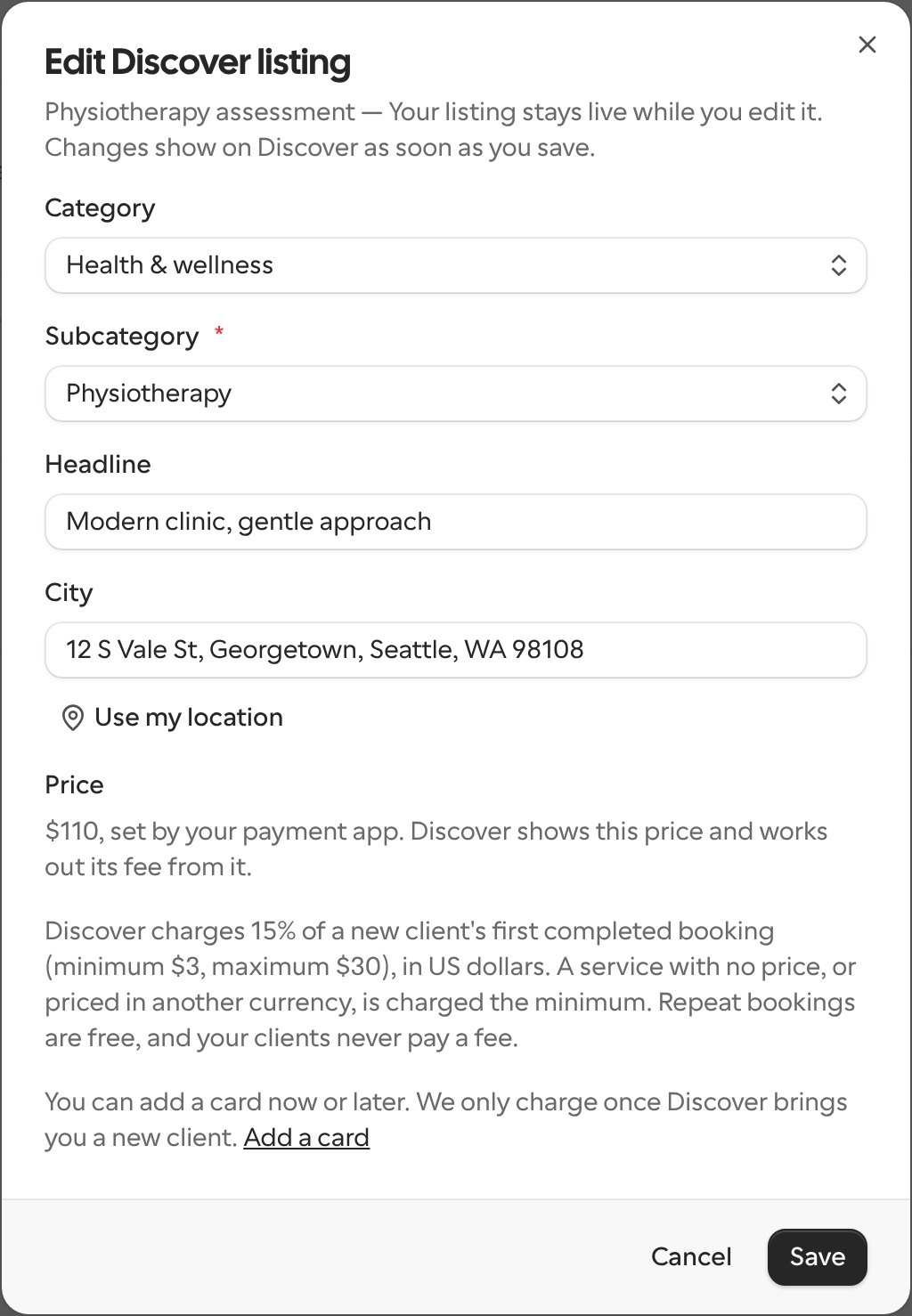
You can change a service that’s live on Discover without unpublishing it. The listing stays live while you edit it, keeps its place on Discover, and shows your changes as soon as you save.1
Open the listing
Select Edit listing on a published service. You’ll find it:
- On the Links page, when you hover over the service, or as Edit Discover listing in the service’s menu.
- In the Publish your services step when you set up Discover.
- Next to each of your services on your own Discover profile.
2
Make your changes
In the Edit Discover listing dialog, change the category, subcategory, headline or city. The city is only shown for services you offer in person. You can also change the service’s price, unless it’s set by your payment app.
3
Save
Select Save.
View a published service on Discover
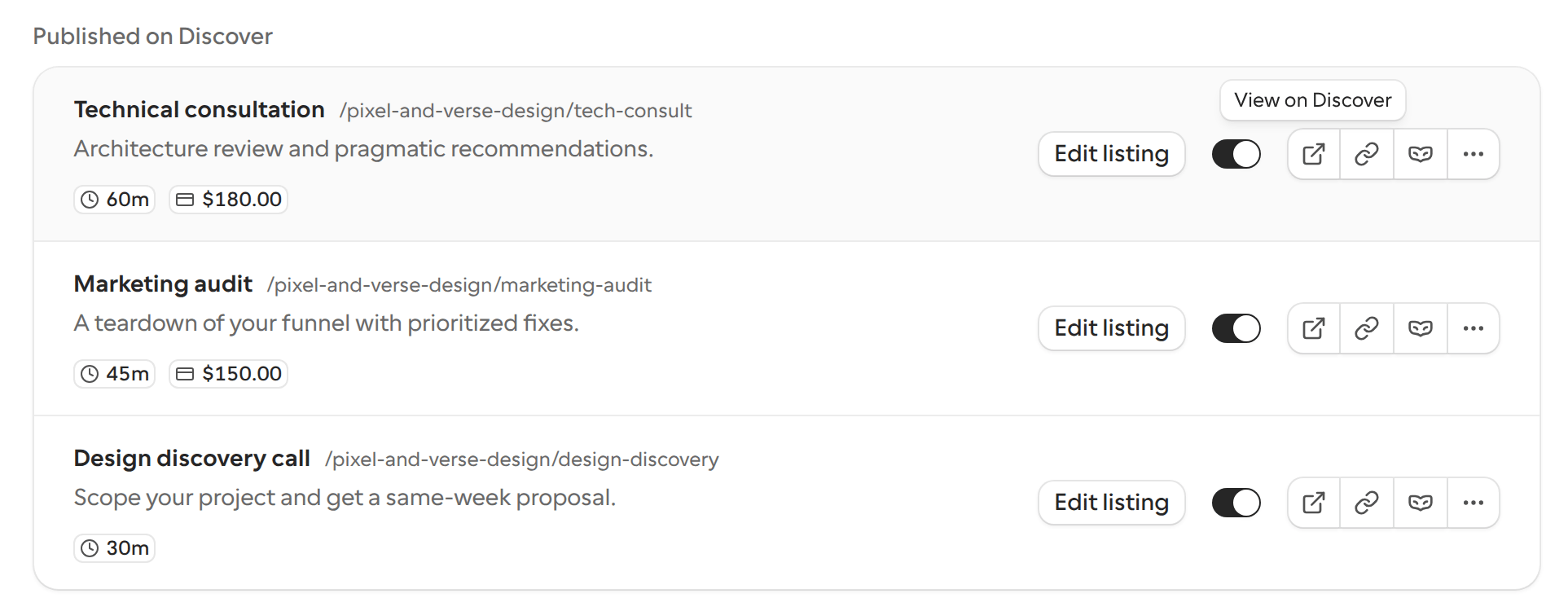
On the Links page, a service that’s published on Discover shows View on Discover instead of Preview, on the button next to the service and in its menu. It opens, in a new tab, the Discover business page the service is listed on:
Copy link still copies the service’s booking link, and a service that isn’t on Discover still previews its booking page.
Manage a service from your profile
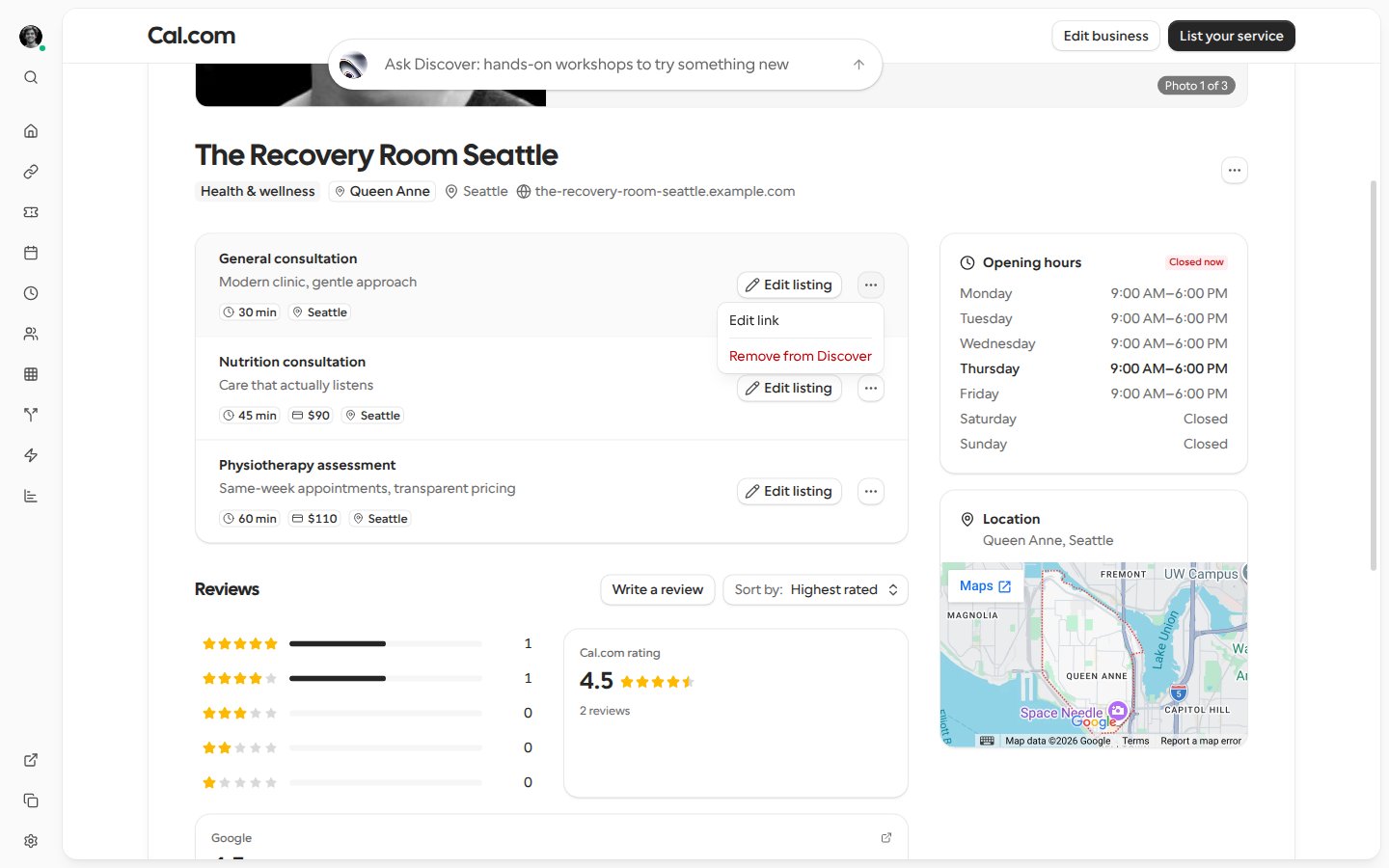
On your own Discover profile, each published service shows Edit listing and a … menu beside it. The menu holds:- Edit link, which opens the service’s booking link settings.
- Remove from Discover, which takes the service off Discover. Cal.com asks you to confirm first. Your booking page stays live, and you can publish the service again at any time.
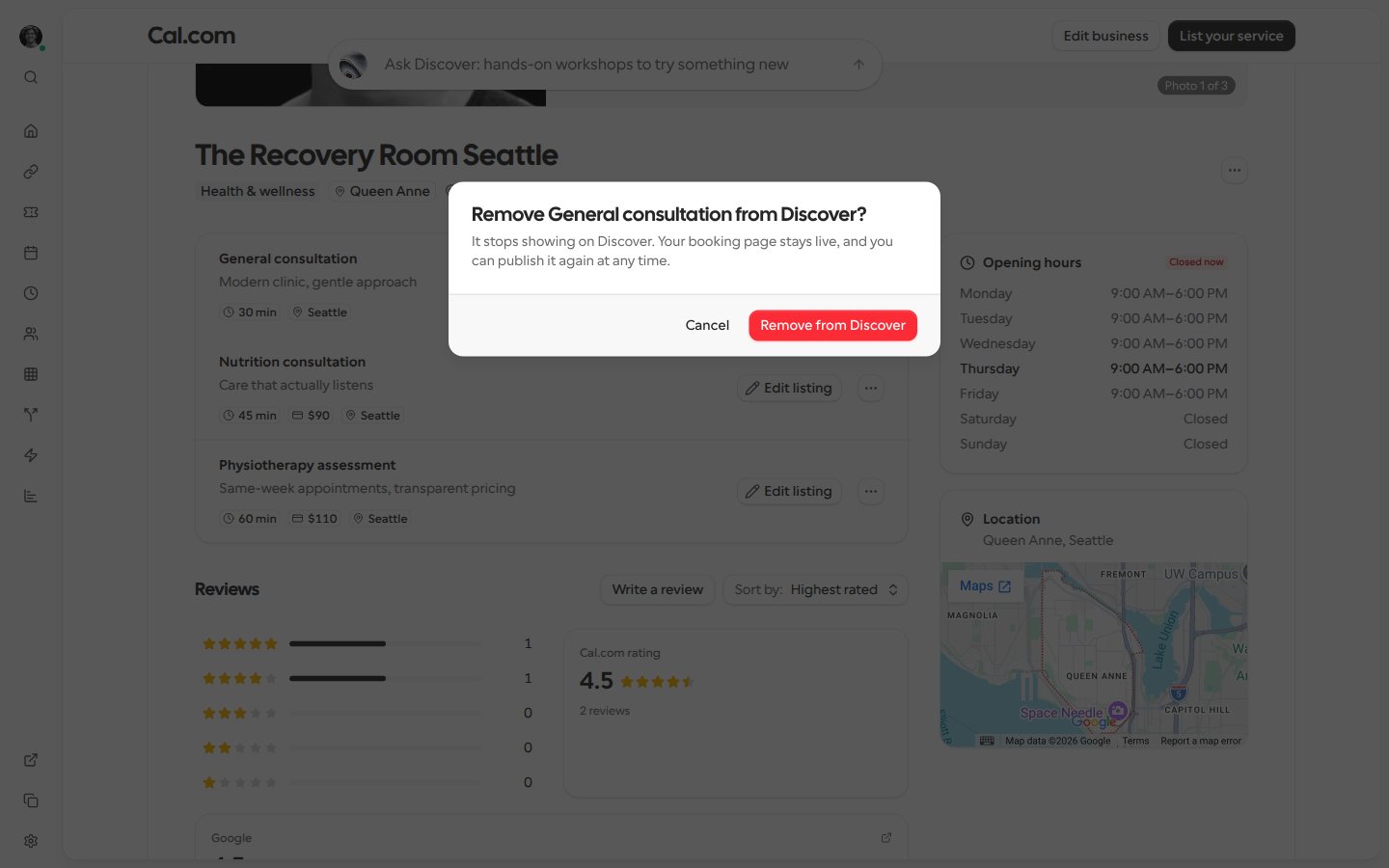
How often you can publish and unpublish
You can publish, save changes to or unpublish listings up to 10 times a minute. Publishing, saving an edit and unpublishing all count toward the same limit, across all the listings you manage, including team services. When you go over it, Cal.com doesn’t make the change and shows an error such as Rate limit exceeded. Try again in 42 seconds. Wait that long, then try again.Services listed for you
Cal.com sometimes publishes a booking page to Discover for its owner, when it looks like something clients nearby are searching for. If it lists one of your services, you get an email about it, and that listing charges no Discover fee until you accept the Discover fee terms. Bookings clients make before you accept stay free, even if they’re rescheduled later. You can accept the terms or take those listings down:-
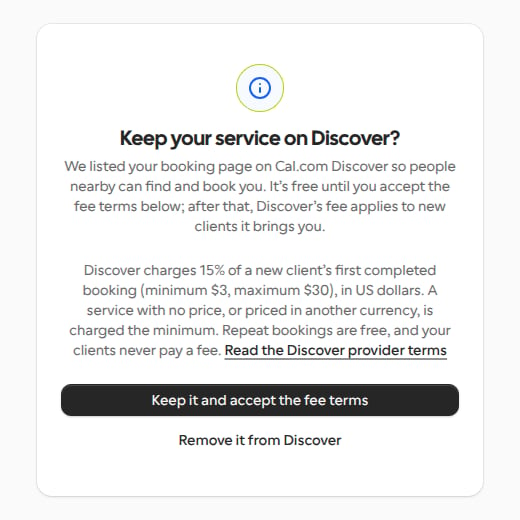
From the email. Keep it and accept the fee terms and Remove it from Discover both open a page that asks Keep your service on Discover?, with the fee terms and a link to the Discover provider terms. Nothing changes until you select one of its buttons:
- Keep it and accept the fee terms keeps your services on Discover and accepts the terms.
- Remove it from Discover unpublishes only the services Cal.com listed for you. Services you published yourself stay live, and so do your booking pages.
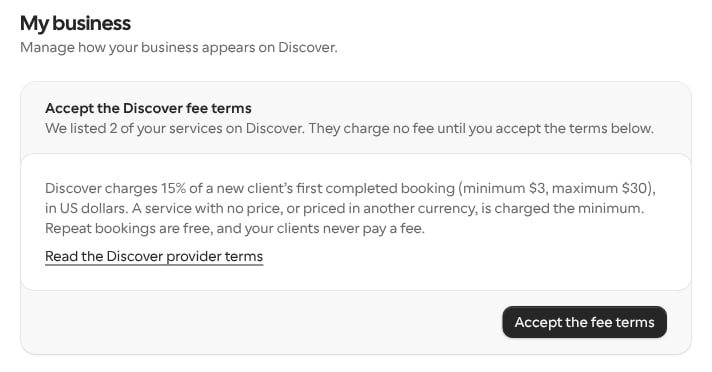
- In Settings. While a service Cal.com listed for you is live and you haven’t accepted the terms, Settings > Discover > My Business shows an Accept the Discover fee terms card. Select Accept the fee terms. To take a service off Discover instead, remove it as usual. See Manage a service from your profile.
Check each listing’s status
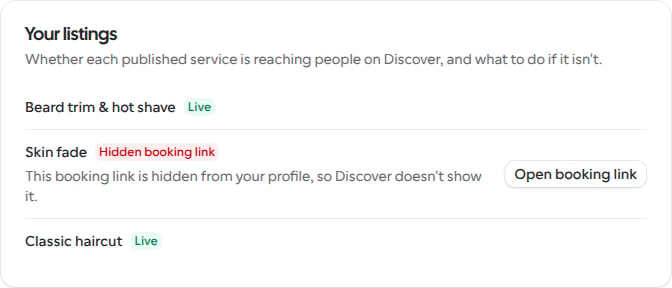
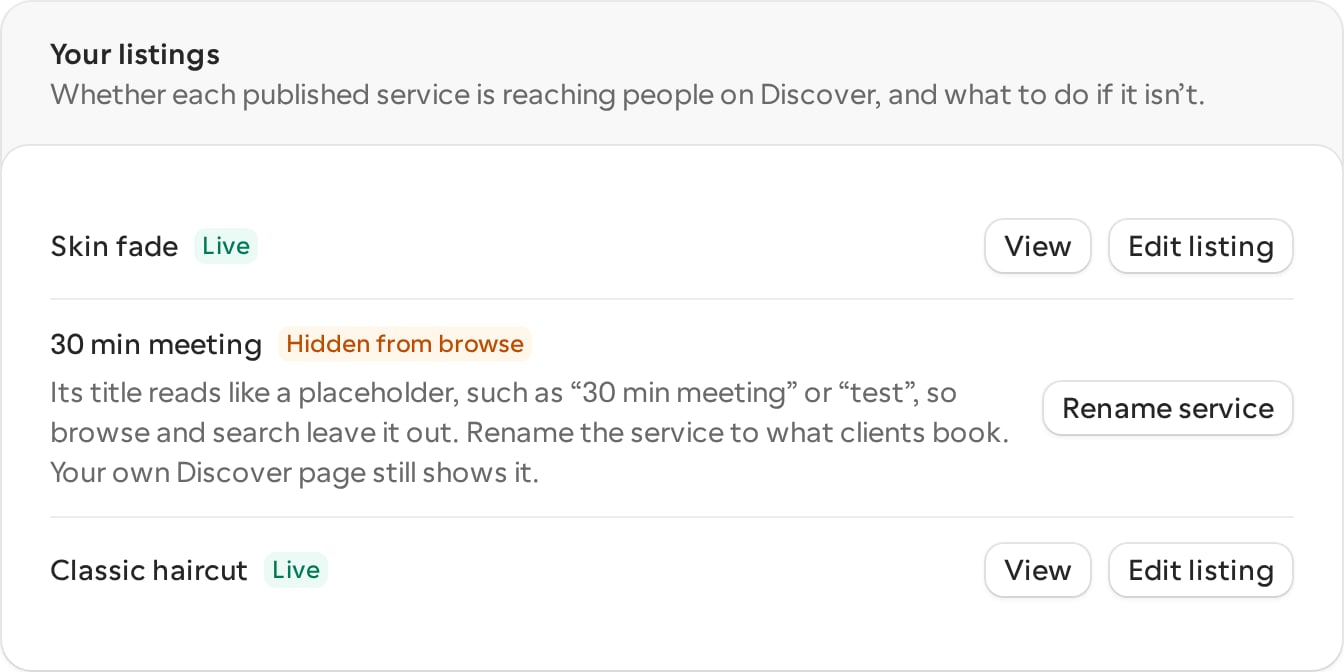
Once you’ve published a service, My Business also shows a Your listings card. It lists each of your own published services, and any paused for billing, with a status that says whether clients can find it on Discover. Services on team event types aren’t included.
If more than one applies, the card shows the first status in the table above, as it’s the one blocking the service most.
You can’t publish a service whose booking link is hidden, or save changes to its listing while it’s live. Unhide the booking link in Links first. A hidden booking link also no longer appears under Published on Discover on your Links page.
Placeholder titles
Discover’s home rows, category and subcategory pages, city and neighborhood pages, search and Ask Discover leave out any service whose title reads like a placeholder. A business with no other services isn’t shown there at all. Your own Discover profile, your organization’s page and direct links to the service still show it. Ignoring capitals and punctuation, a title is a placeholder when it:- Has no letters, such as 04.
- Is made only of words that repeat one letter, such as ggg mmm.
- Is Test or Testing, with or without one of event, meeting, service, listing or booking after it and a number at the end, such as Test meeting or test 2.
- Is Quick chat or Secret meeting.
- Is a number of minutes followed by meeting, call or chat, such as 15 min meeting or 60 minute call.
Which listings can be promoted
On Settings > Discover > Promote, you can promote a published listing only if the Discover city pages it would be promoted on actually show it. Otherwise its row says Only in-person listings shown on a Discover city’s pages can be promoted. This is the case when:- The listing is in a category with no city pages, such as an online one, or your business isn’t in a Discover city.
- Its booking link is hidden, or it’s Hidden from browse because it has no headline and its booking link has no description. See Check each listing’s status.
- Your business is more than 10 miles from the city’s center, because city pages only show businesses within that distance. For example, a barber in SeaTac can’t be promoted on the Seattle pages. If your business has no map location, the listing’s city must be the Discover city itself.
Keep a promotion in rotation
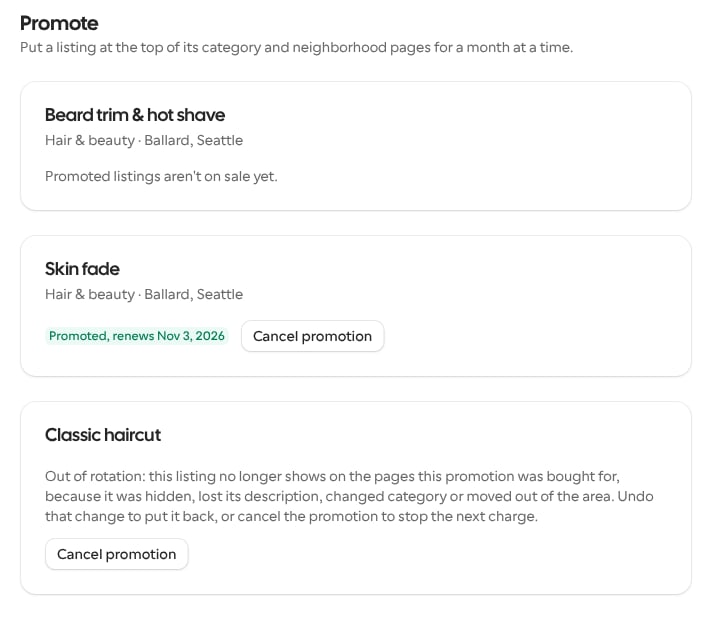
Every six hours, Discover checks each running promotion against the listing as it is now:- Your business changes neighborhood. If you change your address, the promotion moves with you to the new neighborhood’s pages and stays in rotation. If your business no longer has a neighborhood, the promotion stays on the city’s category page only.
- Your listing isn’t ready. The promotion goes out of rotation until your Listing checklist is complete again. Its row on Promote links to the checklist.
- The promotion’s pages no longer show the listing. If you hide its booking link, remove its headline and description, change its category, or move your business out of the city’s area, the promotion goes out of rotation. The checklist can’t fix this: undo the change to put it back, or select Cancel promotion to stop the next charge.
Unpublish or delete a promoted listing
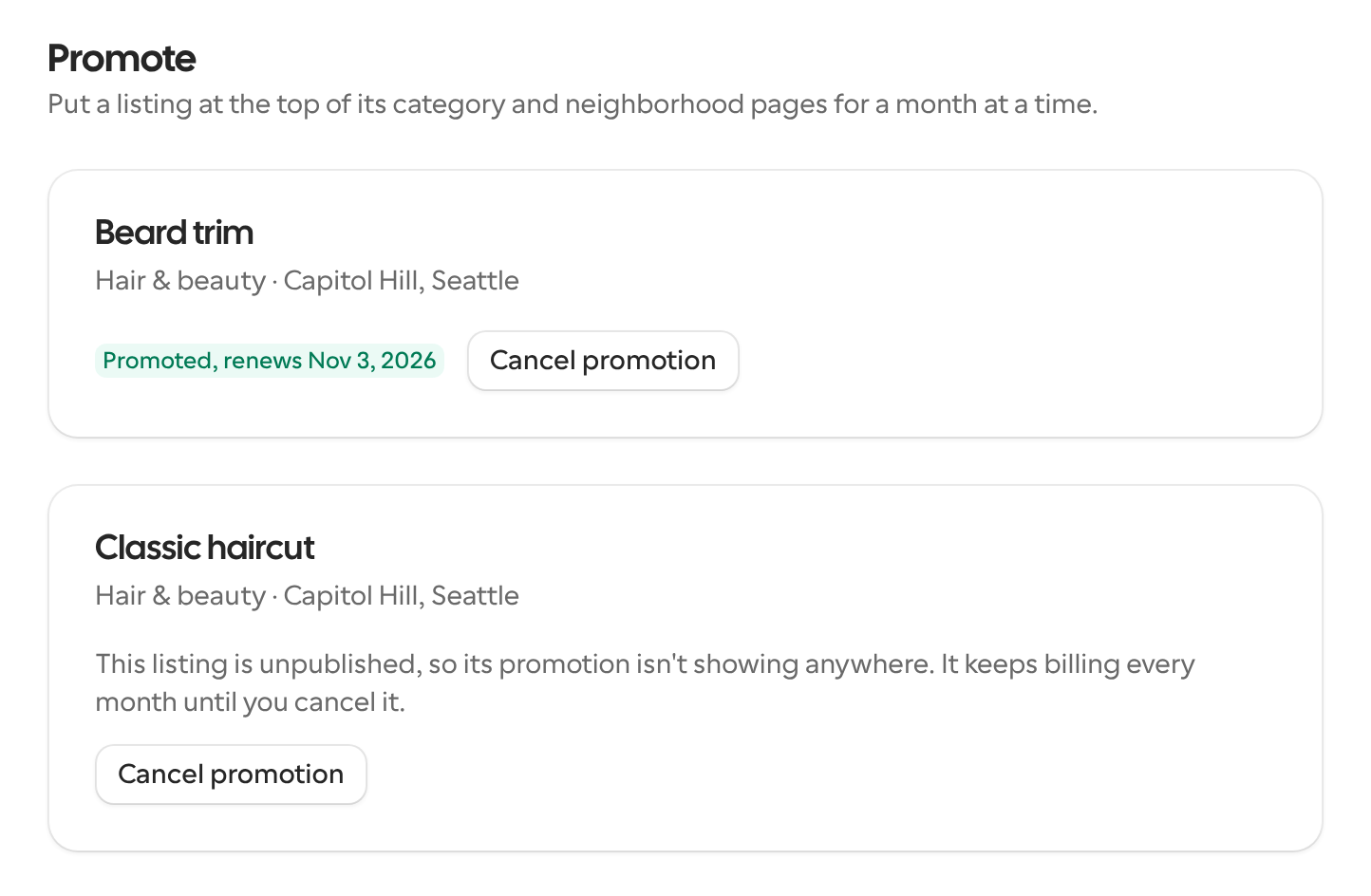
A promotion on Discover is a monthly subscription that you manage in Settings > Discover > Promote. What happens to it depends on whether you unpublish the listing or delete it. Unpublishing doesn’t end a promotion. The listing and its promotion stop showing on Discover straight away, but the promotion keeps billing every month until you cancel it. When you unpublish a listing whose promotion still renews, Cal.com warns you with Removed from Discover, but still promoted and an Open Promote button.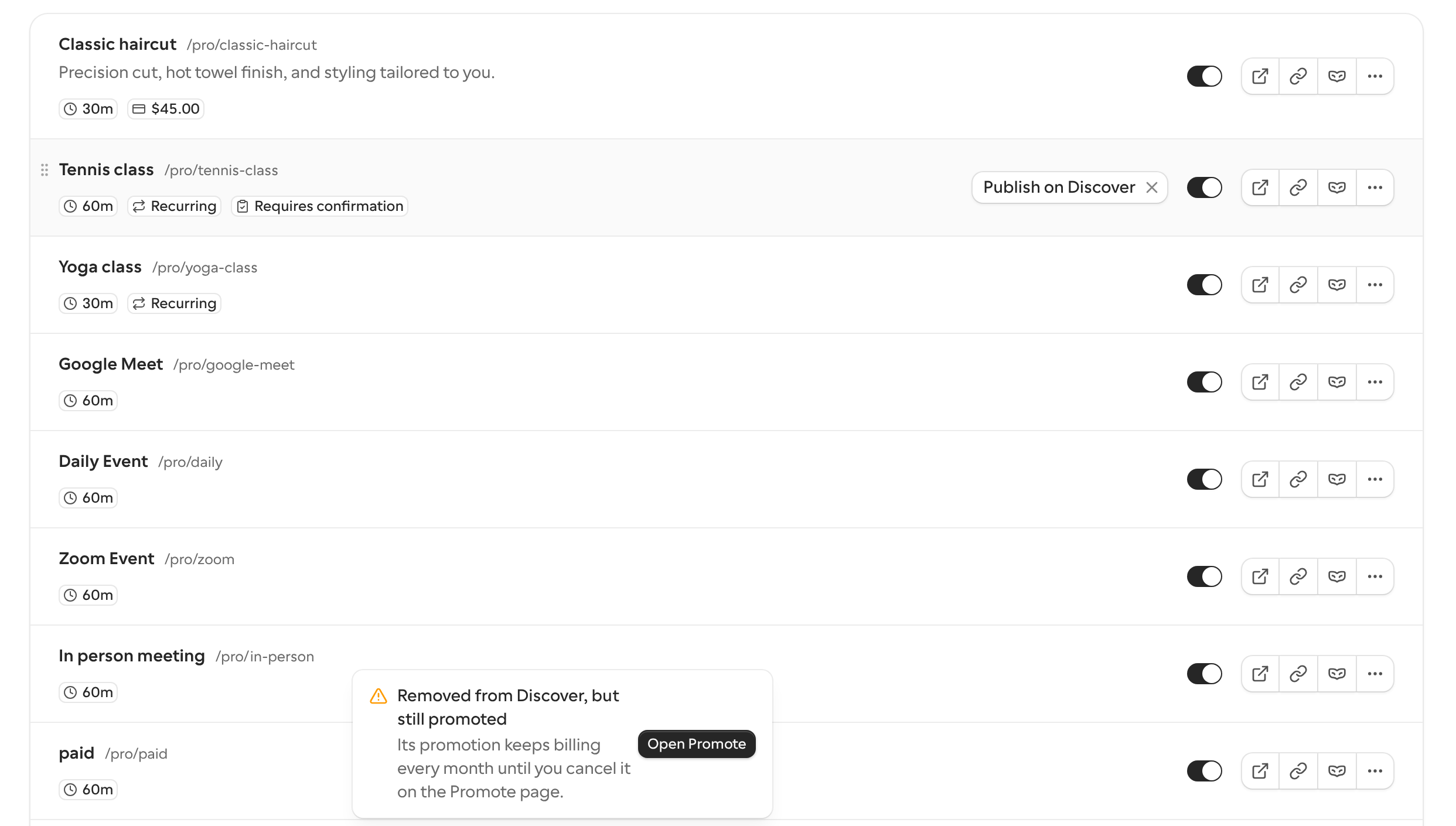
- If it still renews, select Cancel promotion. It won’t renew, and the month you’ve already paid for isn’t refunded.
- If you’ve already cancelled it, it ends when the month you paid for does.
Join the promotion waitlist
Each category has six promoted slots in each neighborhood. When they’re all taken, the Promote page offers Join the waitlist instead of a buy button. Joining is free. While you wait, the listing shows On the waitlist with a Leave the waitlist button, which takes the listing off the waitlist.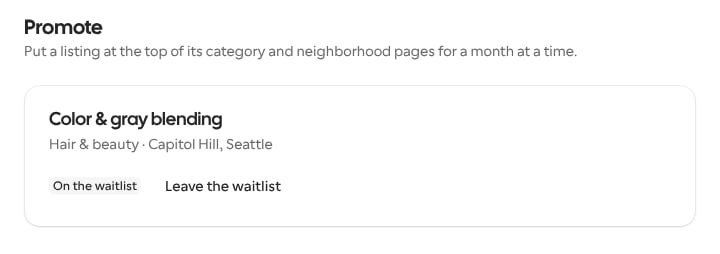
- The listing’s row on Promote shows the Promote for button with the monthly price again.
- Discover checks the waitlist once a day and emails you that a promoted slot opened for the service. The email’s Promote now button opens the Promote page.
- You get one email for each slot that opens. Everyone waiting for the same slot is emailed at the same time, and the slot goes to whoever buys it first.
When a promotion stops showing
Every six hours, Discover checks each promoted listing. A promotion is taken out of rotation, and stops showing on Discover, when a required item on your Listing checklist isn’t done, or when the listing no longer appears on the pages the promotion was bought for. That happens if the listing was unpublished or hidden, lost its headline and description, moved to another category, or your business moved outside the area those pages cover. When a promotion goes out of rotation, Cal.com emails you once to say it has stopped showing. The email:- Lists the checklist items to finish, or says the listing no longer appears on the pages it was promoted on.
- Has an Open the checklist button, which opens My Business.
- Says the promotion keeps renewing until you fix the listing or cancel the promotion on the Promote page. If you’ve already cancelled it, the email says instead that it won’t renew or charge you again.
Publish a team service
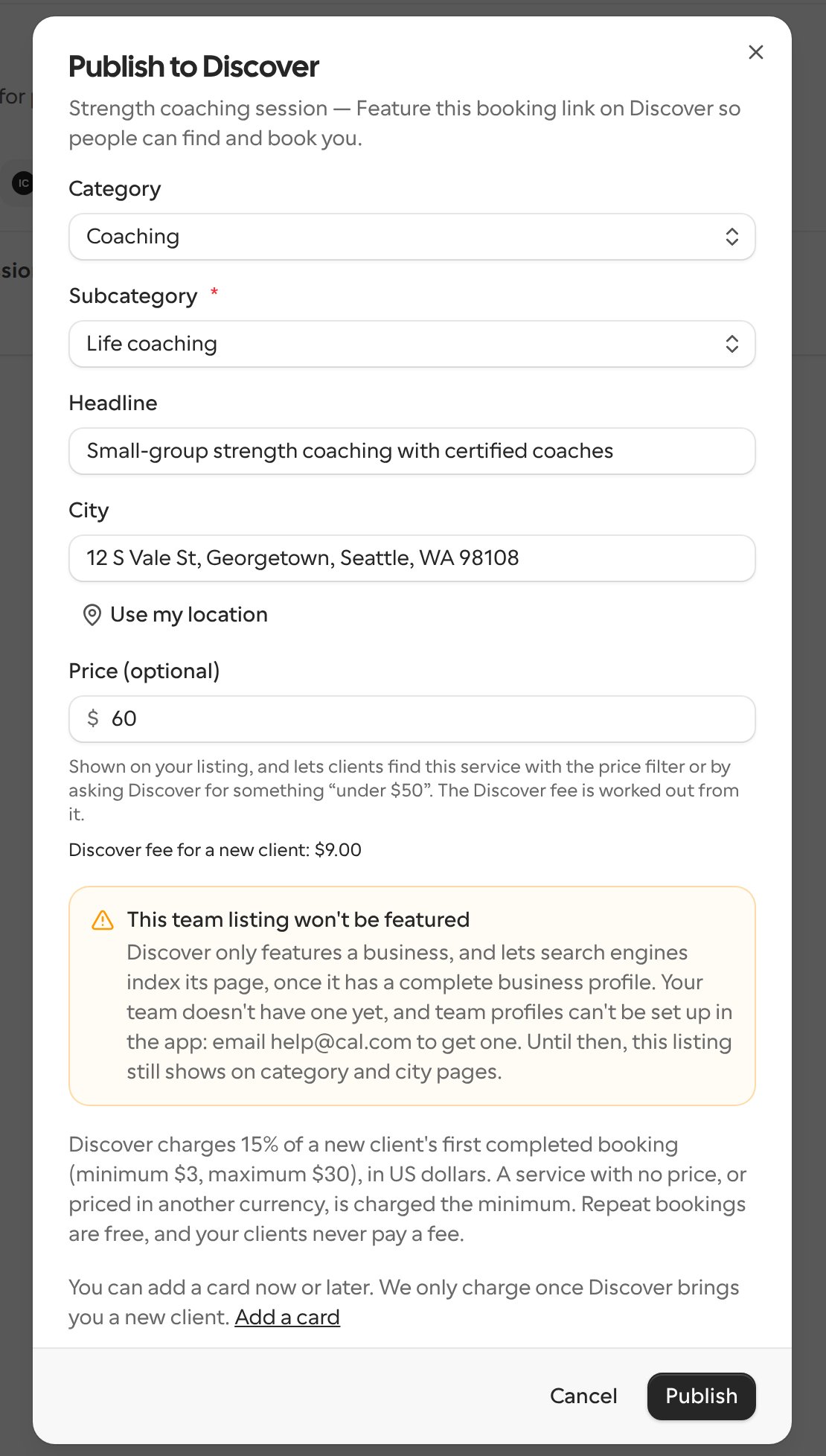
If your role on a team lets you edit the team’s event types, you can publish the team’s event types to Discover too, and edit, unpublish, promote and set a new-client discount on their listings. Team owners and admins have this permission by default, and a custom role has it when it grants editing event types. Creating a team event type isn’t enough on its own: a member whose role can’t edit the team’s event types can’t manage its listing, and the team’s listings don’t appear on their My Business stats or Promote page. A team listing is judged on the team’s own business profile, not on yours. Team business profiles can’t be set up in Cal.com: to get one for your team, email Cal.com support at the address shown in the warning below. Until the team has a business profile, its published listings still show on Discover’s category and city pages, but Discover doesn’t feature them and doesn’t let search engines index their pages. Cal.com tells you this in two places:- Before you publish, the Publish to Discover dialog shows the warning This team listing won’t be featured. The same warning appears in the Edit Discover listing dialog. It doesn’t stop you from publishing.
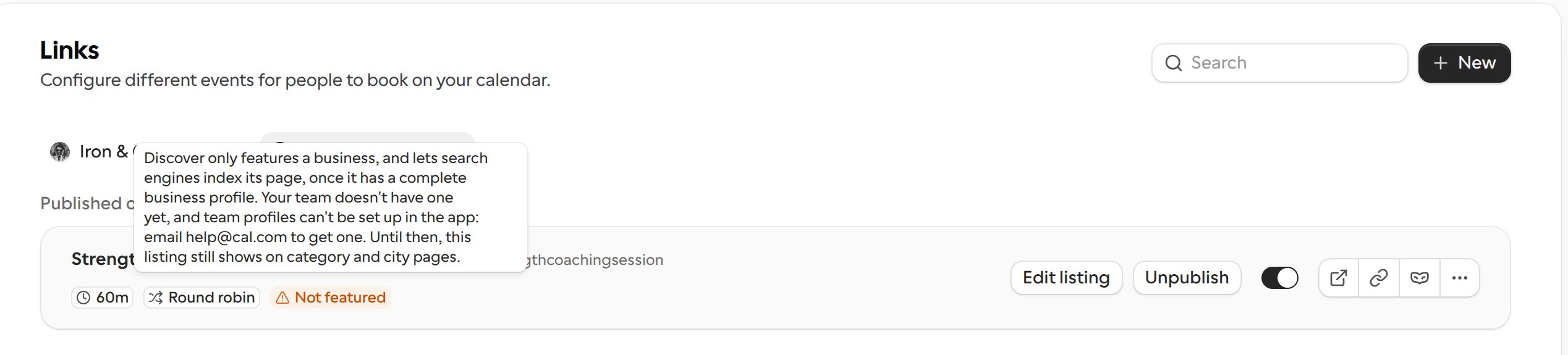
- After you publish, the service’s row on the Links page shows a Not featured badge. Hover over it to see the same explanation.
What clients see
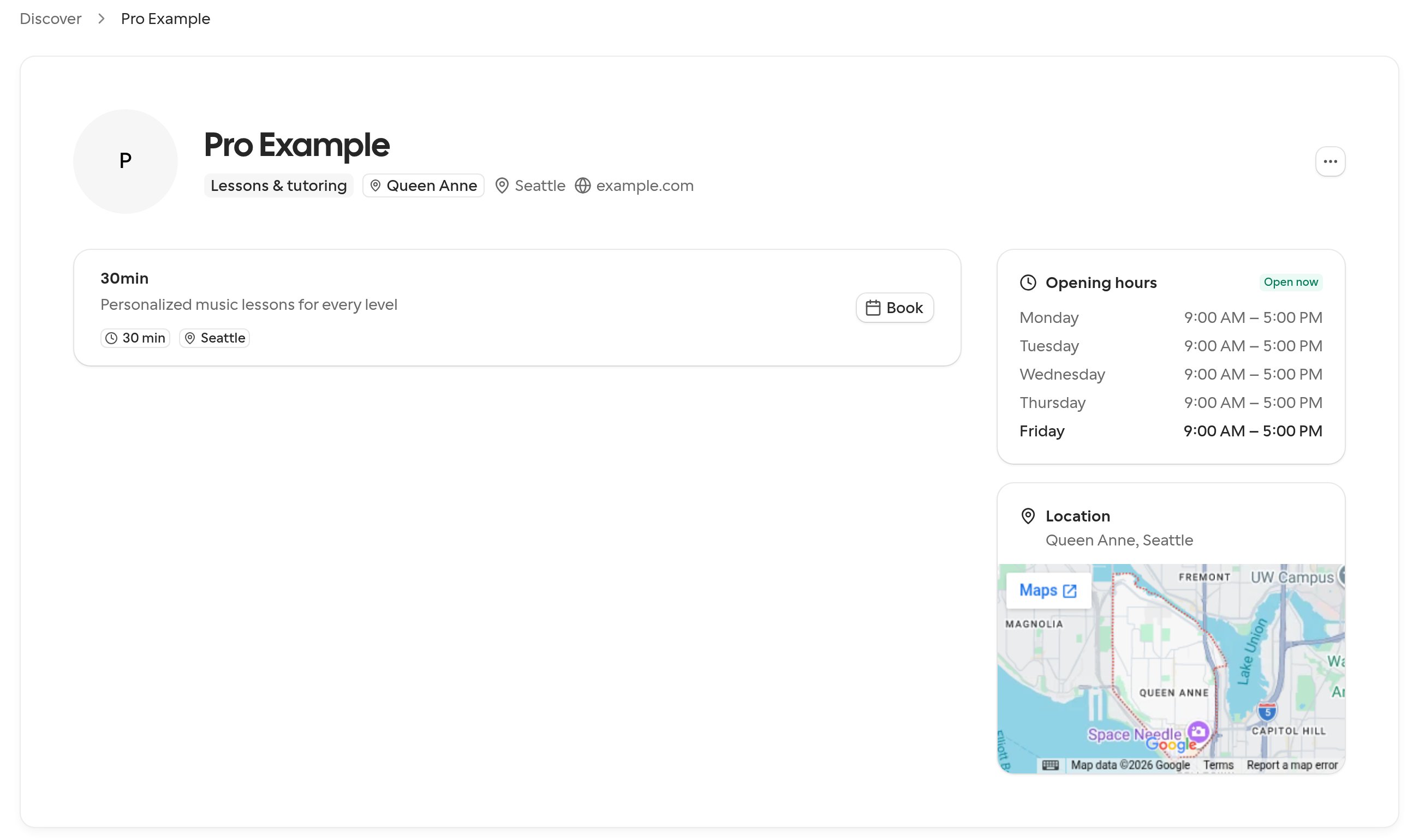
Your street address isn’t shown anywhere on Discover. Instead:- Your profile’s Location card shows your neighborhood and city, such as Capitol Hill, Seattle, or just your city if you don’t have a neighborhood. The map on the card searches for that same neighborhood and city, not your address.
- Listing cards show the same neighborhood and city, and clients can filter search results by neighborhood.
- On service results maps, pins are approximate: they land within about 100 m of your address, so a business run from home is shown near the house, not on it. City and neighborhood maps show your neighborhood instead.
- The business details Discover publishes for search engines include only your city, plus your neighborhood’s name on your profile. See Search engines and link previews.
- The preview shown while you set up your business shows only your city.
Manage your Cal.com reviews
Go to Settings > Discover > My Business and scroll to Reviews, below Business profile. Your Cal.com reviews appear newest first, with the client’s first name, star rating, date and any feedback. Select Show more reviews to see older reviews when available.- Reply: Select Reply, write your response and select Post reply. Each review can have one public reply, shown beneath it on your Discover profile as Response from followed by your business name.
- Edit: Select Edit reply, change your response and select Post reply again.
- Delete: Select Delete reply to remove your response from both My Business and your public profile. This doesn’t delete the client’s review.
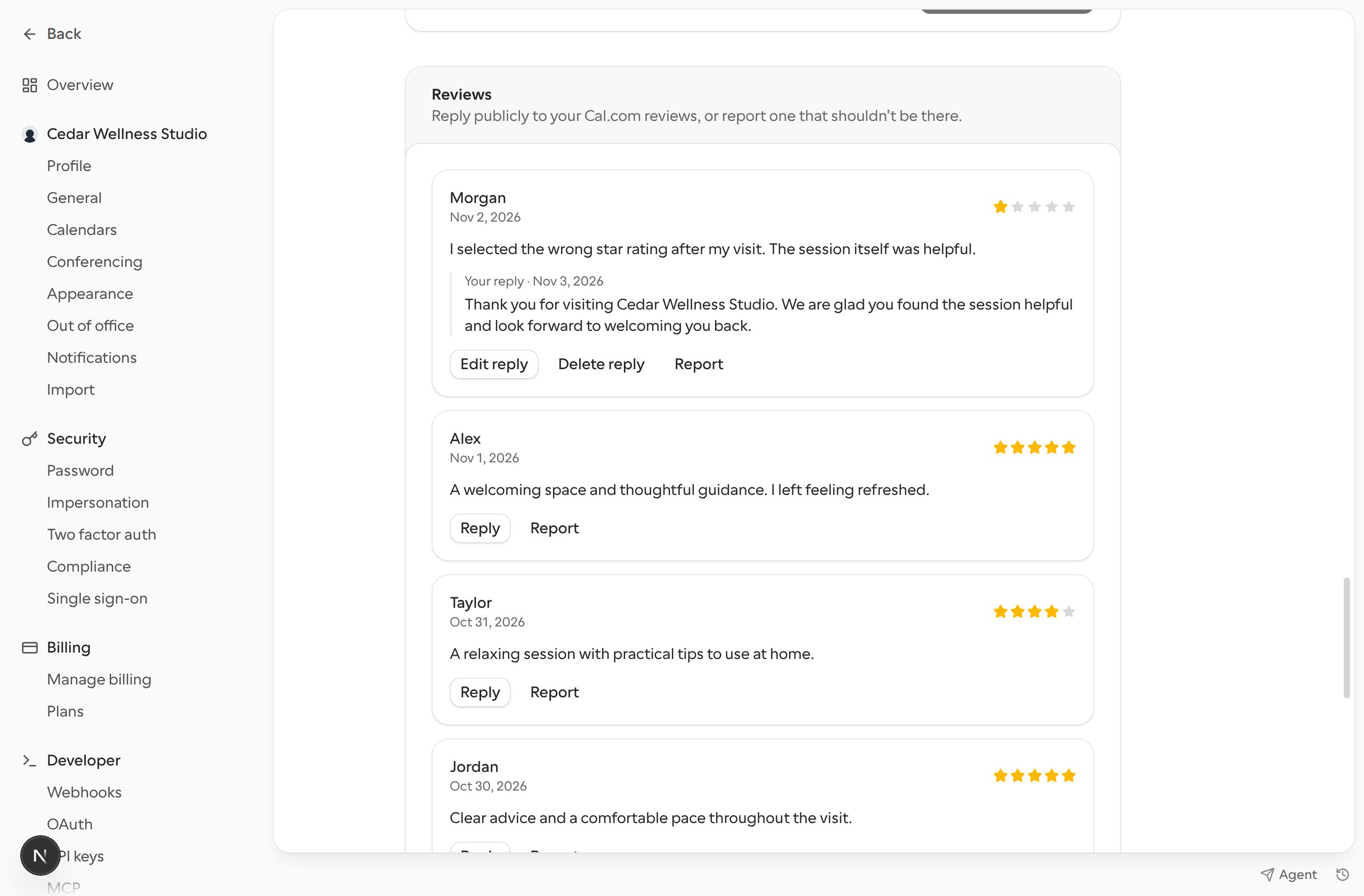
Report a review
Select Report on the review, choose a reason (Left by mistake, Not one of my clients, Offensive or abusive or Something else), add optional details and select Submit report. The review is marked Reported while Cal.com’s team checks it. Reporting doesn’t immediately remove the review. If the team keeps it, it shows Kept after review and you can’t report it again.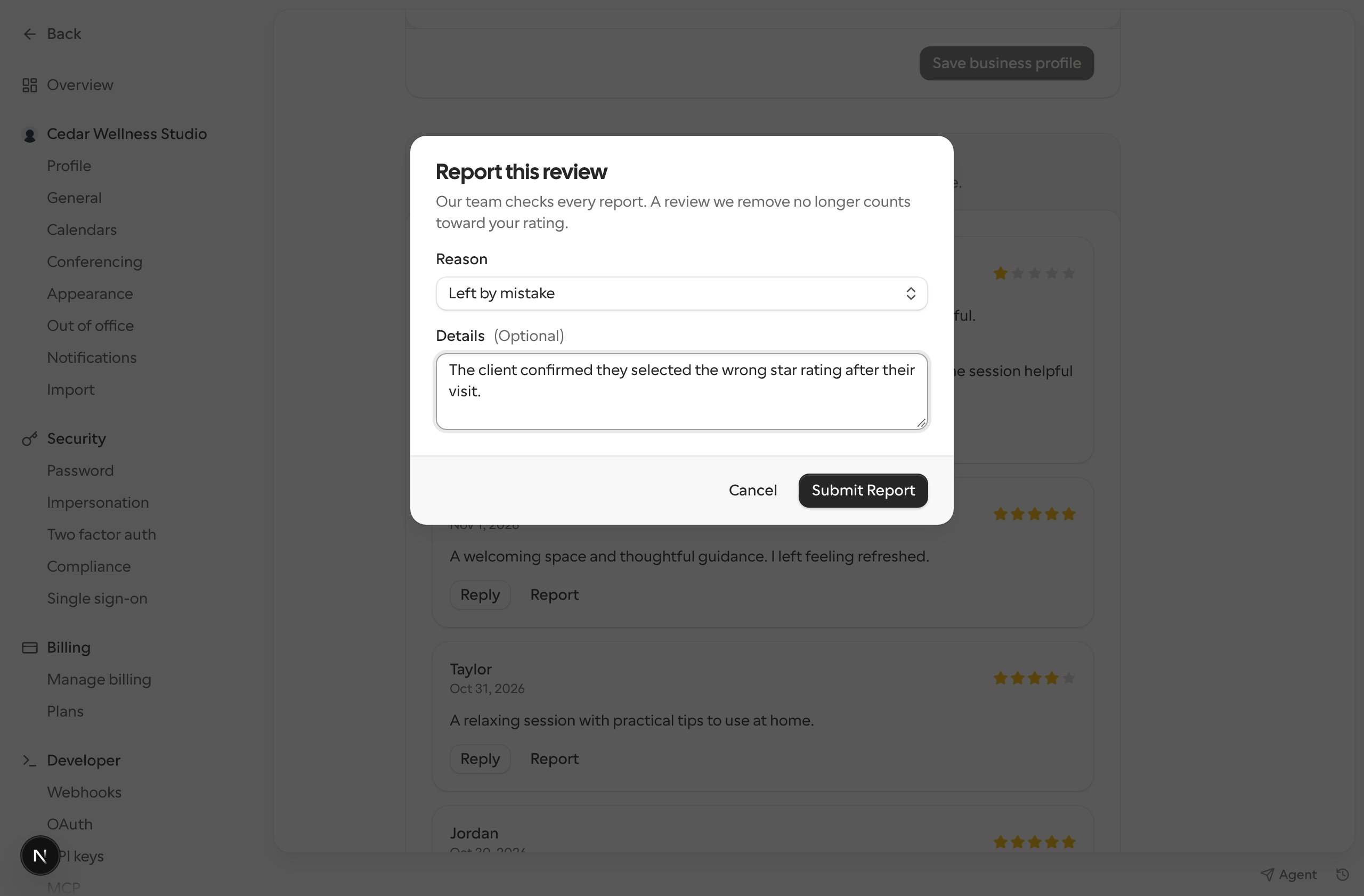
These tools apply to your own business profile, not team businesses or reviews imported from Google, Yelp or Trustpilot.
When your rating shows
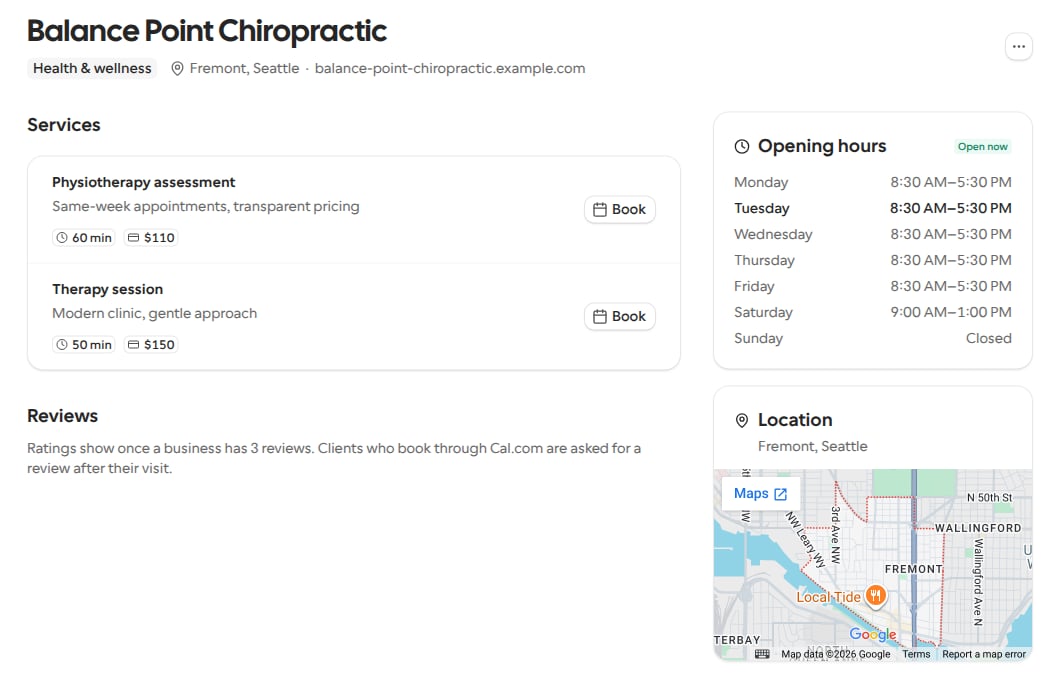
Discover shows a review source’s rating, stars and reviews only once that source has at least three reviews, so one mistaken rating doesn’t define your business:- Cal.com. The ratings clients leave after booking you and any other Cal.com reviews on your profile count together. Until there are three, your profile shows no Cal.com rating or Cal.com reviews, and your listing cards, map pins, Ask Discover results, Top rated and city pages, and the details Discover gives search engines, show no rating for you.
- Google, Yelp and Trustpilot. A source’s rating card shows once that rating comes from at least three reviews on the platform. Its reviews are listed on your profile once at least three of them are on Discover.
- Review source filter. It only offers the sources whose reviews are listed, and only appears when there are at least two.
Upcoming events on your profile
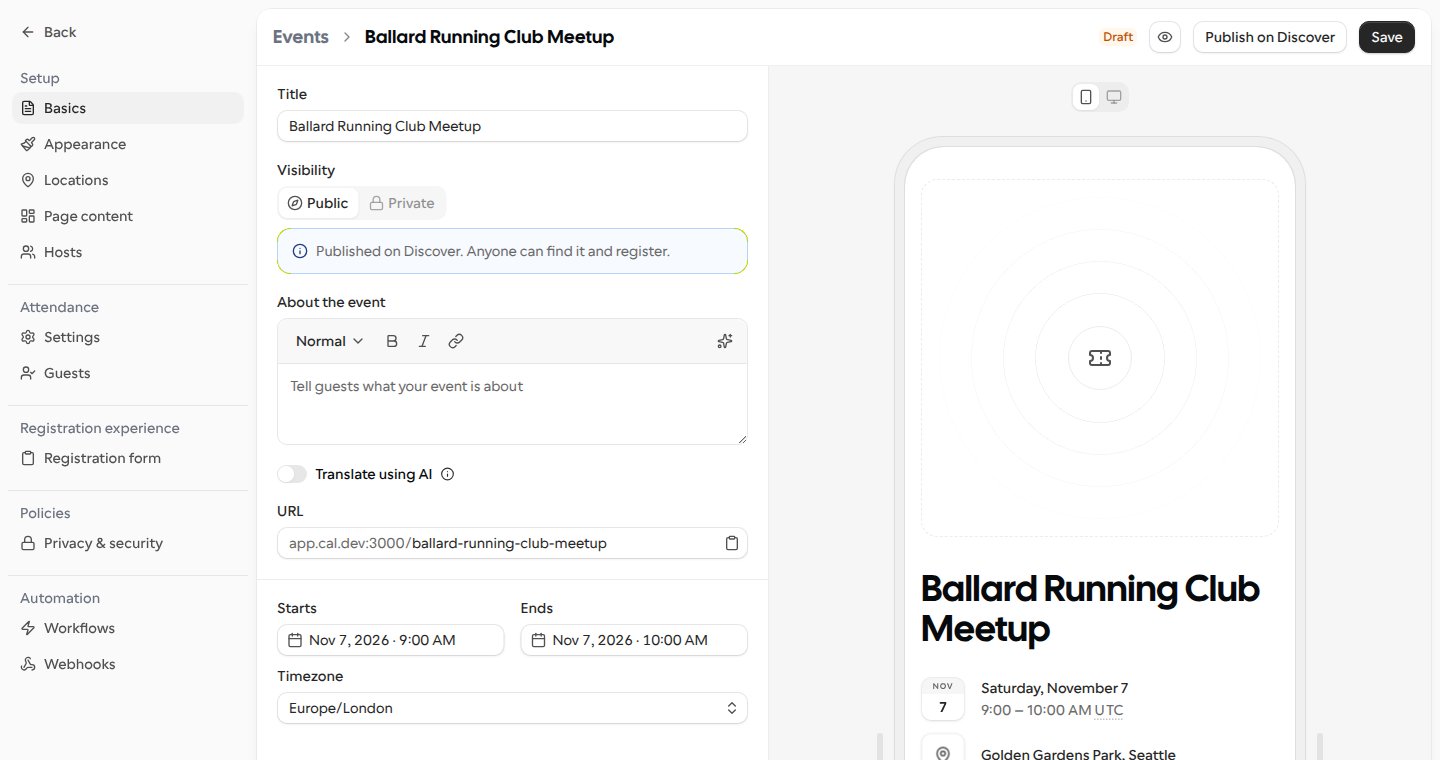
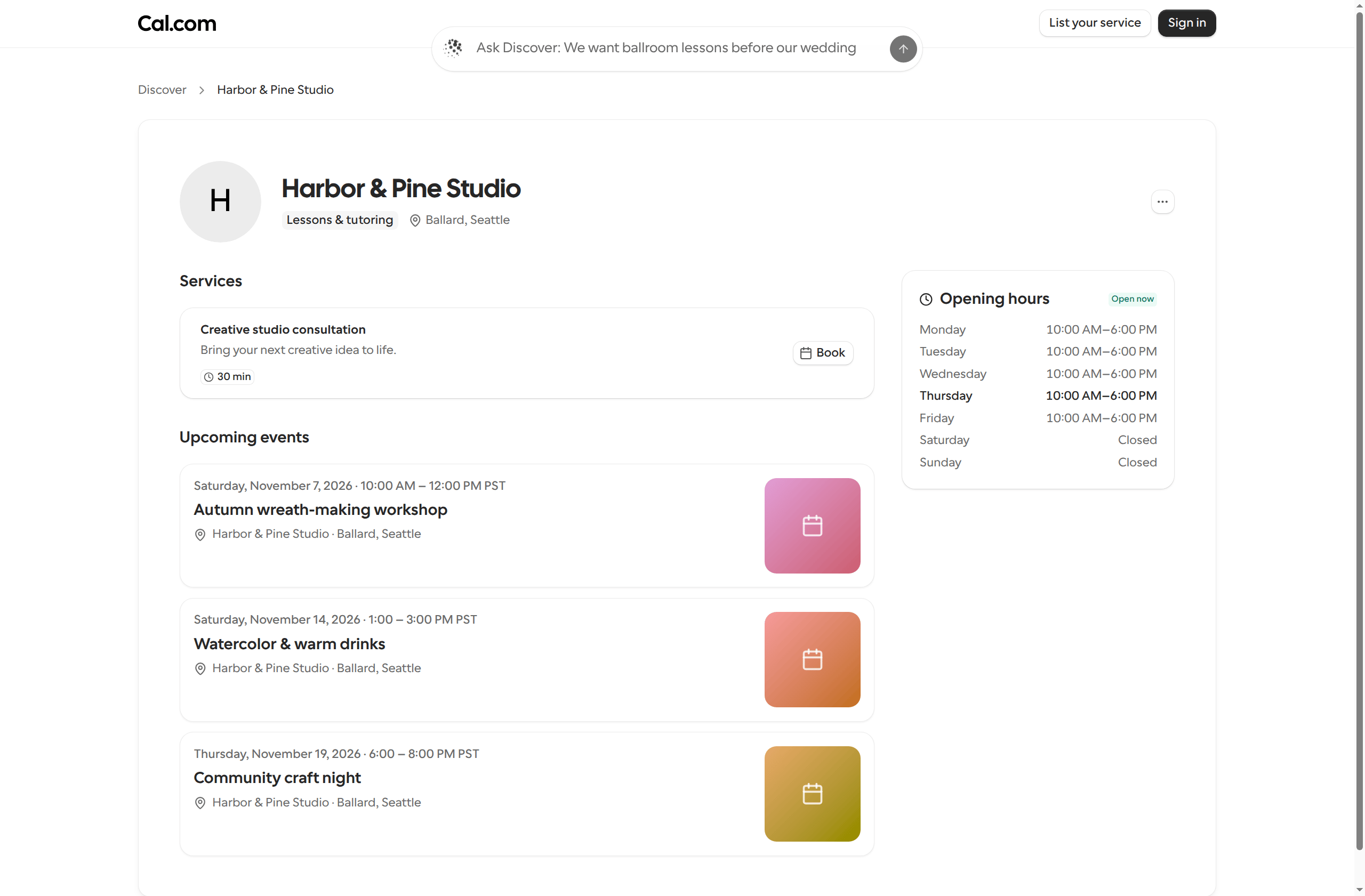
If your organization or team has Cal Event publishing enabled for Discover, your live public Cal Events automatically appear in an Upcoming events section below your services. You don’t need to publish them to Discover separately. It lists up to six events, soonest first, each with its date and time. Selecting an event opens its event page, where clients register. On the Discover home, business cards with upcoming public Cal Events can show an Also hosting N events link. Selecting it opens the business’s Discover profile at Upcoming events. The count includes all eligible upcoming events, even when the profile shows only the first six. With no upcoming public events or without Cal Event publishing enabled, the link doesn’t appear.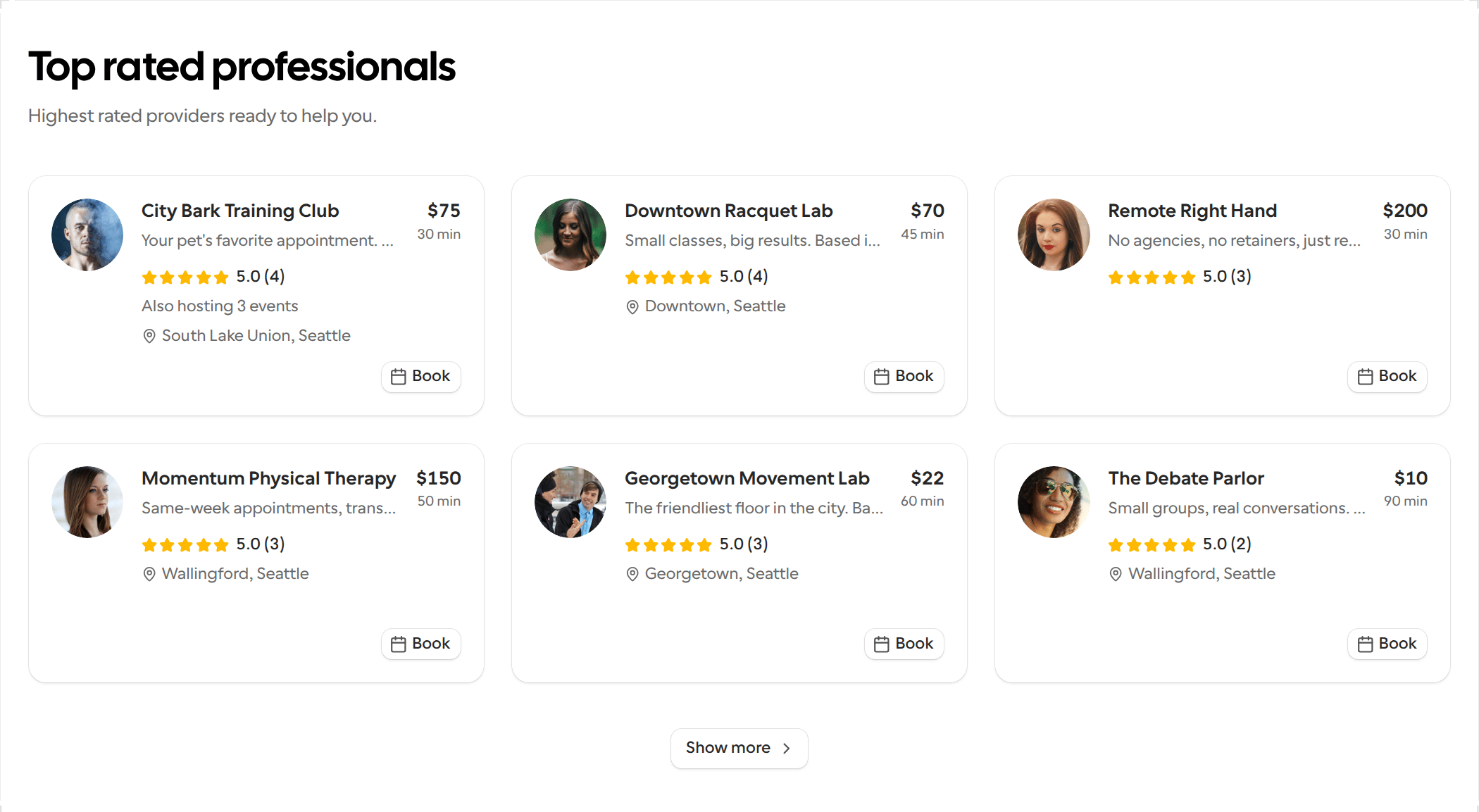
On an organization’s page
An organization’s Discover page, which lists its members who publish on Discover, shows an Upcoming events section below its members. It lists up to six upcoming public Cal Events, soonest first, from the organization itself, its sub-teams and its members. Events are listed under the same conditions as on a profile. If there are more than six, See all events opens the organization’s events page, which lists them all.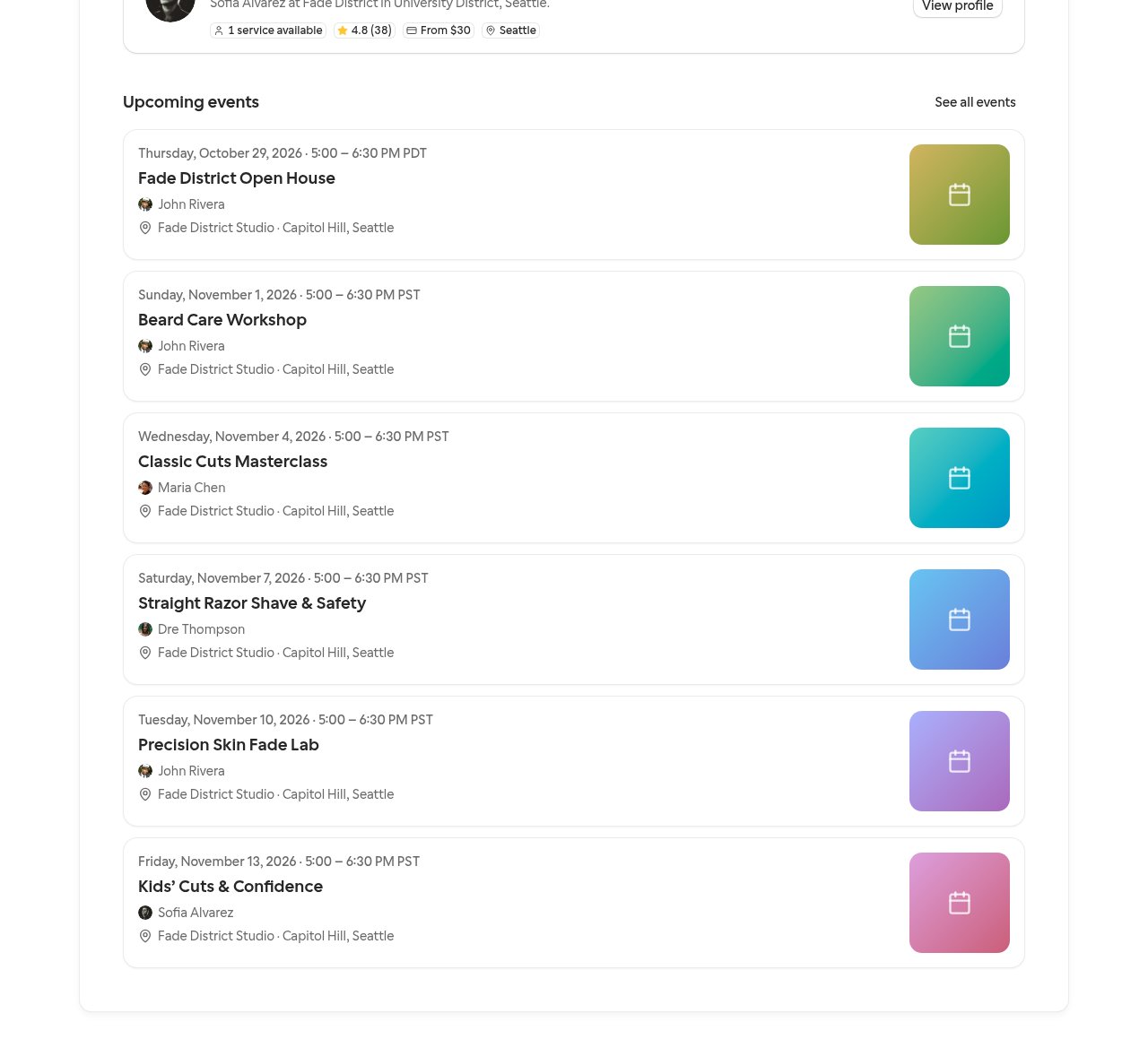
Searching near a place
On Discover’s service category pages, clients can narrow results to businesses near them with the Location filter. They can select Use my location, or type a City or ZIP code, and then choose a distance of 5, 10, 25 or 50 miles (10 by default). Show everywhere removes the filter. A search location can only be a city, a ZIP code or a neighborhood. A street address or a business name isn’t accepted, and Discover asks for a city or ZIP code instead. Distances are measured from each business’s approximate map pin, not from its exact address.Which area Discover uses
Discover’s service category pages, and Ask Discover when the client doesn’t name a place in the chat, search near the first of these they find:- The place in the page’s link, such as
near=seattle-wa, so a shared link shows the same results. For Ask Discover, this is the Discover city or neighborhood page it was opened from. - The place the client last picked on that device, in the Location filter or the area control on the Discover home, or Show everywhere.
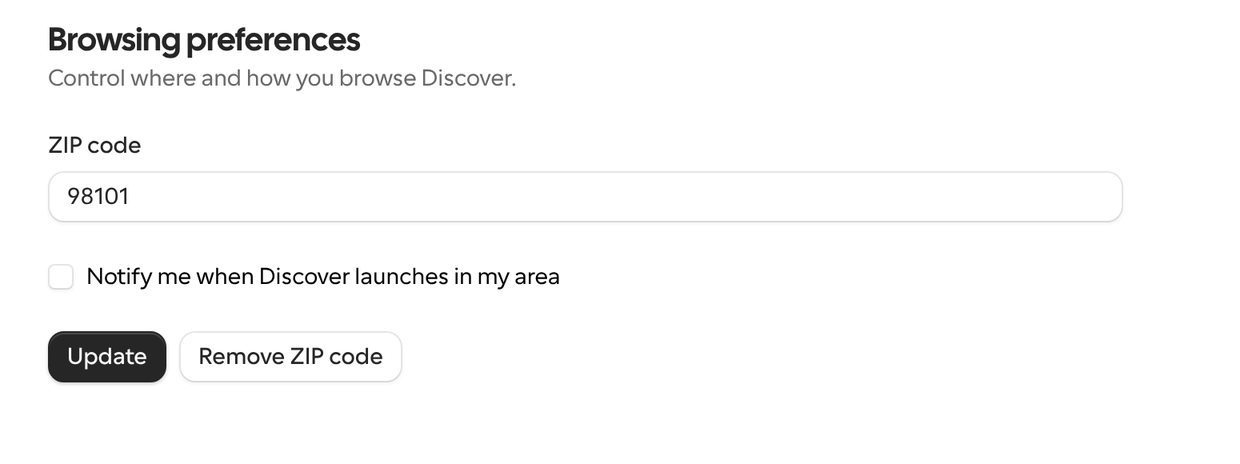
- For a signed-in client, the ZIP code in Settings > Discover > Browsing preferences.
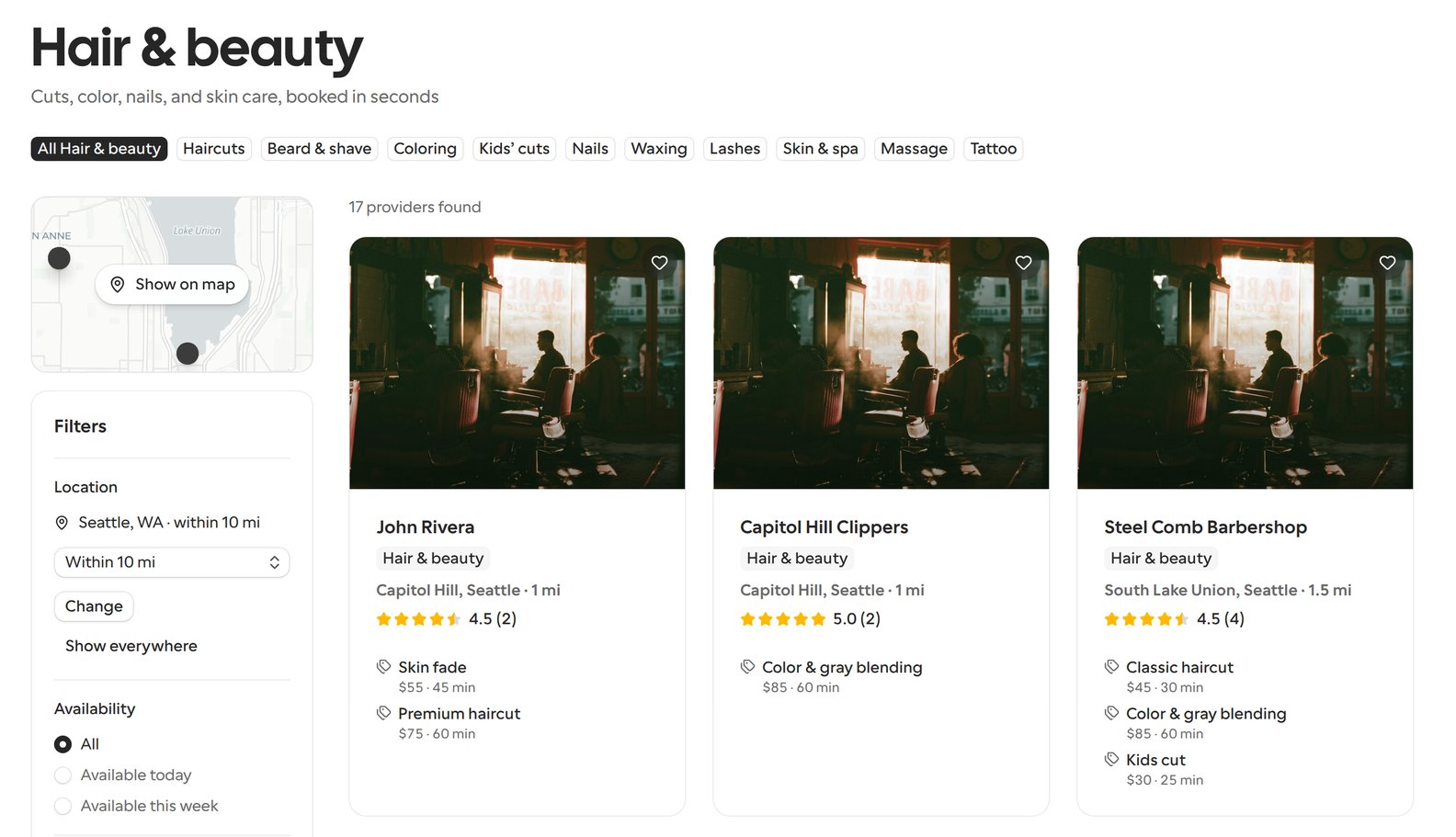
- The city the client’s IP address is in, when Cal.com can tell. On a service category page, the Location filter names that city, such as Seattle, WA · within 10 mi, and the client can select Change or Show everywhere, just as for a place they picked.
- When a signed-in client saves a ZIP code in Browsing preferences, or gives one when Ask Discover asks where they are, the device forgets the place it remembered from the Location filter, and Discover searches near the new ZIP code.
- When a signed-in client picks a ZIP code in the Location filter, by typing it or with Use my location, Discover also saves it as their ZIP code in Browsing preferences. Their Notify me when Discover launches in my area choice stays as it was.
- A city or neighborhood picked by name, such as Capitol Hill, is only remembered on that device, because Browsing preferences stores a US ZIP code. A guest’s picks are only remembered on their device too.

Distance on listing cards
When Discover searches near an area, each listing card ends its place with how far the business is from that area, such as South Lake Union, Seattle · 1.5 mi. Distances under 10 miles have up to one decimal, such as 1 mi or 1.5 mi, and longer ones are whole miles, such as Tacoma · 25 mi. They’re measured from each business’s approximate map pin, and they don’t change the order of the results. Cards show a distance:- On service category pages, while they search near an area. See Which area Discover uses.
- On the Discover home, while it shows Searching near a place, in Services near you and in the row from another city. See When little is near your area.
Miles or kilometers
Discover shows distances in miles when the area it searches near is in the US, the UK, Liberia or Myanmar, and in kilometers anywhere else. When Discover can’t tell the area’s country, it goes by the language Discover is shown in, such as miles for English. On the Discover home and service category pages, this covers:- Listing cards, such as 3.7 km. Distances under 10 km have up to one decimal, and longer ones are whole kilometers.
- The Location filter, such as Sharjah, AE · within 16 km, with distances of 8, 16, 40 or 80 km instead of 5, 10, 25 or 50 miles.
- The button on an empty page that searches a wider area, such as Show 2 providers within 40 km. See When no providers match.
- The home’s row from another city, in its title, such as Nothing within 16 kilometers yet. Popular in Dubai, and in how far away it says that city is, such as about 23 kilometers away. See When little is near your area.
radius=25.
Ask Discover’s listing cards always go by the language Discover is shown in, wherever the area is: in English they show miles, and in a language such as German, kilometers.
Bookable times while browsing
On service category and subcategory pages, and a city’s category and neighborhood pages, Available today checks actual bookable slots, not just business opening hours. It checks the first listed service that matches your other filters for each loaded provider, through midnight in the page’s time zone. If Discover can’t check every matching provider, a note says how many of the best matches it checked; narrow the other filters to check more. Provider cards on these pages and in the home’s Top rated section show the first listed service’s real Next opening in the coming seven days, such as Next opening Today, 4:00 PM UTC or Next opening Tomorrow, 9:00 AM UTC. Times appear after the cards load and can be up to five minutes old. A card has no time when no opening is found or its availability hasn’t been checked.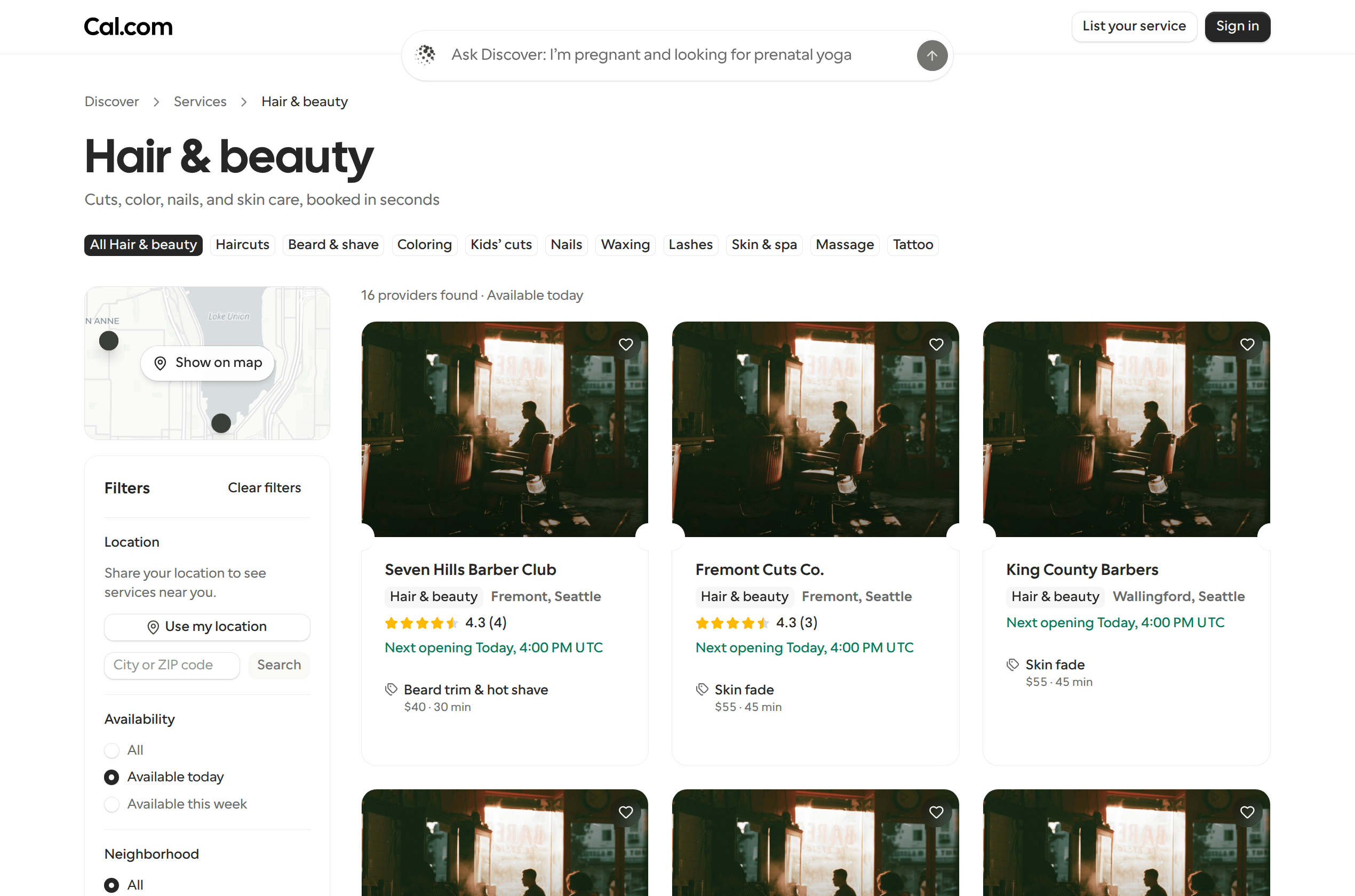
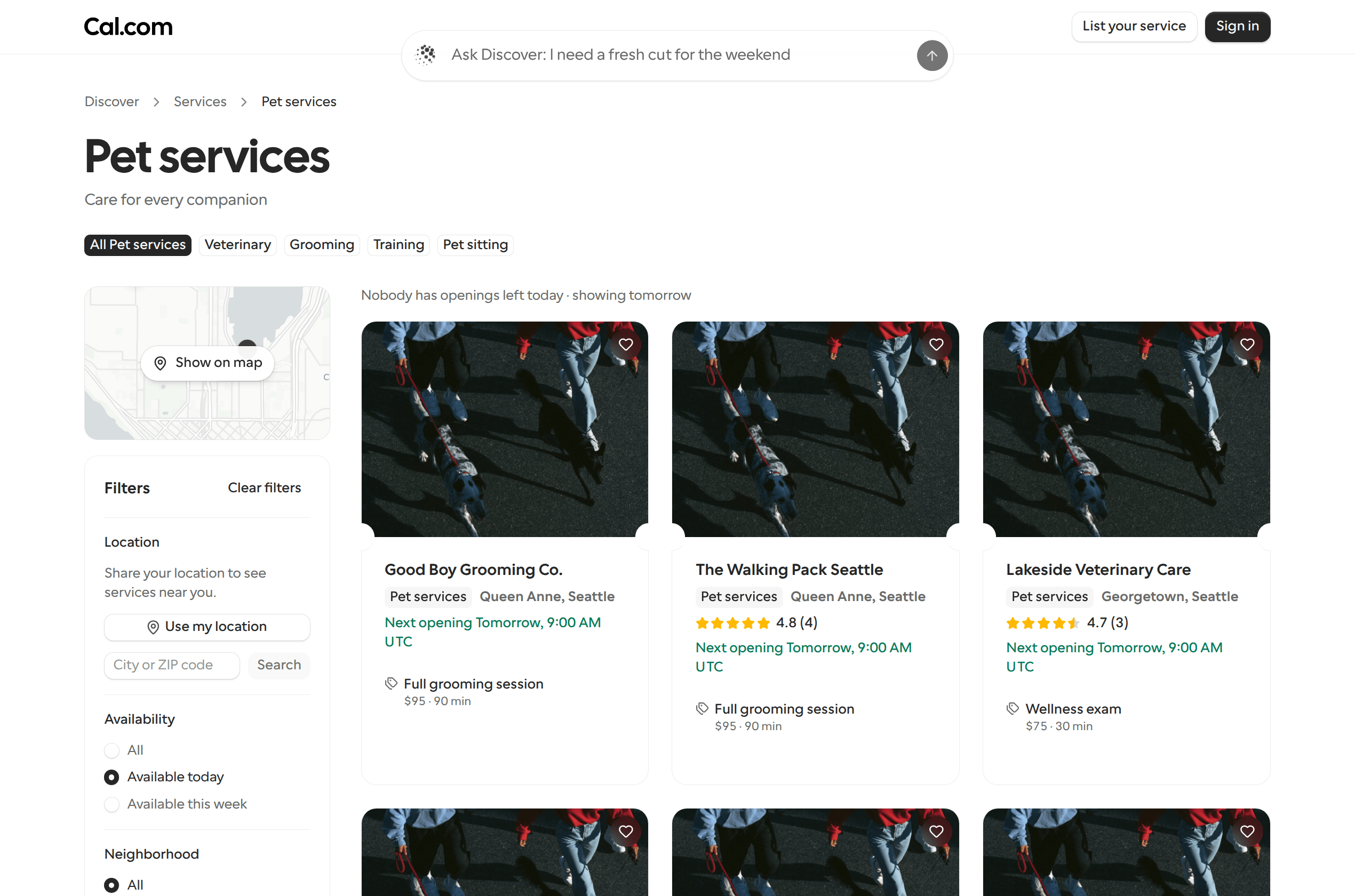
available=today. If tomorrow has no openings either, the page shows its normal empty state and suggestions.
Browsing a city
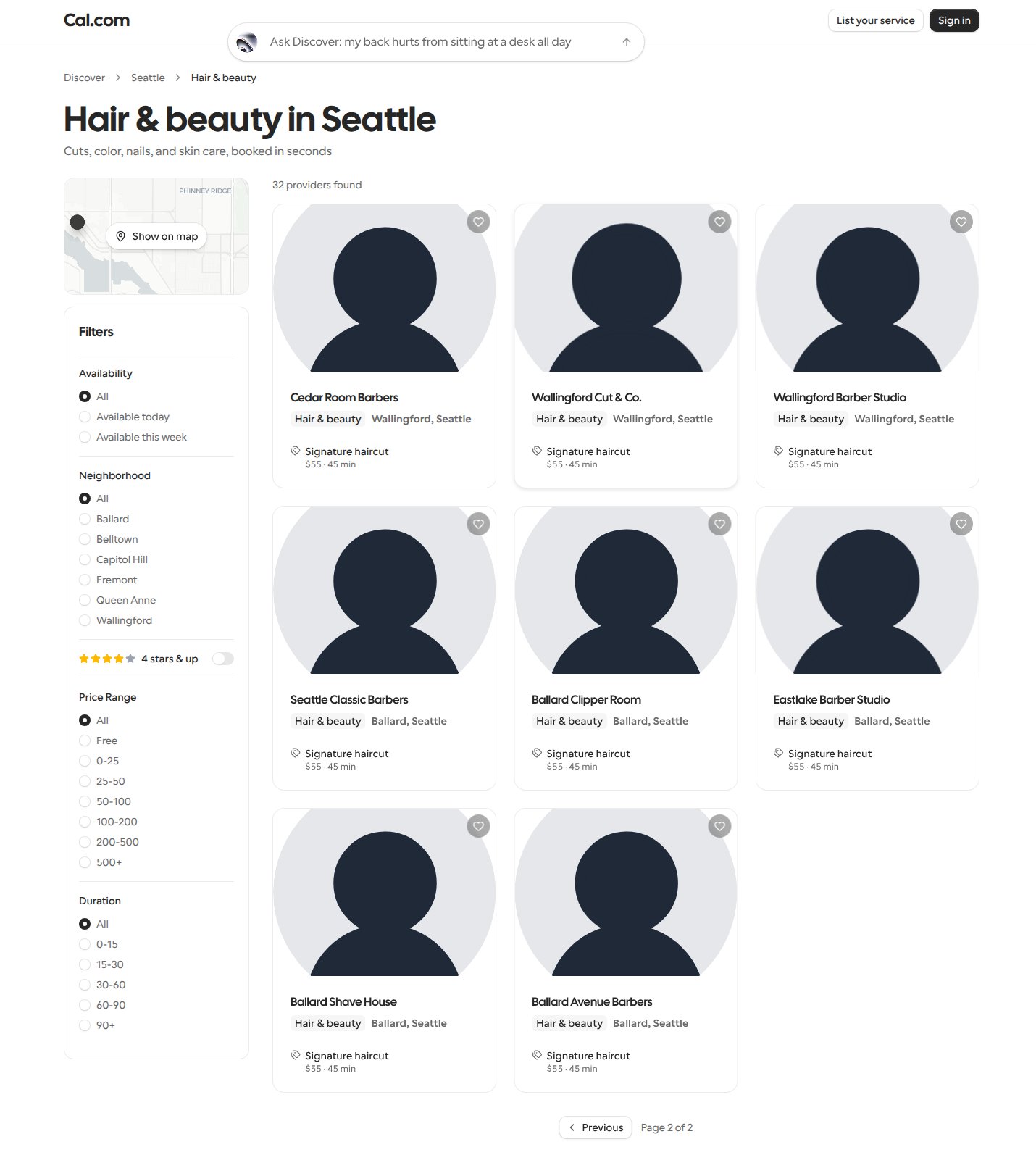
Each Discover city has pages for a category (such as/discover/city/seattle/barbers), a neighborhood (/discover/city/seattle/capitol-hill) and a category within a neighborhood (/discover/city/seattle/capitol-hill/barbers). When more than 24 providers match, these pages show 24 at a time, with Previous and Next buttons and the page number, such as Page 1 of 3, below the results.
- The count above the results, such as 60 providers found, includes every matching provider, not just the ones on the current page.
- The sidebar filters search every matching provider, not just the ones on the current page. Changing a filter goes back to the first page.
- Previous and Next keep the filters in the URL, so a filtered page can be shared at the page it’s on.
A city’s landing page
A city’s landing page, such as/discover/city/seattle, opens with a breadcrumb, such as Discover > Seattle, and Book anyone in Seattle with the city’s live numbers, such as 108 businesses · 218 services · 9 open today, above the Ask Discover search. The open-today count is left out when no business is known to be open that day. When the city has a photo, the title, numbers and search sit on it. An Unsplash or Mapillary photo is credited in its corner, with the photographer’s name when Discover has it, such as Photo on Unsplash. Pexels and Pixabay photos are credited at the bottom of the page instead, along with Neighborhood boundaries from Who’s On First for a city whose neighborhoods come from Who’s On First.
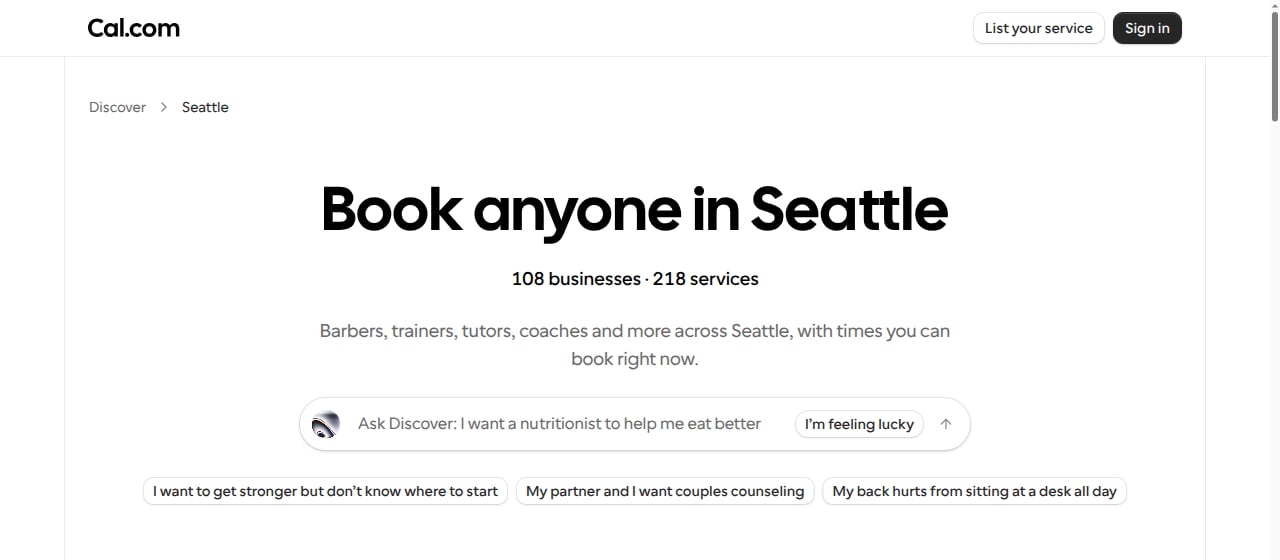
- About booking in Seattle: a description of booking in the city, generated from its listings, with the date it was last updated, such as Updated Oct 27, 2026. Until a city has one, the hero shows a short fixed description instead.
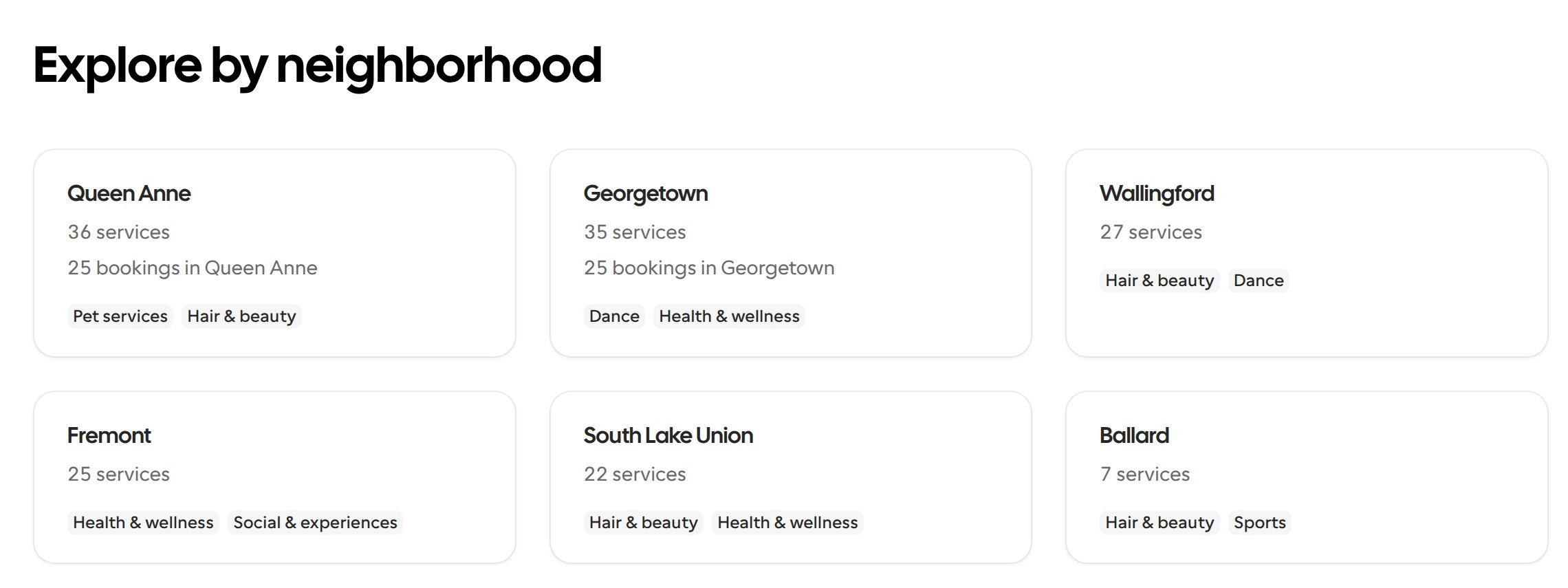
- Explore by neighborhood: a card for each of up to 12 neighborhoods with listings, largest first. A card shows the neighborhood’s name, its number of services, its two largest categories and, when Discover has one, a short line about the neighborhood. When the city has photos, each card also shows the neighborhood’s photo, or its largest category’s art when the neighborhood has none. Selecting a card opens the neighborhood’s page or, when it has no page, Discover’s services filtered to that neighborhood.
- Questions about booking in Seattle: questions and answers about booking in the city, above Discover’s general FAQ.
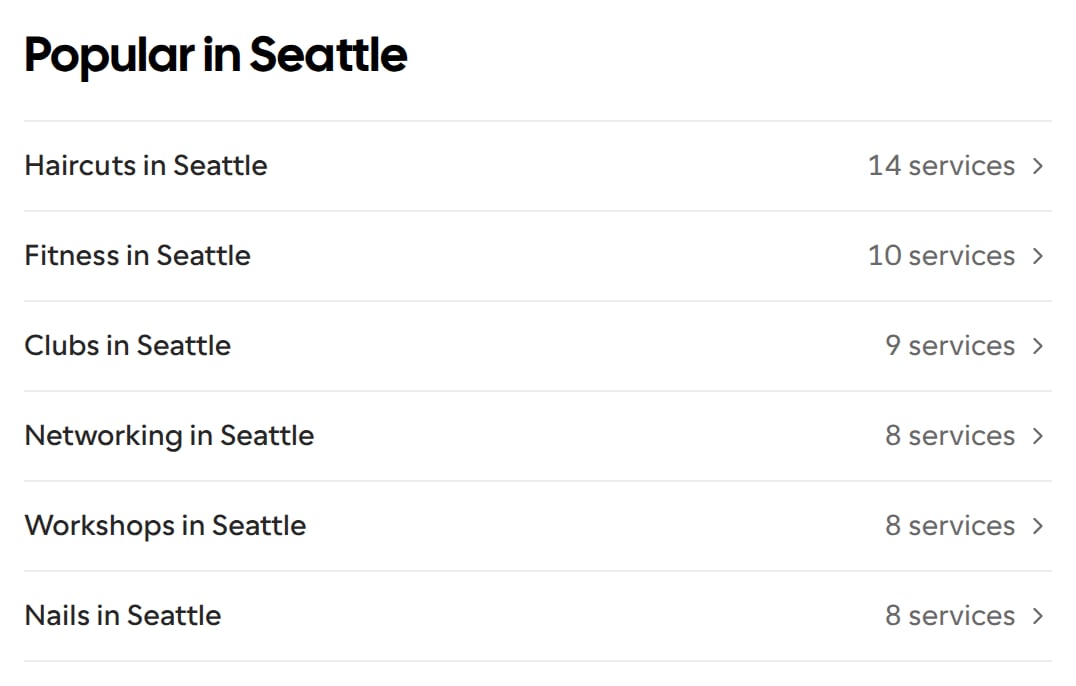
- Popular in Seattle: links to the city’s most-listed services, such as Haircuts in Seattle, each with its number of services and opening a search for that service near the city.
- Nearby cities: links to other Discover cities within 200 miles, closest first, each with its number of services.
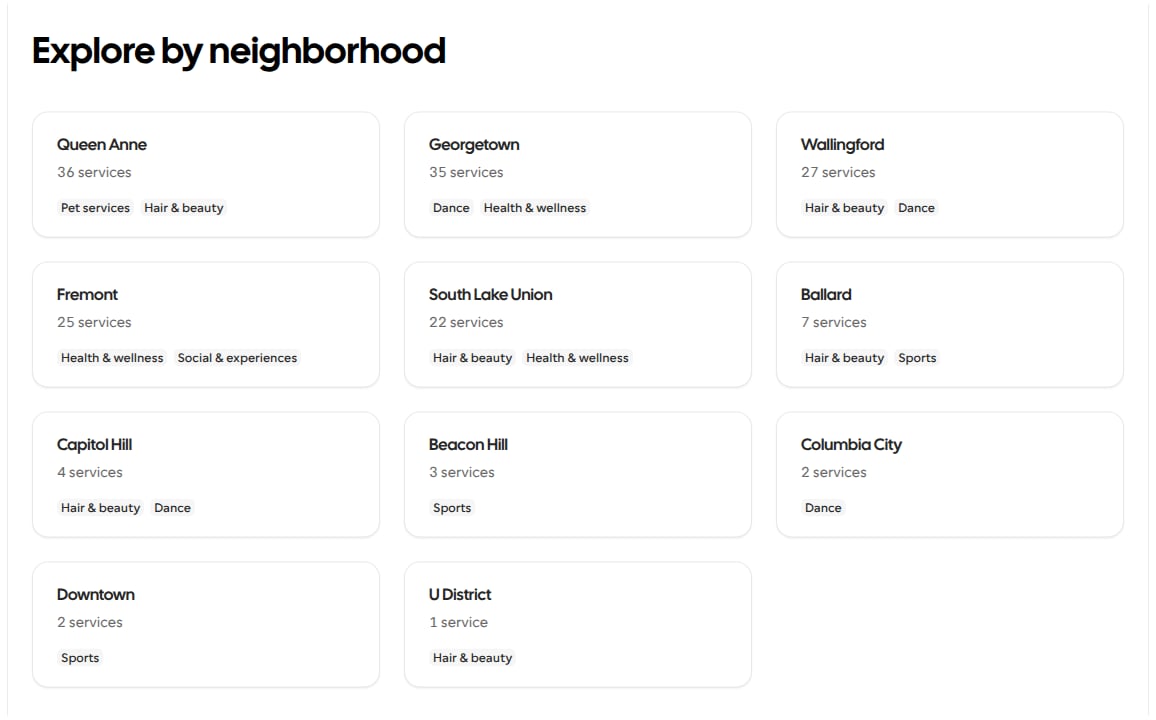
Prices, photos and next openings
A city’s landing page, such as/discover/city/seattle, also shows prices, photos and openings from the businesses listed there:
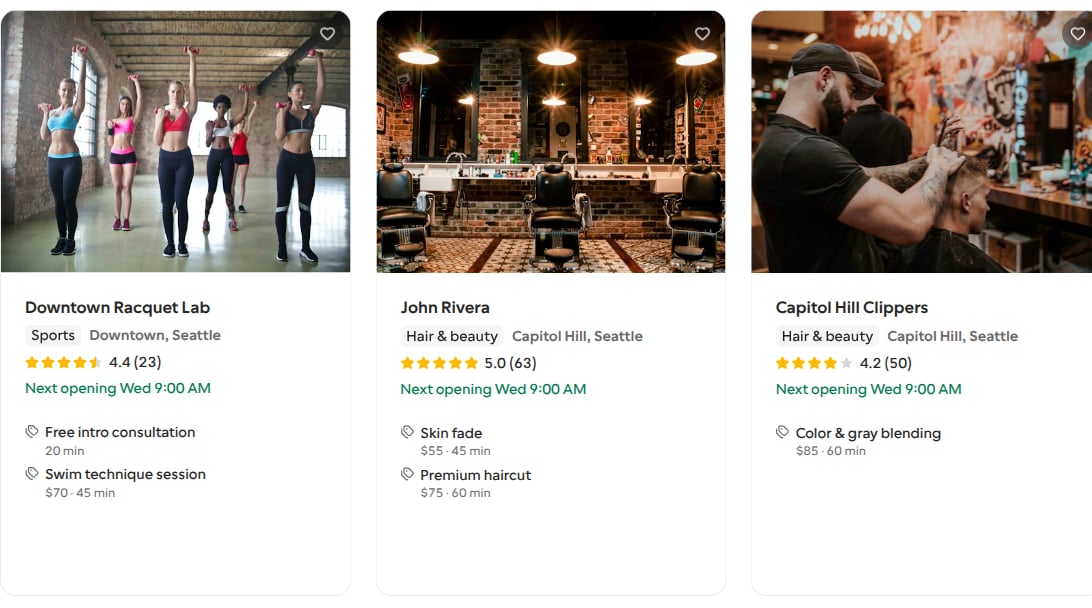
- Next opening. Each card in the providers grid shows when its first listed service is next free in the coming seven days, such as Next opening Wed, 9:00 AM PDT, in the city’s time zone. The times appear just after the cards load and can be up to five minutes old. A card with no opening in the next seven days shows no time.
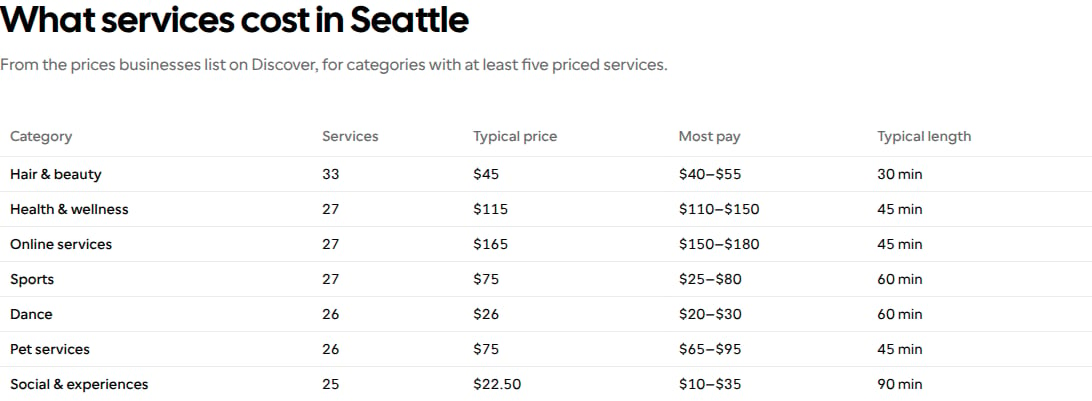
- What services cost in the city. Below the providers, a table such as What services cost in Seattle lists each category with at least five priced services on the city’s page: its number of Services, its Typical price (the median), the range Most pay (the middle half of prices) and its Typical length. A service’s price is its payment app’s price or its listed price. When the city’s services are priced in more than one currency, only the most common one is counted. On a phone, the Services and Typical length columns are hidden.
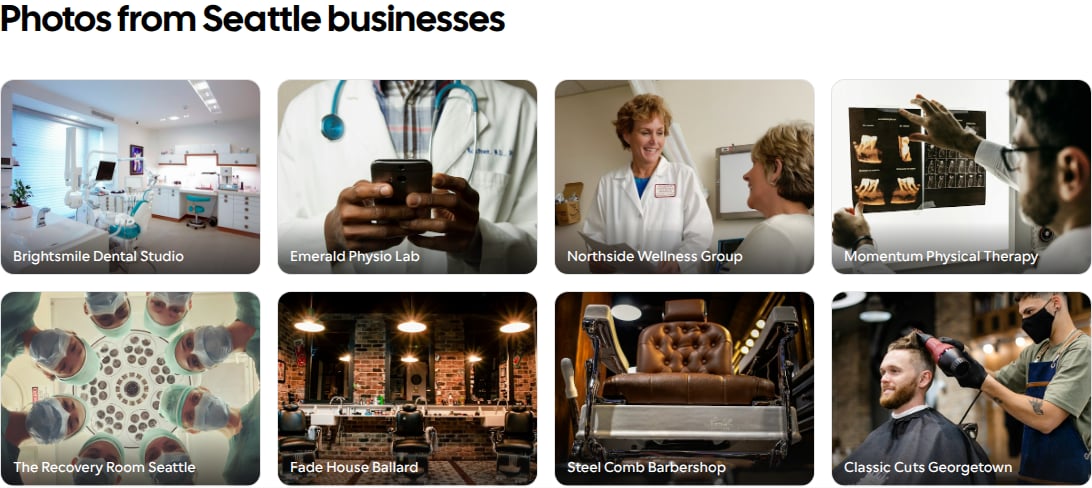
- Photos from the city’s businesses. A strip such as Photos from Seattle businesses shows the first business photo of up to eight businesses with published listings in the city, those with the most listings first. Each photo opens the business’s profile. A business whose first photo is flagged for review is left out.
Bookings made through Discover
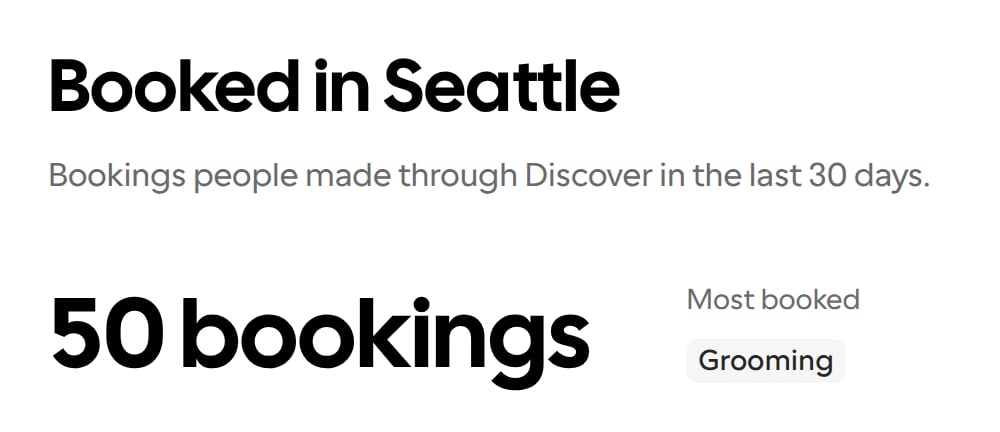
A city’s landing page can also show how often clients book its businesses through Discover:- Booked in the city. Below the business photos, a section such as Booked in Seattle gives the number of bookings made through Discover in the last 30 days, such as 50 bookings. Under Most booked, it names up to three of the kinds of service booked most, such as Grooming, using each service’s subcategory, or its category when it has none.
- Neighborhood cards. Under Explore by neighborhood, a neighborhood’s card can add a line such as 25 bookings in Queen Anne, counting its in-person services only.
- The section, and each neighborhood line, only appears with at least 10 bookings across at least five businesses. A city below this shows no neighborhood lines either.
- A neighborhood line is also left out when the city’s bookings outside the neighborhoods shown wouldn’t pass the same test, so subtracting the lines from the total never gives one business’s count.
- A kind of service is only named under Most booked with at least three bookings across at least two businesses.
- Counts above 50 are rounded down to the nearest 5, so 57 bookings shows as 55 bookings.
Neighborhood maps
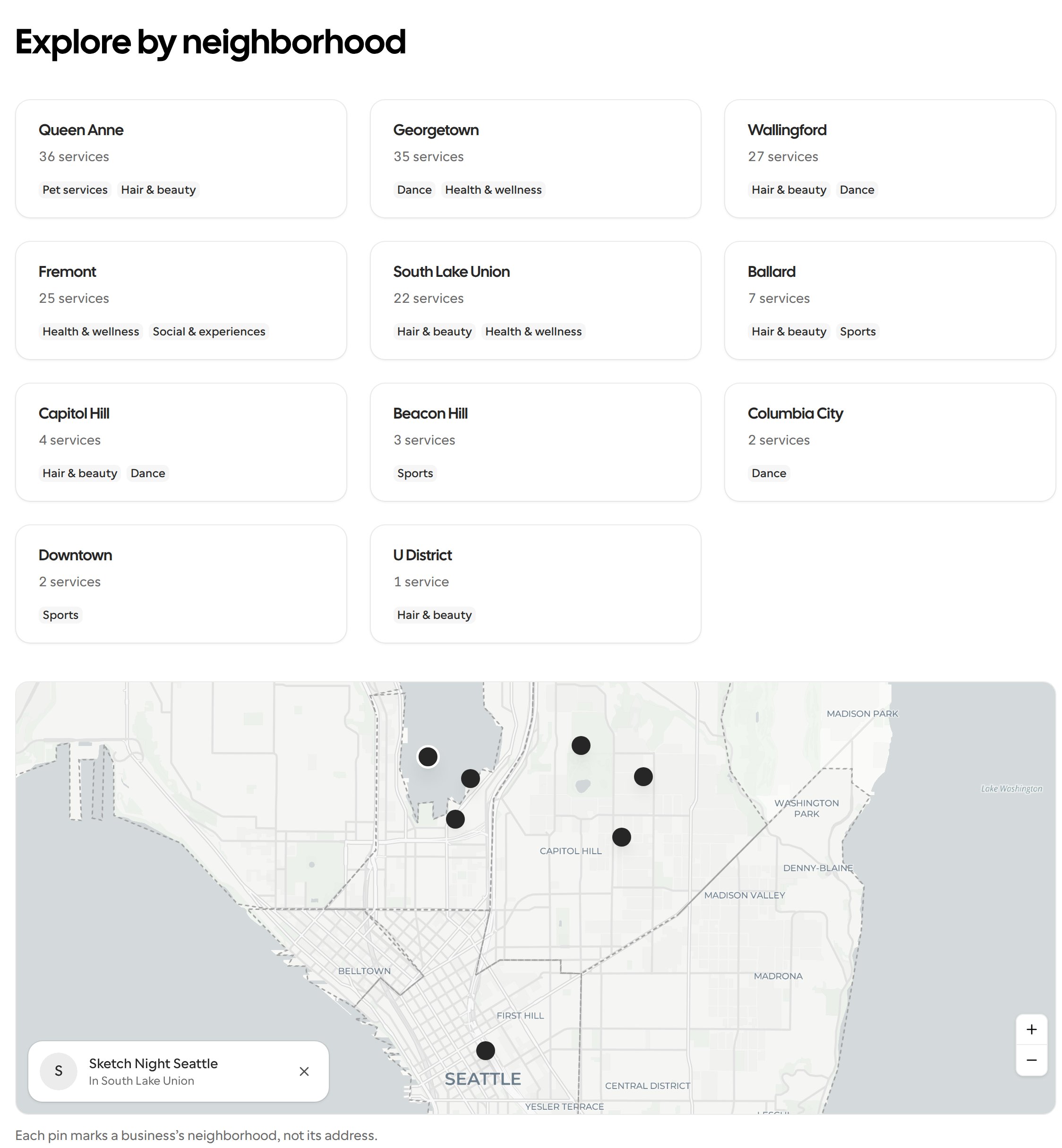
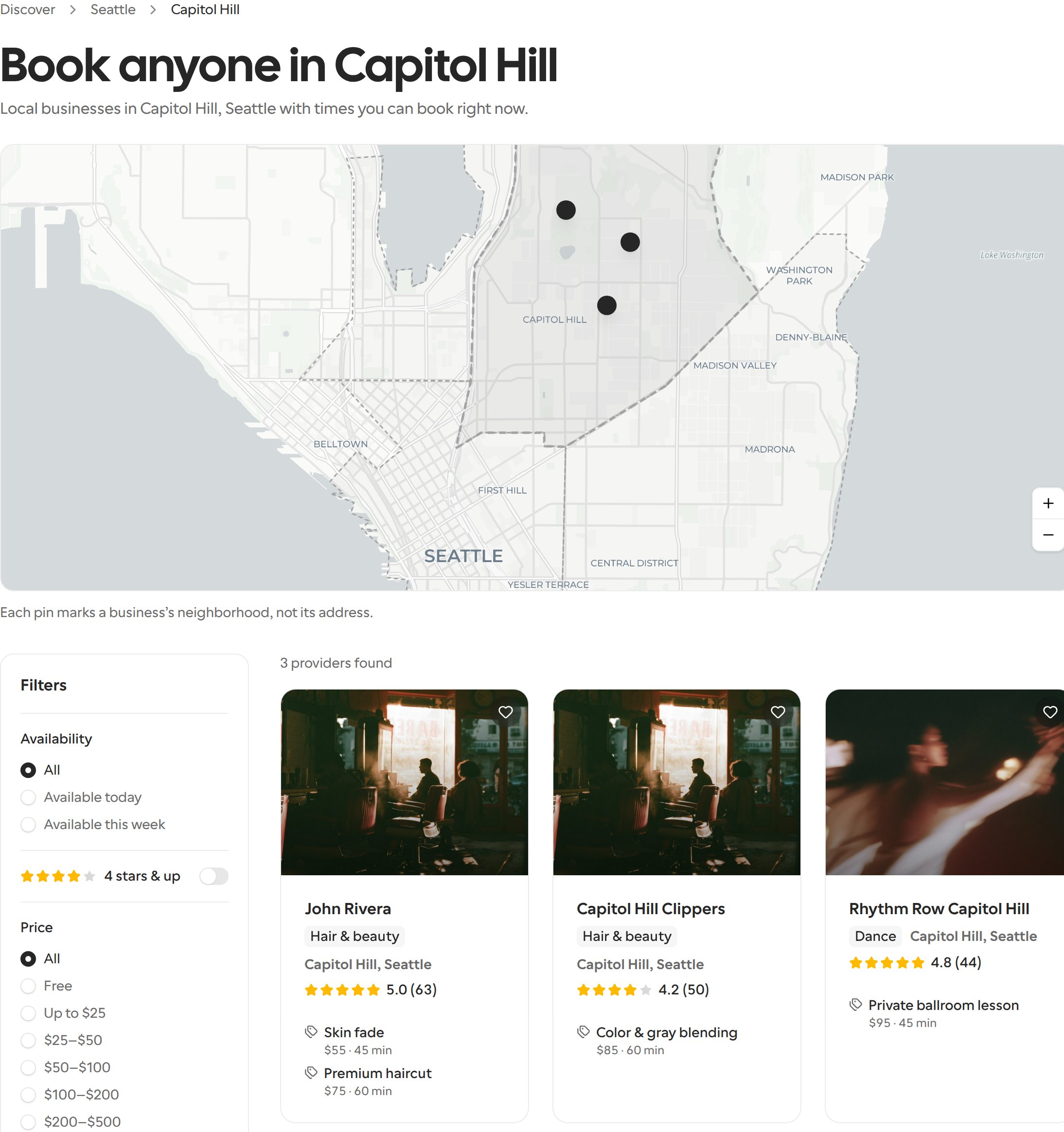
City pages show a map below Explore by neighborhood. Neighborhood pages show it above the results, with the current neighborhood shaded more strongly. The map is left out when fewer than three businesses can be placed; a city without a neighborhood section has no map. Outlines and pins appear first, then the interactive map loads as you scroll near it. Select a pin to see the business’s name and neighborhood, or city if it has no neighborhood; select the name to open its profile. Select a neighborhood outline that has its own page to browse that neighborhood. Use two fingers to move the map on a phone, or Ctrl + scroll (⌘ + scroll on Mac) to zoom, so ordinary scrolling still moves the page.These pins mark businesses’ neighborhoods, not their addresses. A business without a matching neighborhood outline is placed around the city’s center, not its street address.
What visitors are looking for
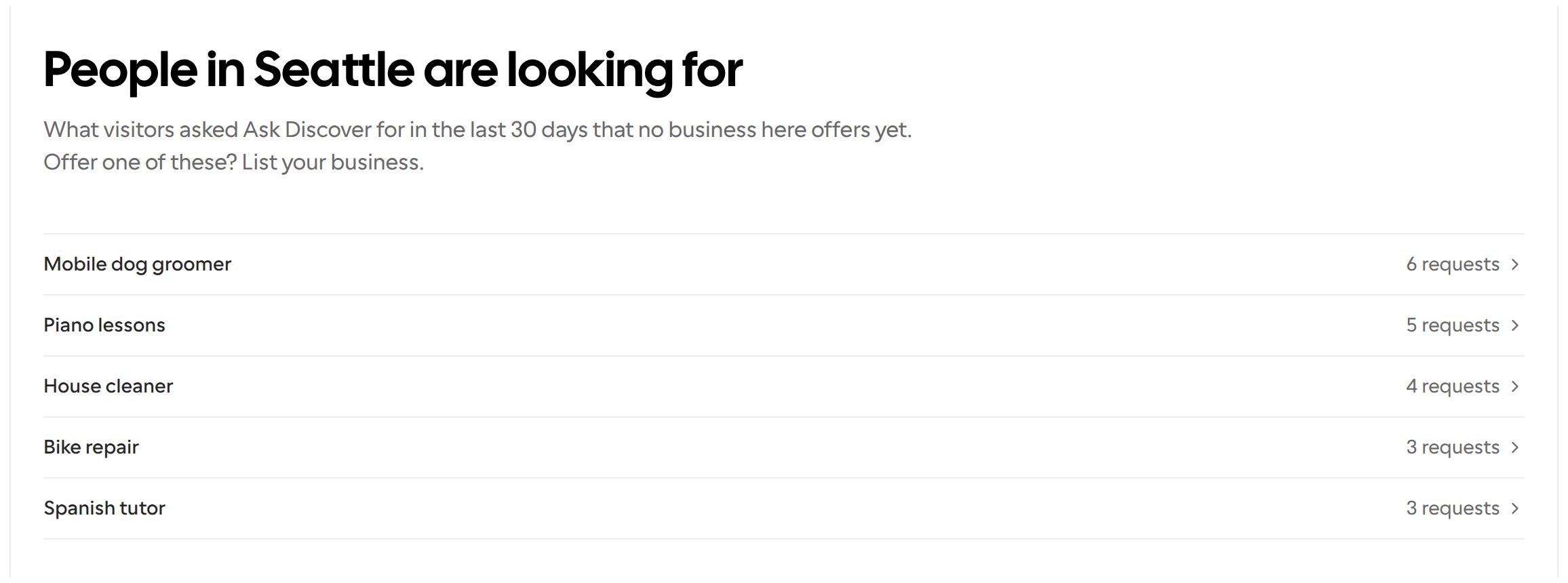
A city’s landing page can also show a section such as People in Seattle are looking for: services visitors asked Ask Discover for in the last 30 days that no business on the page offers yet. It points businesses at demand nobody in the city serves.- Each row shows the service, such as Mobile dog groomer, and how many times it was asked for, such as 6 requests. The section shows up to five services, the most requested first.
- A service is listed once it has been asked for at least three times in the last 30 days. Requests that differ only in capital letters or spacing count together.
- A service drops off once a listing on the page offers it: a listing in the same category with the same subcategory or, when the request has no subcategory, one whose title, headline, description or subcategory includes every word of the service.
- Selecting a service opens the steps to list your business on Discover. Visitors who aren’t signed in sign up first.
- Only the short name of the service is shown, never what the visitor wrote, their name or their email.
Pages for other cities
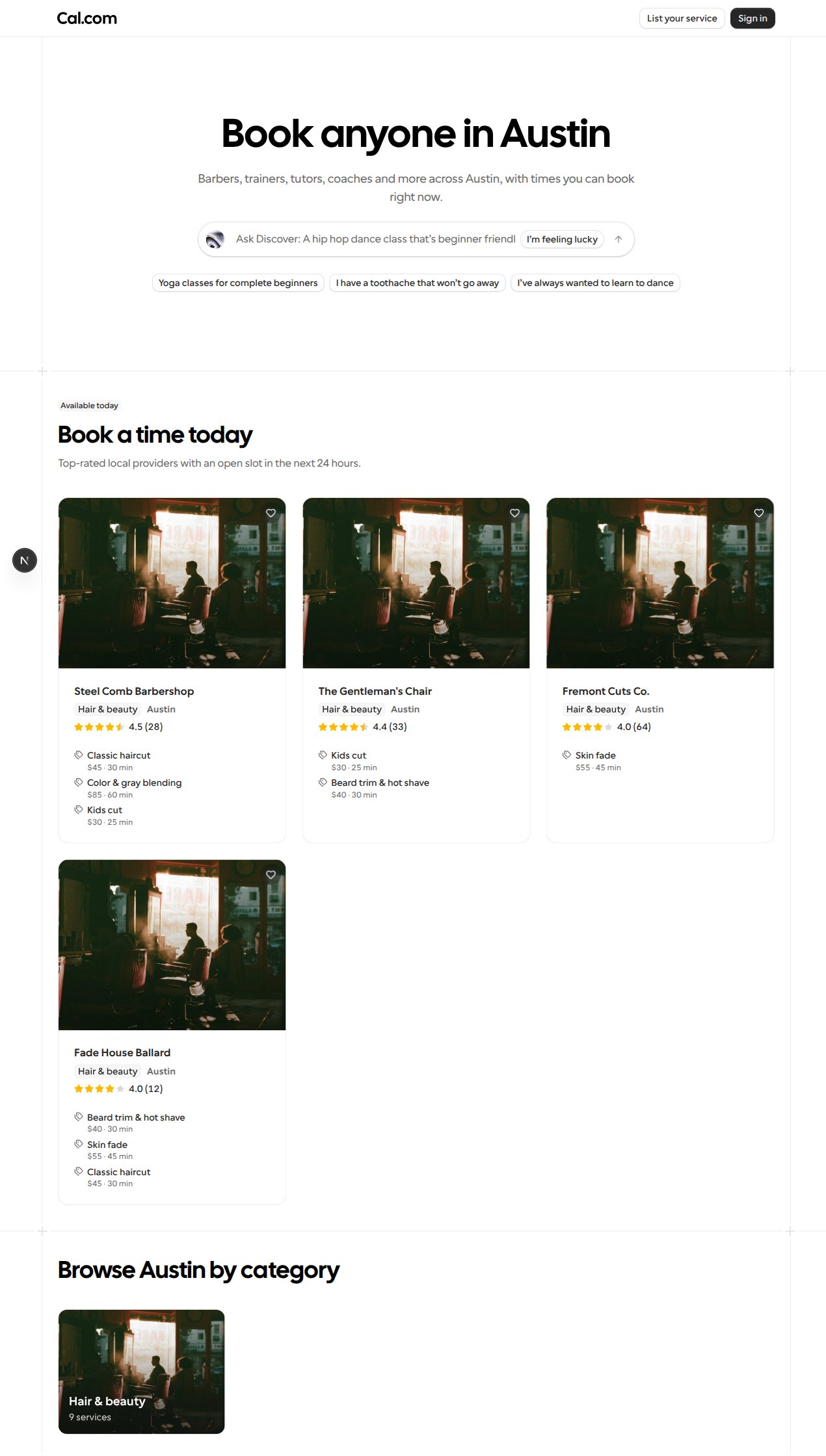
Discover also gives a city its own pages when it has at least three published in-person listings from at least three businesses. Each listing counts toward the city chosen in its City field in Edit Discover listing. Listings in online-only categories (Coaching, Consulting & professional services, Online services and SaaS), listings whose booking link is hidden, and listings with no headline and no description don’t count. Such a city gets:- A landing page, such as
/discover/city/austin, laid out like Seattle’s, as described in A city’s landing page. - A category page for each category with at least three listings in the city, such as
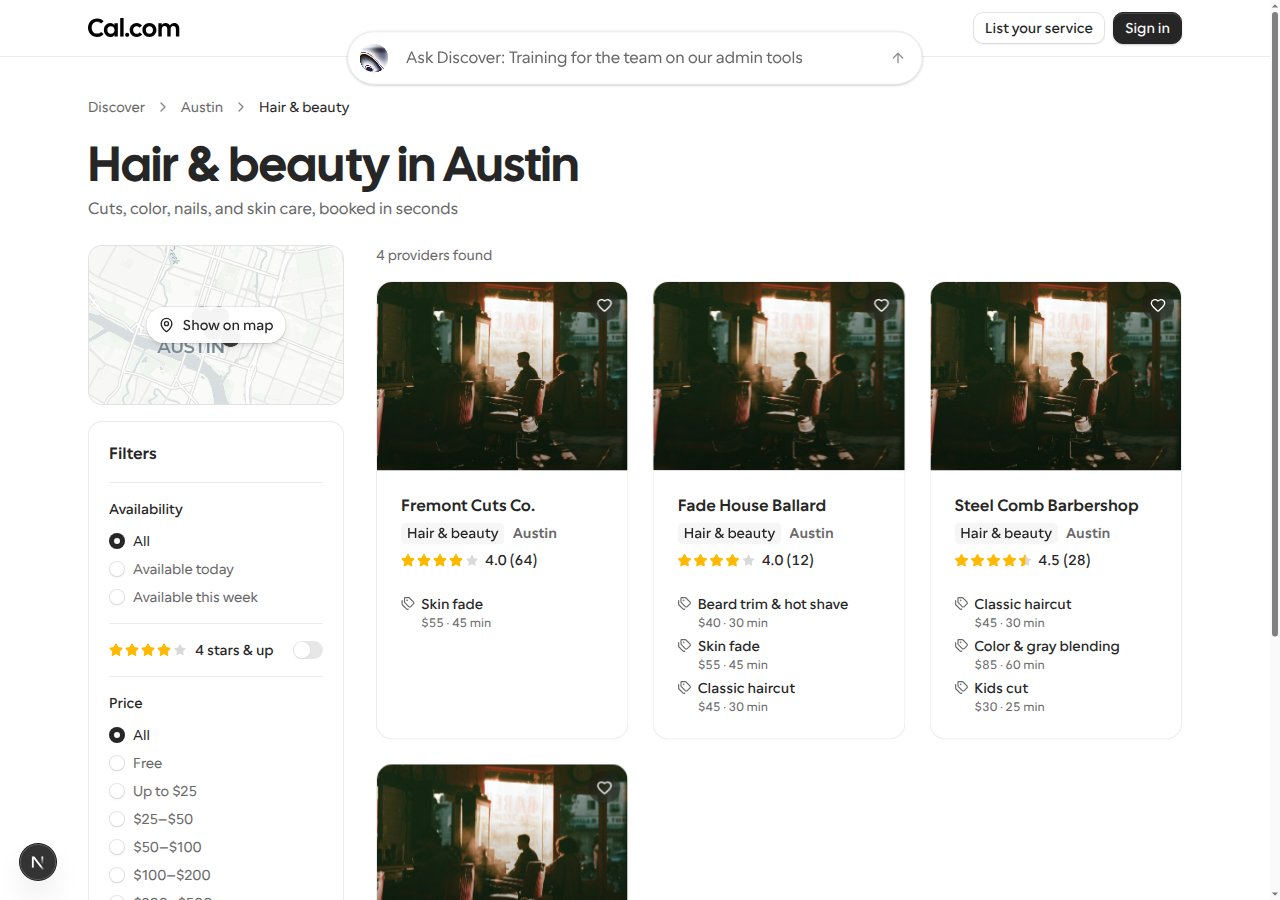
/discover/city/austin/barbersfor Hair & beauty in Austin.
- They show only listings set to that city, instead of every business within 10 miles of the city’s center.
- Available today uses the city’s local time zone, the one most of its businesses use, or UTC when none of them has one.
- There are no neighborhood pages.
/discover/city/portland-or. A city keeps its address once it has one.
Search engines can index every one of these pages, and Discover’s sitemap (/discover/sitemap.xml) lists each city’s landing page and its category pages. When a city drops below three listings or three businesses, or a category in it drops below three listings, its page shows Discover’s not-found page until it qualifies again.
Pages for one kind of service
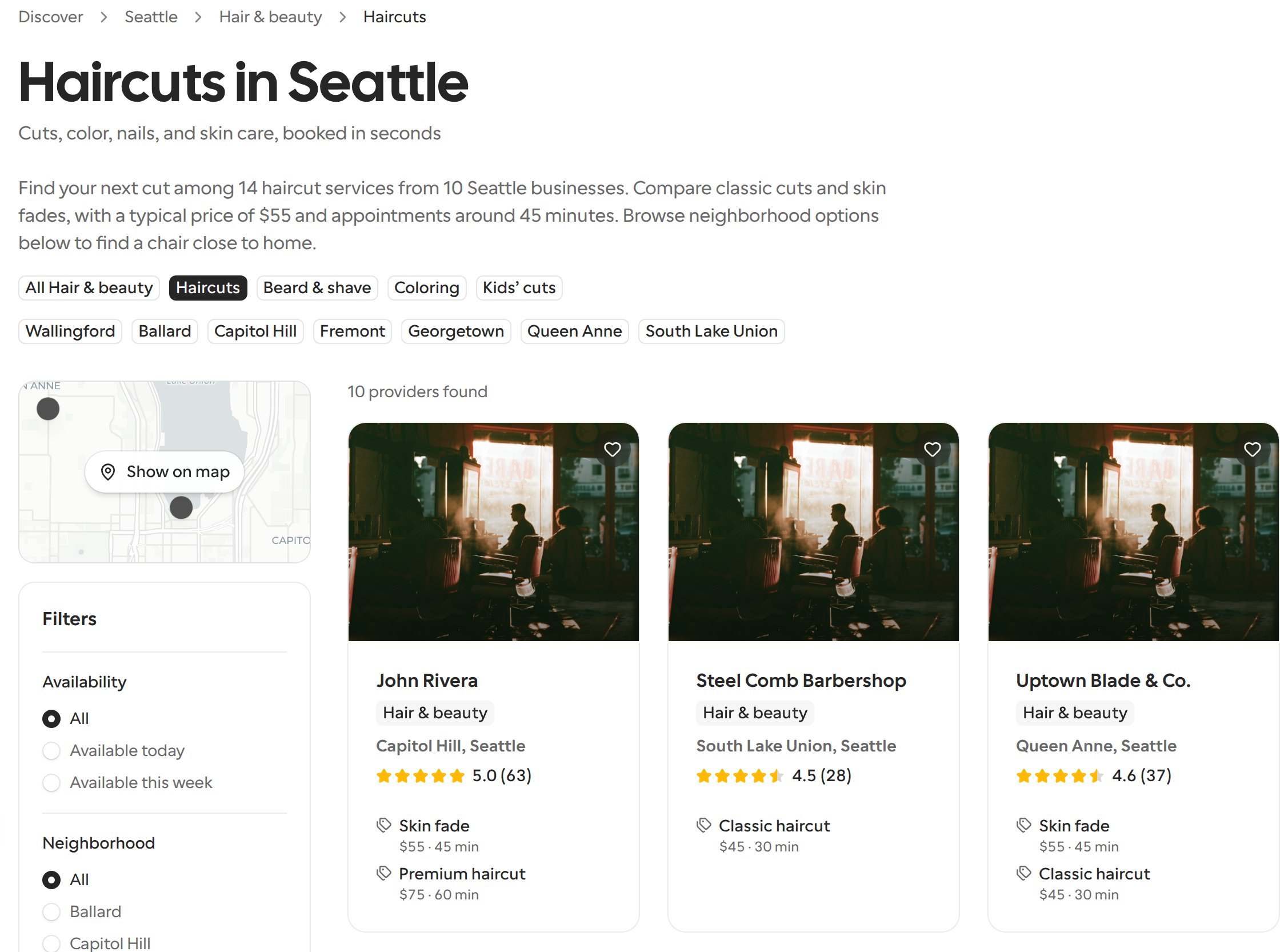
Seattle, and every other city with its own pages, also has a page for each kind of service within a category, such as Haircuts in Seattle at/discover/city/seattle/barbers/haircuts. The last part of the address is the listing’s Subcategory, chosen when you publish or edit a listing.
A city has one of these pages once its category page shows at least three listings in that subcategory, from at least two businesses. A team’s listings count as one business. Below that, the address shows Discover’s not-found page. Online-only categories have no city pages, so they have no subcategory pages either.
On a city’s category and subcategory pages, chips such as All Hair & beauty, Haircuts and Coloring link between the category and its qualifying subcategory pages. The open page is highlighted. A category with no qualifying subcategory pages shows no chips.
The page is the city’s category page narrowed to that subcategory:
- It shows only the businesses with a listing in the subcategory, and only those listings.
- Its heading, and its title in search results and link previews, name the subcategory, such as Haircuts in Seattle.
- The breadcrumb reads Discover > Seattle > Hair & beauty > Haircuts. Selecting Hair & beauty opens the city’s category page.
- When available, its introductory paragraph, price guide and FAQ describe that subcategory using only its listings, rather than the whole category’s.
- Its neighborhood chips are based on that subcategory’s listings. They open the neighborhood’s category page, or its neighborhood page, not a neighborhood-specific subcategory page.
- A promoted listing only shows in the page’s promoted slots when it’s one of the page’s listings.
/discover/sitemap.xml) lists every one that meets the bar.
Sort browse results
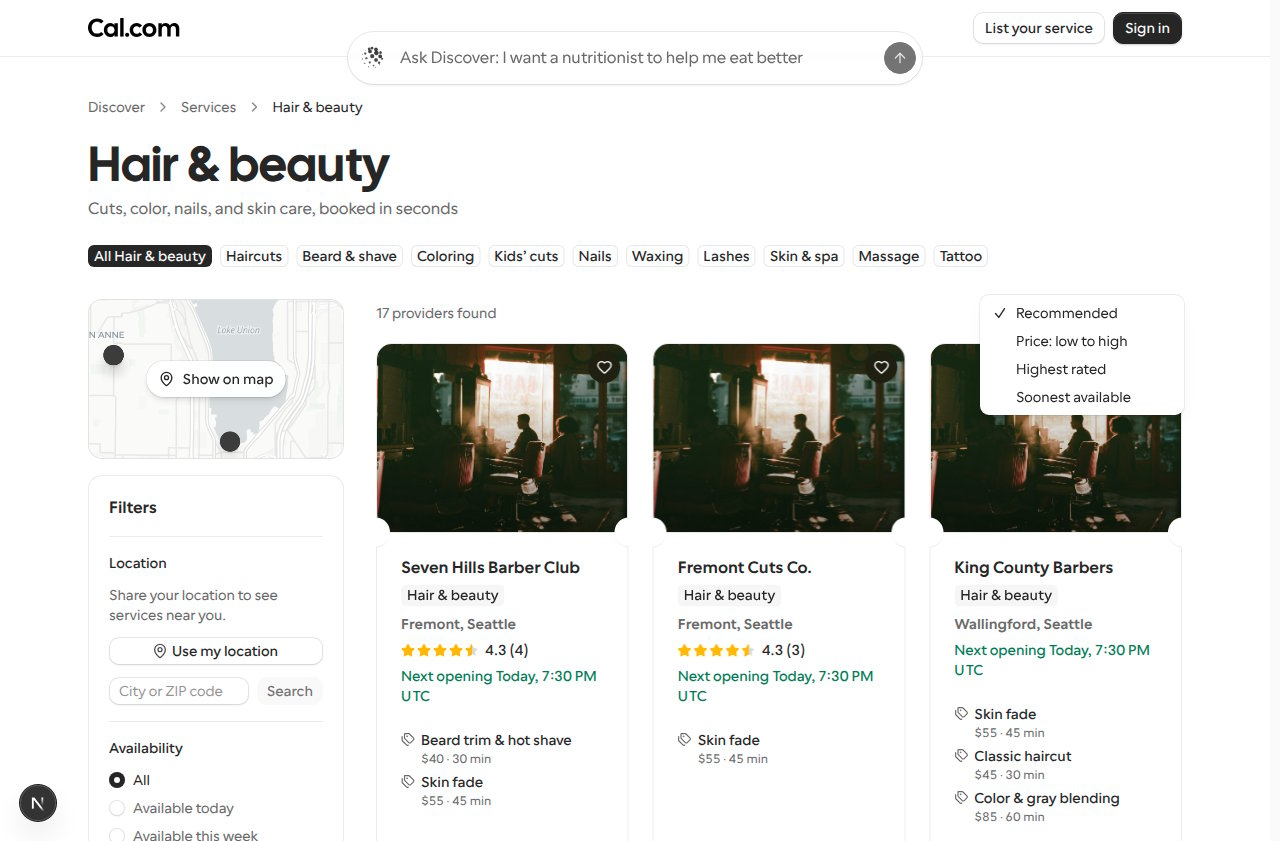
On category and subcategory pages (including city pages), nearby services pages and city neighborhood pages, use the menu beside the results count to choose an order:
Businesses without a price, rating or known opening appear last for that sort, and ties keep the recommended order. Sponsored cards stay ahead of the other results. Soonest available checks up to 48 businesses, so a business without a known opening may still have availability.
Copy the page’s URL to share the sort along with your filters, for example
/discover/services/barbers?sort=price. Changing the sort returns to the first page of results; clearing filters keeps the sort. Sorting isn’t offered in Ask Discover or the home page’s service rows.
Browsing on a phone
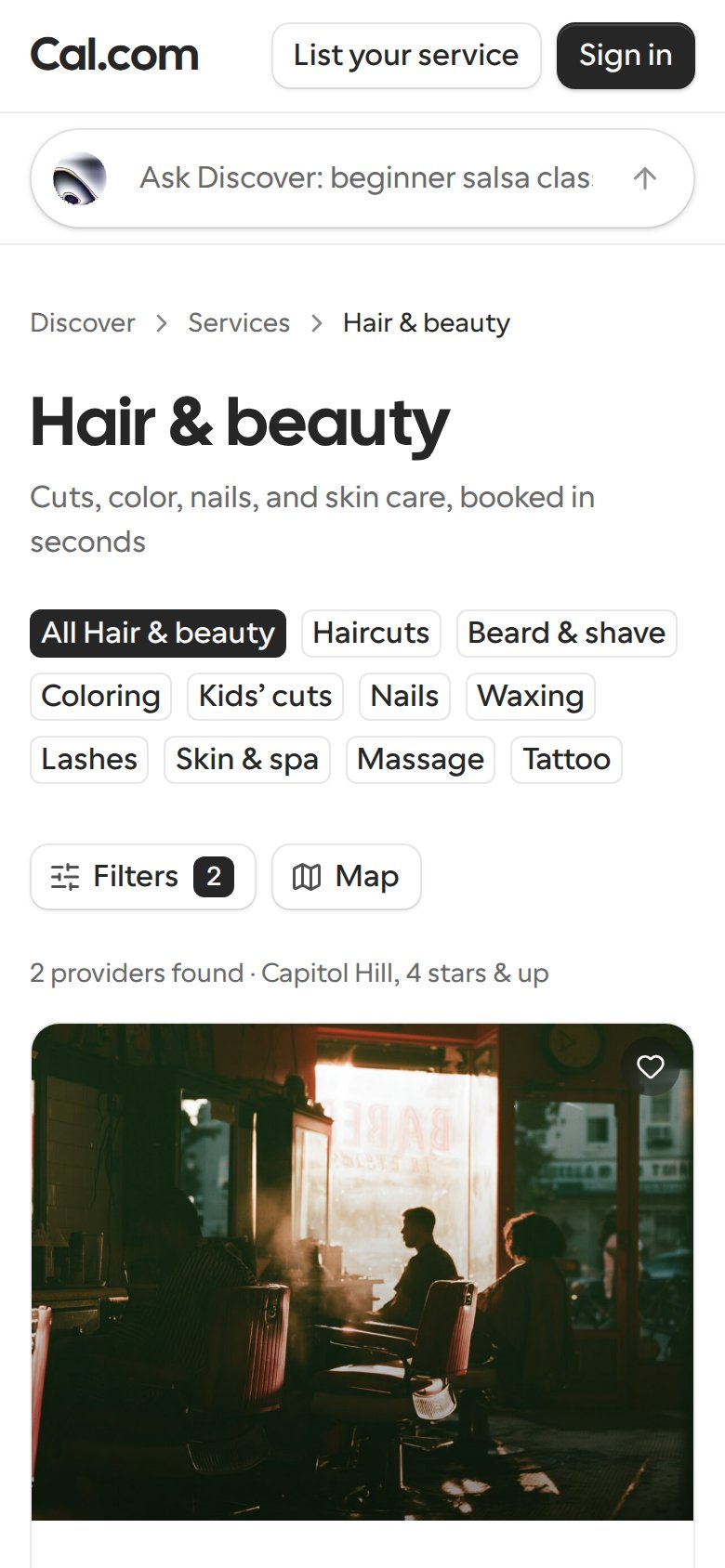
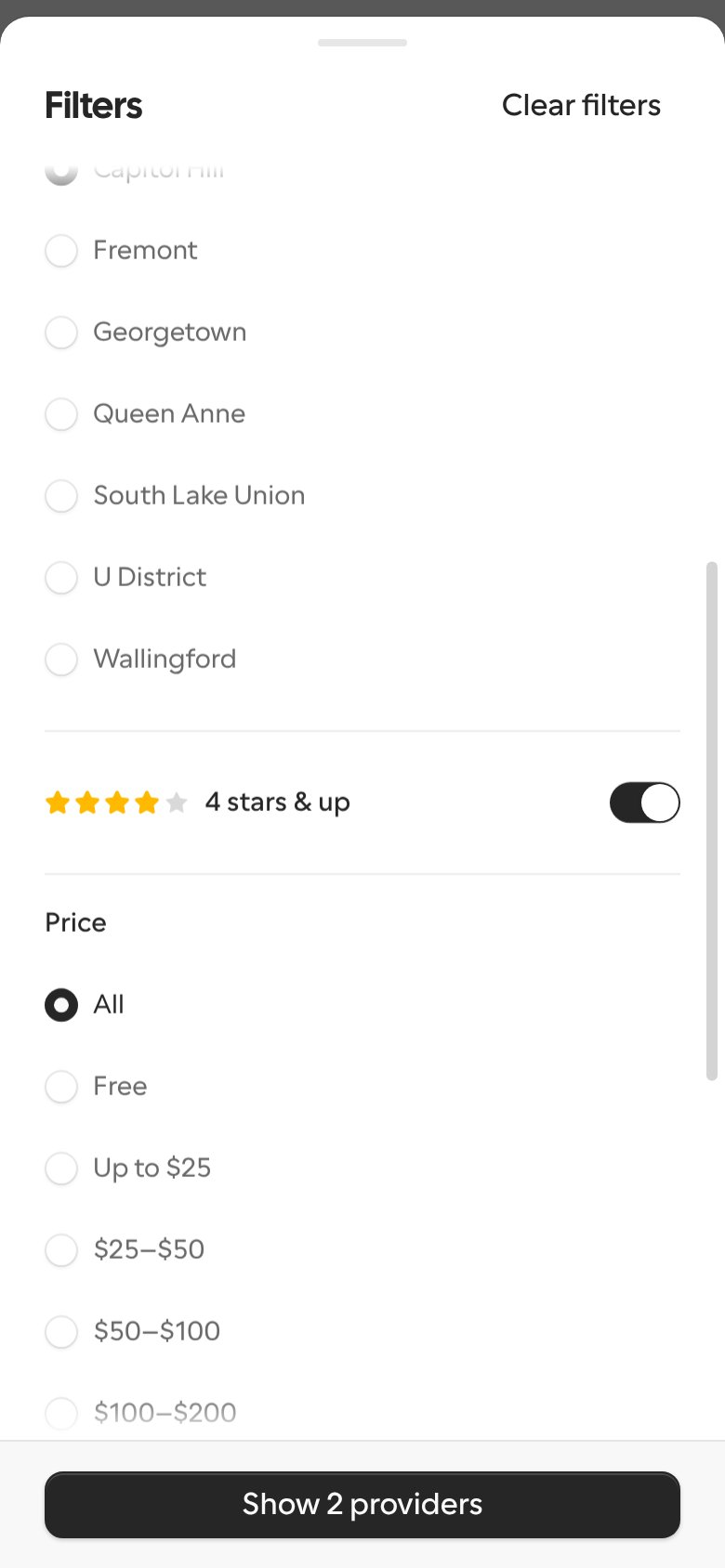
On screens narrower than 1024 pixels, such as phones, Discover’s service category pages and a city’s category and neighborhood pages show the results straight under the title. Instead of the sidebar, two buttons sit above the results:- Filters opens the sidebar’s filters in a sheet from the bottom of the screen. While filters are on, the button shows how many. Clear filters at the top of the sheet turns them all off, and the button at the bottom, such as Show 2 providers, closes the sheet. Swiping the sheet down also closes it.
- Map opens Services on the map, with a pin for each result that has a location. The button only appears when at least one result has a location.
When no providers match
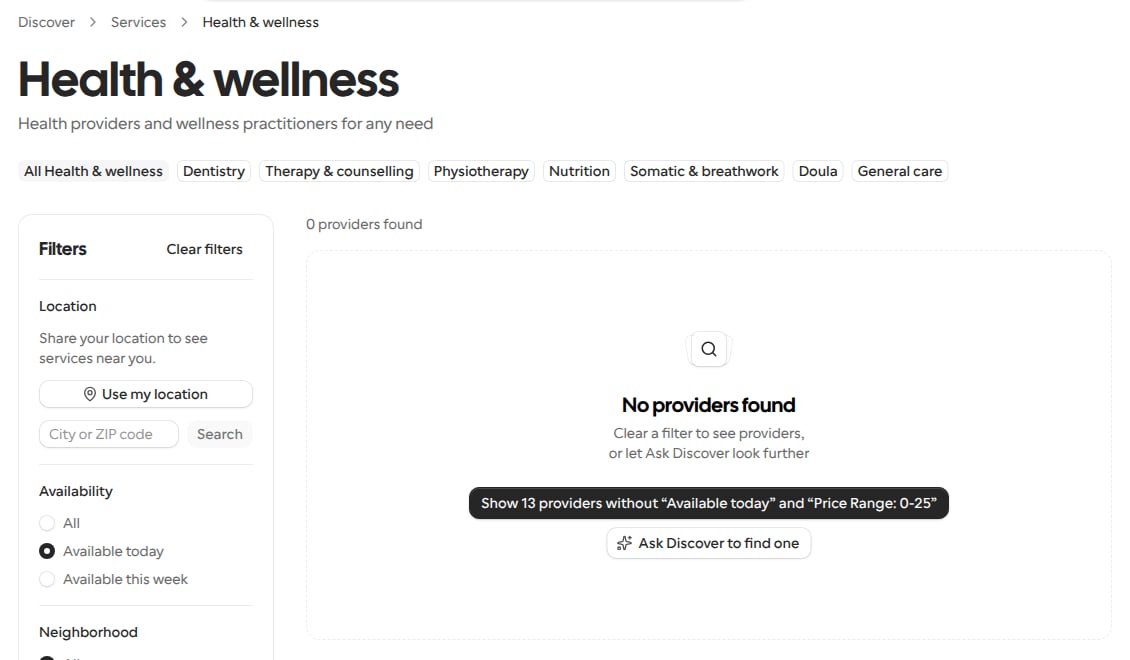
When a service category page, or a city’s category or neighborhood page, has no providers to show, because of its filters or its distance, the page shows No providers found with a way forward instead of a dead end:- Clear a filter. Up to two buttons name the filters keeping providers away, and how many providers would show without them, such as Show 13 providers without “Available today” and “Price Range: 0-25”. Selecting one clears those filters and keeps the rest, including the location. Discover suggests clearing one filter where that brings providers back, and a pair of filters only when no single filter does. The suggestion that brings back the most providers comes first.
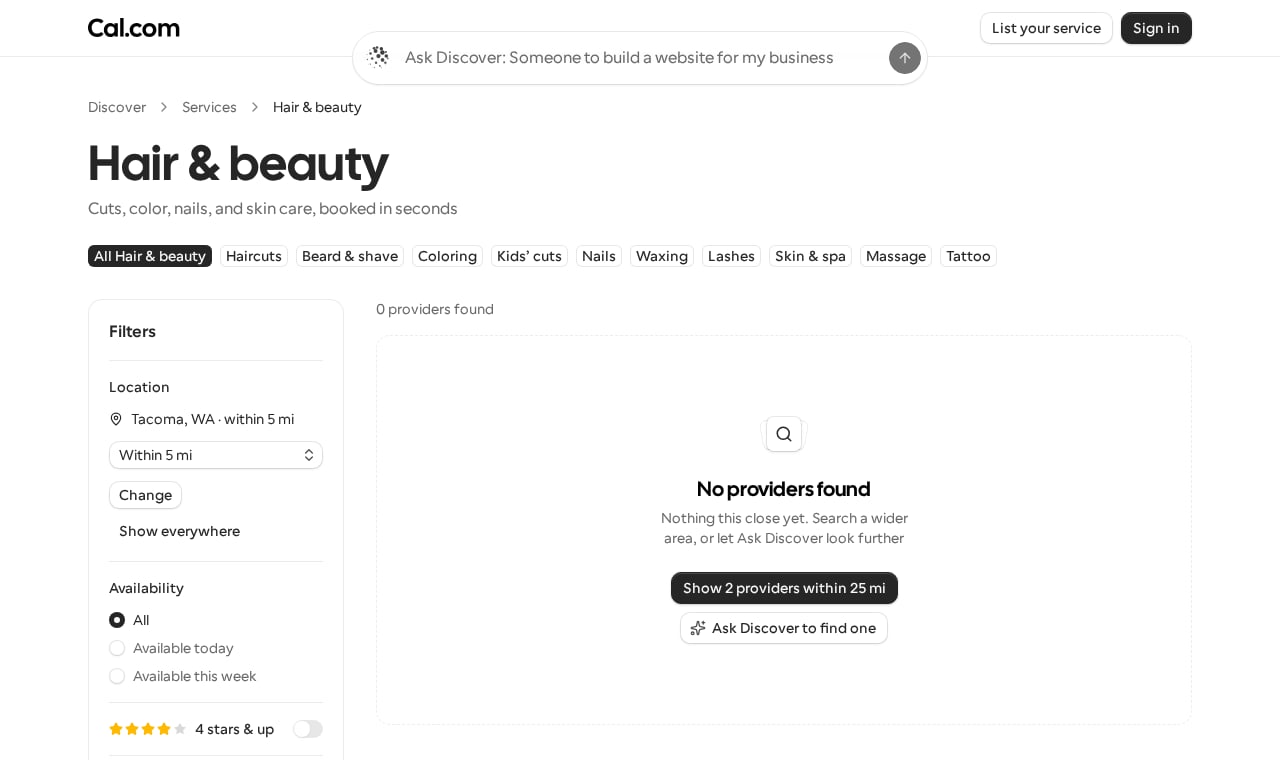
- Search a wider area. When a service category page searches near a place and nobody within the Location filter’s distance offers the service, or nobody within it is free while Available today or Available this week is on, a button offers the first wider distance, 10, 25 or 50 miles, that would list providers, such as Show 2 providers within 25 mi. The count only includes providers that match the page’s other filters. Selecting it widens the Location filter to that distance and keeps the place and the other filters. When no one is within 50 miles, or the page already searches 50 miles, there’s no such button. City and neighborhood pages cover their own area, so they don’t offer it.
- Ask Discover to find one. This button sends the page’s search to Ask Discover as your message, naming the service, the place and the filters in words. For example: “Find a Health & wellness provider near Seattle, WA, available today, up to $25”.
Ask from the Discover home
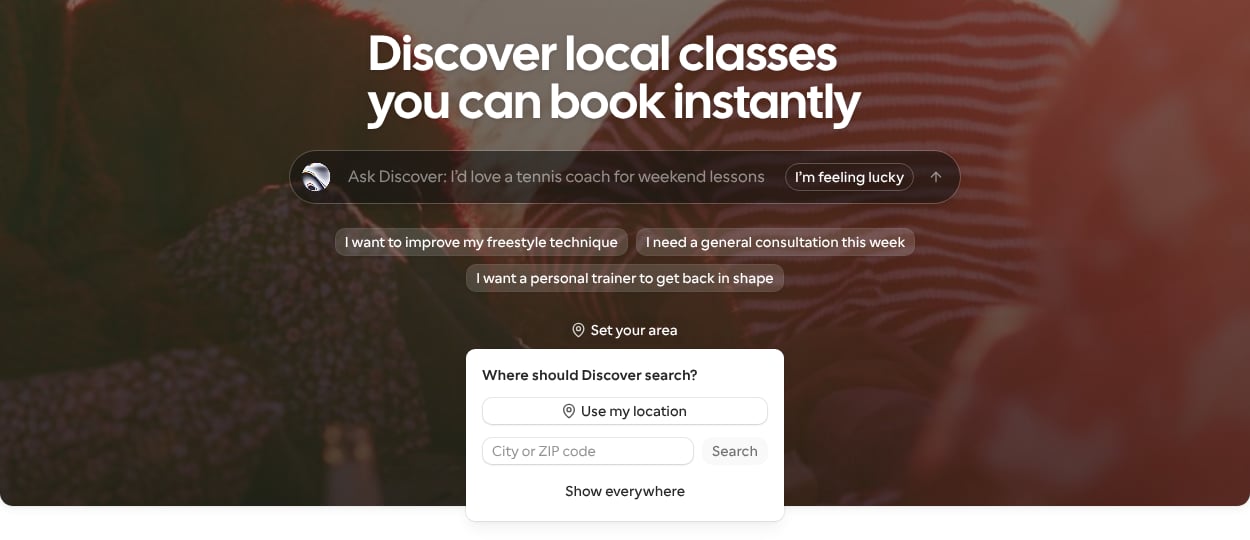
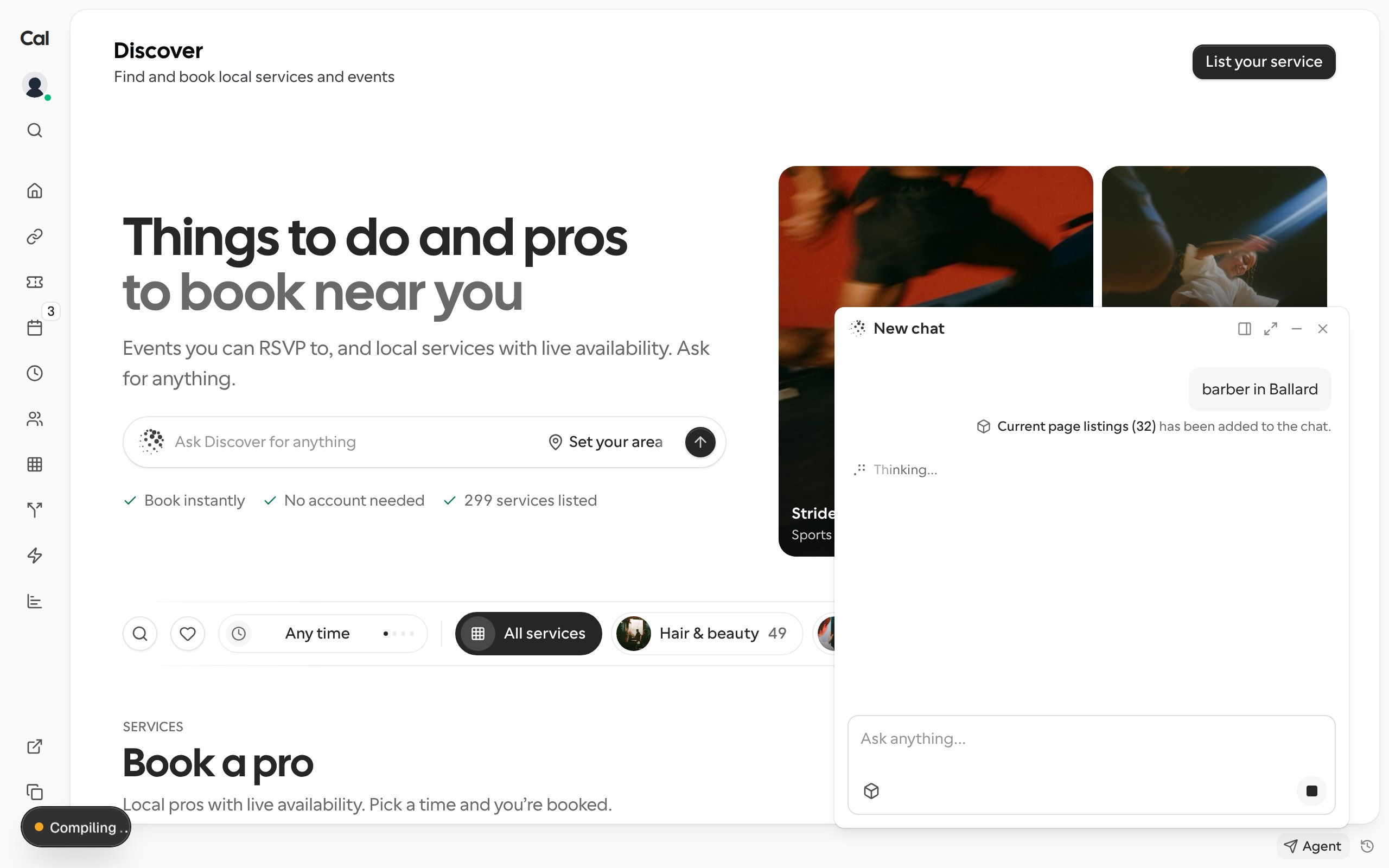
The search box at the top of the Discover home, and of each Discover city’s page, asks Ask Discover. Type what you need, such as “barber in Ballard”, and press Enter, or select one of the three example prompts under the box. Ask Discover opens with your words as the first message. When you’re signed in, the box asks the Cal.com assistant instead. See Ask Discover with the Cal.com assistant. Asking doesn’t filter the Featured grid on the Discover home, which keeps showing the same providers. The example prompts are picked at random each time the page loads and are there as soon as it opens. The box’s placeholder, such as Ask Discover: A hip hop dance class that’s beginner friendly, shows another example that isn’t one of the three under the box.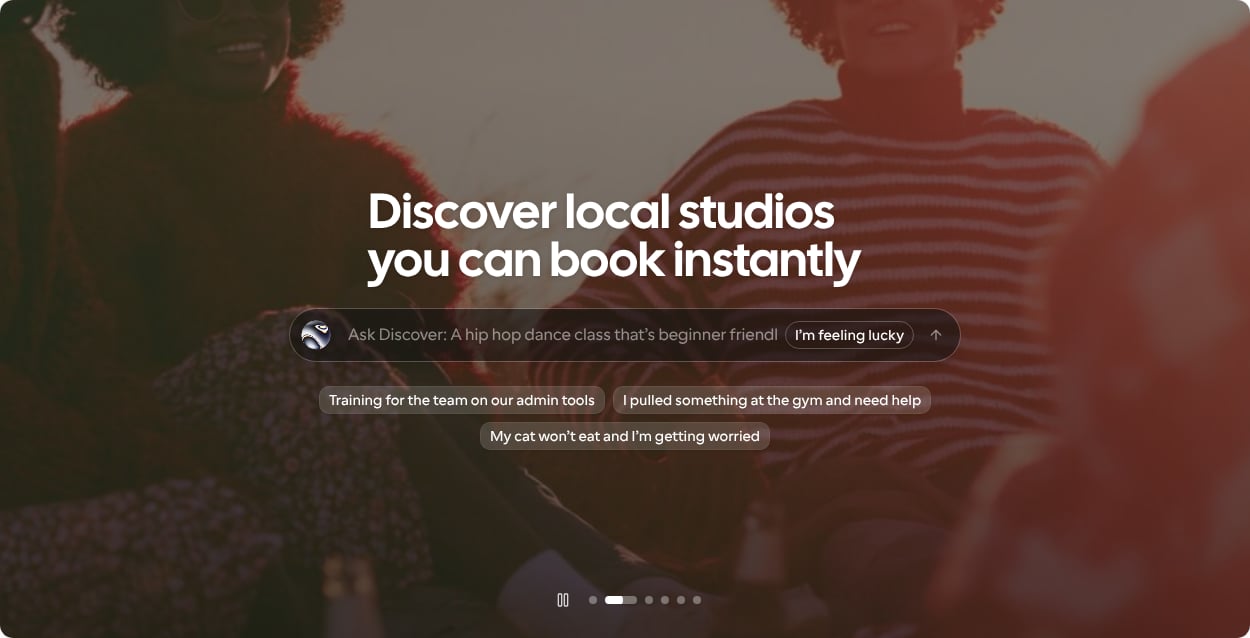
Change the area Ask Discover searches
Under the search box, the Discover home shows the area Ask Discover searches when you don’t name a place in the chat:- Searching near a place, such as Searching near Seattle, WA: the place you last picked on this device or, if you’re signed in and haven’t picked one, the city of the ZIP code in your Browsing preferences. With neither, it’s the city your IP address is in, when Cal.com can tell.
- Searching everywhere: you chose Show everywhere.
- Set your area: no area is set yet, and Cal.com can’t tell your city.
/discover. Your choice is remembered the same way as a pick in the Location filter, so a ZIP code a signed-in client picks is also saved to Browsing preferences. See Which area Discover uses.
The home’s services, Top rated section and service count use the same area: they show providers within 10 miles of it. With Searching everywhere or Set your area, they show providers from every city. When little is within 10 miles, the home adds services from another city. See When little is near your area.
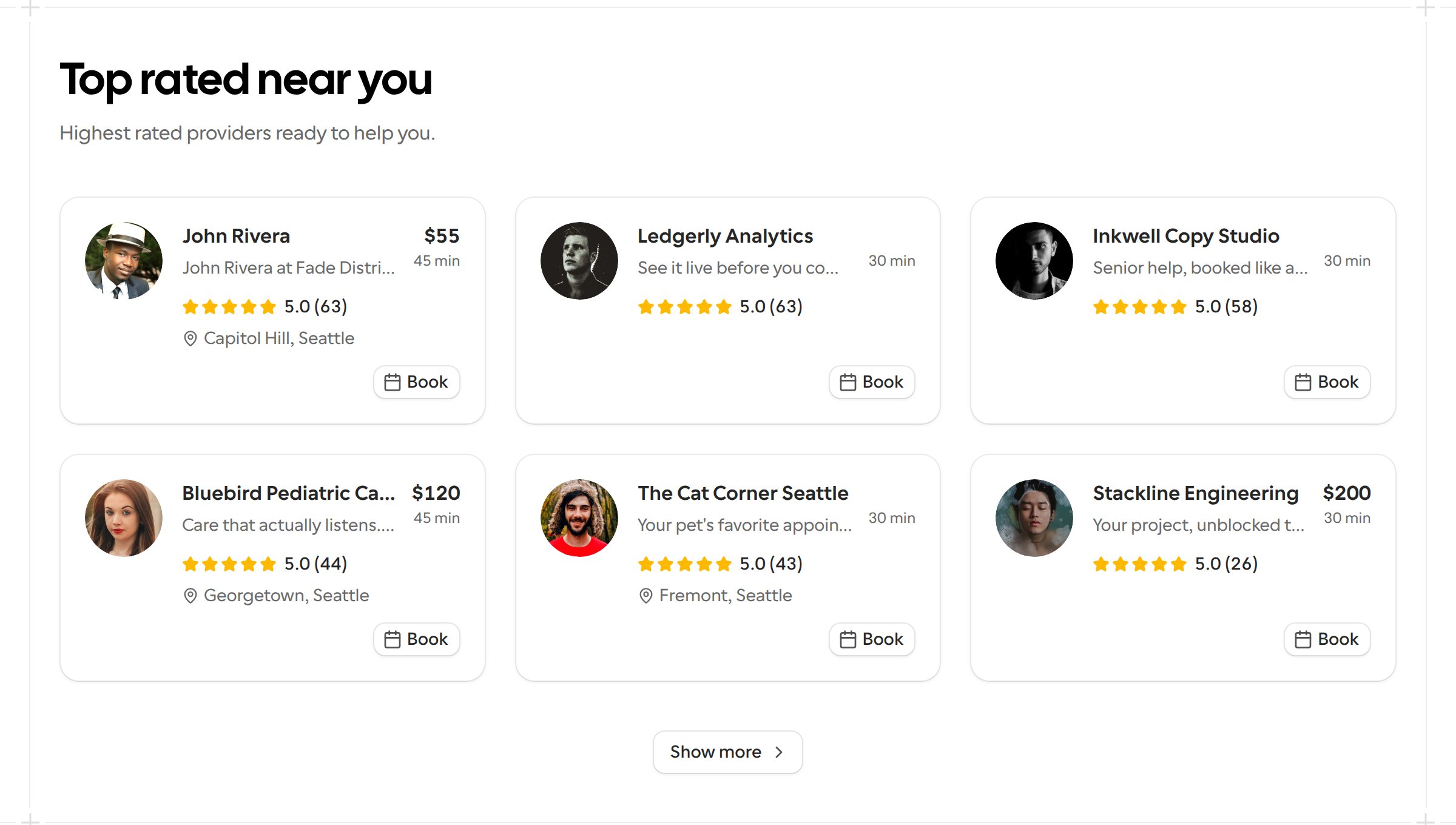
Top rated leaves out people already shown higher on the home, so it doesn’t repeat anyone. While the home shows Searching near a place, it skips the providers in the first row of Services near you, the one shown before you pick another chip, and in the Online services row. With Searching everywhere or Set your area, it skips the providers in the Featured grid.
Which services the home shows
The home’s Featured grid, Services near you row, Online services row, row from another city and Top rated only show businesses with every required item on their Listing checklist done and at least one business photo in My Business. Of each business’s services, they only show the ones that have both:- A price on Discover, from a payment app or a listed price. A service with no price shown is left out.
- A title that names the service. Cal.com’s default and placeholder titles, such as 15 min meeting, 30 min meeting, Quick chat or Test, are left out, as are titles that are only a length, such as 1 hour call, titles without letters, such as 04, and titles made only of repeated letters, such as ggg mmm. A one-word title, such as Haircut, is fine.
Services near you
While the home shows Searching near a place, the Featured grid under the service count is replaced by one row of nearby providers, with a chip above it for each in-person category that has providers within 10 miles, such as Hair & beauty and Health & wellness. With Searching everywhere or Set your area, the home shows the Featured grid and its View all instead.- The row starts on the first chip, the category with the most providers nearby. Select another chip to show that category instead.
- The row shows up to six providers within 10 miles, and each card lists only that category’s services. A provider with services in two categories shows under both chips.
- A category with nothing nearby gets no chip. Coaching, Consulting & professional services, Online services and SaaS get no chip either, because the home’s Online services section shows them.
- Swipe the row sideways to see more. With a mouse, use the previous and next buttons next to All and the category’s name, such as All Hair & beauty.
- All Hair & beauty and the other All buttons open that category’s services page near your area, such as
/discover/services/barbers?near=kirkland-wa.
When there’s no one with a Cal.com rating to list, the home doesn’t show Top rated.
/discover?near=austin-tx, because Ask Discover doesn’t use it.
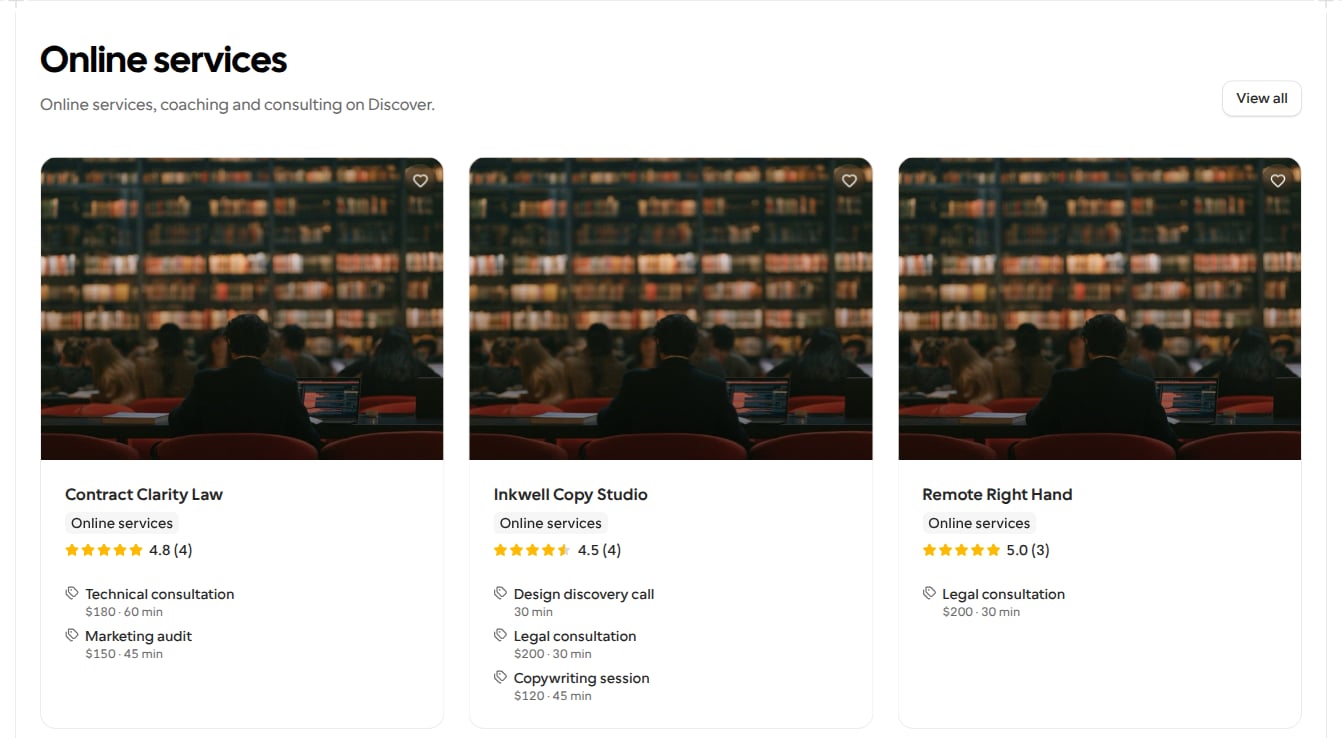
Online services
While the home shows Searching near a place, an Online services row below the nearby services shows up to six providers of Online services, SaaS, Coaching and Consulting & professional services from anywhere. Its View all opens the Online services category page,/discover/services/online-services. The other three categories each keep their own tile under Browse by category. With Searching everywhere or Set your area, there’s no Online services row, because the Featured grid already covers all of Discover.
Category tiles near your area
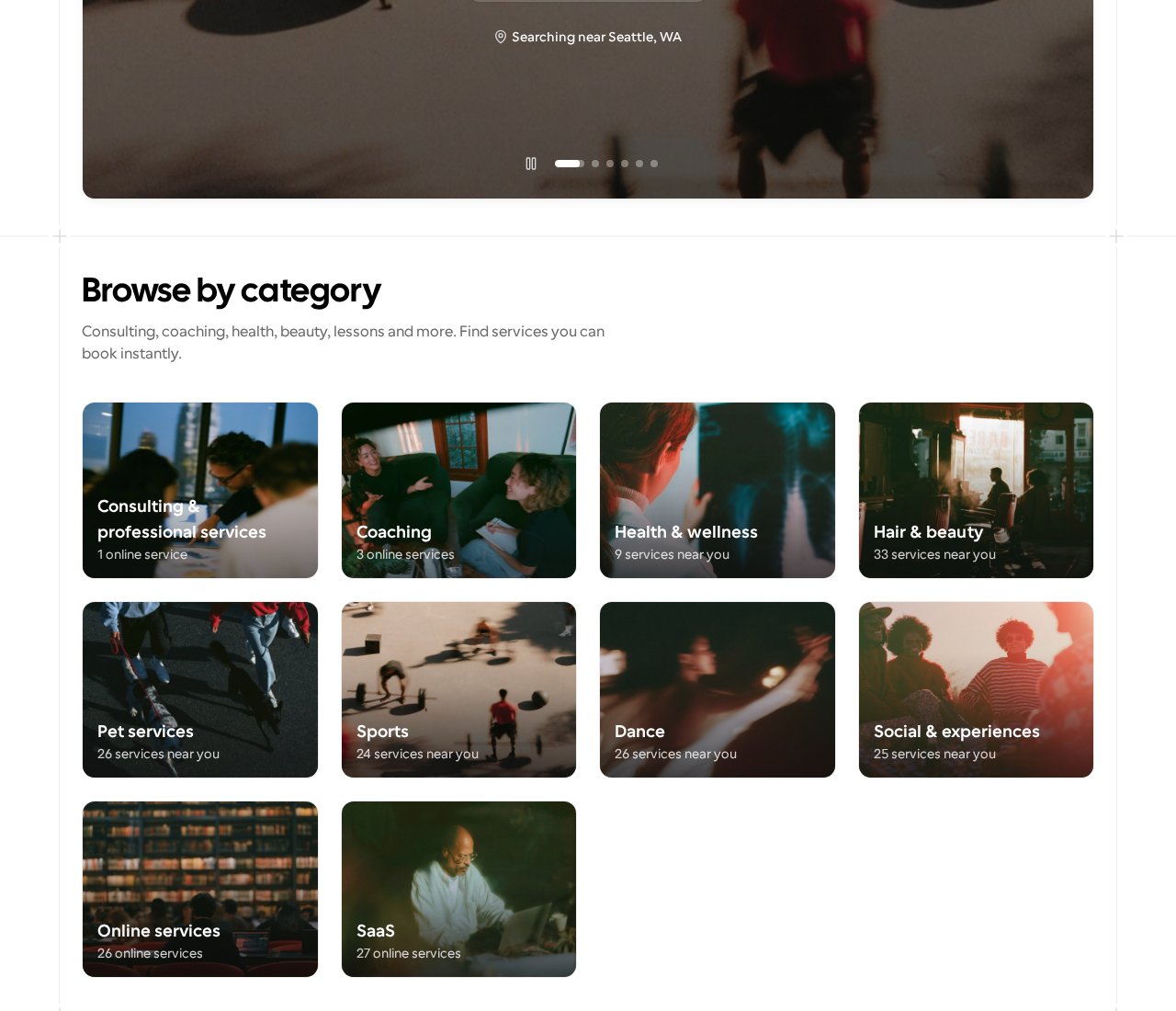
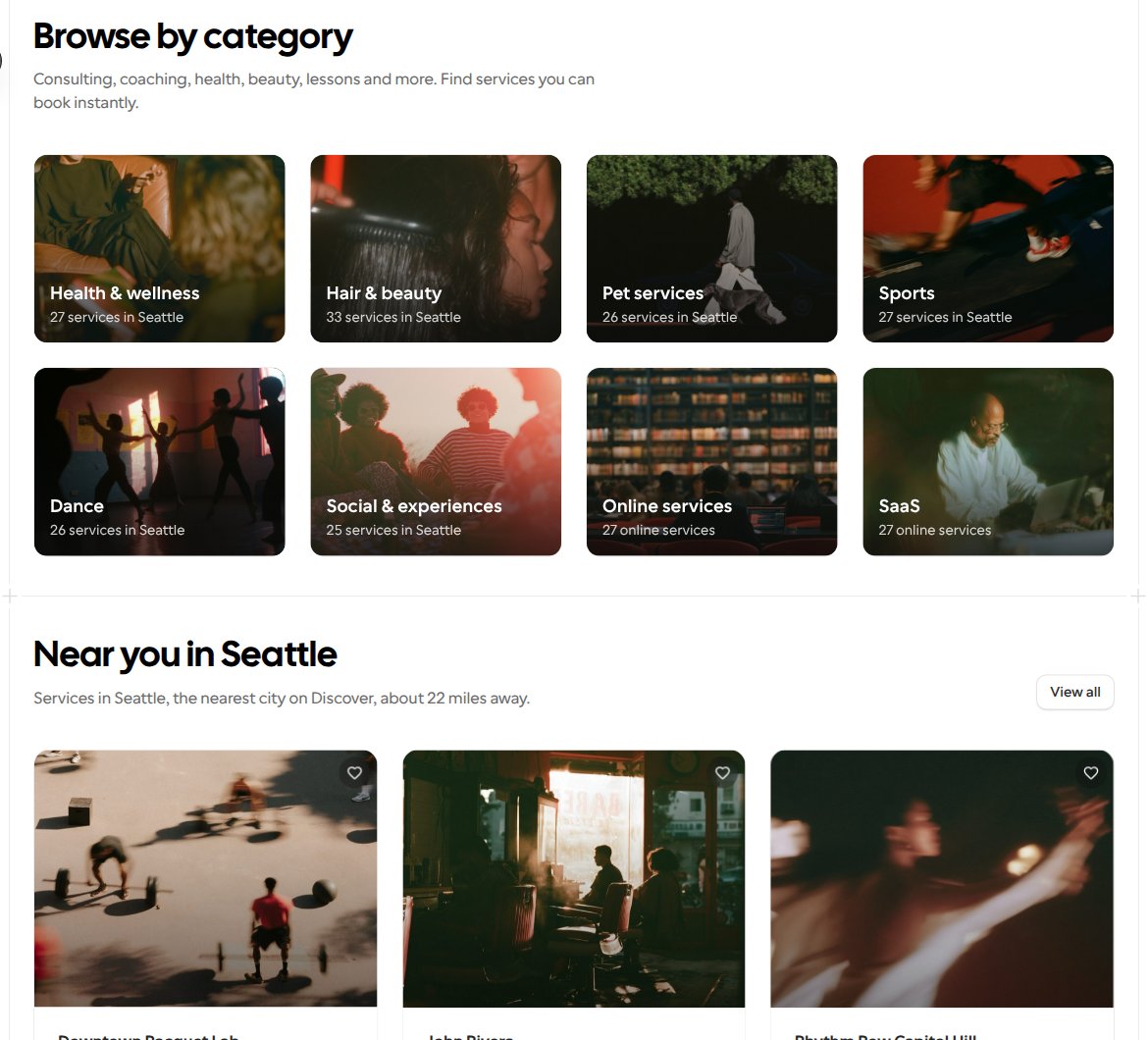
While the home shows Searching near a place, Browse by category hides the tiles for in-person categories with no services within 10 miles of it, or in a Discover city within 25 miles as described below, so you don’t open a category with nothing nearby. The Coaching, Consulting & professional services, Online services and SaaS tiles stay while their category has services anywhere on Discover, because those services are booked remotely. A remote tile whose category has no services anywhere is hidden. When no tile is left, the home has no Browse by category section. With Searching everywhere or Set your area, every tile shows. Each in-person tile also shows how many services are within 10 miles, such as 33 services near you under Hair & beauty, and opens that category’s services page near your area, such as/discover/services/barbers?near=seattle-wa, like the All buttons above. The page keeps your area even when the home found it from your IP address. Each remote tile shows how many services its category page lists from anywhere, such as 26 online services, and opens the category page for all of Discover. If Discover can’t count them, the four remote tiles all show, without a count. With Searching everywhere or Set your area, every tile shows no count and opens the category page for all of Discover.
When fewer than six businesses within 10 miles offer in-person services and the home’s row from another city shows the nearest city on Discover, no more than 25 miles away, an in-person tile with nothing within 10 miles uses that city instead. It shows the city’s count, such as 33 services in Seattle under Hair & beauty, and opens the city’s category page, such as /discover/city/seattle/barbers, or the category’s services page near the city, such as /discover/services/barbers?near=seattle, when the city has fewer than three services in it. A category with services within 10 miles keeps its own count and link.
An in-person tile’s count within 10 miles includes only the services of providers with every required item on their Listing checklist done, so the category page can show more services than its tile.
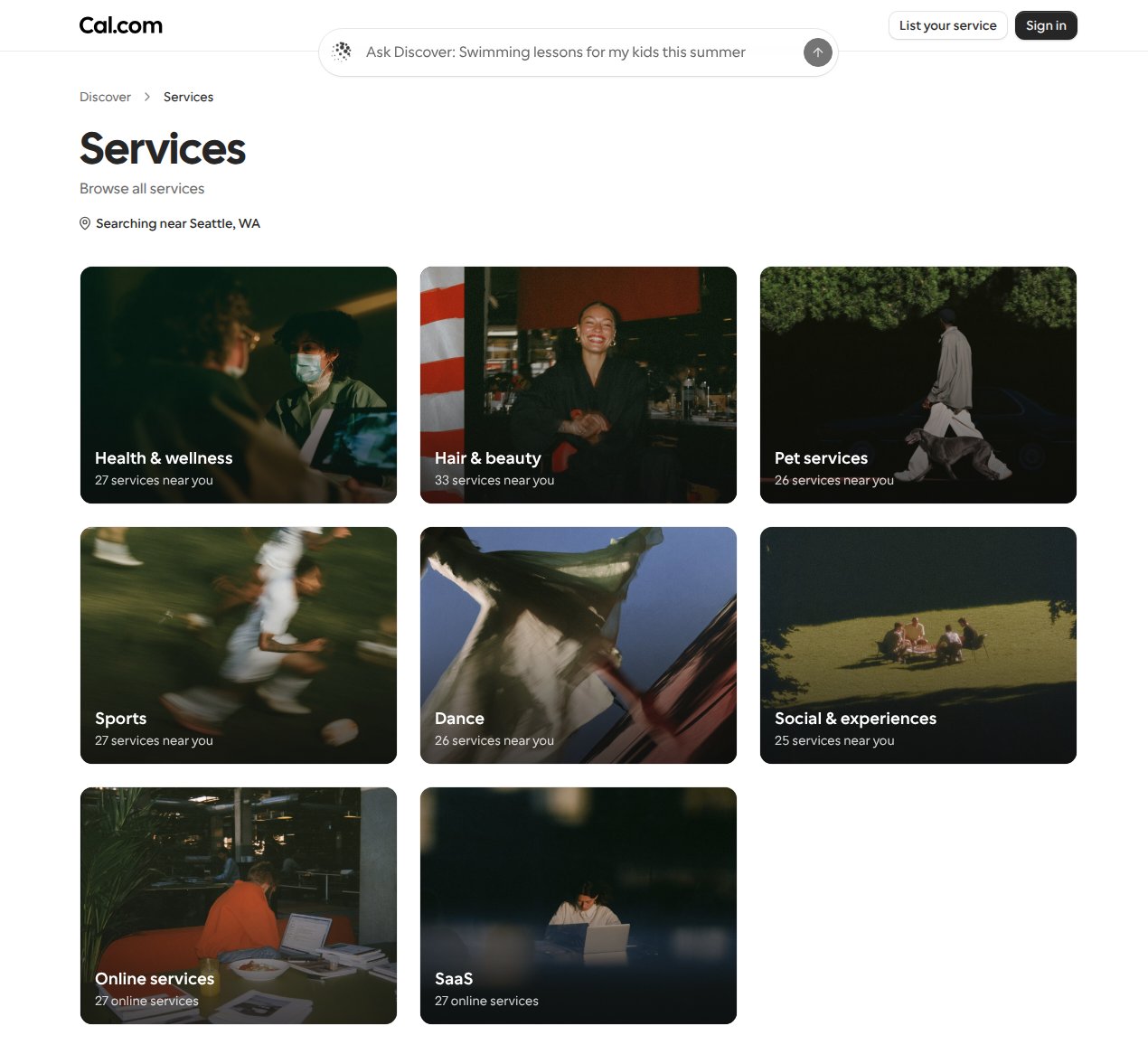
/discover/services. Its area control under the title uses your last choice on this device, then your saved ZIP code if you’re signed in, then your IP city when available, just like the home. Select it to change the area and refresh the tiles. With Searching everywhere or Set your area, every category appears without a count and opens its category page for all of Discover.
When little is near your area
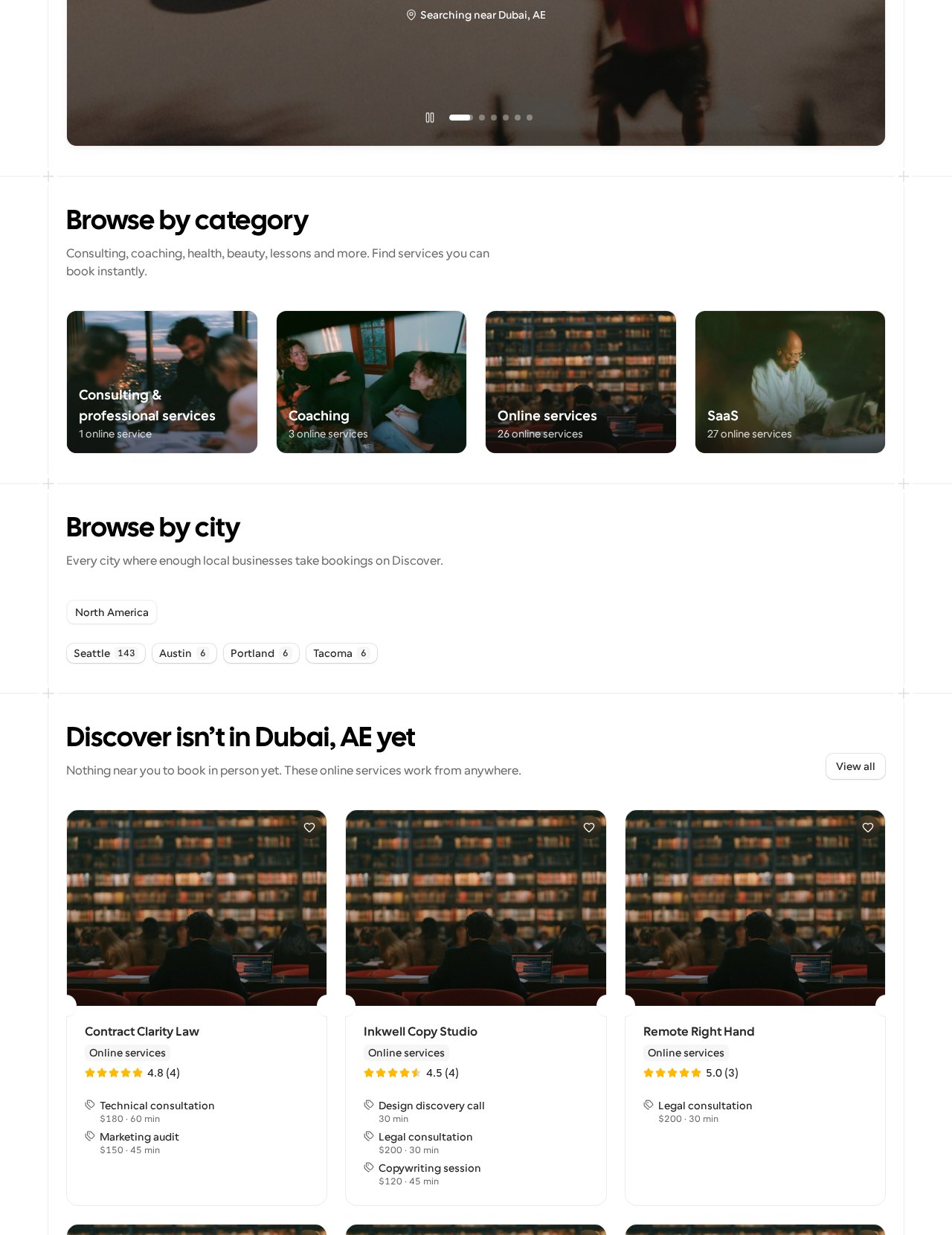
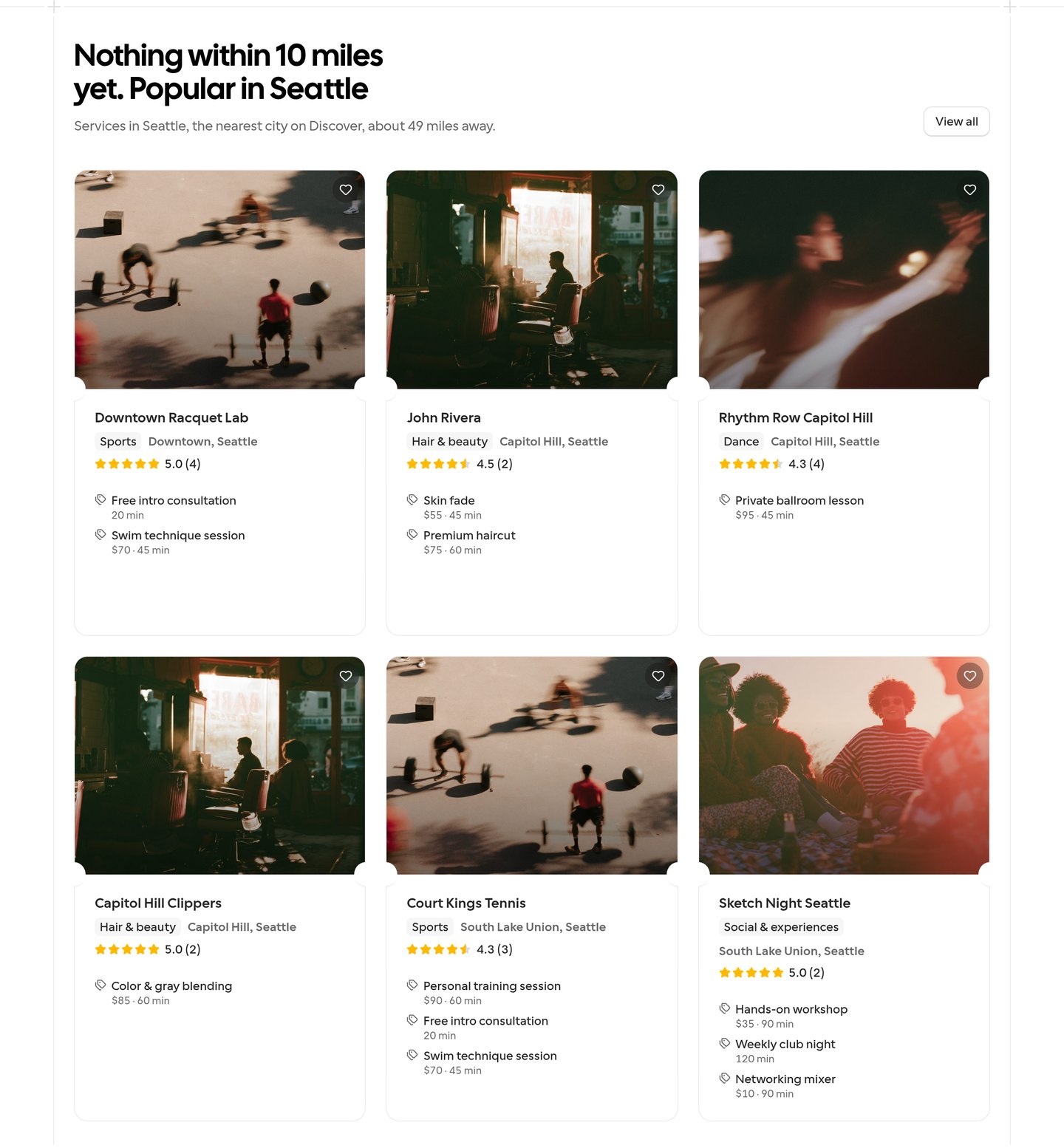
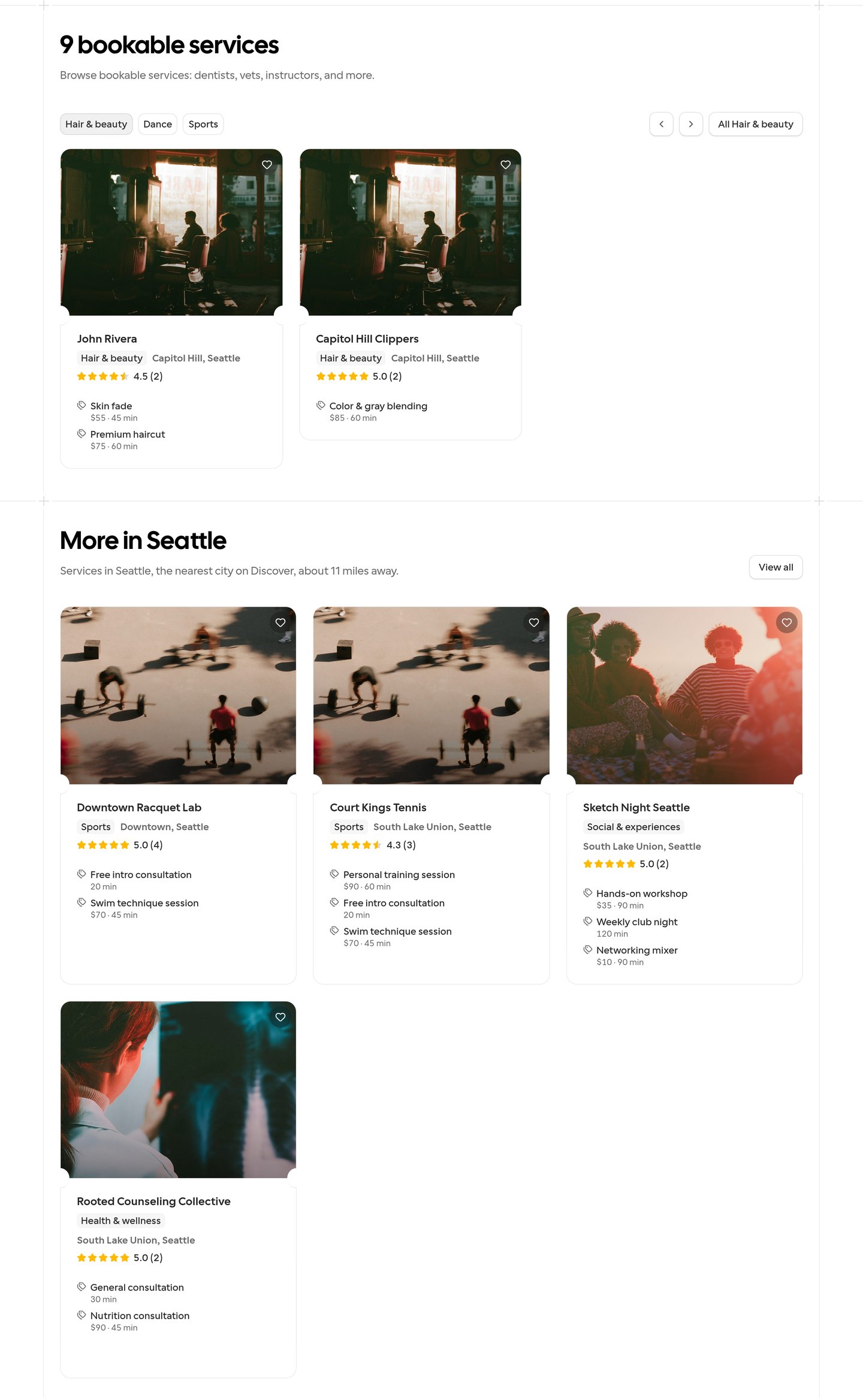
While the home shows Searching near a place, it adds a row from one other Discover city when fewer than six businesses within 10 miles offer in-person services. Services in Other and in the online-only categories (Coaching, Consulting & professional services, Online services and SaaS) don’t count toward the six. Only businesses the home can show count toward the six. See Which services the home shows.- With nothing within 10 miles, the row takes the place of the bookable services section, titled for example Nothing within 10 miles yet. Popular in Seattle. When that city is the nearest city on Discover and no more than 25 miles away, the row is titled Near you in Seattle instead, and its description still gives the distance, such as the nearest city on Discover, about 22 miles away.
- With a few businesses within 10 miles, the row appears below them, titled for example More in Seattle, and leaves out the businesses already shown above it.
- The nearest city with its own Discover pages, more than 10 miles and at most 150 miles away, described as, for example, the nearest city on Discover, about 49 miles away.
- The biggest Discover city in your country.
- The biggest Discover city on your continent, such as the biggest Discover city in Europe.
Ask Discover with the Cal.com assistant
When you’re signed in, Discover uses the Cal.com assistant instead of Ask Discover, whether or not you belong to an organization:- Discover’s search boxes, such as the one on the Discover home, and the Ask Discover to find one button open a new assistant chat with your words as the first message. The box keeps its Ask Discover label, and I’m feeling lucky asks the assistant to pick one listing and open it.
- On screens at least 800 pixels wide, the chat opens in the assistant’s floating panel. On phones, the assistant’s button sits at the bottom of the screen, and List your service or My business is in the user menu at the top.
- If you sign in from Ask Discover, a new assistant chat opens with your earlier conversation attached, and the question that needed an account is asked again.
If your organization has turned off Cal.ai features, you keep Ask Discover, as described below.
When you run out of free assistant questions
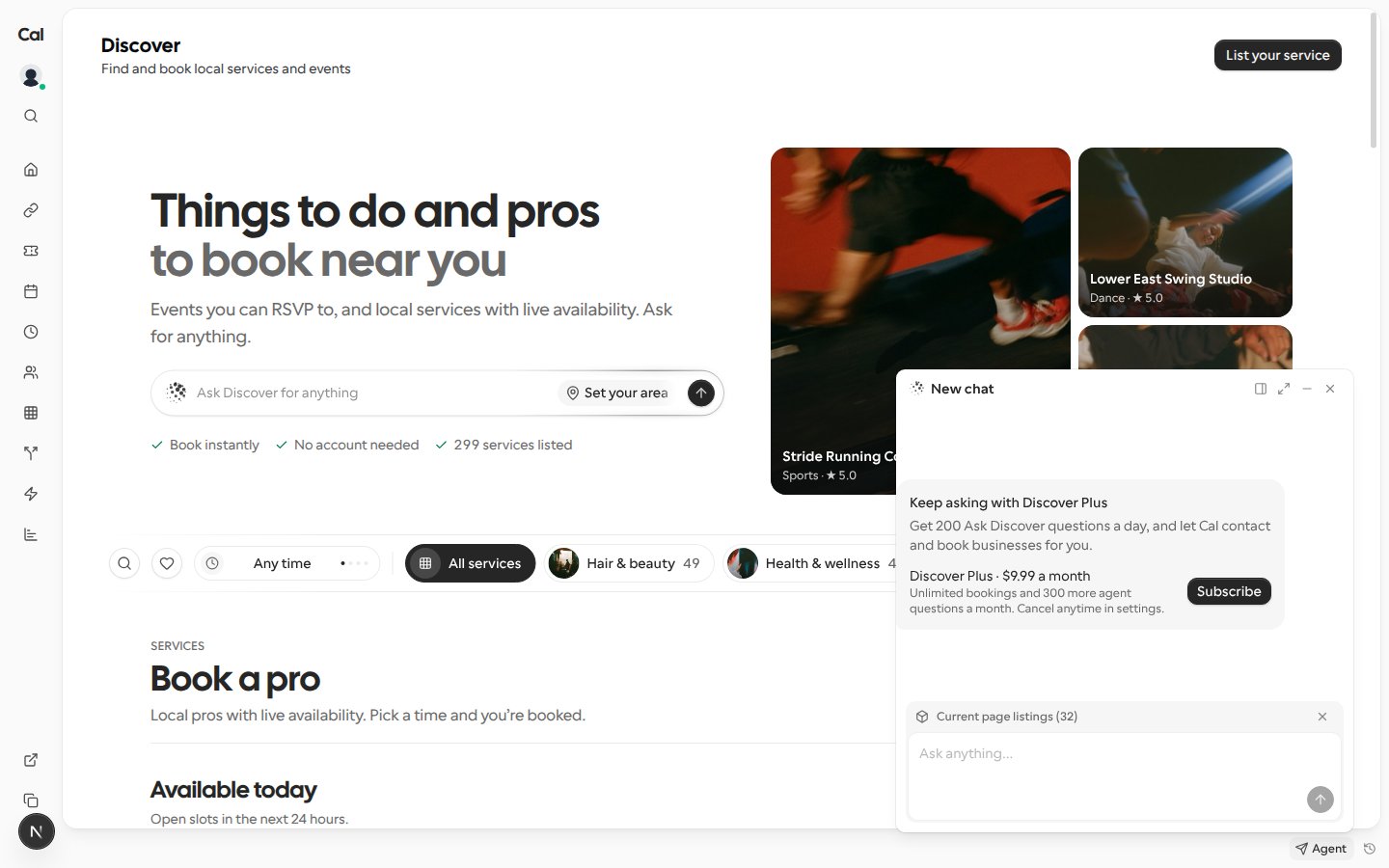
If you have no AI credits and you’ve used this month’s free questions with the Cal.com assistant, a chat on a Discover page offers Discover Plus instead of AI credits. The chat shows the Keep asking with Discover Plus card with only the Discover Plus option, which gives you 300 more questions a month.- Subscribe, and checkout brings you back to the same chat. Once your plan is active, the assistant asks the question that ran out again, unless you’ve typed or sent something else meanwhile. If you leave checkout without paying, you also come back to the chat.
- You’re offered Discover Plus when it’s on sale and you don’t have it yet. If you pay per booking, you’re offered the upgrade.
- If you already have Discover Plus and have used all 330 questions, or Discover Plus isn’t on sale, the chat offers AI credits instead, as it does on every page outside Discover.
The Ask Discover window
On screens at least 800 pixels wide, Ask Discover opens in a small window in the bottom-right corner, so you can keep browsing the page while you chat. On narrower screens, such as phones, it opens as a sheet across the bottom of the screen. The window’s header has buttons to dock it to the sidebar, open it fullscreen, minimize it and close it. Closing a chat that has messages minimizes it, so the conversation is still there; closing an empty chat closes it.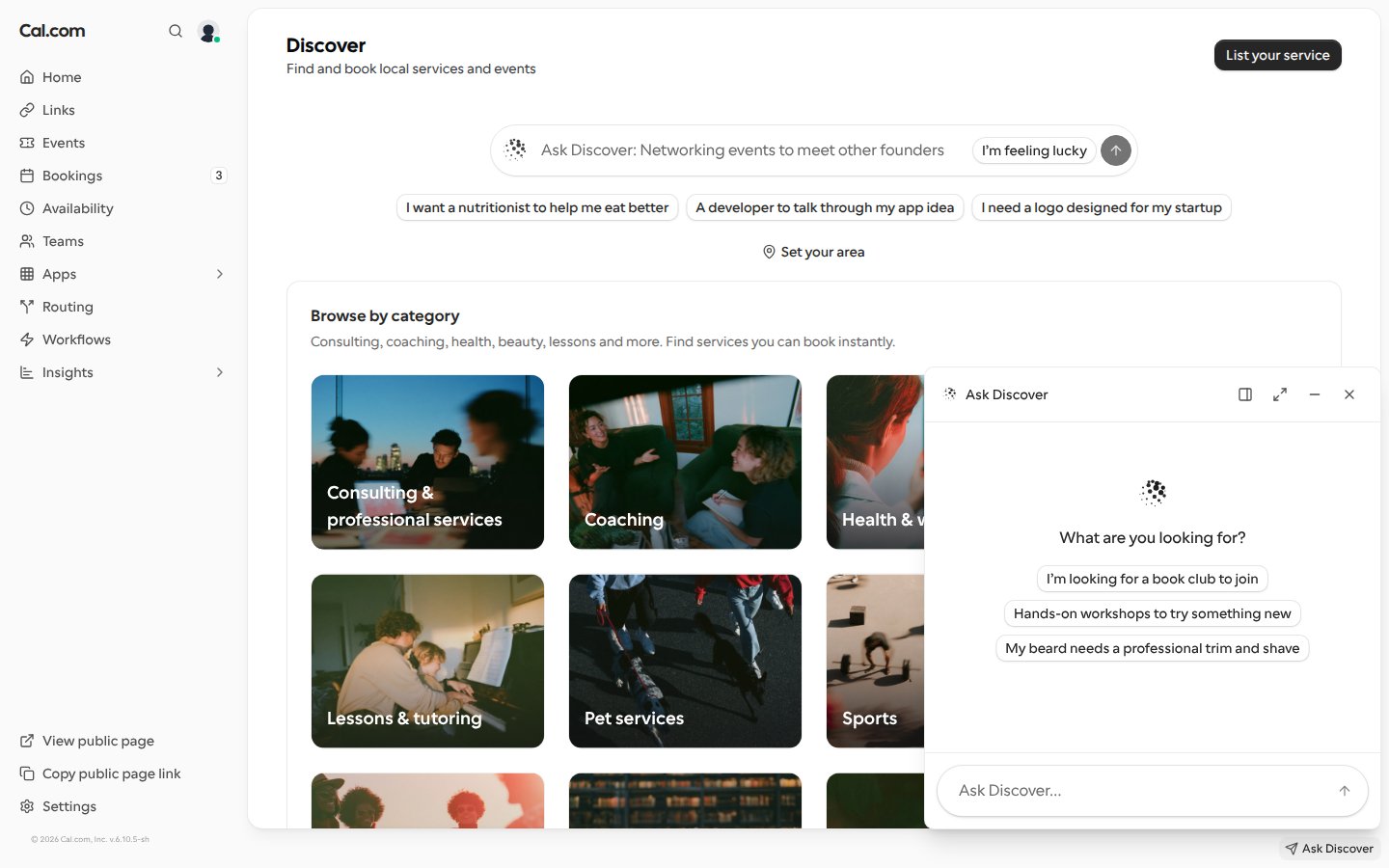
The Ask Discover bar
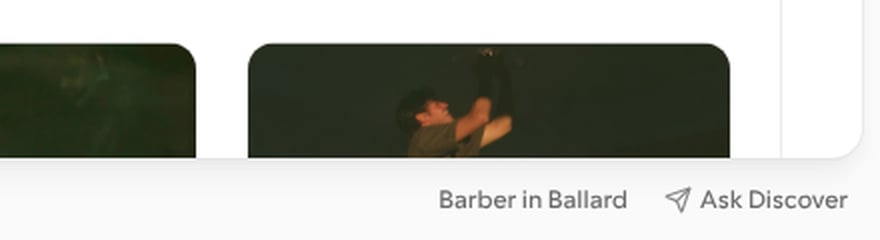
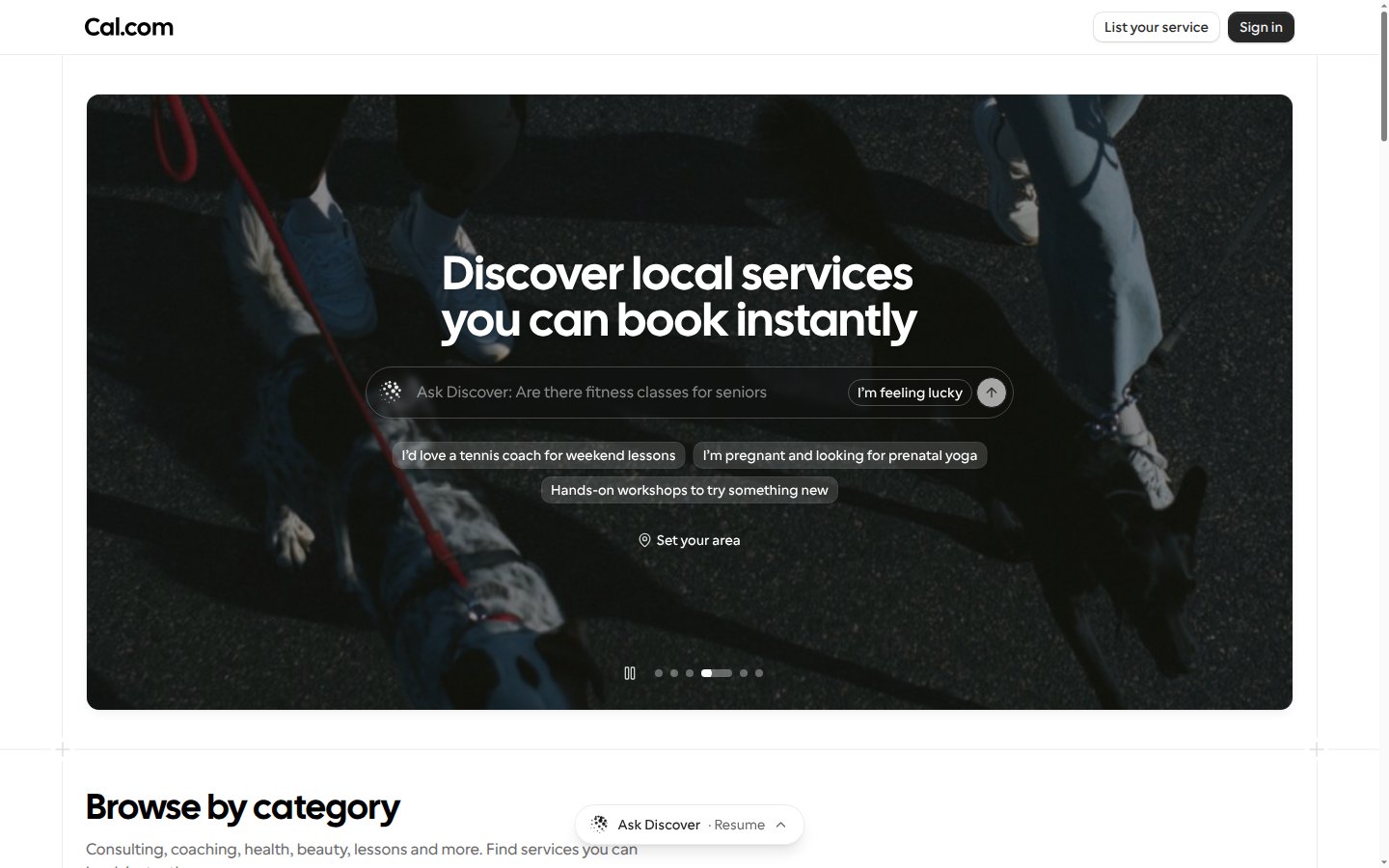
When you’re signed in but can’t use the Cal.com assistant, for example because your organization turned off Cal.ai features, an Ask Discover bar sits in the bottom-right corner of every Discover page on screens at least 800 pixels wide:- Select Ask Discover to open the chat window, and select it again to minimize it.
- Once you’ve asked something, the bar also shows your conversation, named after your first question. Select it to open the conversation where you left it, or select it again to minimize it.
- To end the conversation, point at it in the bar and select ×.
Dock Ask Discover to the sidebar
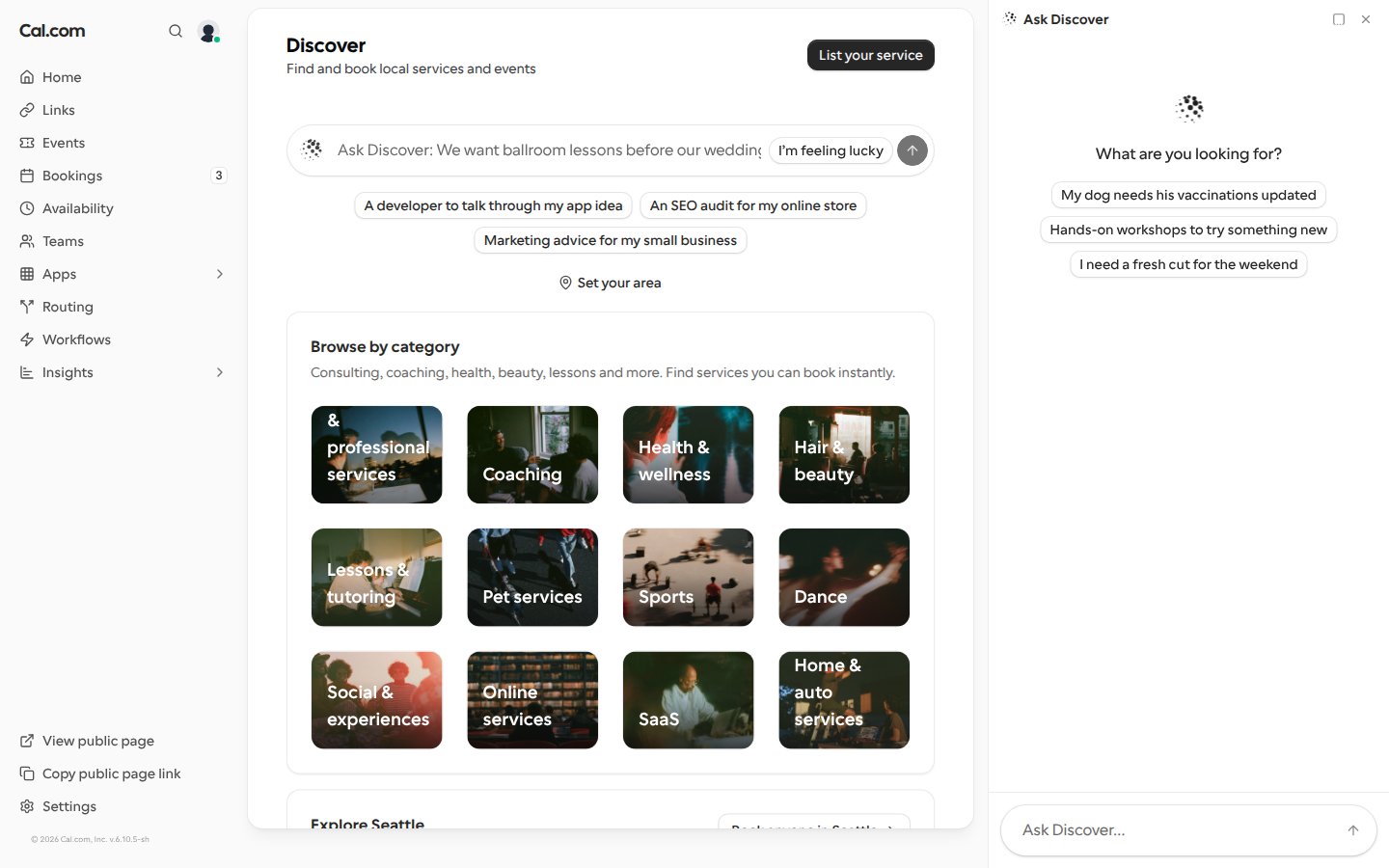
On screens at least 1024 pixels wide, select Open sidebar in the chat’s header to dock Ask Discover to the right of the page. The page stays as it was, and?sidebar is added to its link. While the chat is docked, the Ask Discover bar is hidden.
Once you dock it, Ask Discover opens in the sidebar each time you open it in that browser tab. Select Exit sidebar to undock it, and it opens in the small window again.
How Ask Discover searches
When a client asks Ask Discover for a service, it looks in this order and stops at the first step that finds something:- Cal.com listings nearby. If the client named a neighborhood and nothing there fits, Ask Discover searches the rest of the city, within 10 miles of its center, says that none are in that neighborhood (or, when the client asked for a time, that no one there is free then), and recommends the listings it found instead.
- Businesses on the web. When Discover has no listing for the need at all, Ask Discover searches the web around the client’s area for up to three businesses whose website gives an email address or phone number for booking an appointment. They’re shown as cards marked Found on the web — not yet on Discover, and Ask Discover doesn’t record a looking-for request for them.
- A looking-for request. Only when the web search finds no such business, or can’t run, does Ask Discover note the request. A signed-in client hears by email when a match joins Discover. A guest can leave an email address to be told.
- The client asked for someone free at a certain time, such as today or this week. Discover’s listings may only be booked up then.
- The client isn’t signed in. Ask Discover shows Log in and sign up links below its reply.
- Web search isn’t set up on the Cal.com instance.
Results stay in the client’s area
Ask Discover only recommends in-person listings within 10 miles of the client’s area, and never fills a reply with listings from another city. When nothing is listed there, it says so instead, then moves on to the web search or a looking-for request as above.- The client’s area is the place they name. If they don’t name one, Ask Discover uses a Discover city or neighborhood they named earlier in the chat or the city page they’re on, then the place they last chose in the Location filter on Discover’s service pages, then the saved ZIP code on their account.
- With none of these, or when that place can’t be looked up, Ask Discover searches around the city the client’s IP address is in, when Cal.com can tell, and otherwise around the center of Discover’s main city, such as Seattle.
- If the client asks for results from anywhere or online, Ask Discover searches all of Discover, even when it knows their area. It does the same when they chose Show everywhere in the Location filter, unless they name a place or ask from a city page.
- A Discover city or one of its neighborhoods, such as Ballard, is searched around the city’s center.
- Any other place, such as another city or a ZIP code, is looked up and searched around. If it can’t be looked up, Ask Discover searches all of Discover and says it couldn’t search in that place.
- Online-only categories (Coaching, Consulting & professional services, Online services and SaaS) are searched everywhere.
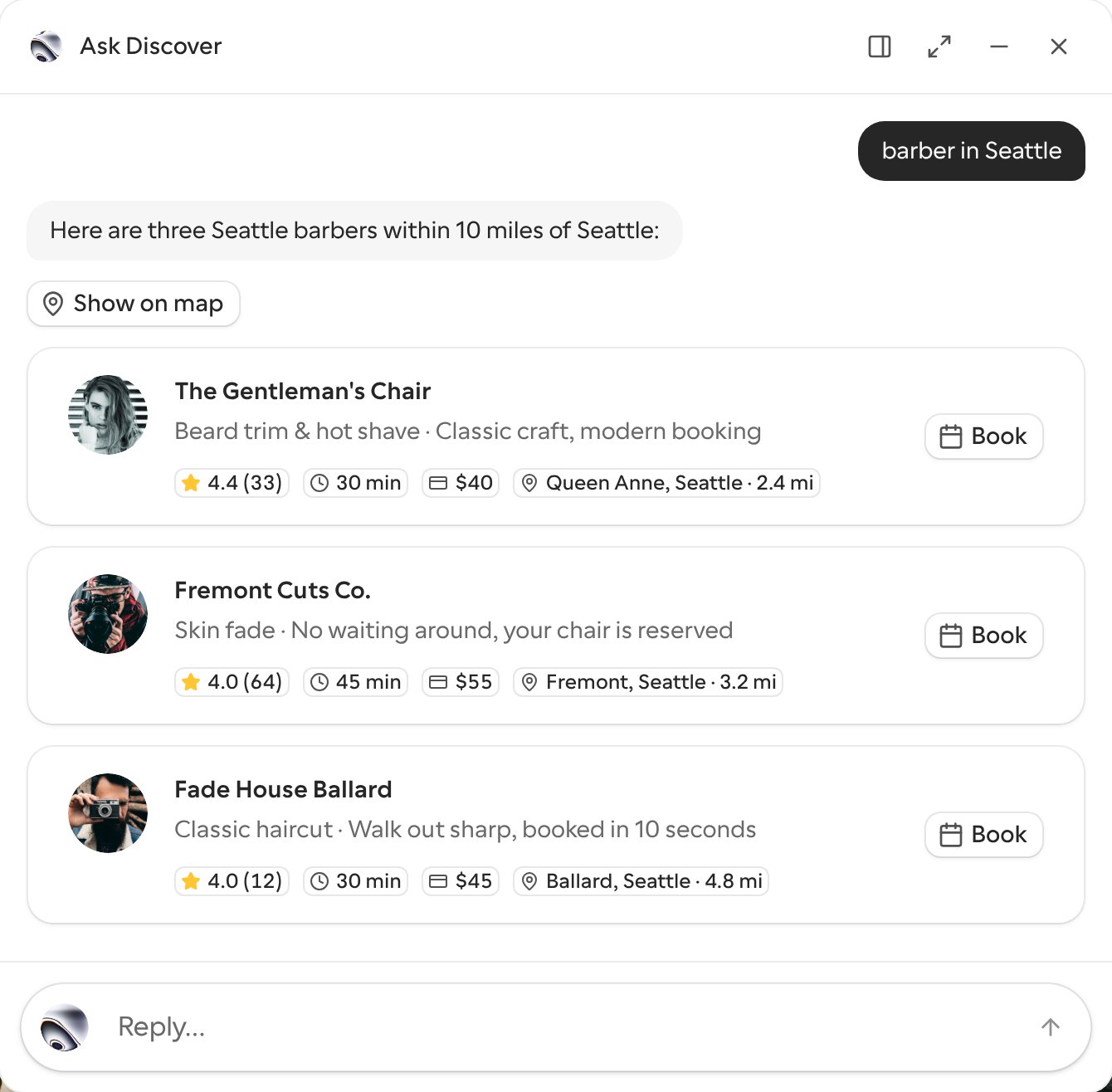
Compare Ask Discover results on a map
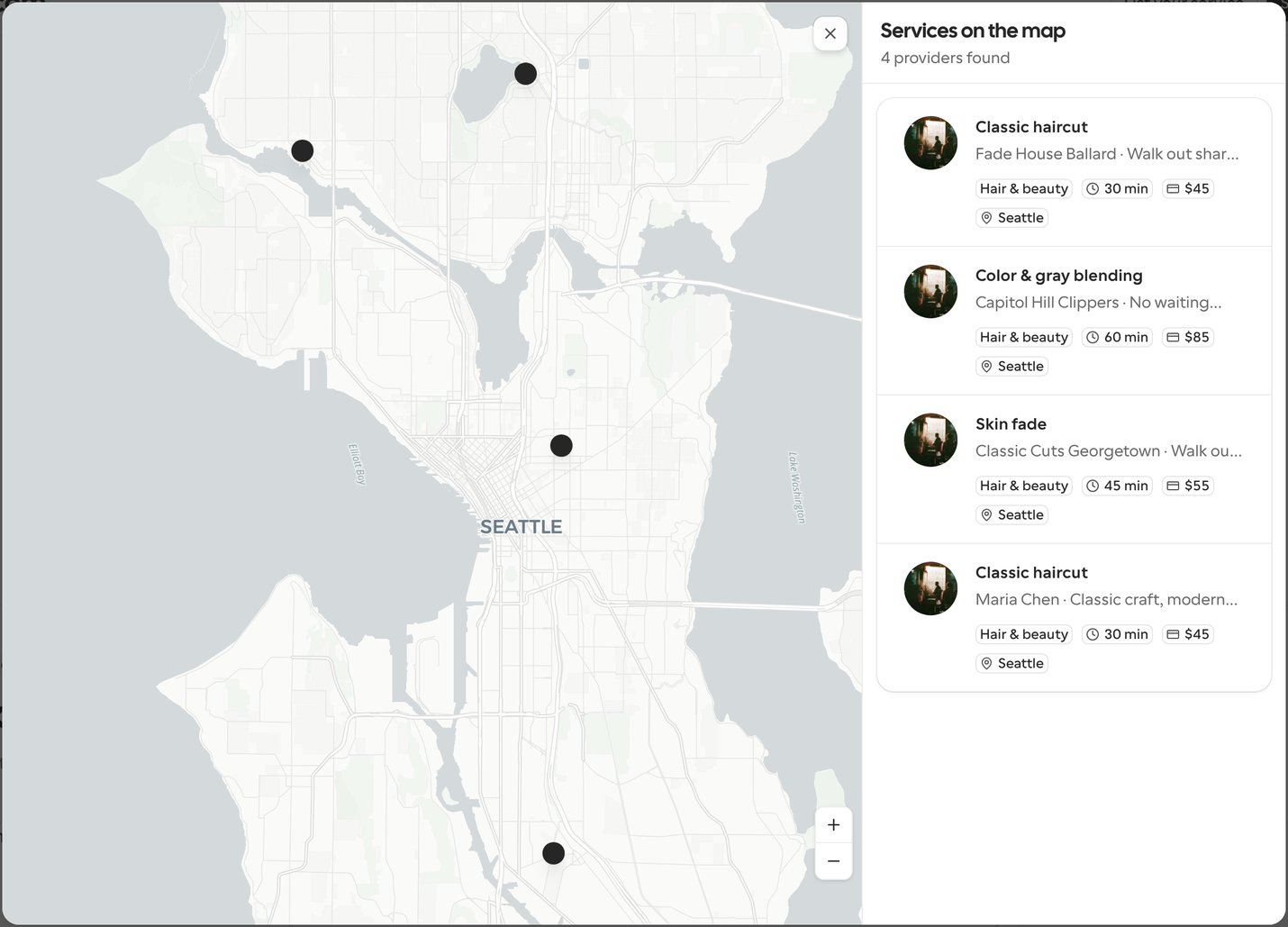
When an Ask Discover reply recommends two or more listings, a Show on map button appears above the first listing card. Selecting it opens Services on the map over the chat, with the reply’s listings in a list next to a map and a pin for each listing that has a location.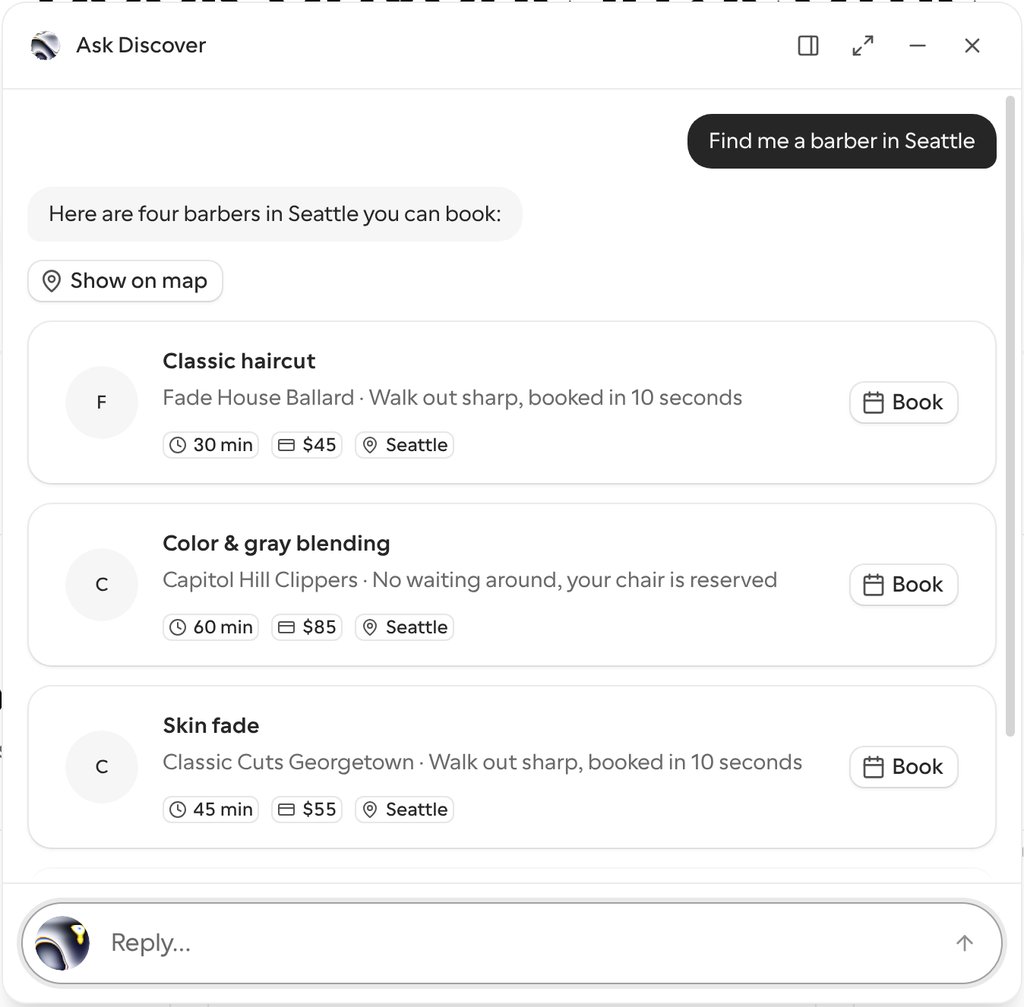
- The list shows each listing from the reply once, in the reply’s order, with its category, duration, price and city.
- Selecting a pin highlights its listing in the list and scrolls it into view.
- Panning or zooming the map narrows the list to the pins in view. A listing without a map location, such as an online business, always stays in the list.
- Selecting a listing opens the provider’s profile. The map closes and the chat is minimized, so the conversation is still there when you reopen it.
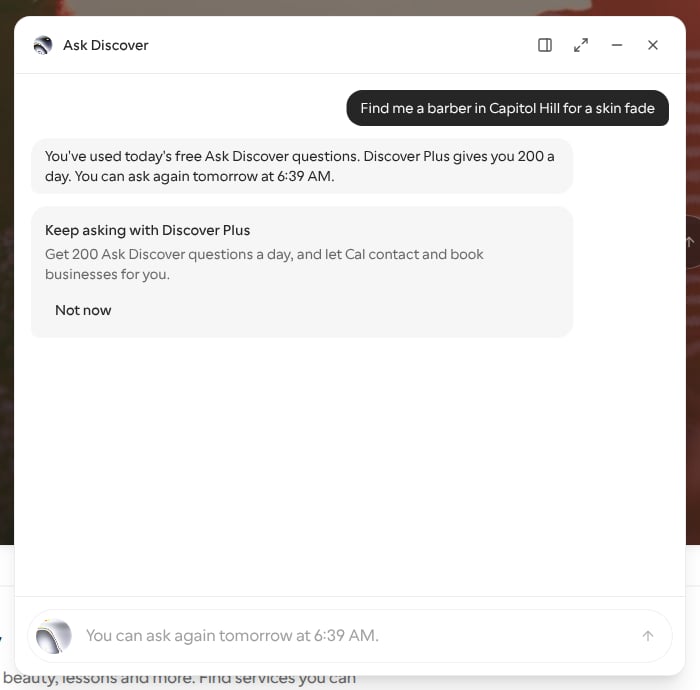
When you reach Ask Discover’s daily limit
Ask Discover answers a limited number of questions a day. Discover Plus subscribers get 200 questions a day.Discover Plus also gives you 300 more free questions a month with the Cal.com assistant, 330 in all, on the web and in Slack, Telegram and iMessage. That allowance is separate from Ask Discover’s daily limit. See Free questions without AI credits.
Your conversation is kept
Ask Discover keeps your conversation in the browser tab, so it’s still there after you reach the limit, reload the page, sign in from Ask Discover, or go to Discover Plus checkout and come back. After a reload it comes back as the minimized chat. A few things to know:- It’s kept only in that tab, up to the newest 60 messages. Call transcripts aren’t kept.
- It only comes back for the same visitor. Signing out, or signing in other than from Ask Discover, clears it, so the next person on a shared computer doesn’t see it.
- The limit itself isn’t kept. After a reload the reply box opens again, and if your questions haven’t come back yet, the next question gets the limit reply again.
How your profile is laid out
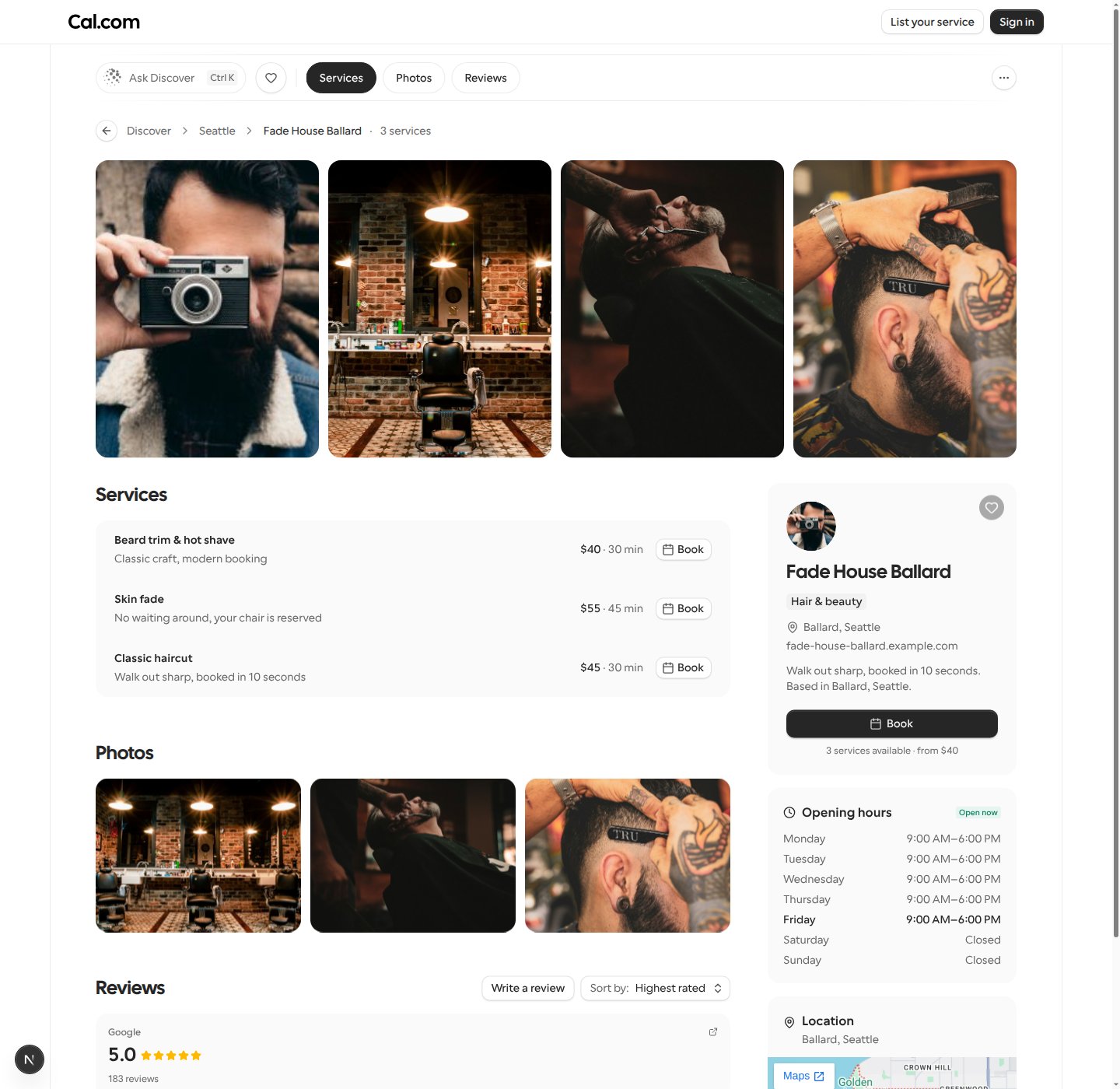
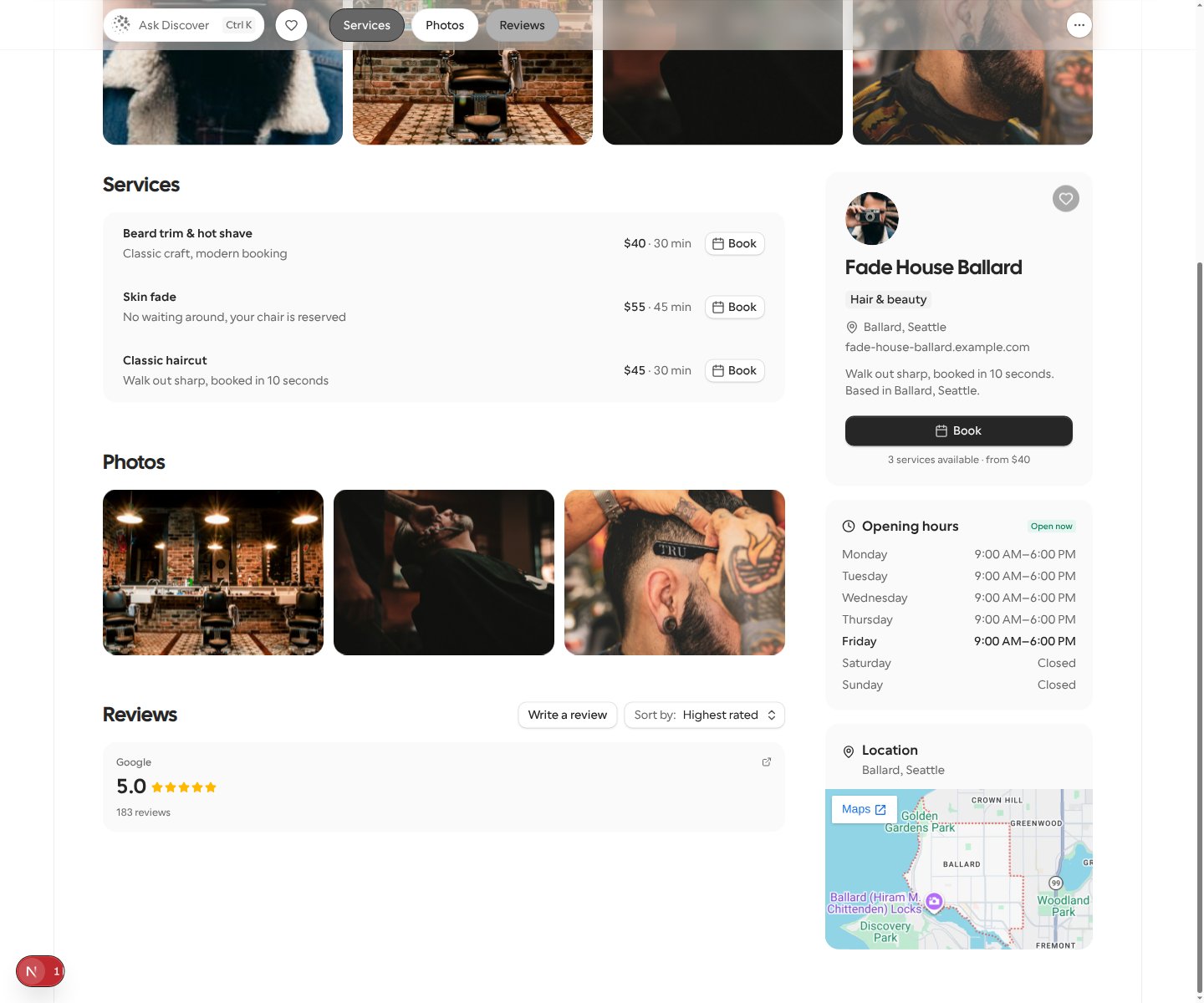
Your public profile shows its sections one after another, in this order, and leaves out any it has nothing for:- Services: your published services. Each row shows its price and duration on one line, such as $55 · 45 min, or just the duration when the service has no price.
- Upcoming events: your upcoming public Cal Events, as ticket cards like the ones on the Discover home. See Upcoming events on your profile.
- Photos: every business photo on your profile, in a grid.
- Reviews: your Cal.com reviews. See When your rating shows.
/discover/city/seattle, or else the Discover home.
Moving from a profile to its city
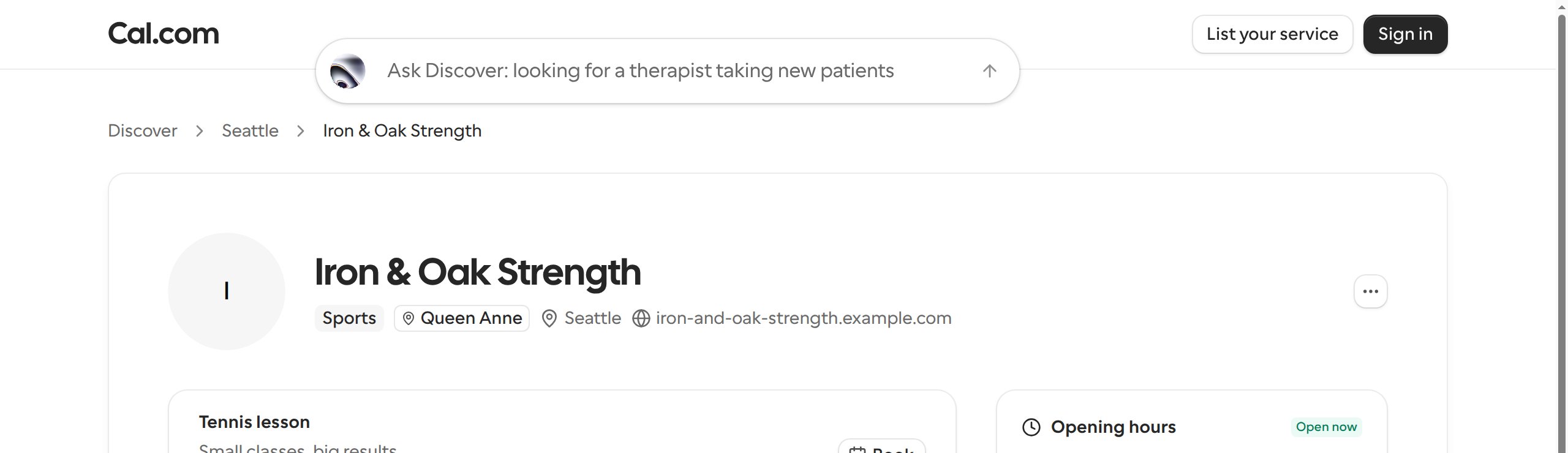
When a business is in a Discover city, such as Seattle, or in another city with pages of its own, such as Austin, its profile and service pages link back into that city instead of out to all of Discover:- The breadcrumb at the top of the page includes the city, as in Discover > Seattle > your business name. Selecting the city opens the city’s page, such as
/discover/city/seattle. - The category badges under your business name open that category in the same city. When the city has at least three listings in the category, the badge opens the city’s category page, such as
/discover/city/seattle/sports. Otherwise it opens the category’s services page filtered to the city.
Search engines and link previews
Discover lists your public profile in its sitemap (/discover/sitemap.xml) once your listing is ready, so search engines can find it. Your profile is listed when every required item on the Listing checklist is done, wherever your business is. A profile that isn’t ready yet still opens from links you share, but asks search engines not to index it.
Your profile and your service pages also tell search engines about your business as a local business. This includes:
- Your business name, profile link and photo.
- Your listed services, with their prices when they have one.
- Your city, and your neighborhood’s name if you have one. Your street address, map location, phone number and email are never included.
- Your rating and number of reviews, once you have at least three Cal.com reviews. Ratings imported from Google, Yelp or Trustpilot aren’t included.
If none of your services has a city, for example because you run an online business, Discover doesn’t publish these business details, because search engines need a location for a local business.