

POST request with the booking payload to the URL you configure.
Send webhook steps only run on timed triggers: Before event starts and After event ends. If you change the trigger to anything else, the editor flags the step and asks you to change the trigger or remove the step.
Add a Send webhook step
1
Set a timed trigger
Open a workflow from Workflows and select the trigger card. Choose Before event starts or After event ends, set how long before or after the event the webhook should be sent, and pick the booking links the workflow is active on.
2
Insert the step
Click + on the canvas where you want the step and choose Send webhook.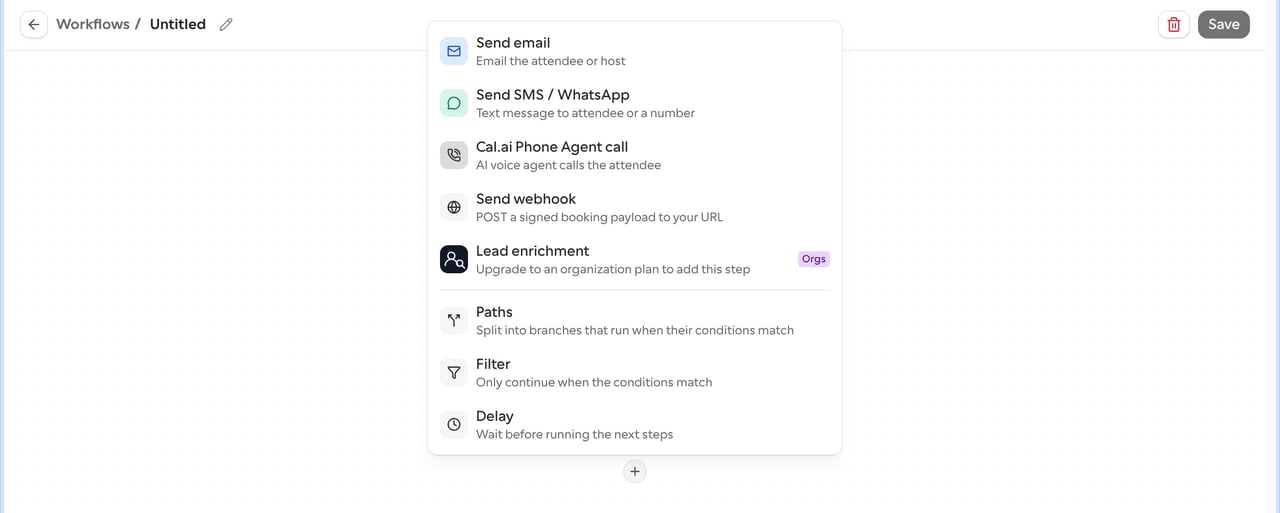
3
Enter the webhook URL
In Webhook URL, enter the
http:// or https:// address that should receive the request. The URL is checked when you save, using the same rules as webhook subscriptions, so private, internal and other blocked addresses are rejected.4
Add a signing secret (optional)
In Signing secret, enter a secret your endpoint can use to verify that requests come from Cal.com.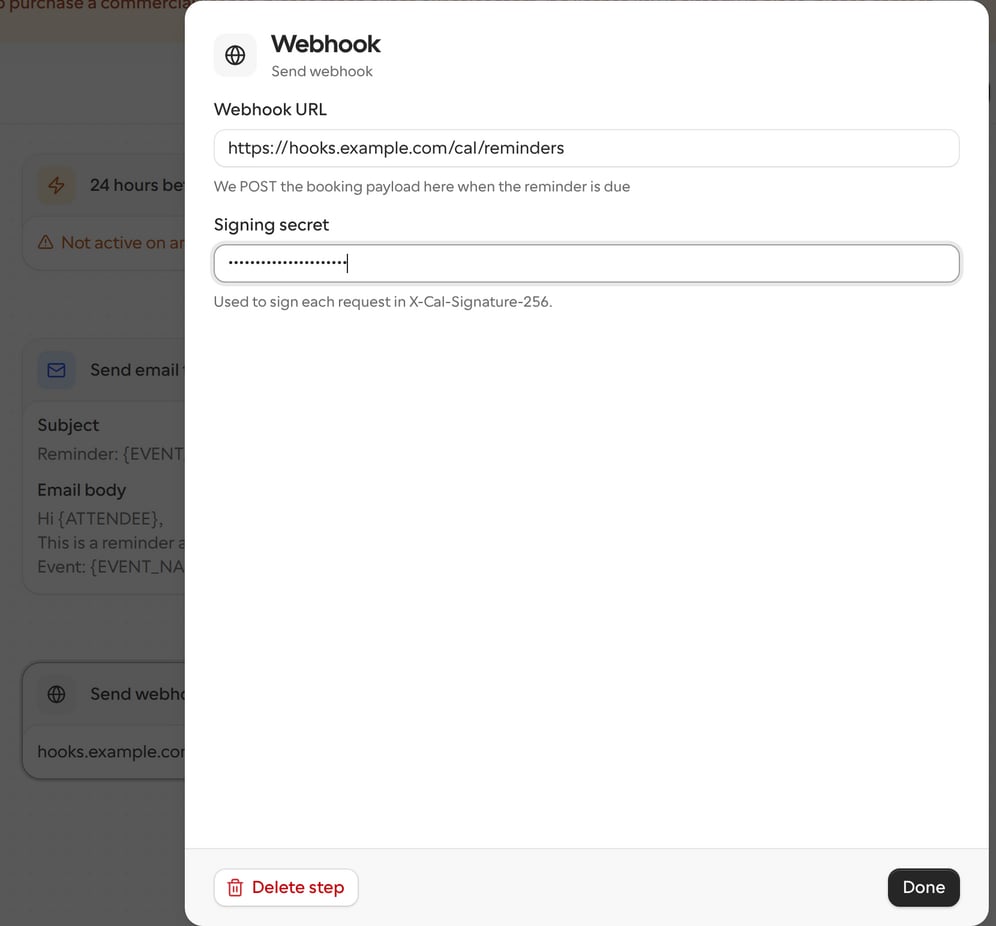
5
Save the workflow
Click Done, then Save. The webhook is scheduled for each booking the workflow applies to.
Manage the signing secret
The signing secret is write-only. After you save, the editor never shows it again and instead says A secret is saved. Enter a new one to replace it.- Leave the field empty to keep the saved secret.
- Enter a new value to replace it.
- Click Remove secret to delete it when you save. Click Undo before saving to keep it.
What your endpoint receives
Each request is a JSONPOST with these headers:
The body uses the same booking payload as webhook subscriptions, with
triggerEvent set to WORKFLOW_REMINDER. The payload object also includes:
The booking details are read when the webhook is sent, so edits made after the booking was created are included. Webhooks aren’t sent for bookings that have been cancelled or rejected, or for a before-event reminder that would arrive after the event has started.