

Where templates are used
Templates apply to new bookings and to the updated invites Cal.com sends later, such as reschedules,
location changes, round-robin reassignments, reschedule requests and confirmations after payment.
Separate host and guest events
When a booking link has a custom host or guest template, including an inherited organization default, Cal.com gives hosts and guests their own calendar events for new bookings, so each sees their own template. You don’t need to turn on Private notes for this. Hosts get a guest-free event on their connected calendar, and guests get their own invite by email. An audience without a custom template gets the standard description in its event. Separate events need the same conditions as the Private notes separate invites mode: the booking’s destination calendar must be a connected Google Calendar or Microsoft 365 calendar that Cal.com is syncing, the booking type must support separate invites, and the booking can’t be recurring or seated. See the Private notes limitations for the full list. If Private notes is turned on, its delivery mode decides what happens instead. With Additional entry for the host, the booking keeps a shared event plus the host-only note entry, even when custom templates are set.When a booking can’t get separate events, Cal.com creates one shared event on the host’s
calendar that guests are invited to. That shared event always keeps the standard description:
the host template never appears there, so host-only content can’t reach guests through it.
Set organization defaults
Only organization members who can update the organization’s settings can open this page.1
Open the Calendar invites settings
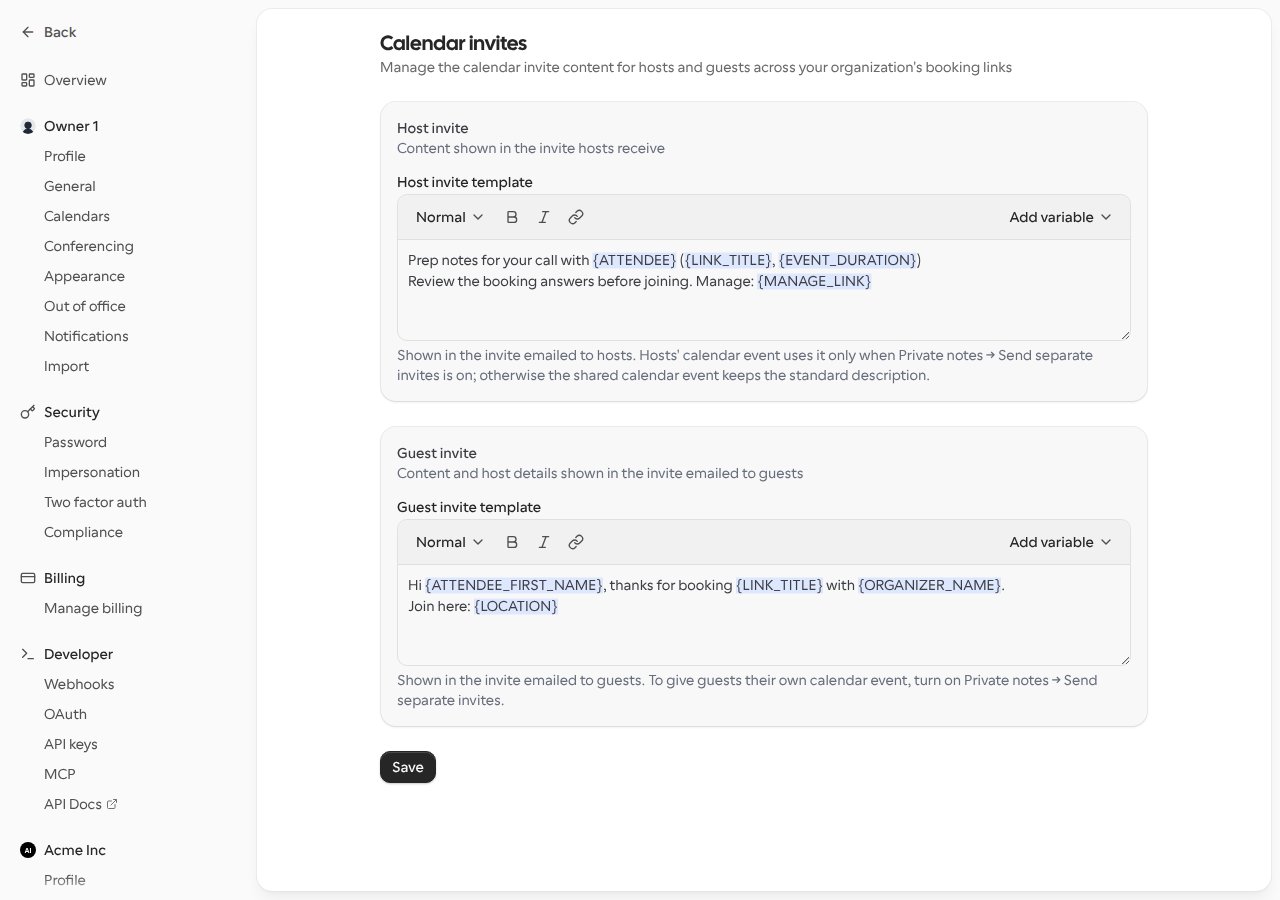
Go to Settings and, under your organization, select Calendar invites.
2
Write the host template
Under Host invite, enter the content for the invite hosts receive.
3
Write the guest template
Under Guest invite, enter the content for the invite guests receive.
4
Save
Select Save. Booking links that inherit the organization defaults use the new templates for
invites sent from then on.
Customize invites for a booking link
1
Open the booking link
Go to Links and open the booking link you want to configure.
2
Go to Privacy & security
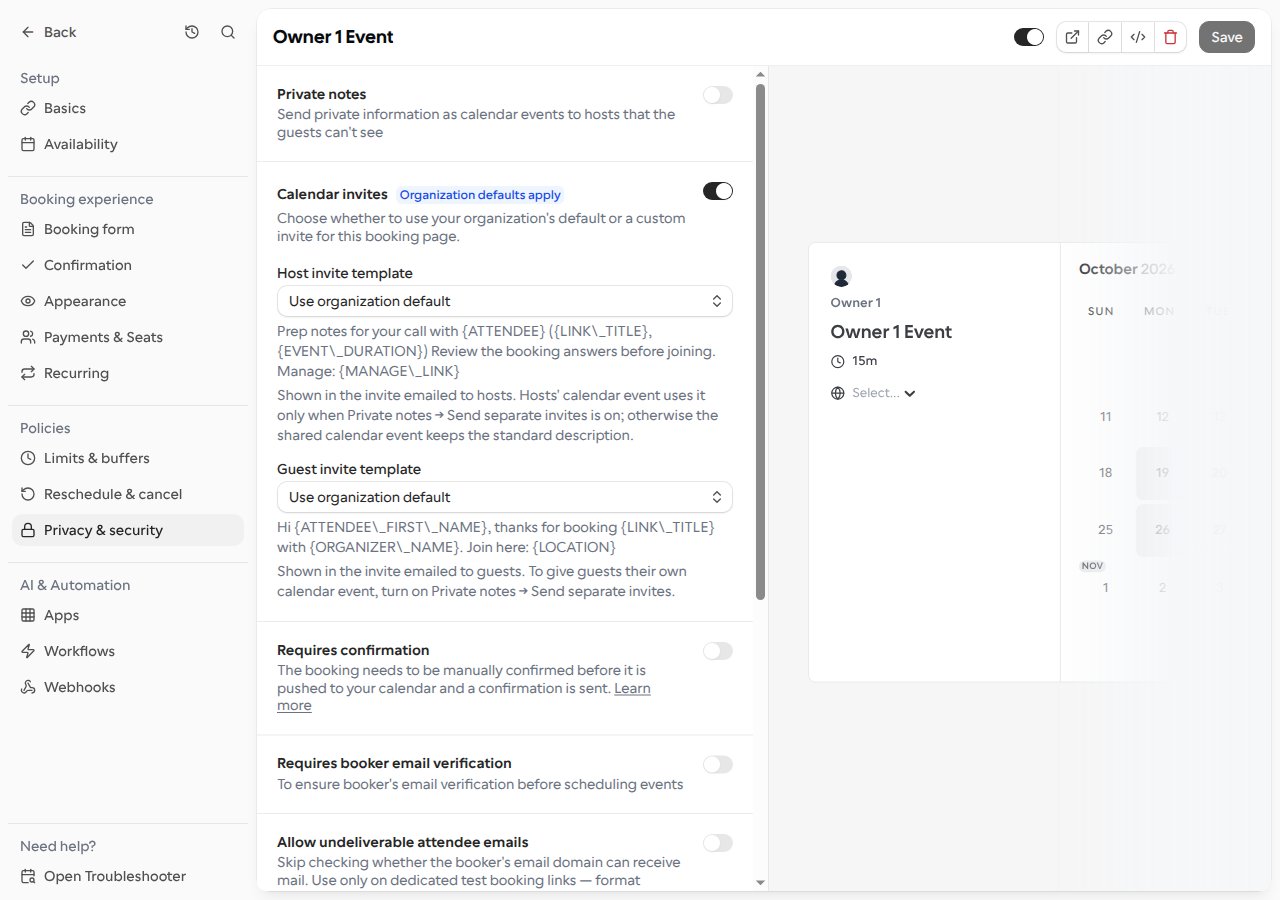
Open Privacy & security and find Calendar invites.
3
Choose a mode for each template
Pick a mode for the Host invite template and the Guest invite template. The two are
independent, so you can, for example, inherit the organization’s host template and write a
custom guest template.
4
Save the booking link
Save your changes.
Modes
In an organization, each template has three modes:
An Organization defaults apply badge next to Calendar invites shows when a template set to
Use organization default has an organization template to inherit. Select it to open the
organization settings.
This applies to personal booking links of organization members and to booking links of teams inside
the organization. Teams that aren’t part of an organization don’t inherit any defaults.
Outside an organization, turn on the Calendar invites toggle and write a host template, a guest
template or both. Leaving a template empty, or turning the toggle off, uses the standard invite.
Managed booking links
Booking links created from a managed event type show the templates set on the parent and can’t be changed from the member’s copy. Edit the templates on the managed event type instead.Template variables
Use the variable picker in the editor to insert booking details. Variables are replaced when the invite is sent.
On a booking link, the picker also lists its booking questions. Booking question lookups are
case-insensitive, answers with several values are joined with commas, and unknown variables resolve to
empty text. Answers to hidden booking questions appear in the host invite only, never in the guest
invite.
{ORGANIZER_NAME} / {HOST} is a single name: the assigned host on a round-robin booking and the
organizer on a collective one. Use {HOSTS} to list everyone hosting the booking, such as all
collective hosts or a round-robin host plus its fixed hosts. If the booking link already has a
booking question named hosts, {HOSTS} keeps showing that answer instead. A host without a
name is left out of the guest invite, so guests never see a host’s email address.
{MANAGE_LINK} is empty when neither rescheduling nor cancelling is allowed for the recipient.
The variables supported by private note templates, such as
{Event type title} or {ATTENDEE_LAST_NAME}, also work in invite templates.
Formatting
Invites are sent as plain text. Line breaks are kept, other formatting is removed, and a link written as[label](url) appears as label (url).
Example
Limits
- Templates can be up to 5,000 characters.
- Unsafe markup is removed when a template is saved. If nothing is left, the template is cleared: an organization template is removed, a booking link in an organization goes back to the organization default, and a booking link outside an organization goes back to the standard invite.