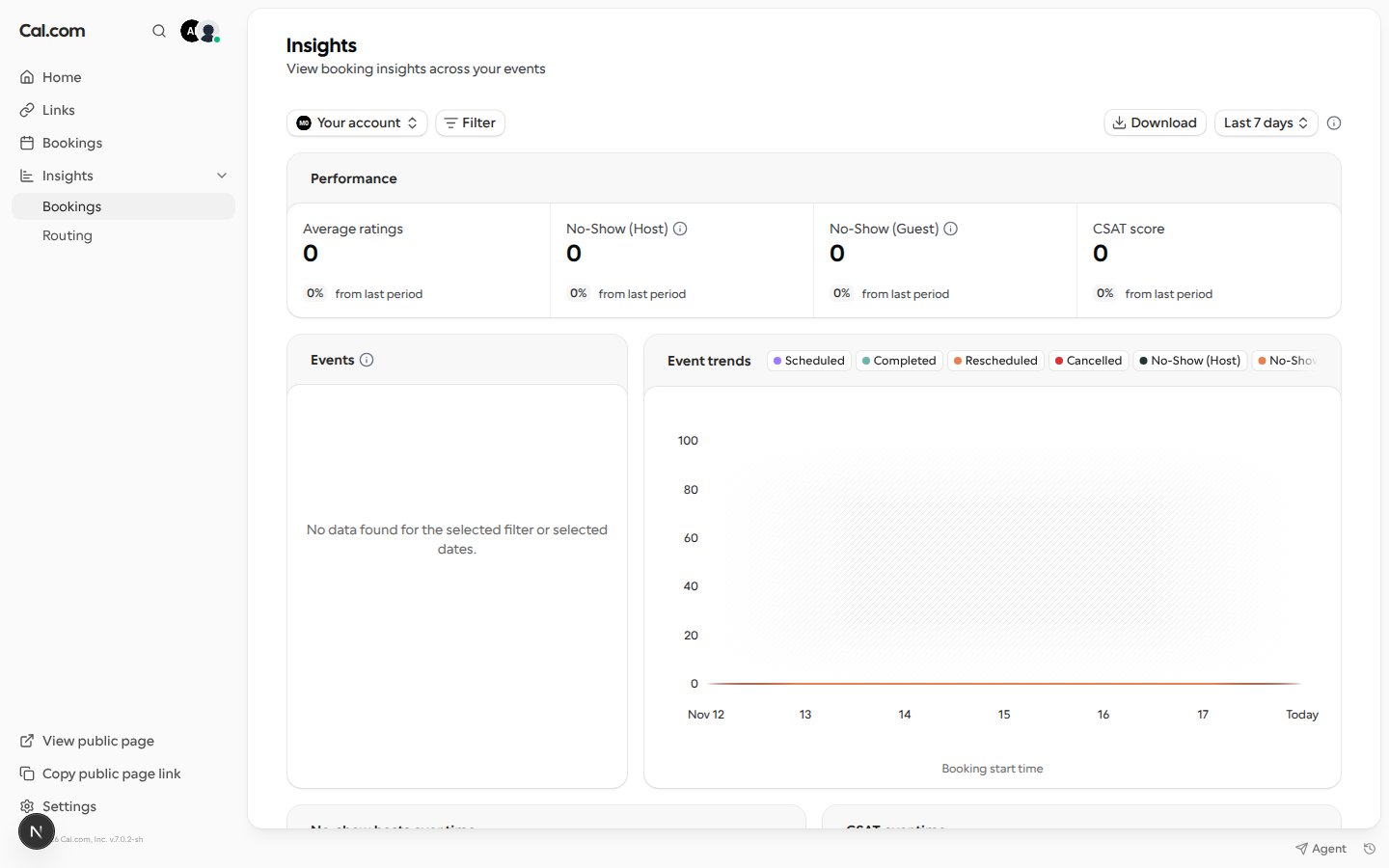
Insights page permissions
In the organization’s Roles & permissions settings, the Insights section of the role editor has one permission per Insights page: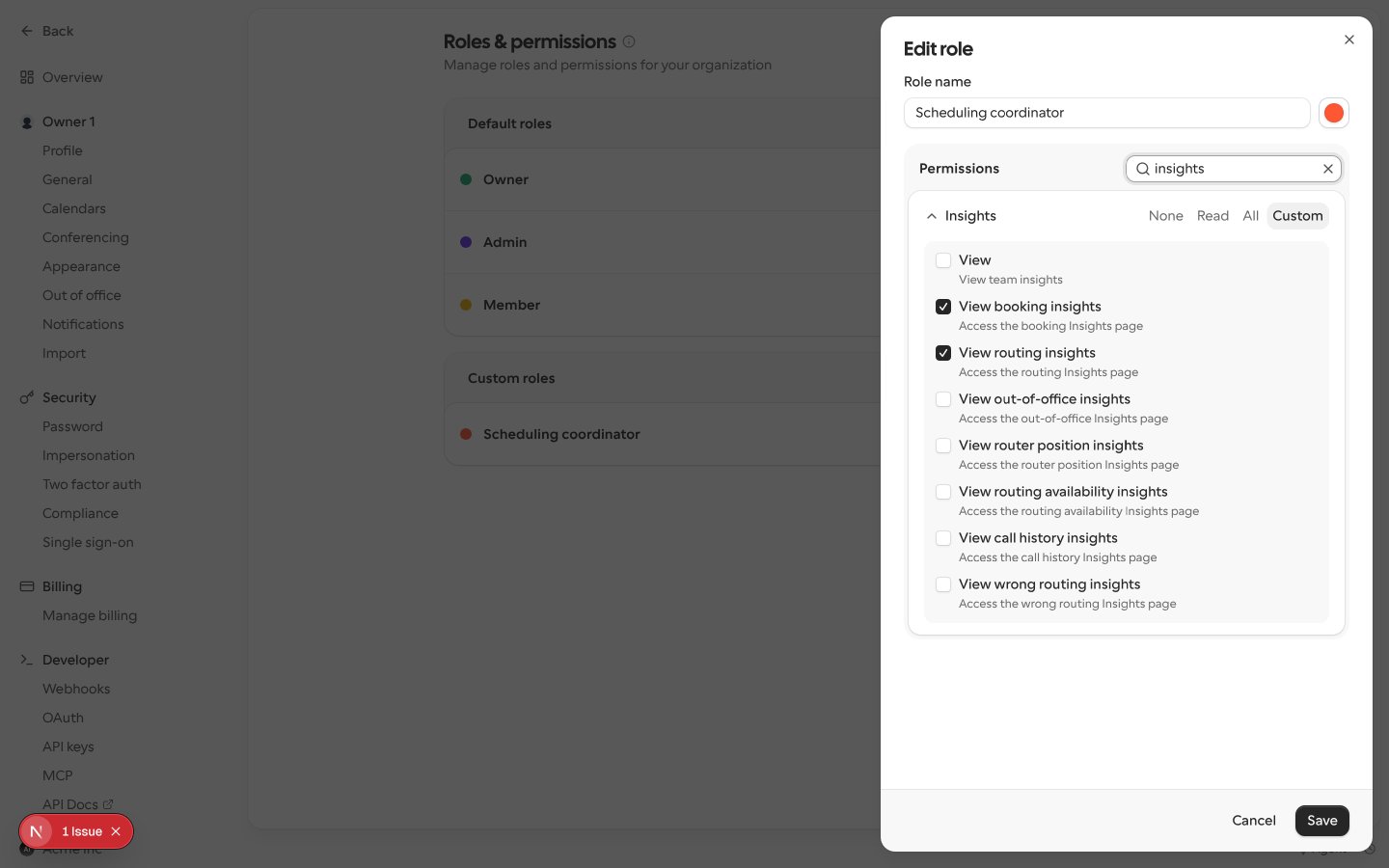
- The page is left out of the Insights menu in the sidebar.
- Opening the page directly, for example from a bookmark, shows a “page not found” error.
The existing Insights > View permission (“View team insights”) still controls access to organization-wide analytics data. The page permissions don’t depend on it and don’t grant it, so a role can open an Insights page without seeing organization-wide data.
How the sidebar follows a member’s role
For organization members, the sidebar also hides items their role can’t access:
These permissions don’t change whether Links, Bookings, Availability and Contacts are shown. While the sidebar is checking a member’s permissions, or if that check fails, nothing is hidden. Users outside an organization see the sidebar as before.