

acme.com. If your company also uses
other email domains, such as acme.fr or acme.de, you can add them as secondary verified
domains. Once you prove you own a secondary domain, people with an email address on it are treated
like people on your primary domain when they sign up, accept an invite or are provisioned into your
organization.
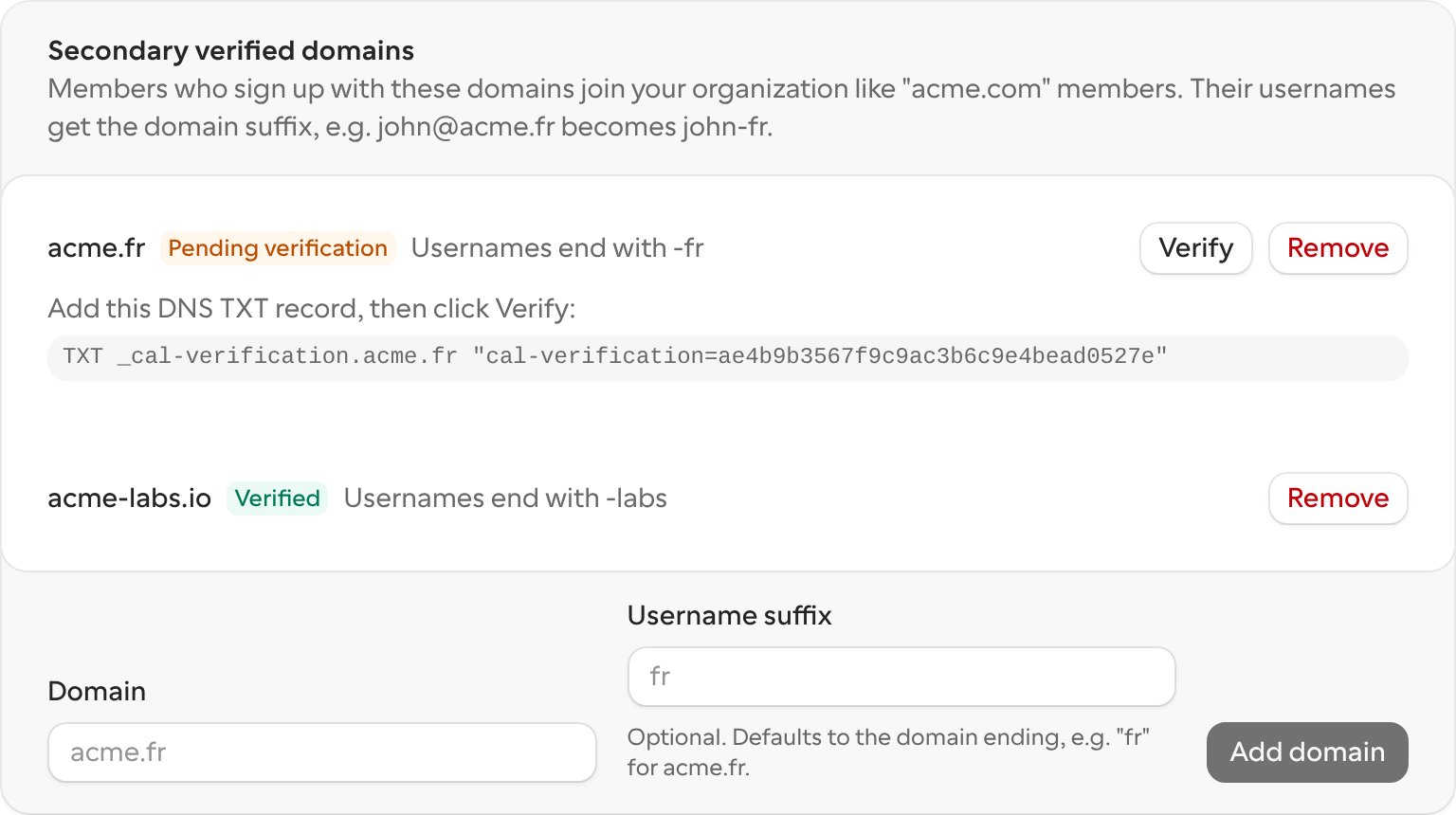
To keep usernames unique, members from a secondary domain get a username suffix. With the suffix
fr, john@acme.fr becomes john-fr and is reachable at acme.cal.com/john-fr, while
john@acme.com keeps the username john.
Who can manage secondary domains
The Secondary verified domains card appears under Settings > Organization > Privacy & security for members who can edit the organization’s settings, such as admins and owners. In the API, the endpoints require an organization admin with theorganization.update
permission.
Add and verify a domain
1
Open Privacy & security
Go to Settings > Organization > Privacy & security and find Secondary verified
domains.
2
Add the domain
Enter the domain, for example
acme.fr. Optionally enter a Username suffix, then select
Add domain. The domain appears in the list as Pending verification.3
Publish the DNS TXT record
Under the domain, Cal.com shows the TXT record to add at your DNS provider. It has the name
_cal-verification.<domain> and a value of the form cal-verification=<token>, for example:4
Verify
Once the record is published, select Verify. Cal.com looks up the TXT record and, if it
finds the exact value, marks the domain Verified. If the record isn’t found yet, you see an
error and can try again once your DNS change has propagated.
An unverified domain has no effect. Until it’s verified, people with that email domain are treated
as if the domain wasn’t configured.
Username suffixes
Every secondary domain has a username suffix. When you leave Username suffix empty, Cal.com derives one from the domain:
When the domain starts with the same name as your primary domain, the rest of the domain is used;
otherwise, its first part is used. A suffix can contain lowercase letters, numbers and single dashes,
up to 63 characters, and each suffix can only be used by one domain in your organization.
What a verified domain does
A verified secondary domain counts wherever your primary domain does. Email domains are matched case-insensitively.- Sign-up: people who sign up and verify an address on the domain are added to your organization, unless it only accepts members through SCIM.
- Invites: people invited to your organization or one of its teams with an address on the domain are accepted automatically. This also works for an organization that has secondary domains but no primary domain.
- Google sign-up: when organization auto-linking is enabled (the
ORGANIZATIONS_AUTOLINKsetting on self-hosted instances), new users who sign up with Google using an address on the domain are created inside your organization. - Directory sync: users with an address on the domain, or on one of its subdomains, can be provisioned into your organization through directory sync.
- Microsoft Exchange delegation: you can add a Microsoft Exchange delegation credential for the domain, so its members’ Exchange calendars are connected without them signing in. Each domain needs its own credential.
@, followed by - and the
domain’s suffix.
As with your primary domain, secondary domains only take effect once your organization itself is
verified.
Rules and limits
- An organization can have up to 50 secondary domains.
- You can’t add your organization’s primary domain, or a domain you’ve already added.
- A domain can only be verified by one organization. Verification fails if another organization already uses the domain as its verified primary or secondary domain.
- Removing a domain stops it from matching new sign-ups, invites and sign-ins. It doesn’t change the usernames of members who have already joined.
Manage domains with the API
You can manage secondary domains with API v2 under/v2/organizations/{orgId}/secondary-domains.
Each domain in a response includes its domain, usernameSuffix, verified and verifiedAt
fields and a verificationRecord object with the type, name and value of the TXT record to
publish.