Use Sign out everywhere if you left Cal.com signed in on another browser and no longer have access to it.

Sign out of all browsers

1

Open Password settings

Go to Settings > Security > Password.
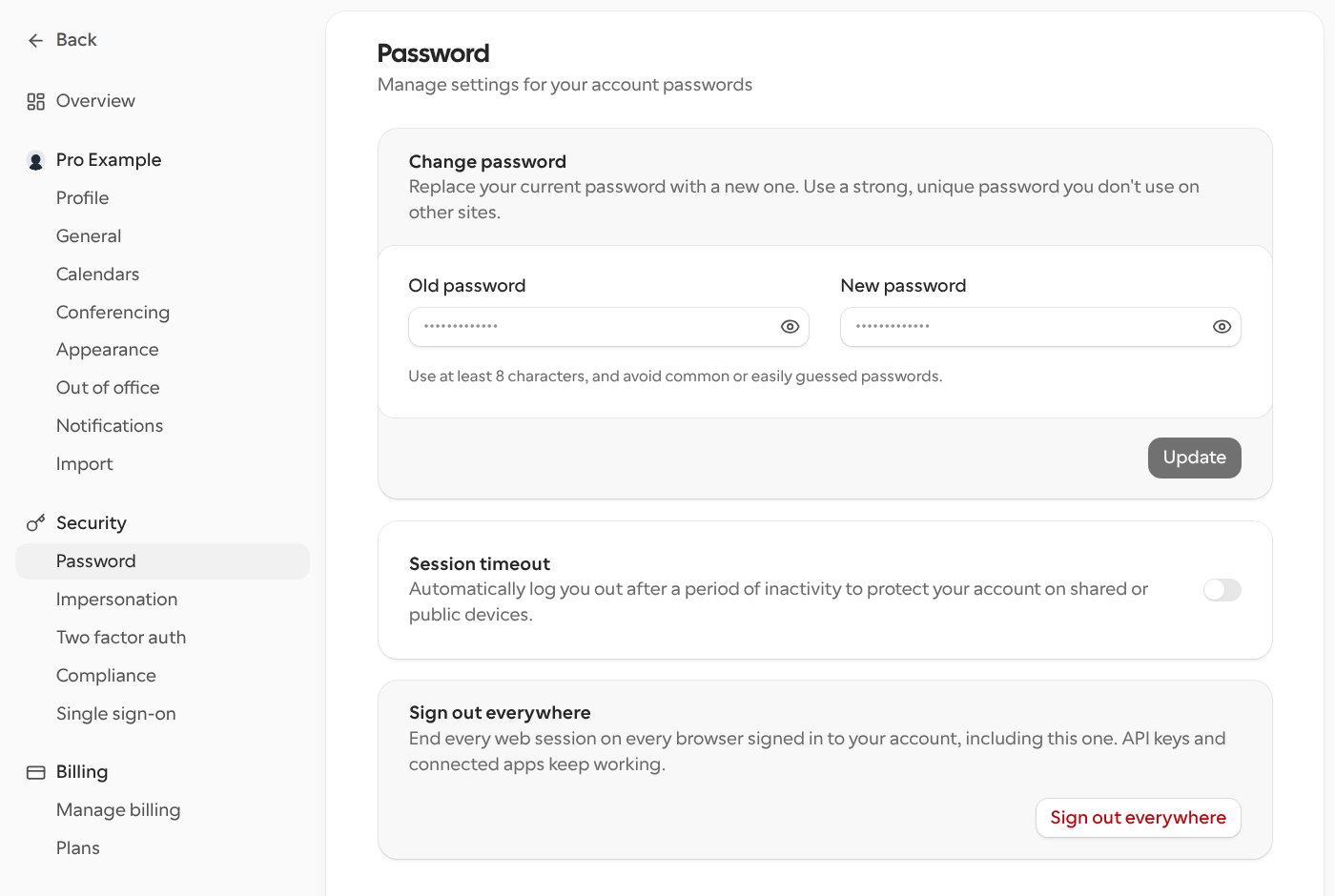
The Password page in Security settings, with the Sign out everywhere card below Session timeout.
2

Confirm sign-out

Select Sign out everywhere, then select Sign out everywhere again in the confirmation dialog. To keep your sessions active, select Cancel instead.
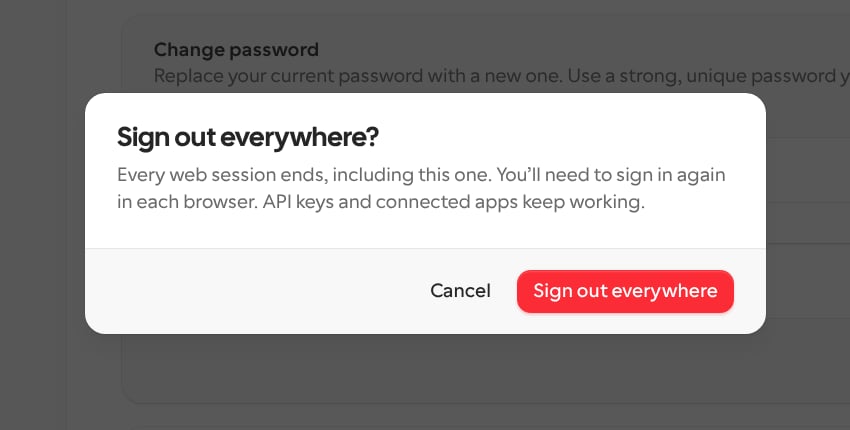
The Sign out everywhere confirmation dialog with Cancel and Sign out everywhere buttons.

What gets signed out

Cal.com takes you to the sign-in page in your current browser. Other browsers are signed out the next time they make a request to Cal.com, such as when you reload the page. You’ll need to sign in again in each browser you want to use. API keys, OAuth tokens, and connected apps keep working.