What Is Time Blocking and How to Time Block Your Day
Time blocking is a time management method that gives each task or type of work a place on your calendar. You decide when to write, answer messages, take meetings, and stop. When the day changes, you move the blocks instead of pretending the original plan still fits.
Summarize with AI

On this page
- What is time blocking?
- What are the main time blocking techniques?
- How do you time block your day?
- 1. List the week's real commitments
- 2. Estimate the work, then leave some room
- 3. Place fixed commitments first
- 4. Put demanding work where your attention is strongest
- 5. Batch the small work
- 6. Keep buffer time unassigned
- 7. Give meetings their own hours
- 8. Review the day before you leave
- What does a time-blocked day look like?
- What are the benefits and drawbacks of time blocking?
- What are the best practices for time blocking?
- 1. Begin with one block
- 2. Check the status, not the color
- 3. Match the length to the work
- 4. Review on Friday, then plan next week
- 5. Tell people how the week works
- How do you keep meetings from taking over your time blocks?
- Make your blocks count as busy
- Limit your booking link to your meeting hours
- Cap the meetings and add breathing room
- How should you start your first week?
- Frequently asked questions
- Is time blocking good for ADHD?
- Is time blocking effective?
- What is the best time blocking method?
- How do you time block in Google Calendar?
- How do you time block in Cal.com?
Picture a Monday morning. You have twelve things on your to-do list, four meetings on your calendar, and no time set aside for the quarterly report. By 5 p.m., you’ve replied to everyone and cleared the small stuff, and the report hasn’t moved.
That day isn’t unusual. Microsoft’s Work Trend Index report on the “infinite workday” (June 2025) found that people using Microsoft 365 are interrupted every 2 minutes, on average, by a meeting, email or notification. Under those conditions, work that needs a clear hour rarely gets one unless you set the hour aside on purpose.
This guide shows you how to do time blocking: which technique fits your work, how to block a realistic week, and how to stop other people’s bookings from eating the time you reserved.
Key takeaways
-
A task list tells you what you owe. A time-blocked calendar shows whether you have room to do it.
-
A workable week usually mixes focus blocks, task batches, meeting hours, and breathing room.
-
Plan from the calendar you actually have. Fixed meetings and their preparation go on first, and focus blocks fill what’s left.
-
Time blocking reserves when a task happens. Timeboxing limits how long it can take, and the two work well together.
-
Cal.com keeps bookings made through your booking link out of your focus blocks. It checks your Google, Outlook or Apple calendar for busy time and only offers the hours you choose.
What is time blocking?
Time blocking means assigning a start and end time to work you intend to do. One block might hold a demanding task, such as drafting a proposal. Another might hold several related jobs, such as invoices and expense approvals.
The method becomes useful when your list stops fitting the day. “Finish the proposal” can sit there for a week. “Draft the proposal Tuesday from 9:00 to 10:30 a.m.” forces you to find the ninety minutes or move something else.
That’s the practical value of calendar time management. It makes competing commitments visible. If the work exceeds the available hours, you can reduce its scope, move a deadline, or ask for help before the deadline arrives.
The idea predates calendar software. Benjamin Franklin's Autobiography describes a “scheme of employment for the twenty-four hours of a natural day,” assigning hours to work, reading, meals, and rest. He also acknowledged difficulty following it when business visitors arrived at their own hours. A modern advocate, Cal Newport, built the method into his Time-Block Planner: each day you fill a grid with a “preliminary plan that gives every minute a job,” then update it when you get knocked off schedule. Neither one invented the method outright, and both accept that the plan will bend.
You can time block on paper, or in Google Calendar/Outlook. Or you can do it where your bookings already live! Our new desktop app, Cal Desktop, puts your Google and Outlook calendars in one week, right next to the meetings people book with you. Drag to draw a block, press a number key to color it, and see what’s already booked around it before you commit. It’s on Mac now, with Windows coming soon and Linux in beta.
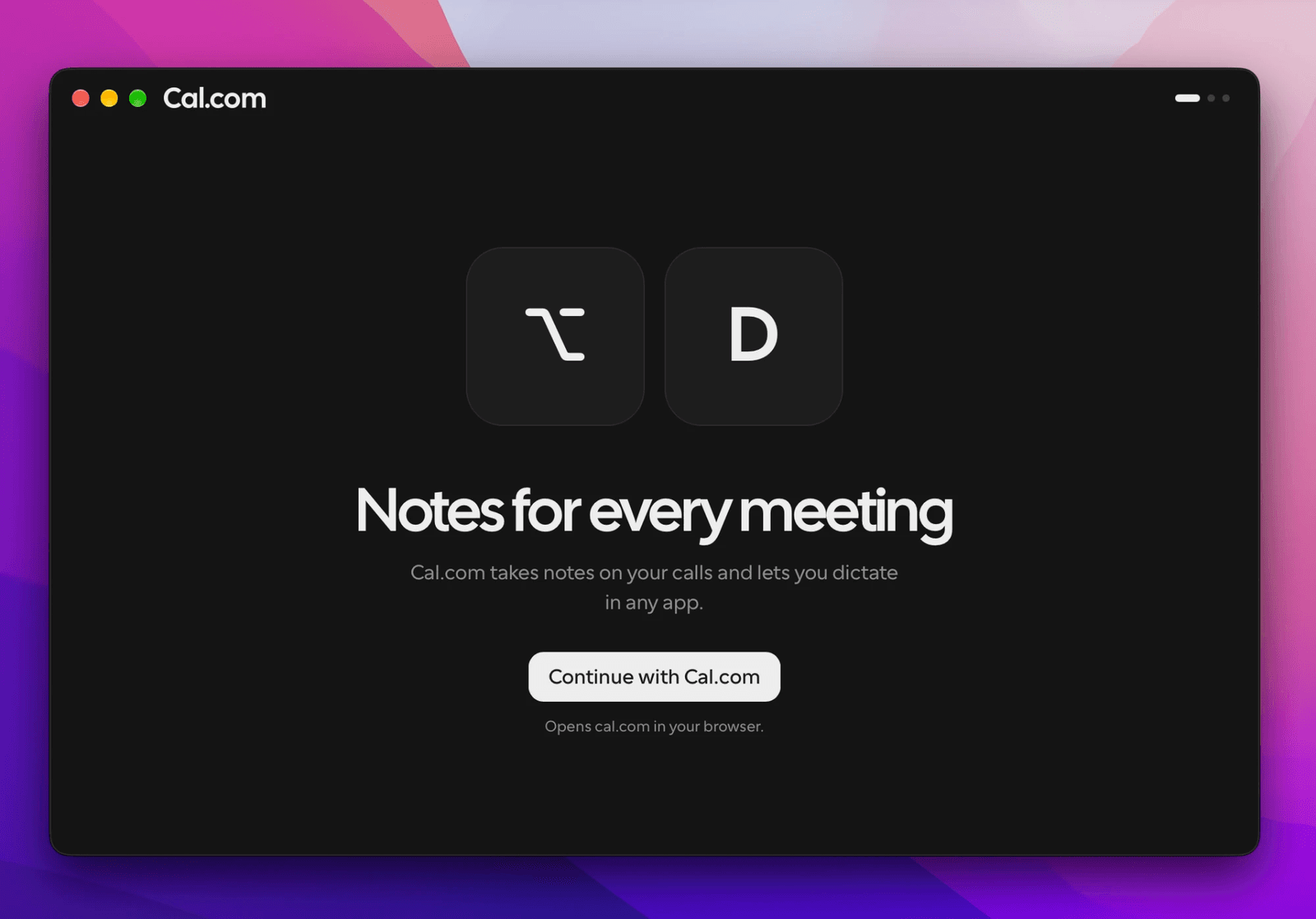
The first screen you see after installing Cal Desktop
Click Continue with Cal.com, sign in through your browser, and your bookings and connected calendars are already there. Then drag out your first blocks.

Time blocks drawn and color-coded in Cal Desktop’s calendar, around the week’s meetings
When other people book your time digitally, put the blocks they need to respect on a calendar your booking system checks.
Cal Desktop also looks after the meetings you leave room for. It notices when a call starts and offers to take notes, with no bot joining, so the summary and action items are waiting when you hang up. Need to know what’s next? Press ⌥⇧Space in any app, and Cal.ai answers from your calendar and bookings.
What are the main time blocking techniques?
The four common techniques are classic time blocking, task batching, day theming, and timeboxing. You don’t need to join a camp. Pick the method that addresses the way your time actually gets lost.
| Technique | How it works | Best for |
|---|---|---|
| Classic time blocking | Give a substantial task its own calendar block. | Days with a few large pieces of work. |
| Task batching | Handle similar small tasks together, such as messages, invoices, or calls. | Days broken up by recurring demands. |
| Day theming | Give a day a main purpose, such as client work or planning. | Roles that move between very different responsibilities. |
| Timeboxing | Set a fixed allowance for a task and stop when the time ends. | Work that tends to expand without a stopping point. |
Time blocking reserves when; timeboxing limits how long. Reserving 9-10 a.m. for research is a block. Deciding to spend no more than an hour researching before choosing an approach adds a timebox.
That distinction matters when a task overruns. With a block, you can schedule another session. With a timebox, the stopping point is deliberate: save the findings, make the decision, or reduce the scope instead of extending the session automatically.

For a mixed role, combine approaches. A consultant might theme Thursday around client work, reserve the morning for a proposal, batch follow-ups after lunch, and timebox slide polishing to thirty minutes. Each choice addresses a different source of lost time.
Keep themes compatible with your obligations. If customers need daily responses, a weekly “communications day” would make them wait too long. A daily response batch fits that responsibility better, even when the rest of the day has a theme.
How do you time block your day?
To time block your day, list the week’s commitments, estimate each task, place fixed meetings first, then fill the open hours with focus blocks, batches and buffers, and review the plan before you leave. Time blocking gets unrealistic when you begin with an imaginary blank day. By the time you account for preparation, follow-up, and the meetings already on the books, much of the calendar is spoken for.
1. List the week's real commitments
Include deadlines, recurring admin, preparation, and follow-up. Turn projects into actions you can begin. “Check the sales figures” belongs on a calendar. “Work on the quarterly report” leaves too much undecided.
2. Estimate the work, then leave some room
Start with the last comparable task rather than your best-case guess. New work is harder to predict, so treat the first estimate as something you’ll learn from. Then add a margin for the parts you can’t predict yet.
3. Place fixed commitments first
Add meetings, appointments, travel, lunch, and personal obligations that affect the workday. Count preparation too. A thirty-minute presentation with an hour of preparation consumes ninety minutes.
4. Put demanding work where your attention is strongest
That might be first thing in the morning or straight after lunch. Pick the hours when you do your best thinking, and name the result you want, such as “draft the recommendations,” so the block has a sensible stopping point.
5. Batch the small work
Give email, messages, approvals, and expenses one or two windows. If you handle support or urgent requests, agree on response expectations before you close the inbox.
6. Keep buffer time unassigned
Calls overrun, files arrive late, and tasks expose other problems. Short gaps hold notes or a break, while a longer reserve absorbs unexpected work. Our guide to buffer time explains how to use it. If people book you through Cal.com, a buffer before or after each meeting counts as busy, so nobody books the gap.
If Cal Desktop takes the notes on your call, the write-up is already done, so that gap can go to the follow-up itself.
7. Give meetings their own hours
Group future calls into a window and set your booking link to the same hours. In Cal.com, that’s a schedule under Availability, and it’s on our Free plan. Don’t fill the window with a busy “Meetings” placeholder, or the booking page will see no time to offer.
8. Review the day before you leave
When urgent work displaced a block, give the original commitment a new place and decide what must move. Don’t carry everything forward without checking tomorrow's capacity.
What does a time-blocked day look like?
Say you need to finish a report and still be available for calls that afternoon. Here’s a time blocking example for that day.
| Time | Block | Type |
|---|---|---|
| 8:30-9:00 a.m. | Review priorities and today's calendar | Planning |
| 9:00-10:15 a.m. | Draft the quarterly report | Focus |
| 10:15-10:30 a.m. | Step away from the desk | Break |
| 10:30-11:30 a.m. | Check figures and finish the draft | Focus |
| 11:30 a.m.-noon | Email and messages | Batch |
| Noon-1:00 p.m. | Lunch | Break |
| 1:00-3:00 p.m. | Calls within bookable hours | Meetings |
| 3:00-3:30 p.m. | Follow-up notes or unexpected work | Buffer |
| 3:30-4:30 p.m. | Review drafts and give feedback | Focus |
| 4:30-5:00 p.m. | Messages and tomorrow's plan | Batch and planning |
The meeting window doesn’t need to fill up. It only marks the hours people may book, so if one call lands there, the rest stays open. If you put the window on your calendar, mark it Free, so your booking link can still offer those hours. Using one color for each type can also make the balance of the week easier to see.
Keep later days looser until the work reveals what comes next. If Tuesday's analysis changes the report, Wednesday's calendar should change with it. Think of the calendar as a working draft.
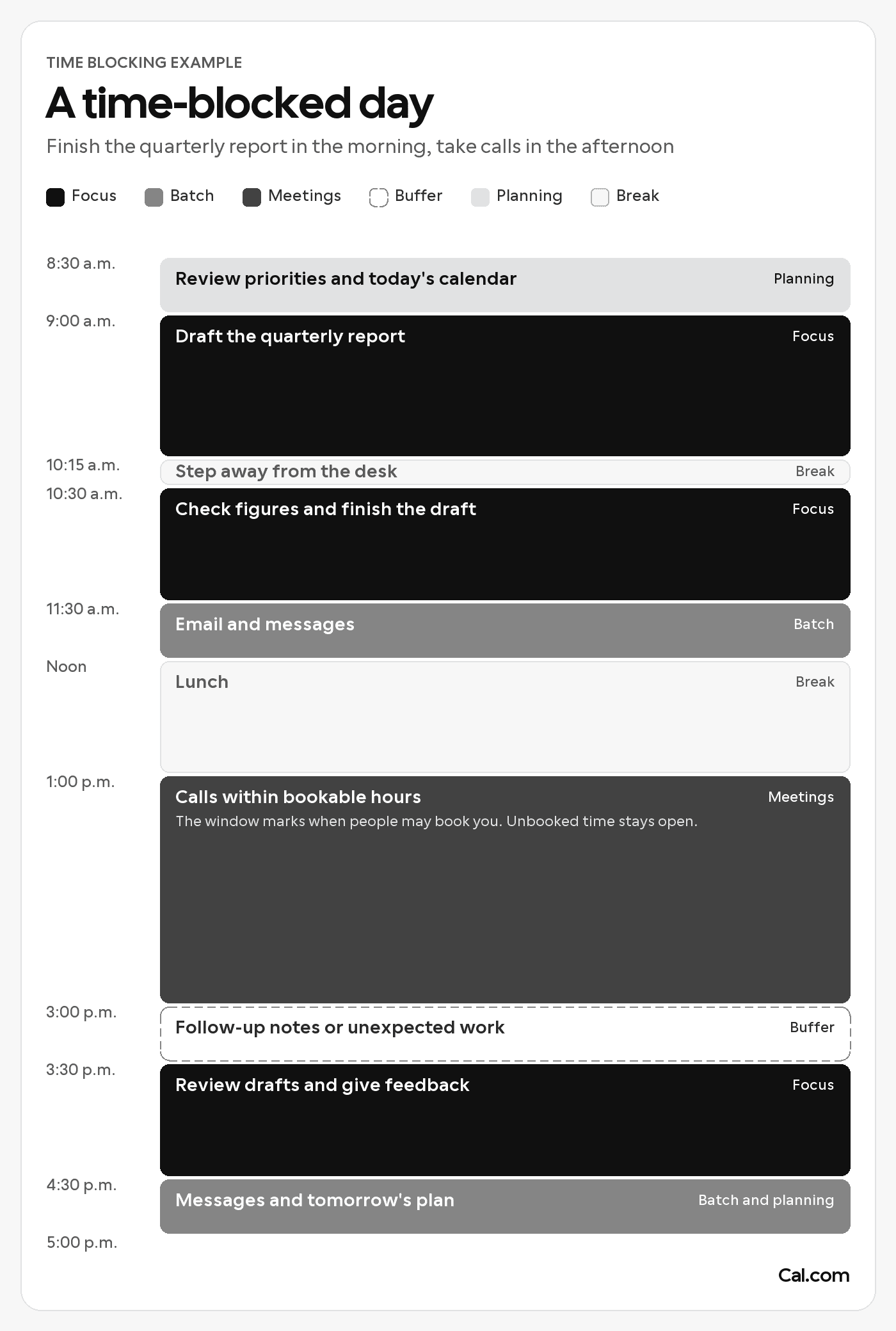
The sample day as a calendar: focus blocks in the morning, calls in a bookable window after lunch
Keep calls inside your meeting window: set your bookable hours in Cal.com for free.
What are the benefits and drawbacks of time blocking?
Time blocking isn’t bad, but it has limits. Once the work is on the calendar, you can see whether it fits, and that’s usually the first benefit you notice. The same calendar also shows the method’s weak spots: estimates that run short, a grid packed too tight, and other people who control parts of your day.
| Benefit | Drawback to plan for |
|---|---|
| You decide in advance what deserves your attention. | A short estimate pushes later work back. |
| Substantial work gets a place on the calendar. | Urgent requests still interrupt it. |
| The week shows how much work can fit. | A completely filled grid feels rigid. |
| Batching reduces planned switches between unrelated tasks. | Colleagues may expect faster replies. |
| Busy blocks can disappear from booking pages. | An unchecked calendar or direct invitation can bypass that protection. |
Stop bookings landing on your focus blocks: connect your calendar to Cal.com for free.
What if a task runs past its block? What happened matters more than the overrun itself. The task may have needed more time, which means the next estimate should grow or the work should be split into stages. If a call caused the late start, the missing piece is probably some space after future calls.
Some jobs resist a detailed sequence altogether. A support lead, for example, might reserve ninety minutes for whatever reaches the escalation queue and protect a shorter writing block while a colleague provides cover. Planning as if the queue will stay quiet only produces a tidy calendar that can’t survive the day.
Even on predictable days, a full grid can create unnecessary pressure. Fixed appointments, deadline work, breaks, and response windows may be enough structure. The five-minute actions inside an admin block don’t each need their own event.
Repeated interruptions need their own diagnosis, because different causes look the same on a crowded calendar. Meeting overload calls for booking limits, and constant messages call for agreed response times. When incoming work already claims every available hour, a more detailed calendar can’t create more capacity. Workload or coverage may be the real problem.
What are the best practices for time blocking?
Start with one block a day, mark it Busy, review the week on Friday, and tell people when you take meetings. A time-blocked calendar usually looks convincing on Monday. The real test is whether it still helps after a meeting runs long and Wednesday no longer resembles the original plan.
1. Begin with one block
Protect one meaningful task each day during the first week. Add more structure after you know how that block behaves beside your current meetings and response duties.
2. Check the status, not the color
A blue event can still be marked Free. Set protected work to Busy and make sure your booking tool checks that calendar for conflicts, which also helps prevent double booking.

3. Match the length to the work
Thirty to sixty minutes is a practical first focus session. Adjust from what happened rather than adopting someone else's ideal schedule.
4. Review on Friday, then plan next week
On Friday, note which blocks held, which slipped, and why. If the same task moves for a third week, question its scope, priority, or missing dependency before assigning it another date. Then give next week’s deadlines and preparation a place before new calls claim the open hours.
5. Tell people how the week works
Share your meeting hours and normal response times. A Cal.com booking link does the first part for you, because it only offers those hours. Agree on a route for genuine urgency. Protecting focused work should reduce casual interruption without leaving colleagues guessing when they’ll hear from you.
The team agreement and the calendar need to say the same thing. If colleagues hear that mornings are protected but your booking page offers 10:00 a.m., the link will win.
How do you keep meetings from taking over your time blocks?
A focus block only protects you if your booking tool can see it. That depends on how a meeting reaches your calendar. An invitation sent directly through Google Calendar or Outlook still has to be handled there. A booking made through a scheduling link follows another route. Before the link offers a time, it needs to check the calendar that holds the block.
That second route is where Cal.com comes in. We don’t choose your tasks or create the blocks for you. For bookings made through your Cal.com links, we check the calendars you select, offer only the hours you choose, and apply the limits you set.
Make your blocks count as busy
In Cal.com, open Settings > My account > Calendars. Connect the calendar containing your focus events, then enable Check for conflicts for it. Repeat for other calendars that contain commitments you need to protect.

Cal.com’s Calendars settings, under Settings > My account > Calendars
Once a calendar is connected, its Check for conflicts switch appears here. Our calendar settings guide explains that busy periods on selected calendars are removed from booking availability.
Add events to is a separate choice: it controls where new bookings are written. Selecting a destination calendar doesn't replace checking which calendars supply conflicts. Our Free plan includes unlimited calendar connections.
Before sharing the link, open it as a visitor and check the same date and timezone. Your busy focus period should be unavailable. For more ways to keep your calendar clear, see our guide to calendar management.
Limit your booking link to your meeting hours
Under Availability, set a schedule to your meeting window, such as 1-3 p.m., and assign it to the relevant booking links. If you need two windows, use the + button beside the day to add another range.

To add a second time range to a day, use the + button
To stop new bookings on a focus day, add a date override and select Mark unavailable (All day). You can also use separate schedules for different meeting types. Save the changes and confirm which schedule each link uses. Our availability guide covers these controls.

To keep a whole focus day free of bookings, pick the date and turn on Mark unavailable (All day)
Cap the meetings and add breathing room
Open a booking link's Limits & buffers tab. Add buffers before or after meetings for preparation and follow-up. Set Minimum notice to prevent last-minute bookings: two hours means a 5 p.m. slot must be booked by 3 p.m., unless a higher schedule-level minimum applies.
Enable Limit booking frequency to cap bookings for that particular link. A limit of three on your consultation link doesn't cap bookings through your other links. User-level booking limits cover all personal and team links you host and require membership in a Cal.com organization. On our Teams plan, round robin booking links only assign a meeting to a host who’s available in that slot, so a rep’s focus block stays protected while a teammate takes the call.

Cal.com’s Limits & buffers tab on a booking link
Firm-wide limits and personal control can work together. Manifest Law runs consultation intake on Cal.com Enterprise, where booking caps are enforced across the firm and each attorney keeps control of their own availability. As Albert Wong, B2C Quality Lead at Manifest Law, puts it, Cal.com gives them “individual contributor flexibility to manage their time and calendar while providing our organization with overarching control.”

Manifest Law, the immigration law firm that runs consultation intake on Cal.com Enterprise
Running consultations or demos across a team? Talk to our team to see how booking caps and round robin would protect each person’s focus time.
How should you start your first week?
Choose one task that has been losing the daily contest for attention. Give it a realistic block, add a response window, and keep enough room for the workday you actually have. At the end of the week, use what happened to plan the next one.
Then inspect how meetings reach you, and make sure your booking link checks the calendar that holds your time blocks.
On a team, focus time also depends on how meetings are shared out. Before Storyblok moved its sales demos to our round robin, a handful of its developer relations engineers ended up with 90% of the bookings. Spreading them evenly reduced burnout, and Storyblok saw a 50% increase in demo efficiency.

Storyblok, the headless CMS whose sales demos are shared out by our round robin
Rolling time blocking out across a team that needs booking caps on every person’s links? Book a call with our team about organization-wide scheduling.
Starting with your own week? Set your meeting hours in Cal.com for free.
The useful question on Friday isn’t whether every block stayed where you first put it. Ask whether the work that kept being postponed finally had time to happen.
Frequently asked questions
Is time blocking good for ADHD?
Time blocking for ADHD may help as an organizational aid, though a rigid schedule won’t suit everyone. CHADD recommends daily planning and regular planner checks. Its workplace guidance also discusses shorter tasks, timers, and breaks. Begin with a few visible blocks and leave room to adjust.
Is time blocking effective?
Time blocking can be effective when it gives important work a realistic place and exposes commitments that don’t fit. Judge the method by whether the work progresses and the calendar remains usable after interruptions. A calendar full of events proves only that the calendar is full.
What is the best time blocking method?
Choose according to the problem. Batch scattered small tasks, theme days that carry different responsibilities, and reserve individual blocks for substantial work. Add a timebox when the stopping point matters more than completing every possible refinement.
How do you time block in Google Calendar?
To set up a time blocking calendar in Google Calendar, create a timed event for each block, mark it Busy, and choose a color for each type of work. Timed Tasks also include Free or Busy settings. Automatic declines and Do not disturb are limited to eligible work or school accounts.
Google's Focus time event type is available to Workspace Business Standard and Plus, Enterprise Standard and Plus, Education, and Nonprofits. In Day or Week view, click a time, choose Focus time, set the hours, and enable Automatically decline meetings. If you want existing meetings to remain, select Only new meeting invitations. However you create the block, keep it Busy: if people also book you through Cal.com, busy time on a calendar set to Check for conflicts stays off your booking page.

How do you time block in Cal.com?
To time block in Cal.com, open the calendar in Cal Desktop or the Cal.com web app, drag across the hours you want to protect, and press a number key to color the block. Then check that the calendar it’s saved to is set to Check for conflicts under Settings > My account > Calendars, so your busy blocks stay off your booking page. Set your Availability to your meeting hours, and people can only book open time inside those hours.