" height="18.016311920580208px" id="GKXyVanMq" stroke-dasharray="0" stroke-linecap="butt" stroke-linejoin="miter" stroke-miterlimit="10" stroke-width="0.5" stroke="rgb(0, 0, 0)" transform="translate(3 3)" width="18px"/></svg>)
"/><stop offset="1" stop-color="rgb(227, 224, 244)"/></linearGradient><linearGradient id="CBS1bzkxF-2031533640-linear-gradient" x1="0.49751243781094523" x2="0.5024875621890548" y1="0" y2="1"><stop offset="0" stop-color="rgb(255, 255, 255)"/><stop offset="1" stop-color="rgb(227, 224, 244)"/></linearGradient><linearGradient id="Jd7AK81w9-2031533640-linear-gradient" x1="0.49751243781094523" x2="0.5024875621890548" y1="0" y2="1"><stop offset="0" stop-color="rgb(255, 255, 255)"/><stop offset="1" stop-color="rgb(227, 224, 244)"/></linearGradient></defs><g d="M 0 16 L 0 0 L 16 0 L 16 16 Z M 9.167 5.167 C 9.167 4.891 8.943 4.667 8.667 4.667 C 8.391 4.667 8.167 4.891 8.167 5.167 C 8.167 6.784 7.809 7.834 7.155 8.488 C 6.501 9.143 5.451 9.5 3.833 9.5 C 3.557 9.5 3.333 9.724 3.333 10 C 3.333 10.276 3.557 10.5 3.833 10.5 C 5.451 10.5 6.501 10.857 7.155 11.512 C 7.809 12.166 8.167 13.216 8.167 14.833 C 8.167 15.109 8.391 15.333 8.667 15.333 C 8.943 15.333 9.167 15.109 9.167 14.833 C 9.167 13.216 9.524 12.166 10.178 11.512 C 10.832 10.857 11.883 10.5 13.5 10.5 C 13.776 10.5 14 10.276 14 10 C 14 9.724 13.776 9.5 13.5 9.5 C 11.883 9.5 10.832 9.143 10.178 8.488 C 9.524 7.834 9.167 6.784 9.167 5.167 Z M 4 3.667 C 4 3.483 3.851 3.333 3.667 3.333 C 3.483 3.333 3.333 3.483 3.333 3.667 C 3.333 4.32 3.189 4.715 2.952 4.952 C 2.715 5.189 2.32 5.333 1.667 5.333 C 1.483 5.333 1.333 5.483 1.333 5.667 C 1.333 5.851 1.483 6 1.667 6 C 2.32 6 2.715 6.145 2.952 6.382 C 3.189 6.618 3.333 7.013 3.333 7.667 C 3.333 7.851 3.483 8 3.667 8 C 3.851 8 4 7.851 4 7.667 C 4 7.013 4.145 6.618 4.382 6.382 C 4.618 6.145 5.013 6 5.667 6 C 5.851 6 6 5.851 6 5.667 C 6 5.483 5.851 5.333 5.667 5.333 C 5.013 5.333 4.618 5.189 4.382 4.952 C 4.145 4.715 4 4.32 4 3.667 Z M 7.333 1 C 7.333 0.816 7.184 0.667 7 0.667 C 6.816 0.667 6.667 0.816 6.667 1 C 6.667 1.422 6.573 1.65 6.445 1.778 C 6.317 1.906 6.089 2 5.667 2 C 5.483 2 5.333 2.149 5.333 2.333 C 5.333 2.517 5.483 2.667 5.667 2.667 C 6.089 2.667 6.317 2.761 6.445 2.889 C 6.573 3.016 6.667 3.244 6.667 3.667 C 6.667 3.851 6.816 4 7 4 C 7.184 4 7.333 3.851 7.333 3.667 C 7.333 3.244 7.427 3.016 7.555 2.889 C 7.683 2.761 7.911 2.667 8.333 2.667 C 8.517 2.667 8.667 2.517 8.667 2.333 C 8.667 2.149 8.517 2 8.333 2 C 7.911 2 7.683 1.906 7.555 1.778 C 7.427 1.65 7.333 1.422 7.333 1 Z" fill="transparent" height="16px" id="aoZYv33vR" width="16px"><path d="M 0 16 L 0 0 L 16 0 L 16 16 Z" fill="transparent" height="16px" id="Z2uGmhW9f" width="16px"/><g d="M 7.833 4.5 C 7.833 4.224 7.609 4 7.333 4 C 7.057 4 6.833 4.224 6.833 4.5 C 6.833 6.117 6.476 7.168 5.822 7.822 C 5.168 8.476 4.117 8.833 2.5 8.833 C 2.224 8.833 2 9.057 2 9.333 C 2 9.61 2.224 9.833 2.5 9.833 C 4.117 9.833 5.168 10.191 5.822 10.845 C 6.476 11.499 6.833 12.549 6.833 14.167 C 6.833 14.443 7.057 14.667 7.333 14.667 C 7.609 14.667 7.833 14.443 7.833 14.167 C 7.833 12.549 8.191 11.499 8.845 10.845 C 9.499 10.191 10.549 9.833 12.167 9.833 C 12.443 9.833 12.667 9.61 12.667 9.333 C 12.667 9.057 12.443 8.833 12.167 8.833 C 10.549 8.833 9.499 8.476 8.845 7.822 C 8.191 7.168 7.833 6.117 7.833 4.5 Z M 2.667 3 C 2.667 2.816 2.517 2.667 2.333 2.667 C 2.149 2.667 2 2.816 2 3 C 2 3.654 1.855 4.048 1.618 4.285 C 1.382 4.522 0.987 4.667 0.333 4.667 C 0.149 4.667 0 4.816 0 5 C 0 5.184 0.149 5.333 0.333 5.333 C 0.987 5.333 1.382 5.478 1.618 5.715 C 1.855 5.952 2 6.346 2 7 C 2 7.184 2.149 7.333 2.333 7.333 C 2.517 7.333 2.667 7.184 2.667 7 C 2.667 6.346 2.811 5.952 3.048 5.715 C 3.285 5.478 3.68 5.333 4.333 5.333 C 4.517 5.333 4.667 5.184 4.667 5 C 4.667 4.816 4.517 4.667 4.333 4.667 C 3.68 4.667 3.285 4.522 3.048 4.285 C 2.811 4.048 2.667 3.654 2.667 3 Z M 6 0.333 C 6 0.149 5.851 0 5.667 0 C 5.483 0 5.333 0.149 5.333 0.333 C 5.333 0.756 5.239 0.984 5.112 1.112 C 4.984 1.239 4.756 1.333 4.333 1.333 C 4.149 1.333 4 1.483 4 1.667 C 4 1.851 4.149 2 4.333 2 C 4.756 2 4.984 2.094 5.112 2.222 C 5.239 2.35 5.333 2.578 5.333 3 C 5.333 3.184 5.483 3.333 5.667 3.333 C 5.851 3.333 6 3.184 6 3 C 6 2.578 6.094 2.35 6.222 2.222 C 6.35 2.094 6.578 2 7 2 C 7.184 2 7.333 1.851 7.333 1.667 C 7.333 1.483 7.184 1.333 7 1.333 C 6.578 1.333 6.35 1.239 6.222 1.112 C 6.094 0.984 6 0.756 6 0.333 Z" fill="transparent" height="14.66671286102295px" id="ae6ccdFme" transform="translate(1.333 0.667)" width="12.66663px"><path d="M 5.833 0.5 C 5.833 0.224 5.609 0 5.333 0 C 5.057 0 4.833 0.224 4.833 0.5 C 4.833 2.117 4.476 3.168 3.822 3.822 C 3.168 4.476 2.117 4.833 0.5 4.833 C 0.224 4.833 0 5.057 0 5.333 C 0 5.61 0.224 5.833 0.5 5.833 C 2.117 5.833 3.168 6.191 3.822 6.845 C 4.476 7.499 4.833 8.549 4.833 10.167 C 4.833 10.443 5.057 10.667 5.333 10.667 C 5.609 10.667 5.833 10.443 5.833 10.167 C 5.833 8.549 6.191 7.499 6.845 6.845 C 7.499 6.191 8.549 5.833 10.167 5.833 C 10.443 5.833 10.667 5.61 10.667 5.333 C 10.667 5.057 10.443 4.833 10.167 4.833 C 8.549 4.833 7.499 4.476 6.845 3.822 C 6.191 3.168 5.833 2.117 5.833 0.5 Z" fill="url(%23t2lXByE48-2031533640-linear-gradient)" height="10.66671px" id="t2lXByE48" transform="translate(2 4)" width="10.66663px"/><path d="M 2.667 0.333 C 2.667 0.149 2.517 0 2.333 0 C 2.149 0 2 0.149 2 0.333 C 2 0.987 1.855 1.382 1.618 1.618 C 1.382 1.855 0.987 2 0.333 2 C 0.149 2 0 2.149 0 2.333 C 0 2.517 0.149 2.667 0.333 2.667 C 0.987 2.667 1.382 2.811 1.618 3.048 C 1.855 3.285 2 3.68 2 4.333 C 2 4.517 2.149 4.667 2.333 4.667 C 2.517 4.667 2.667 4.517 2.667 4.333 C 2.667 3.68 2.811 3.285 3.048 3.048 C 3.285 2.811 3.68 2.667 4.333 2.667 C 4.517 2.667 4.667 2.517 4.667 2.333 C 4.667 2.149 4.517 2 4.333 2 C 3.68 2 3.285 1.855 3.048 1.618 C 2.811 1.382 2.667 0.987 2.667 0.333 Z" fill="url(%23CBS1bzkxF-2031533640-linear-gradient)" height="4.66667px" id="CBS1bzkxF" transform="translate(0 2.667)" width="4.66667px"/><path d="M 2 0.333 C 2 0.149 1.851 0 1.667 0 C 1.483 0 1.333 0.149 1.333 0.333 C 1.333 0.756 1.239 0.984 1.112 1.112 C 0.984 1.239 0.756 1.333 0.333 1.333 C 0.149 1.333 0 1.483 0 1.667 C 0 1.851 0.149 2 0.333 2 C 0.756 2 0.984 2.094 1.112 2.222 C 1.239 2.35 1.333 2.578 1.333 3 C 1.333 3.184 1.483 3.333 1.667 3.333 C 1.851 3.333 2 3.184 2 3 C 2 2.578 2.094 2.35 2.222 2.222 C 2.35 2.094 2.578 2 3 2 C 3.184 2 3.333 1.851 3.333 1.667 C 3.333 1.483 3.184 1.333 3 1.333 C 2.578 1.333 2.35 1.239 2.222 1.112 C 2.094 0.984 2 0.756 2 0.333 Z" fill="url(%23Jd7AK81w9-2031533640-linear-gradient)" height="3.333333px" id="Jd7AK81w9" transform="translate(4 0)" width="3.3333399999999997px"/></g></g></svg>)
" height="24px" id="WCm44spAV" width="24px"/><path d="M 3.892 7.742 C 1.674 7.742 0 6.014 0 3.882 C 0 1.738 1.589 0 3.892 0 C 5.107 0 5.951 0.374 6.623 1.173 L 5.566 2.09 C 5.118 1.621 4.564 1.386 3.892 1.386 C 2.452 1.386 1.547 2.517 1.547 3.882 C 1.547 5.246 2.452 6.356 3.924 6.356 C 4.649 6.356 5.193 6.111 5.63 5.63 L 6.718 6.558 C 6.153 7.24 5.193 7.742 3.892 7.742 Z" fill="rgb(255, 255, 255)" height="7.741500000000002px" id="XEPpGD7l5" transform="translate(4 8.25)" width="6.717999999999989px"/><path d="M 2.74 7.922 C 1.215 7.922 0 6.632 0 5.032 C 0 3.433 1.215 2.122 2.74 2.122 C 3.7 2.122 4.201 2.516 4.5 3.113 L 4.5 2.239 L 5.928 2.239 L 5.928 7.784 L 4.531 7.784 L 4.531 6.877 C 4.233 7.507 3.731 7.922 2.74 7.922 Z M 1.439 5.023 C 1.439 5.865 2.057 6.622 2.975 6.622 C 3.924 6.622 4.531 5.897 4.531 5.033 C 4.531 4.169 3.924 3.423 2.975 3.423 C 2.057 3.423 1.439 4.159 1.439 5.022 Z M 6.784 7.784 L 6.784 0 L 8.224 0 L 8.224 7.784 L 6.784 7.784 Z" fill="rgb(255, 255, 255)" height="7.9224997406005855px" id="lGDJupIUR" transform="translate(10.5 8)" width="8.223500194549558px"/></g></svg>)
" width="18px"><path d="M 2 8 C 0.895 8 0 7.105 0 6 L 0 2 C 0 0.895 0.895 0 2 0 L 6 0 C 7.105 0 8 0.895 8 2 L 8 6 C 8 7.105 7.105 8 6 8 Z" fill="transparent" height="8px" id="ZrCrI93dV" stroke-dasharray="" stroke-linecap="round" stroke-linejoin="round" stroke-width="2" stroke="rgb(0, 0, 0)" width="8px"/><path d="M 0 0 L 0 4 C 0 5.105 0.895 6 2 6 L 6 6" fill="transparent" height="6px" id="emltWYAiE" stroke-dasharray="" stroke-linecap="round" stroke-linejoin="round" stroke-width="2" stroke="rgb(0, 0, 0)" transform="translate(4 8)" width="6px"/><path d="M 2 8 C 0.895 8 0 7.105 0 6 L 0 2 C 0 0.895 0.895 0 2 0 L 6 0 C 7.105 0 8 0.895 8 2 L 8 6 C 8 7.105 7.105 8 6 8 Z" fill="transparent" height="8px" id="WpBecYDfi" stroke-dasharray="" stroke-linecap="round" stroke-linejoin="round" stroke-width="2" stroke="rgb(0, 0, 0)" transform="translate(10 10)" width="8px"/></g></svg>)


7 Best Group Calendar Apps for Teams (Shared Calendars vs. Team Scheduling)
If you’re looking for a group calendar app for teams that has a true shared calendar, you can go for an option like Teamup. However, if your goal is to book meetings around group availability, Cal.com is the better choice. What is the distinction between the two? Well, for one, a “group calendar app” can mean different things for different people. For some, it may be a shared calendar where everyone puts their shifts and meetings. For others, it can be a scheduling tool that helps people book time with group members based on shared common availability.
So, based on your use case, you’re either going to be on the side of shift-based organizations, such as schools and clubs. These organizations mainly need shared visibility, and platforms like Teamup, TimeTree, Outlook, and even Google Calendar offer a great fit. The other side is for RevOps and sales teams that already have a shared calendar. They just need a way for people to book meetings with the team based on the availability made available on the shared calendar. For this use case, Cal.com unequivocally ranks as the best and most valuable option.
Now that you understand the two sides of group calendar apps for teams, let’s take it deeper and explore what these platforms are and can be. We’ll also discuss the group calendar app features that you must look for based on your use case. Lastly, we'll share strategies that are aimed at helping you choose the best group calendar app for teams that suits your requirements. So, let’s get started.
What is a group calendar app for teams?
A group calendar app for teams is basically a shared calendar. It allows every team member to have visibility over the team’s events, meeting schedule, and shifts. The key here is that every team member’s information (availability and shifts) is presented in a combined view. The app can control who is able to view and edit this combined view, which makes it perfect for managers and operations teams to coordinate group meetings around the team’s scheduled availability.
A shared calendar primarily solves visibility. If you set it up right, everyone can see what is happening and when. A scheduling or booking tool solves a different problem. It solves availability-based booking. It helps you find an available person and book a meeting with them. Based on your requirements, you may only need a shared calendar, while other teams may require a shared calendar and a scheduling layer. Based on your requirements, you make the choice, and this choice determines the type of group calendar app that suits you. Here’s a brief look at both a shared calendar and team scheduling, and which one you actually need.
Shared calendar vs team scheduling: which do you actually need?
You already know the difference between the two, so when it comes to decision-making, here’s a quick way to decide and move forward.
Choose a shared calendar if: your main goal is to see everyone’s events in one place.
Choose team scheduling if: you need people to book meetings based on availability.
A shared calendar shares visibility with your team. It allows them to visualize how the schedule looks for every team member across the day, week, or even month. Permissions are put in place so that the complete schedule is only visible to those who need to see and edit it.
A scheduling tool is a step beyond just a shared calendar. It allows you to add scheduling to your shared calendar. So, team members and customers can now schedule a meeting with your team based on the shared availability of each team member. The scheduling tool has features like round-robin scheduling, which allows you to fairly distribute meetings across your team members based on a fixed or variable predetermined rotation system.
It is important to understand that you don’t need to choose one over the other. Many teams need both a shared calendar and a scheduling layer to handle bookings. Both these tools work alongside each other, and they are not the same. So, to help you avoid confusion, we’ll distinguish between the two in our rankings to help you understand the best options you can avail of within the category you require.
Top 7 best group calendar apps for teams at a glance
App | Best for | Type | Free tier | No-login view access | Permission granularity | Calendar sync | Team booking | Self-hostability | Starting price |
Teamup | Shift-based teams | Shared calendar | Yes | Yes | Granular | Yes | No | No | $12/month |
TimeTree | Small groups | Shared calendar | Yes | No | Basic | Yes | No | No | $4.49/month |
Google Calendar | Google Workspace teams | Shared calendar | Yes | No | Basic | Yes | Limited | No | Cost calculated as per underlying plan |
Outlook/Teams | Microsoft 365 organizations | Shared calendar | Limited | No | Basic | Yes | Limited | No | Cost calculated as per underlying plan |
Cal.com | Team booking and scheduling | Scheduling | Yes | Yes | Granular | Advanced | Yes (Advanced) | Yes | $12/user/month |
Calendly | Simple team booking | Scheduling | Yes | Yes | Basic | Yes | Limited | No | $10/user/month |
Reclaim.ai | AI-assisted time management | Hybrid | Limited | No | Basic | Yes | Yes | No | $10/user/month |
Quick picks
Best overall shared calendar: Teamup
Best overall scheduling solution: Cal.com
Best for Google Workspace: Google Calendar
Best for Microsoft 365 Workspace: Outlook/Teams
Best shared calendar for small groups: TimeTree
Best simple scheduling tool: Calendly
Best AI-assisted scheduling tool: Reclaim.ai
1. Teamup: Best shared calendar for shift-based teams
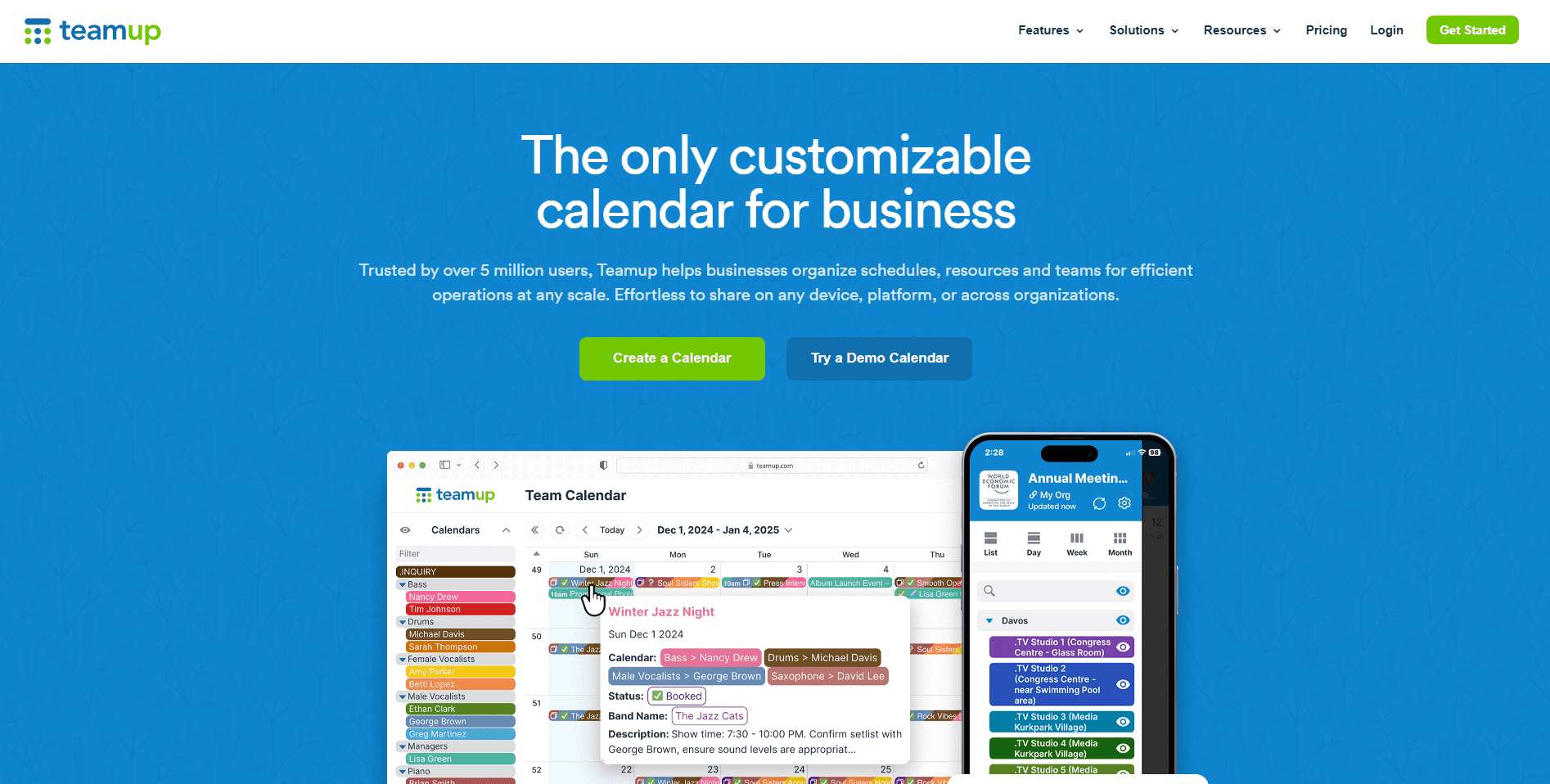
Best for: Teams that prioritize shared visibility, segmented calendars, granular permissions, and easy access for external viewers.
Teamup is the best group calendar app for teams that need a true shared calendar with strong permission controls and no-login access for viewers. It is particularly well suited to volunteer organizations, schools, clubs, and sports teams. This is because Teamup allows everyone to see the calendar, even if they don’t have an account.
The granular access controls are one of the best features of Teamup. It allows different permission levels that can be assigned through shareable calendar links. This makes it possible to share only view access with certain members while allowing others to have complete edit access for the calendar.
Teamup also supports multiple sub-calendars and color-coded views. This helps you separate departments, activities, and shifts in the calendar view to get a clear image from the very beginning.
2. Cal.com: Best overall group and team-based scheduling solution
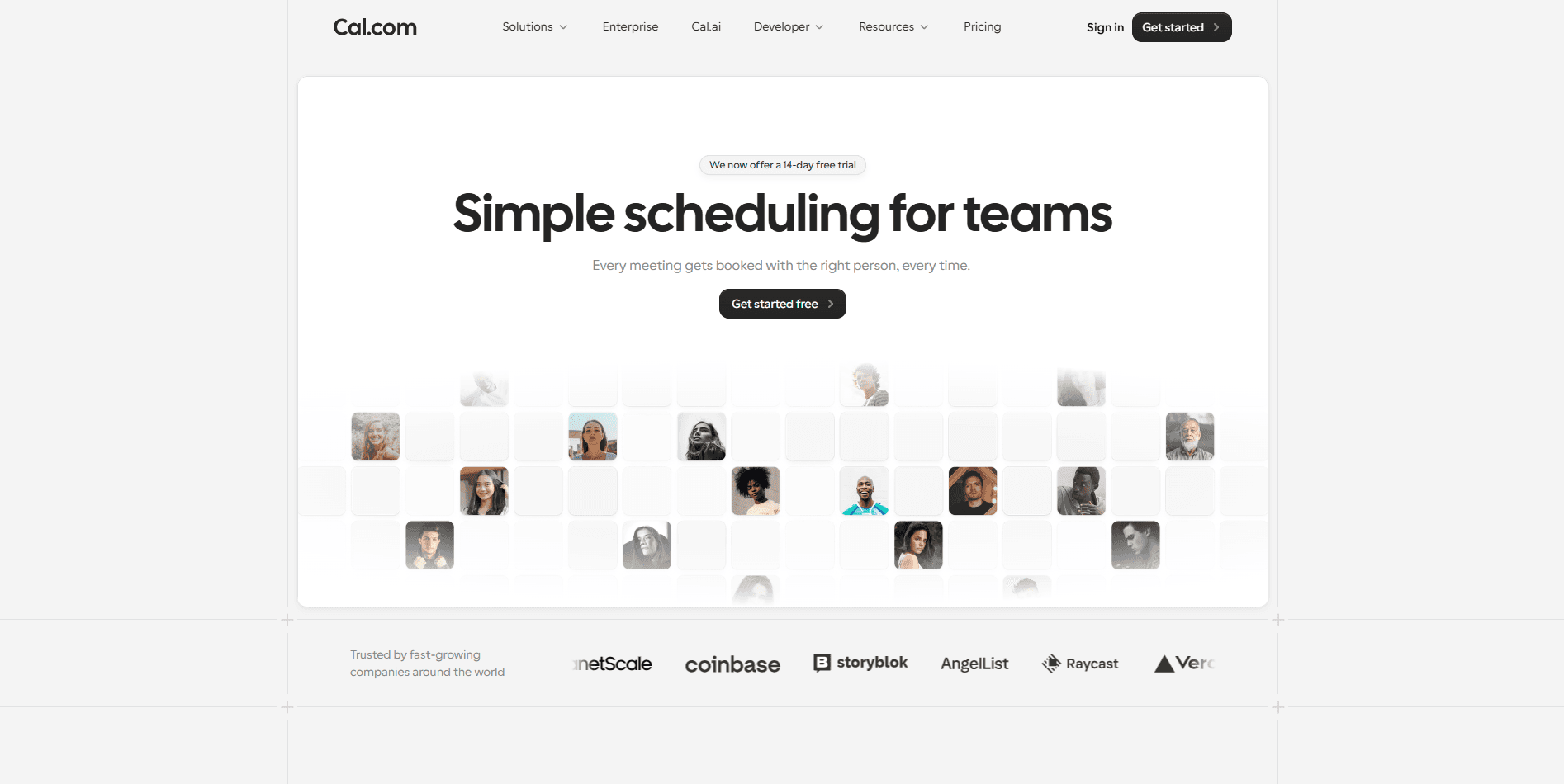
Best for: Cal.com is best suited for teams and groups that want complete end-to-end scheduling capabilities on top of having a shared group calendar.
A shared calendar requires management, which becomes someone’s full-time job. They are tasked with adding, updating, and creating events for the entire team. A scheduling software like Cal.com automates the entire process. It keeps the shared calendar view of a group calendar while allowing anyone to book a meeting with team members or for team members to create a booking with each other from their posted availability. This process completely removes the need for back-and-forth around availability and allows a seamless booking experience for both teams and clients.
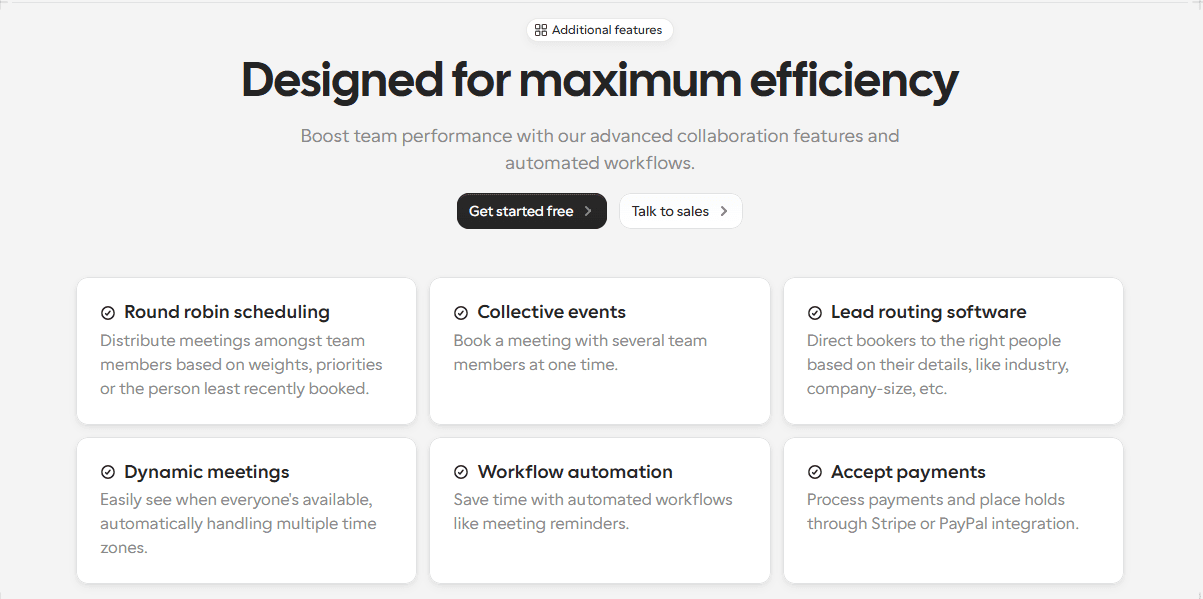
Think of Cal.com as the team scheduling layer on top of your existing calendar setup. This feature set is especially useful for customer success teams, support teams, sales teams, and RevOps teams. The automated scheduling capability, matched with features like round-robin scheduling, allows for automated lead routing, distribution, and management without any manual oversight. The platform uses the availability data from your organization’s shared calendar and assigns each incoming lead to the team member that’s next in the queue or the one that’s available at the earliest.
Another important thing is that with Cal.com, you don’t need to set up these automations every time. You can set it up once, and then the workflows remain automated forever. So, whether it's sending reminders or confirmations to meeting attendees or sharing follow-up emails with potential clients, Cal.com can help you automate your scheduling flow.
3. Google Calendar: Best for teams using the Google Workspace
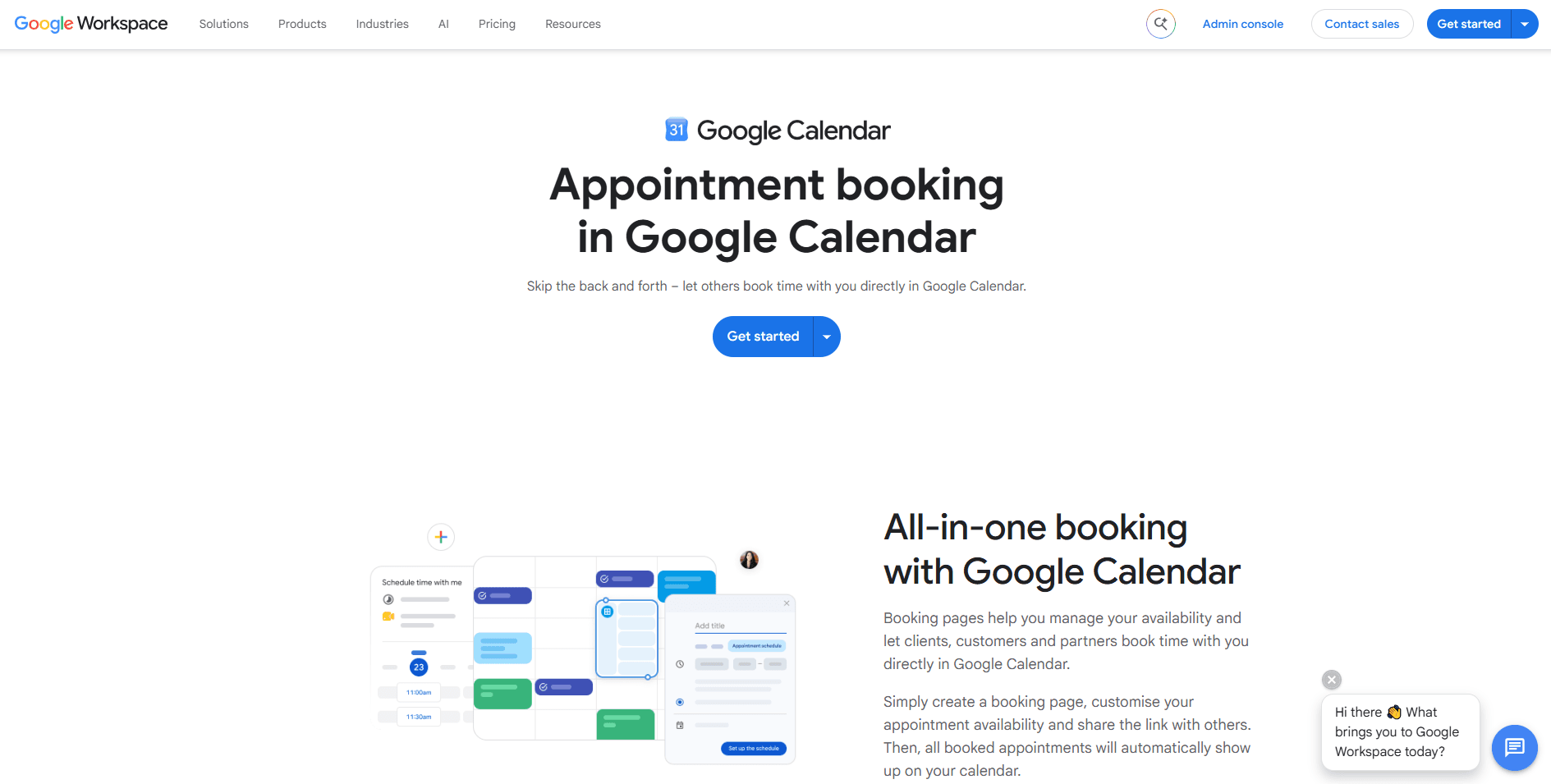
Best for: Google Workspace teams that want a simple shared calendar for teams.
Google Calendar is the way to go for teams already using the Google Workspace because it is the easiest-to-use option in its ecosystem. The close integrations Google Calendar has with other Google apps make it very easy to use for getting visibility of your entire team’s availability in one place. Google Calendar is also lightweight and has great mobile support, ensuring your team can stay up-to-date with their schedules even on the move.
Just like Teamup, Google Calendar also allows permission-based access to team members. You can easily set up a view-only calendar for certain members while offering edit access to others. This ensures that the responsible team members can create the relevant scheduling events and shifts on the calendar in due time, while the other team members can see the schedule to learn about their shifts and weekly work requirements in one place.
Add in the fact that Google Calendar carries Google’s enterprise-grade data security and real-time data sync, it ensures great ease of use and straightforward shared visibility. However, you should know that Google Calendar is not great for no-login access for external viewers.
4. Microsoft Outlook: Best for Microsoft 365 organizations
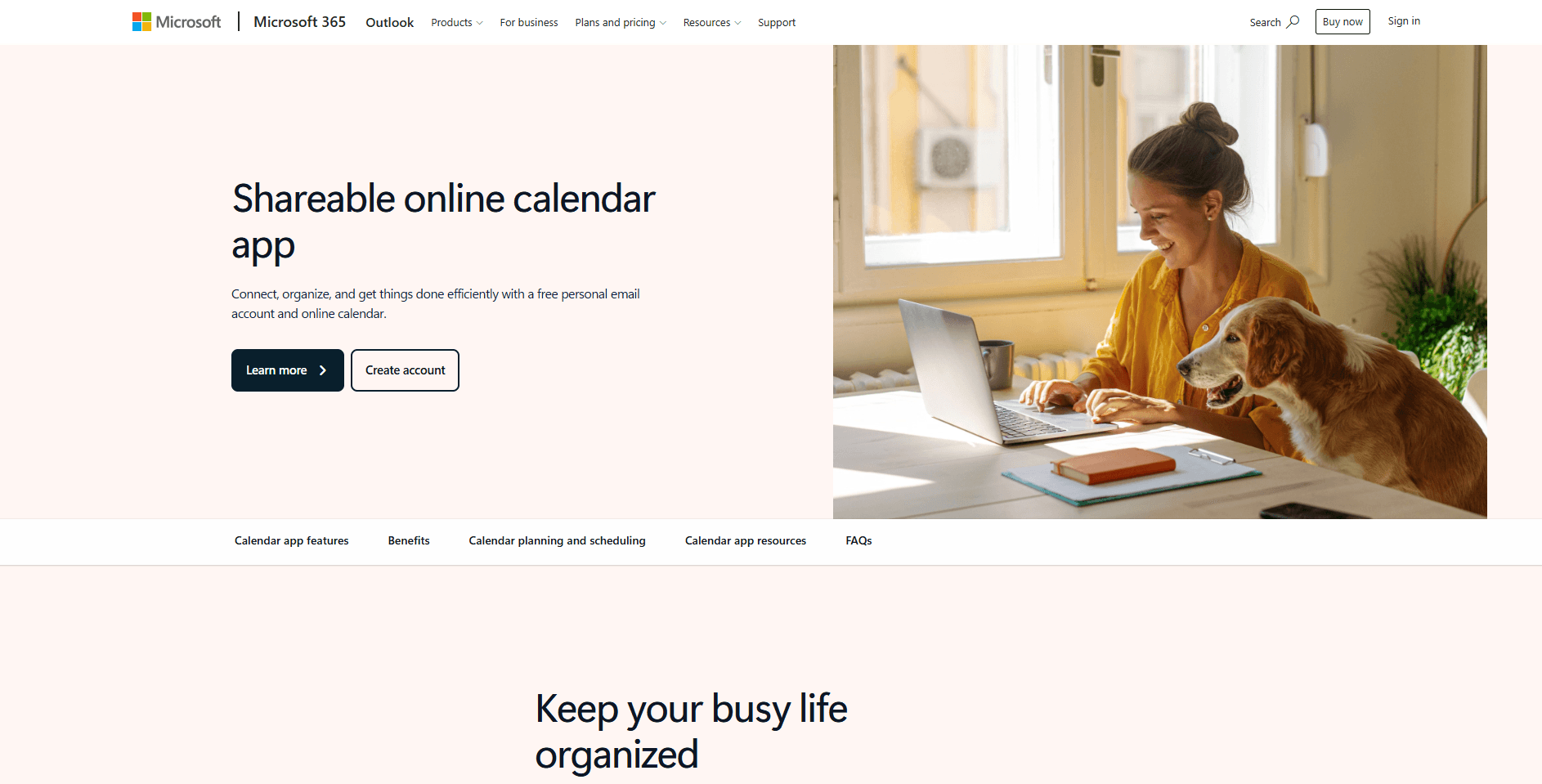
Best for: Organizations using Microsoft 365 that want an integrated team calendar app without having to rely on third-party tools.
The Microsoft Outlook and Teams calendar app is the most powerful group calendar option for teams already using the Microsoft 365 ecosystem. Just like Google Calendar in its ecosystem, the native integration with other Microsoft web apps and services makes it invaluable for existing teams. Additionally, the Microsoft 365 ecosystem is built for enterprise-level businesses, which ensures complete coverage for growing teams and complex workflows across departments, locations, and teams.
With Outlook/Teams, you can coordinate meetings and schedules within the same ecosystem, with access to different modes of communication, including chat, email, video calls, and internal collaboration. One of the only drawbacks of the Microsoft system is that, given its strict security settings, it is difficult to share permissions and view access with external members without an account. Also, highly granular permissions are limited in this workflow, which can be problematic for enterprises as they have complex calendar sharing requirements.
5. TimeTree: Best shared calendar for small groups
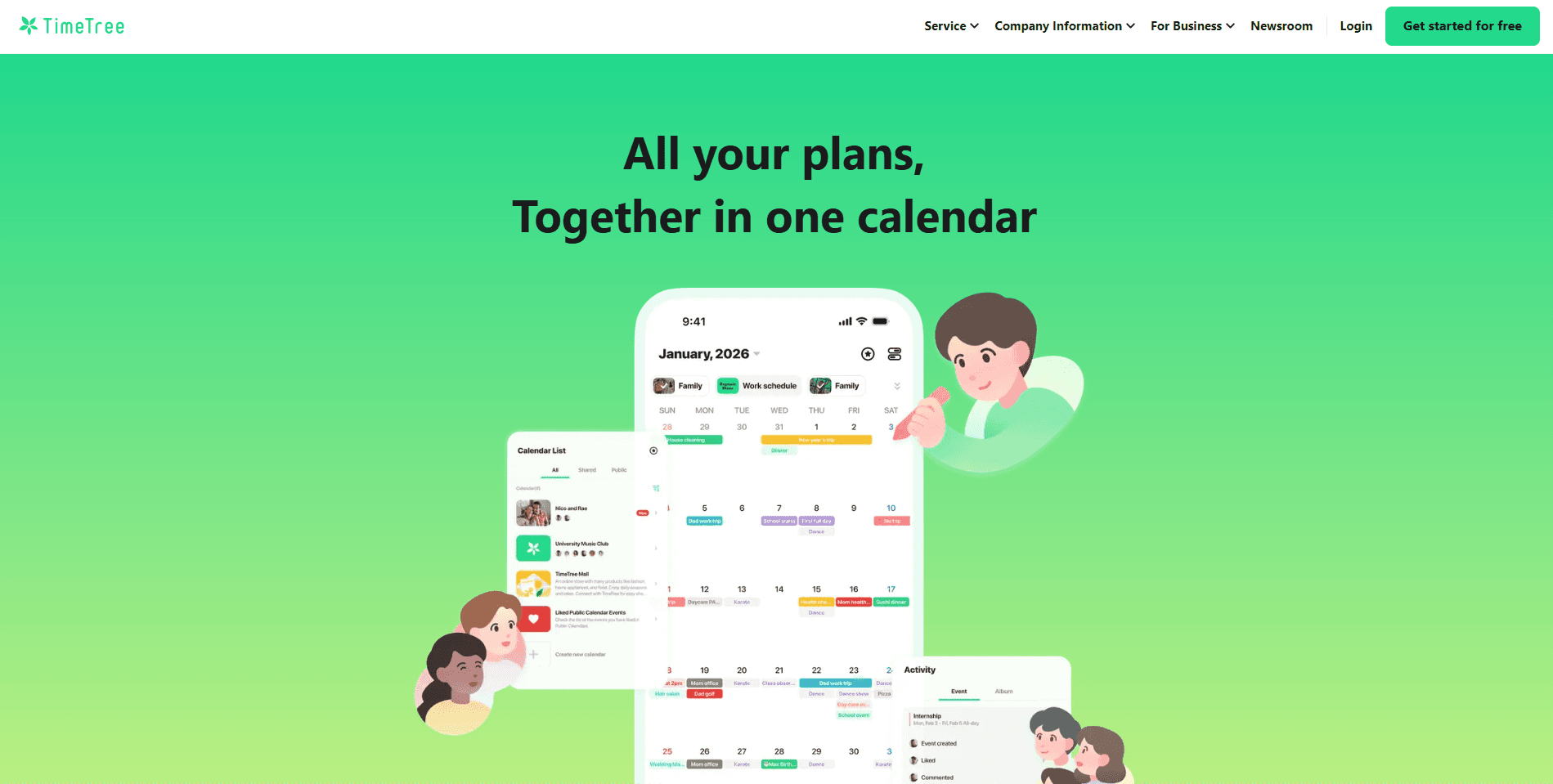
Best for: Small groups that want an easy-to-use shared calendar with mobile access and conversations attached to individual events.
TimeTree is the simpler version of Teamup that’s useful for small groups with a simple schedule. It handles event coordination quite well, and it can actually be optimal for groups of up to five people. The main feature of TimeTree is that it offers every group member access to the same calendar, and it offers per-event chat for each event on the calendar. So, thanks to this feature, users can plan directly around a specific event directly on the calendar.
Similarly, TimeTree is also mobile-friendly, which allows users to keep track of their schedules on the move. The per-event chat feature combined with mobile usability makes TimeTree suited for non-professional use cases as well, such as being helpful for family trips, friends groups, and clubs.
6. Calendly: Best simple scheduling tool
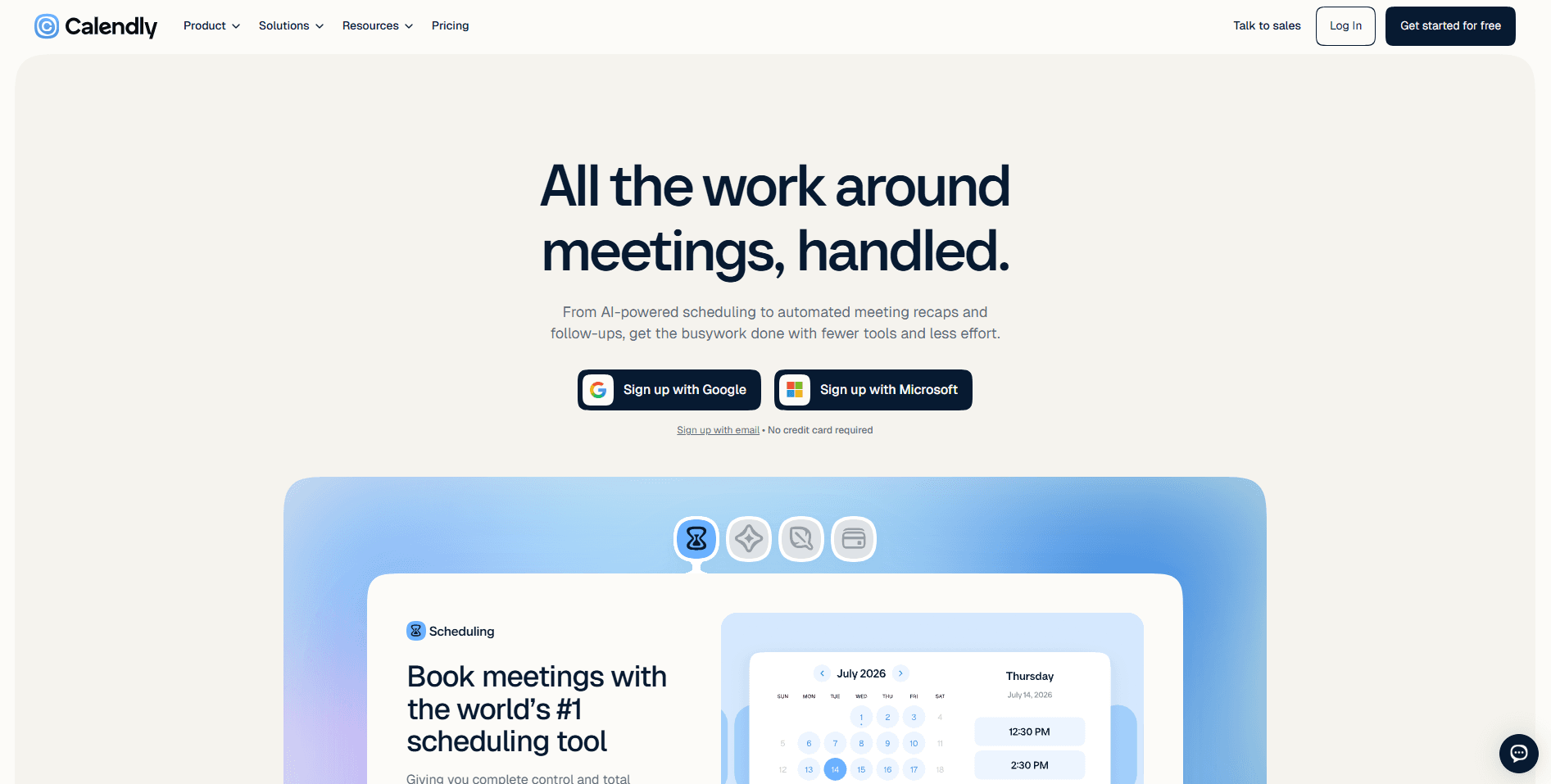
Best for: Teams and individuals looking for a simple scheduling tool for booking meetings based on availability.
Calendly is a scheduling tool for teams that want an easy-to-use, simple scheduling tool for basic team scheduling requirements. Even though Calendly is known for its free tier, it is important to note that team-based features of Calendly are not available on the free plan. Users must get a paid subscription to the Teams plan of Calendly in order to use its team-based features.
Additionally, Calendly is not really a group calendar app for teams. It is more of a booking engine that works on the shared availability of team members. So, in practice, Calendly is most useful for one-on-one meetings more than group meetings. The lack of flexibility on Calendly is a major reason why many teams end up choosing Cal.com over it for an end-to-end scheduling solution.
7. Reclaim.ai: Best for AI-assisted scheduling tool
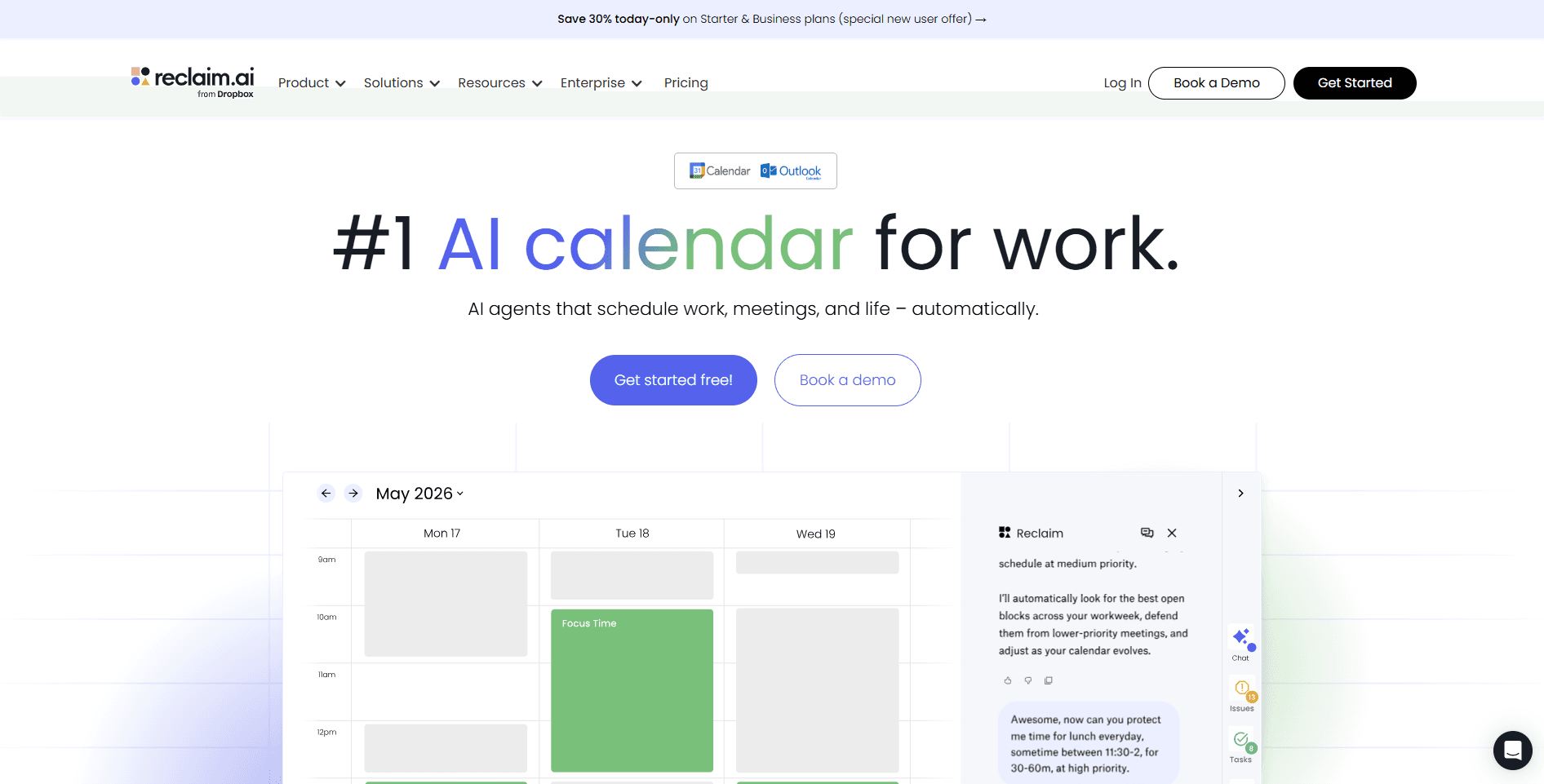
Best for: Teams and professionals who want an AI-assisted scheduling and automatic time management tool alongside their existing calendar.
Reclaim.ai is suited for teams that want a calendar that works alongside them to protect their time. Rather than functioning as a traditional shared “everyone’s events in one view” calendar, it focuses on automatically scheduling and adjusting work around existing calendar commitments.
The platform offers the most value in terms of reducing the manual work associated with scheduling and calendar management. It uses AI-assisted scheduling that helps teams and individuals stay on track with their schedules and have all their events on the calendar. For a club or shift-based organization, Reclaim offers better usability than other calendar apps.
Which group calendar app is best for your team?
The best group calendar app depends a lot on your requirements. Based on whether you need shared visibility, external access, or meeting scheduling, the app that fits your requirements will differ. So, to help you get started, here’s a brief overview of the different use cases for group calendar apps and the ones that suit best in every category.
For Google Workspace users: Google Calendar. The simplest choice and often the best for this ecosystem.
For Microsoft 365 teams: Outlook or Teams Calendar. Same as the other, best choice for its ecosystem thanks to native integrations.
For shift-based organizations: Teamup. Helps teams manage granular permissions and supports a no-login view.
For small groups: TimeTree. Simple shared calendar with good mobile access.
For booking meetings: Cal.com. Best for teams that need availability-based bookings, shared team events, and round-robin scheduling.
For simple meeting bookings: Calendly. Basic scheduling support with paid coverage of team-based meeting scheduling.
For AI-assisted time management: Reclaim.ai. Best for automatically organizing work and protecting time around existing commitments.
FAQs
1. What is a group calendar app (vs. a personal calendar)?
A group calendar app lets multiple people view and coordinate around the same events, shifts, meetings, or schedules. A personal calendar primarily manages one person’s commitments. Group calendar apps add shared visibility, permissions, and sometimes separate calendars for departments, teams, or activities.
2. What's the difference between a shared calendar and a scheduling tool?
A shared calendar helps people see events and schedules in one place. A scheduling tool helps people book time based on availability. Tools such as Teamup and Google Calendar focus primarily on visibility, while Cal.com and Calendly focus on turning availability into confirmed bookings.
3. What's the best free group calendar app for teams?
Teamup is a strong free option for teams that need a dedicated shared calendar, particularly when permissions and external viewer access matter. Google Calendar is also a practical free choice for teams already using Google’s ecosystem, while TimeTree works well for smaller groups.
4. Which shared calendar lets viewers in without an account/login?
Teamup is one of the strongest options for no-login calendar access. Its shareable access links make it suitable for clubs, schools, sports teams, volunteers, and other groups where some people need to view the schedule without creating a Google or Microsoft account.
5. What's the best shared calendar for clubs, sports teams, schools, or shift work?
Teamup is the best fit for clubs, sports teams, schools, and shift-based organizations. Its shared calendar structure, sub-calendars, granular permissions, and no-login viewer access make it easier to coordinate large groups where different people need different levels of access.
6. What's the best group calendar app for a small group of 2–5 people?
TimeTree is a strong choice for small groups of two to five people. It combines a simple shared calendar with mobile access and per-event conversations, making it useful for small teams, families, trips, clubs, and groups coordinating plans together.
7. How do you share a calendar with a whole team in Google or Outlook?
In Google Calendar, create or select a calendar and share it with team members using their accounts and the appropriate permissions. In Outlook, shared calendars can be created and shared within the Microsoft ecosystem. Both work best when the team already uses Google Workspace or Microsoft 365.
8. Which group calendar apps have the best permission controls?
Teamup stands out for granular permission controls, including different access levels that can be assigned through sharing links. Google Calendar and Outlook provide useful sharing permissions, but dedicated shared-calendar tools are generally better suited to organizations needing more flexible access for different groups of users.
9. What's the best group calendar app for Google Workspace teams? For Microsoft 365 teams?
Google Calendar is the natural choice for Google Workspace teams, thanks to its integration with Gmail, Google Meet, and other Google tools. Outlook and Teams are the best fit for Microsoft 365 organizations, where calendars already connect closely with email, meetings, and internal collaboration.
10. Which app is best for team scheduling or booking meetings instead of just viewing calendars?
Cal.com is the strongest choice when your team needs to turn availability into bookings rather than simply view a shared calendar. It supports team event types, availability-based scheduling, and round-robin scheduling, allowing incoming meetings to be distributed across team members automatically.
11. What's the best group calendar app with mobile apps?
TimeTree is one of the best options for groups that primarily coordinate from mobile devices. Its simple shared-calendar experience and event-level conversations work particularly well for smaller groups. Google Calendar and Outlook are also practical choices for teams already using their respective ecosystems.
12. How do group calendar apps handle time zones across a distributed team?
Most modern calendar tools display events based on users’ local time zones while storing the underlying event time consistently. This helps distributed teams avoid manually converting meeting times. Teams should still confirm that invitations and integrations correctly handle daylight-saving changes across regions.
13. What's the best group scheduling poll tool for finding a time everyone is free?
Rallly is a strong option for finding a time that works for everyone through a group availability poll. Unlike an ongoing shared calendar, a scheduling poll collects participants’ availability and helps organizers identify the time slot that works best for the group.
14. How does group calendar app pricing compare, what's free vs. paid?
Several options offer free access, including Teamup, TimeTree, Google Calendar, and Rallly, while Google and Outlook may also be included with existing Workspace or Microsoft 365 subscriptions. For scheduling, Cal.com offers a free individual option, with Teams plans starting from $12 per user per month.

Get started with Cal.com for free today!
Experience seamless scheduling and productivity with no hidden fees. Sign up in seconds and start simplifying your scheduling today, no credit card required!